Topic:
This How-To article provides steps to configuring Single Sign On and Credential Provider on a standalone device, using the SecureDoc Control Center (SDCC) application.
Product version affected:
All version of SecureDoc client
Environment:
Windows 7 OS or newer
Steps to follow:
1. Add a Windows user account
2. Log into windows at least once with the Windows user id because it needs to create a Windows profile
3. Restart the device
4. Log into the SD Control Center with an admin account > Open the SD Control Center > Options > General
5. Please enable the following options:“Synchronize SecureDoc With Windows Password (bi-directional)" and “Synchronized with Matching Windows account only”.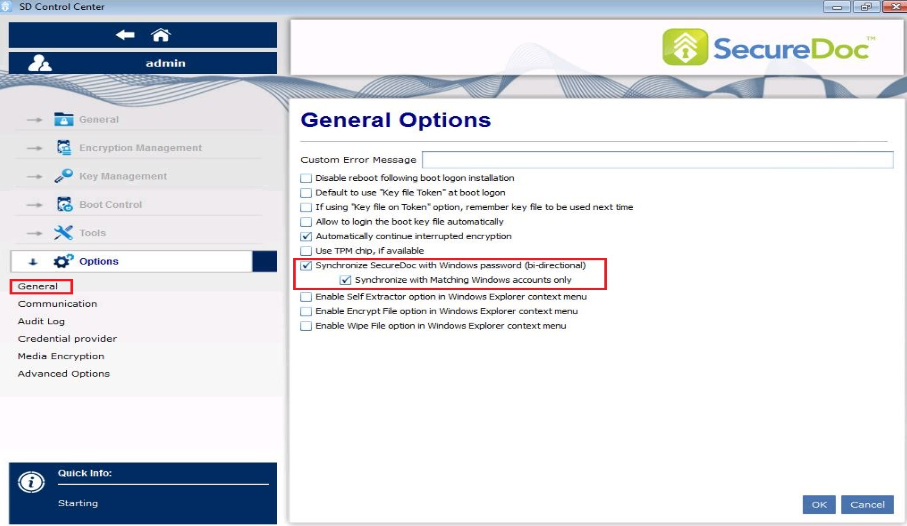
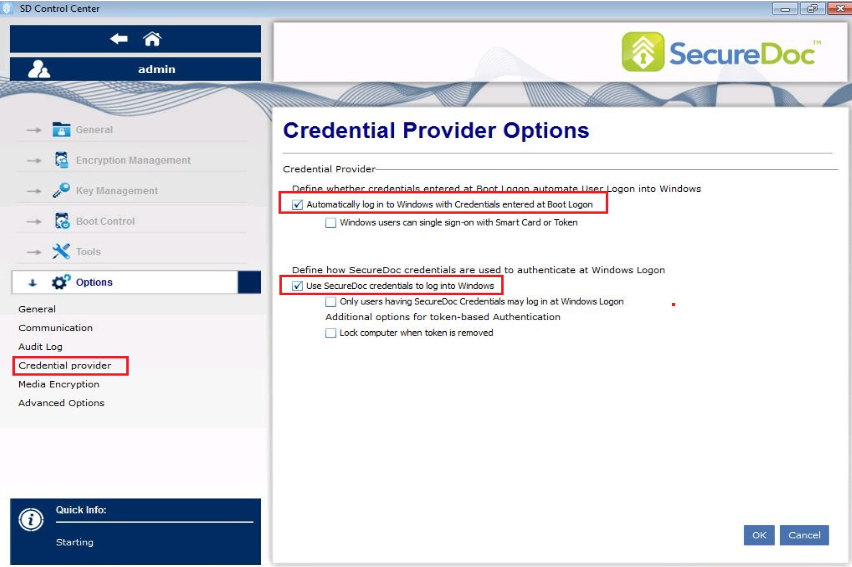
6. Select Options > Credential Provider
7. Select the option, “Automatically log in to Windows with Credentials enter at Boot Logon”
8. Optional: Customer can decide whether to use the option, “Use SecureDoc credentials to logon into Windows” or not.
Note: It is designed to prevent another Windows user from logging into the system.
The client logs in at Boot Logon and then into Windows > Logs off > then someone else logs into Windows.
Without the SD account, the unauthorized user will not get access to the OS.
9. Click OK