Issue:
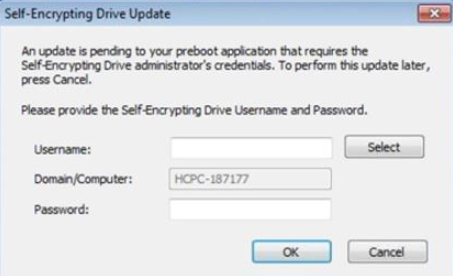
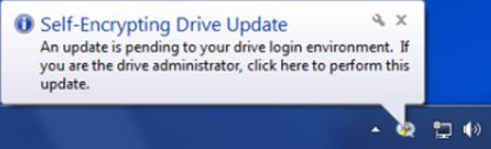
After installing SD on Dell devices, client may see this message asking to update the Self-Encrypting drive.
This message originated from the Dell Data Protection software that is currently installed on the device.
Product version affected:
All version of SecureDoc
Environment (OS/hardware/software):
SED OPAL drives
Dell Data Protection
All Windows OS
Solution/Workaround:
Step 1:
Please backup the *.enc and *.dbk files located in c:\program files\winmagic\securedoc-nt\userdata folder to a USB media or a network drive. These are recovery files to deactivate the drives in the event of mishaps.
Step 2:
Login into the SD Control Center with an Admin-rights Key File, and decrypt the drive.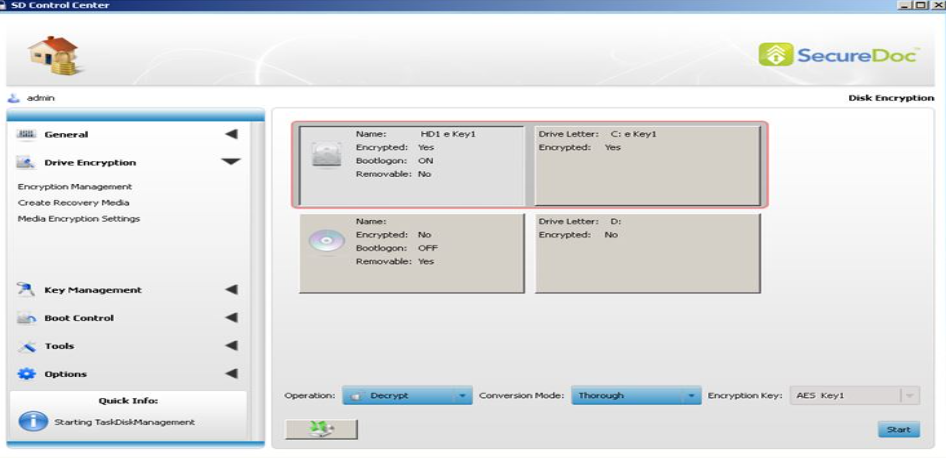
Step 3:
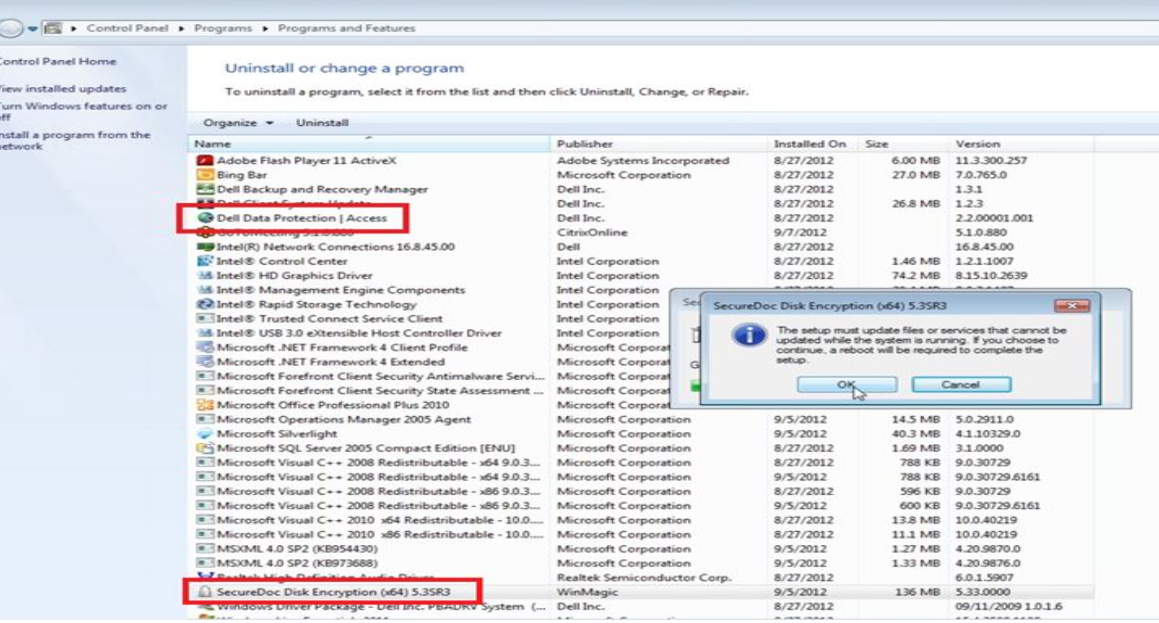
Once the drive has been decrypted, please uninstall SecureDoc Disk Encryption from add/remove program features.
Click No to restart Windows.
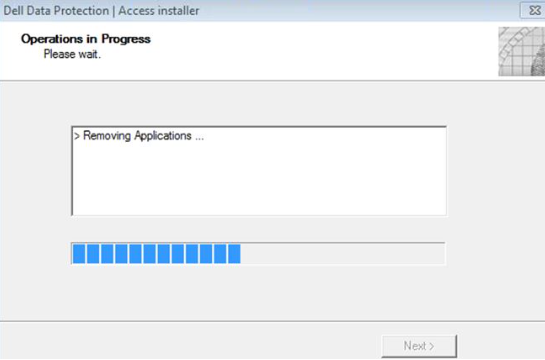
Uninstall "Dell Data Protection" program. Once you have uninstalled this program, shut down (Power Cycle) the device and then power it up again.
Log back into Windows, and run the SecureDoc client software installation package again.
This should now allow only SecureDoc to manage the OPAL drive.