Issue:
ADSync fails to update the SES Console with new user information after client had changed the domain password to the service account.
Causes:
- The service account may be the same but it may have a policy to change password every 30, or 60 days.
- The service account used to setup the initial ADSync Connection is different from the account running the ADSync Service
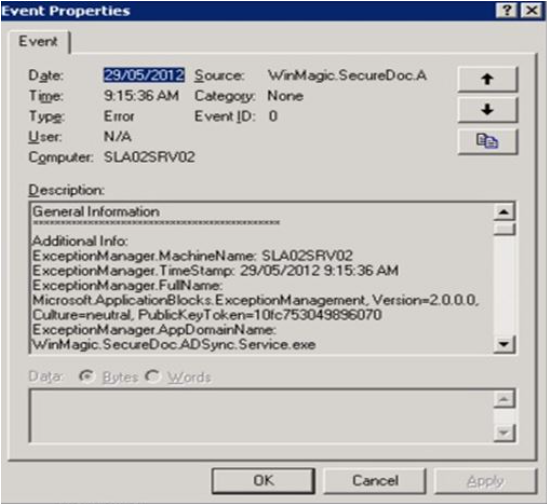
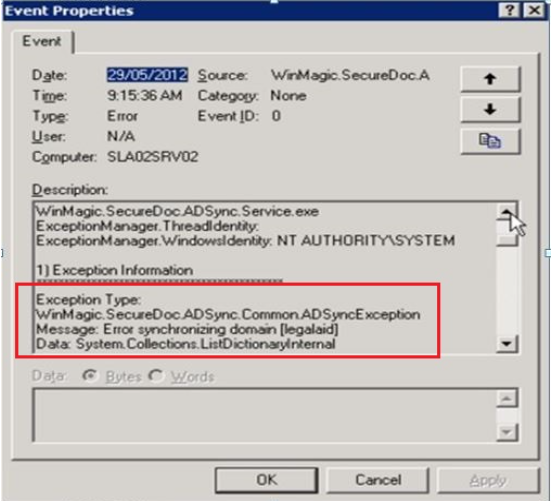
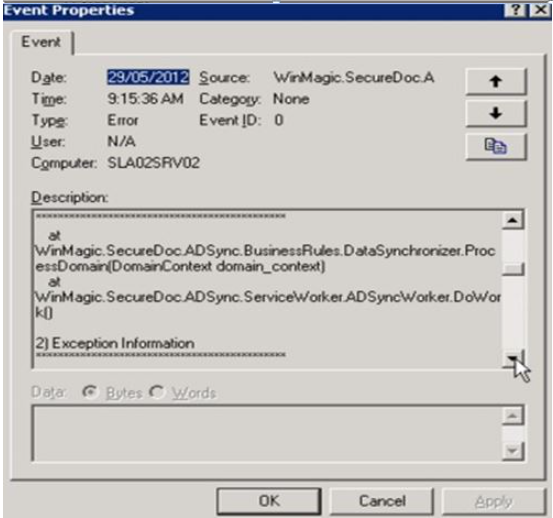
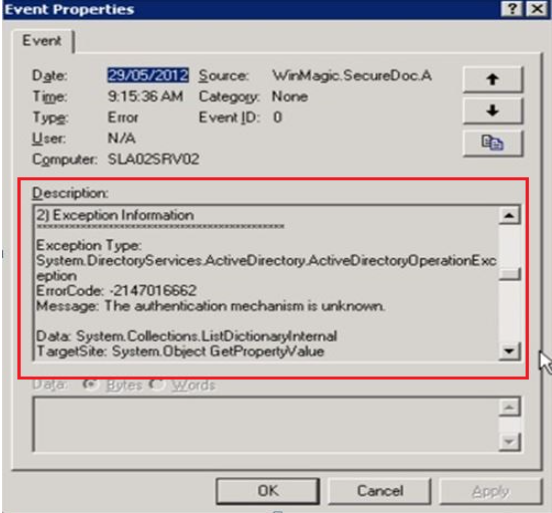
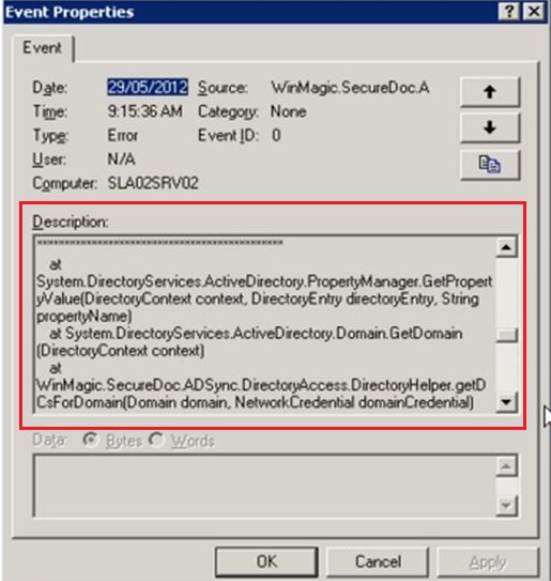
- Look for the following errors in the Application Event Viewer logs.
Product version affected:
All versions of SES running ADSync service on the same box
Environment (OS/hardware/software):
All Windows OS server
Solution/Workaround:
Step 1:
Confirm the above errors in Windows Application Event Viewer and ADSync Event logs.
Step 2:
- Disable password expiry for the AD service account in Active Directory.
- Verify the service account used to setup the initial ADSync Connection is the same as the account running the ADSync Service
Step 3:
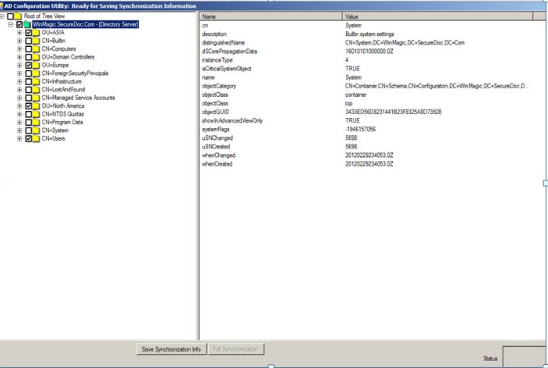
Take notes of what OUs currently selected before discarding the Forest/Domain.
If necessary take a screenshot of the SES console or from the ADSync displaying the OUs currently in used. See example below.
Note: Ensure that every OUs that were previously checked are marked. Failure to re-add all OUs can cause the ADSync to delete users from SES and devices.
(Unless ADSync setting is unchecked: General > ADSync: "Move deleted users to Recycle Bin")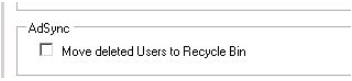
Step 4:
Stop the ADSync Service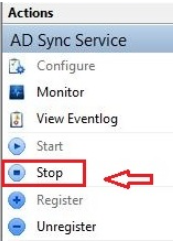
Step 5:
Open AD Sync Configuration and sign back in with the Domain account and the new password > Click on Browse Forest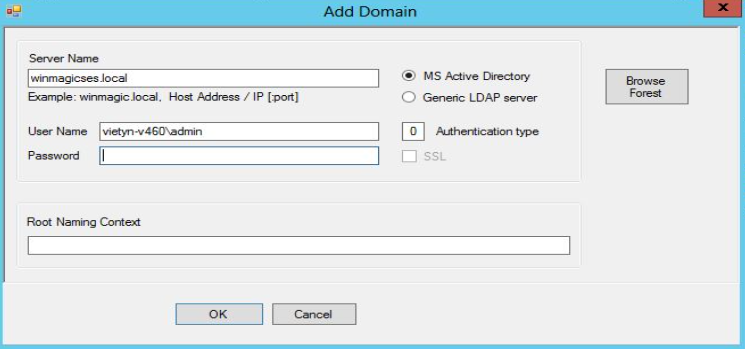
Step 6:
- Discard the Forest and then recreate the Forest by selecting "Add Domain"
Note: Ensure that every OUs that were previously checked are marked. Failure to add all OUs can cause the ADSync to delete users from SES and devices.
(Unless ADSync setting is unchecked: General > ADSync: "Move deleted users to Recycle Bin")
- Click on Save Synchronization Info > Full Synchronization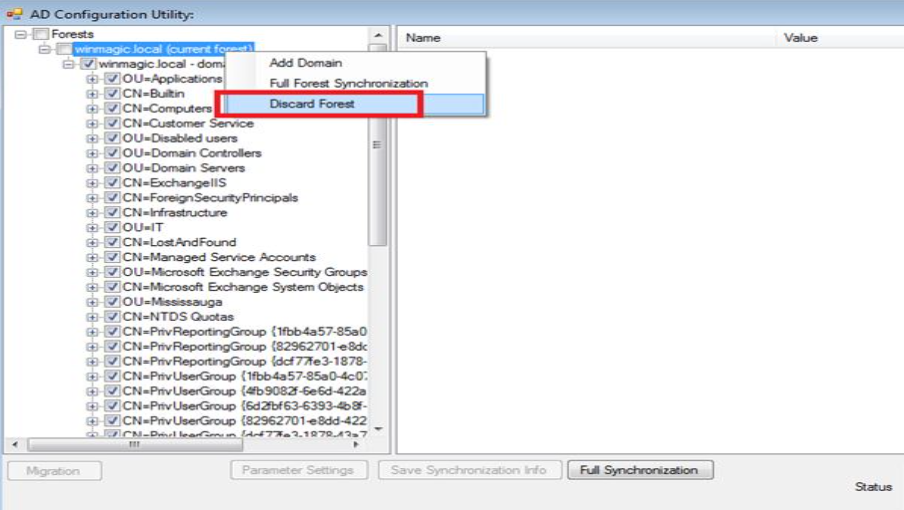
Step 7:
Restart the ADSync service.
Step 8:
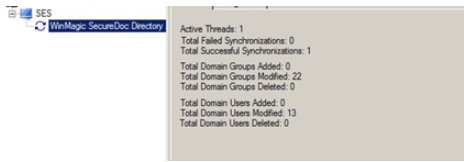
Click on "Monitor" and view the Total Failed/Successful Synchronization information
Verify that the new information are found with the SES server console are populating under the appropriate OUs.