When encountering Error 8214: RSA encryption failed
Published KB1102
Symptom:
During the process of installing SecureDoc on the client device, you encounter a message displayed "Error 0x8214 RSA encryption failed".
Note: You may also notice the error appearing within the SDConnex log file.
Possible Causes
There may be 1 or more scenarios in which this error could be generated. Here are the following possible scenarios:
Scenario 1 - In the event that where the certificate used to protect the administrative key file isn’t supported, (e.g. created as 512-bits)
Scenario 2 - If certificate (P12) was changed in the SES database after the initial installation.
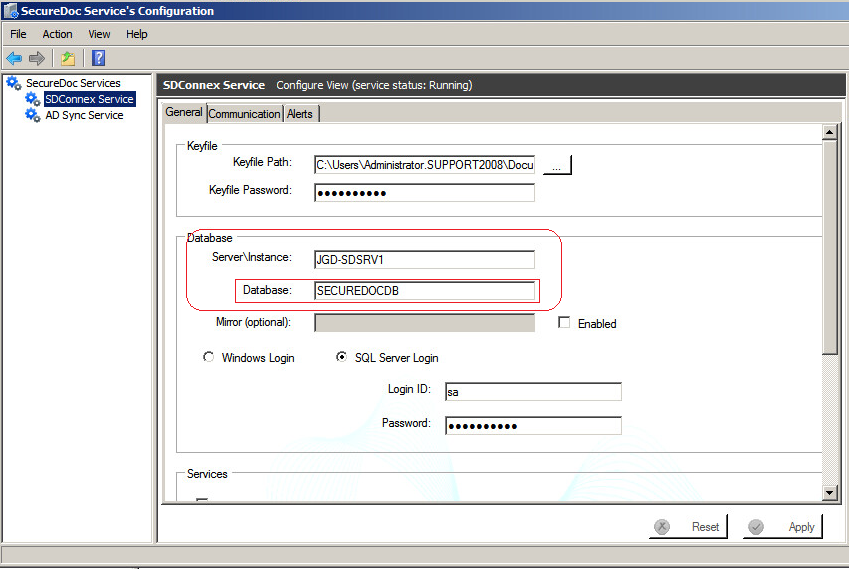
Scenario 3 - Administrator may have possibly used wrong database name in SDConnex during configuration of SDConnex Service.
Proposed Solution:
Checking Certificate:
It’s important to ensure that your certificate used is supported. SecureDoc requires that the certificate to be either 1024-bit or 2048-bit strength. If required, you can create and add a certificate to the administrative account.
Verify if there’s any certificate mismatch or other certificate issue between SES Server and Client:
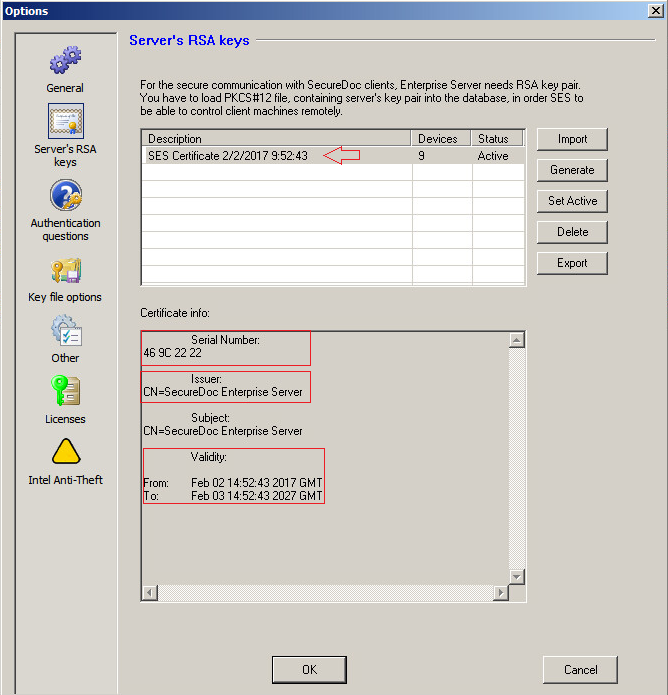
Example for SES SERVER: | |
| To check your SES Server Certificate being used:
Go to Tools->Options Select Server's RSA keys icon As shown on the left, you will see Certificate detail information showing Serial number, Issuer, Validity etc.. Make sure that Certificate has not expired. |
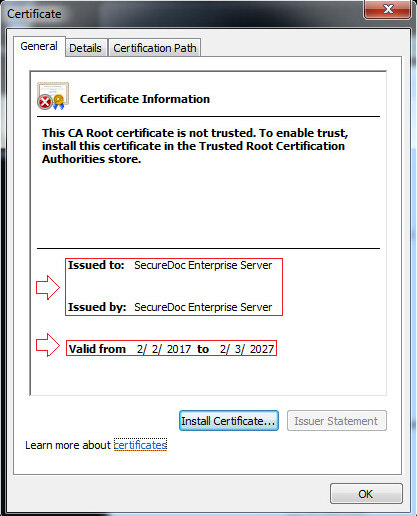
Example of SecureDoc Client device | |
| From Client Device:
Compare the General and Details Tab sections against SES Certificate to see if all of the info does match. You should also make sure to check date on the client (e.g. is the computer's current date set to a date before the Certificate's Validity period?) |
Checking your Database setup
You can check to confirm the configuration setup to verify database used as follows:
- Launch SecureDoc Services Configuration
- Select SDConnex Service.
- Within Database Section >> validate and confirm that you’re using correct database and instance which associated to your SES database.
Screenshot Example: