How to Extract F7 Preboot Log Files from V5 and PBLU Boot Logon
This article provides instructions on how to extract pre-boot logs from a problem device for troubleshooting. If an error occurs during SecureDoc’s Pre-Boot Authentication (PBA, also known as Boot Logon), it may be necessary to gather additional log details and provide them to WinMagic Support for further analysis.
Environment
- Windows operating systems and devices
Product Versions
- Legacy SecureDoc client using V5 Boot Logon (PBL)
- UEFI SecureDoc clients using PBLU
Methods of Extraction
There are two ways to extract pre-boot log files:
Method 1: Using F7 at Error Screen
- When an error appears at the preboot screen and the user cannot log in:
- Insert a FAT32 formatted USB drive.
- Press the F7 key.
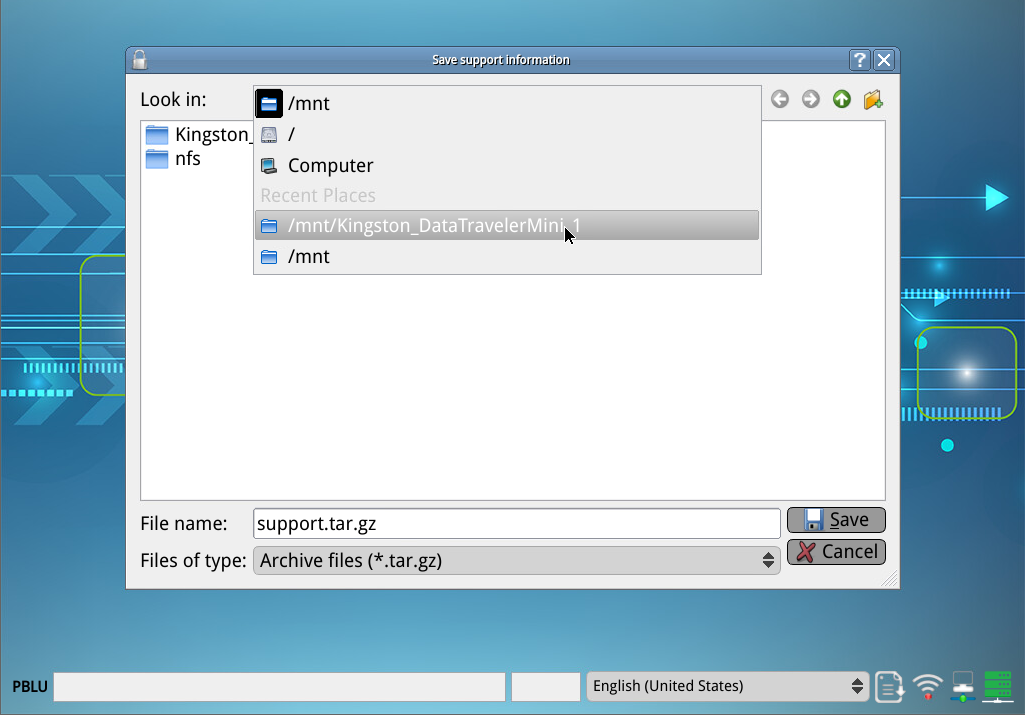
- A Save Support Information file menu dialogue will appear.
- Select the USB device (e.g., sdb1) and click Open.
- A file named support.tar.gz will be saved to the external device.
Important:
- If the system has already passed Boot Logon, this method will not work.
- On V5 bootloader systems, if AutoBoot is enabled, press F10 during power-up to disable AutoBoot and display the Boot Logon screen.
Method 2: Extraction by a specific user
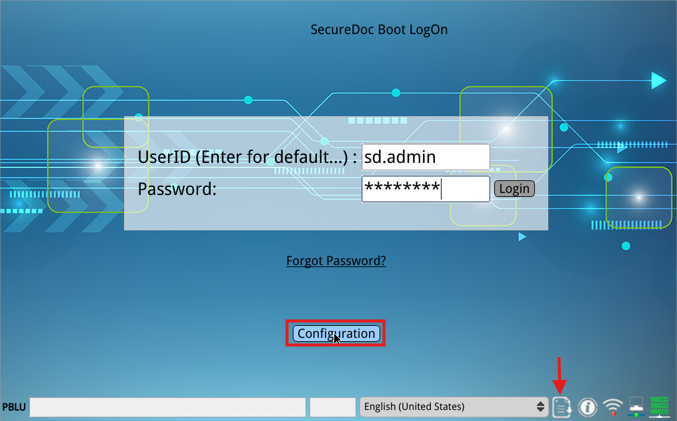
- Enter the user id and password
- Instead of clicking Login, press the F3 function key.
- The Configuration button will appear at the bottom-right corner.
- A Save File icon will be visible between the language selector and the information (i) icon.
- Press the Save File icon.
- The Save Support Information file menu will appear.
- Save the file to the USB device.
Next Steps
Once the support.tar.gz file has been created, send it to WinMagic Support for further investigation.
✅ Result: You have successfully extracted the preboot log files, enabling WinMagic Support to analyze and troubleshoot issues encountered during SecureDoc’s Pre-Boot Authentication stage.