Converting a ‘No Communication’ profile to a client that communicates with the SES Server.
Under some circumstances it may be required to convert a existing SD client that was initially installed with the option set to not communicate with the SES Server to one that DOES communicate. This can be done by importing the profile from a installation package that is set to communicate.
Steps to Import Profile to Device:
Ensure that the desired target profile “SDProfile.spf” has been copied to the target client device to the location C:\Program Files \ WinMagic \ SecureDoc-NT
Modify the file C:\Program Files \ WinMagic \ SecureDoc-NT \ Autologon.ini to append the following line.
SDUTIL /i “C\Sp \SDProfile.spf”
Save the file in “Unicode’ encoding.
Execute the following command at a Command Prompt with elevated Admin Rights.
C:\Program Files \ WinMagic \ SecureDoc-NT\ SDBat Autologin.ini
After execution of the above script, the .SPF file will automatically be deleted.
Open Registry Editor (RegEdit) with elevated Admin Rights.
Navigate to the path HKey_Local_Machine\Software\WinMagic.
-Change the value for "ServiceRunExe" to be "SDBat.exe".
-Change the value for “WizardBatFilename" to be "C:\Program Files\WinMagic\SecureDoc-NT\UserData\Autologin.ini".
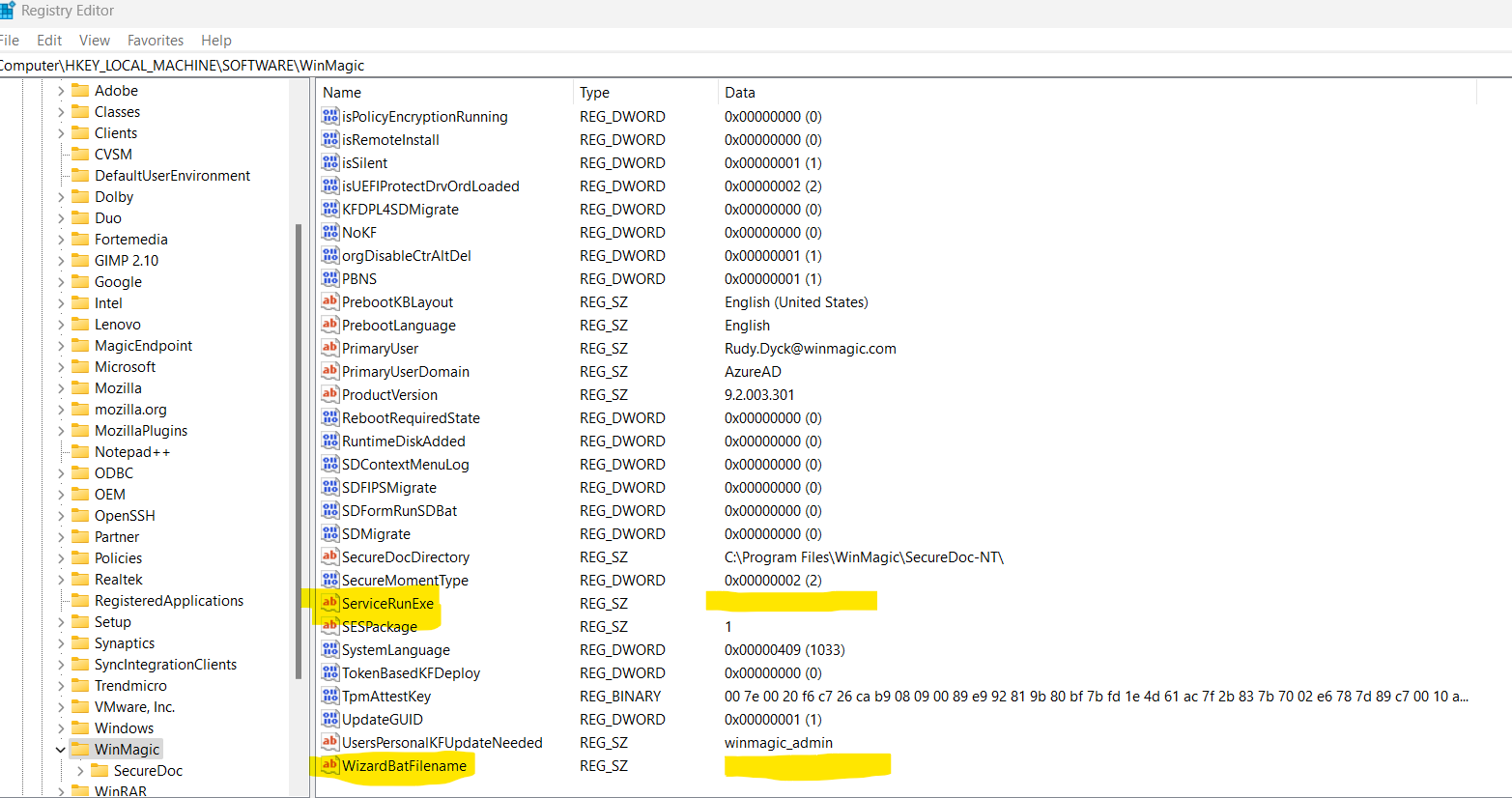
Once those changes are saved, reboot the device.
Log in through SecureDoc preboot and Windows. When the client reaches the Windows desktop it should now be able to communicate with the SES Server. This can be confirmed by right clicking on the SecureDoc icon in the system tray and selecting Communicate with Server.