Case Scenario:
Customers may experience a situation whereby the client devices are not able to communicate with the SES after a change to the server IP address.
This How-To document provides instructions on how to update devices by using the SDUtil.exe command along with an updated profile.
Product version affected:
All SD versions
Environment (OS/hardware/software):
All Windows OS and devices
Steps to follow:
To obtain the most updated profile from the SES console, extract the sdprofile.spf from the remote installation package. Copy the profile to a local device (it can be anywhere on the drive example: c:\sdprofile.spf)
Key Word | /I (uppercase or lowercase I) |
Command | Import SecureDoc profile |
Prototype | SDUTIL /I "SecureDoc profile name" |
Example | SDUTIL /I "c:\SDprofile.spf" |
Example | SDUTIL /I "c:\SDprofile.spf" |
Function | Import SecureDoc profile and change SecureDoc settings in SecureDoc space, registry and SecureDoc INI file. |
Parameter | The first string in “” is the SecureDoc profile name. If there is only profile name without drive and path, we will take Securedoc\Userdata folder as default. |
Open C:\Program Files\Winmagic\SecureDoc-NT\
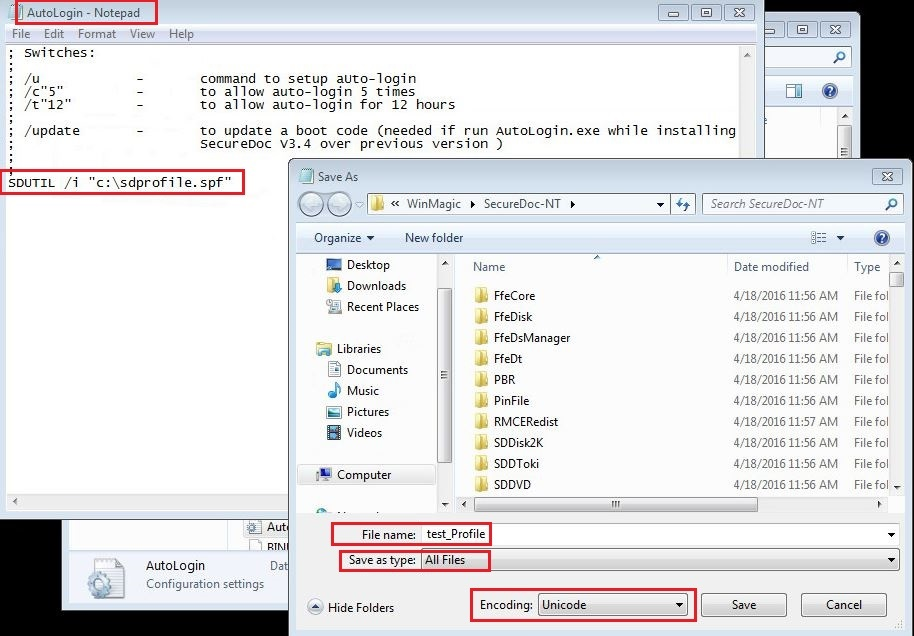
Edit the Autologin.ini file and add the following line: SDUtil.exe /i “c:\sdprofile.spf”
Save the file in “Unicode” and give it a different name for example: test_profile.ini
SDUTIL.exe is a SecureDoc’s internal commands
The switch /I > (lowercase i or uppercase I) is used to import the profile to the device
“C:\sdprofile.spf” is the location and name of the profile that is use to update the device
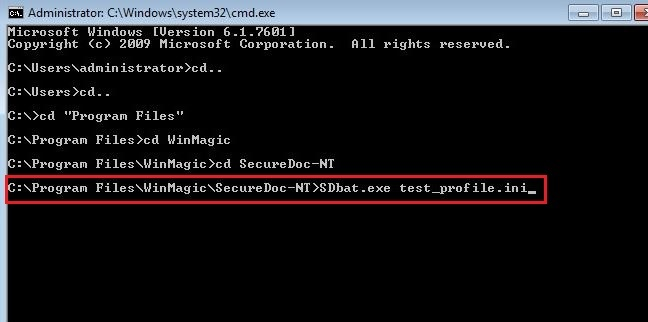
Open the CMD prompt with administrative rights
Browse to C:\Program Files\Winmagic\SecureDoc-NT\ and execute SDBat.exe test_profile.ini
It should prompt for an update message.
Once the script is executed the profile is removed.
Reboot the device and then log back into the Windows and try communicating with the server.
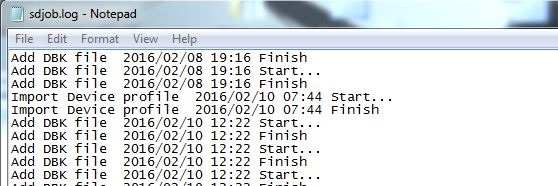
The C:\program files\winmagic\securedoc-nt\userdata\sdjob.log file can verify whether the profile has been imported successfully with same data\time match.
The C:\program files\WinMagic\SecureDoc-NT\userdata\securedoc.ini file can confirm that the IP address has changed (before or after reboot).
It is also worth to note that this process can be scripted by a Windows administrator, once the manual process has been verified