Topic: How to force client to communicate with SES by using the command line
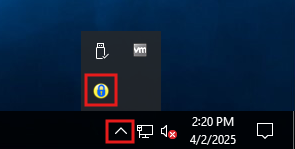
Customers might have setup their devices profiles with client configuration to "Hide" SecureDoc icon in the system tray, and this might delay communication to the SES to add new users, key files or execute profile updates if the system does not reboot.
This How-To article provides instructions on how to force clients to communicate with SES by using the command line. Administrators can follow the instructions below to force clients to communicate and receive updated keys\profiles without waiting for default communication time to be reached.
The endpoint communication interval can be configured in Profile 🡺 General Options 🡺 Communication settings and is defaulted to 60 minutes.
Product version affected:
All SD versions except 7.1 SR1 - 7.1 SR2a (bug versions)
7.3 will be address the bug.
Environment (OS/hardware/software): All devices and Windows OS
Steps to follow:
1) Open Windows Command prompt as administrator
2) Run command: sc control “winmagic securedoc service” 141
3) Hit enter and client will now force to communicate with server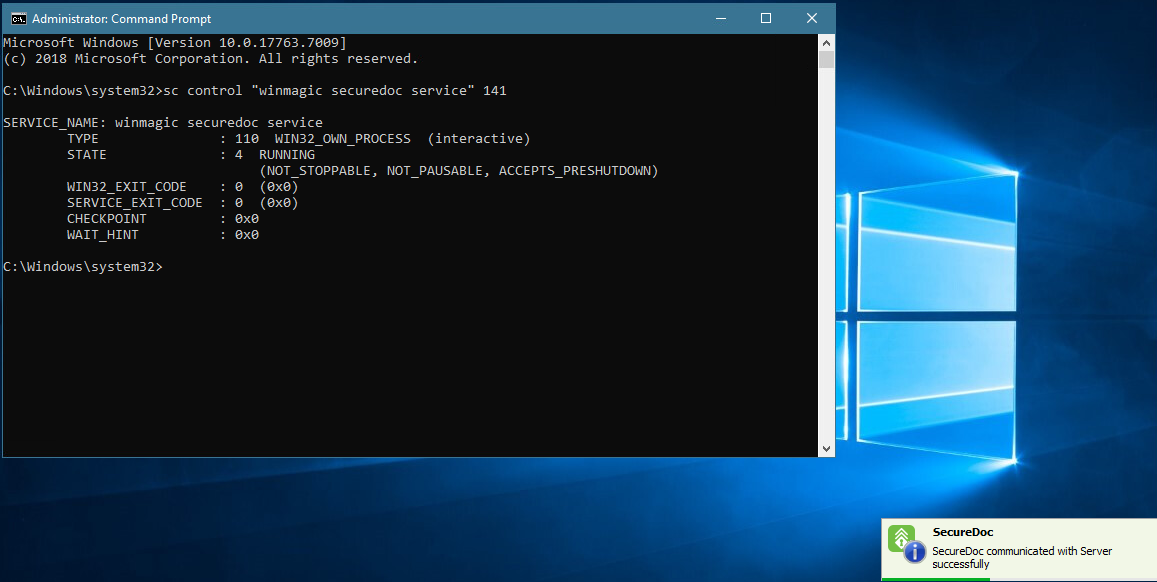
Limitation: In 7.1SR1-7.1SR2a, this command line (sc control 141) failed to work properly.
The issue will be resolved in 7.5.
Reference: SD-16942