In certain situations it might be necessary to kill the SDService Service. This is due to the protection of the service not possible without further steps. See KB 1550
These are the instructions for stopping the SDService via command line on a German System
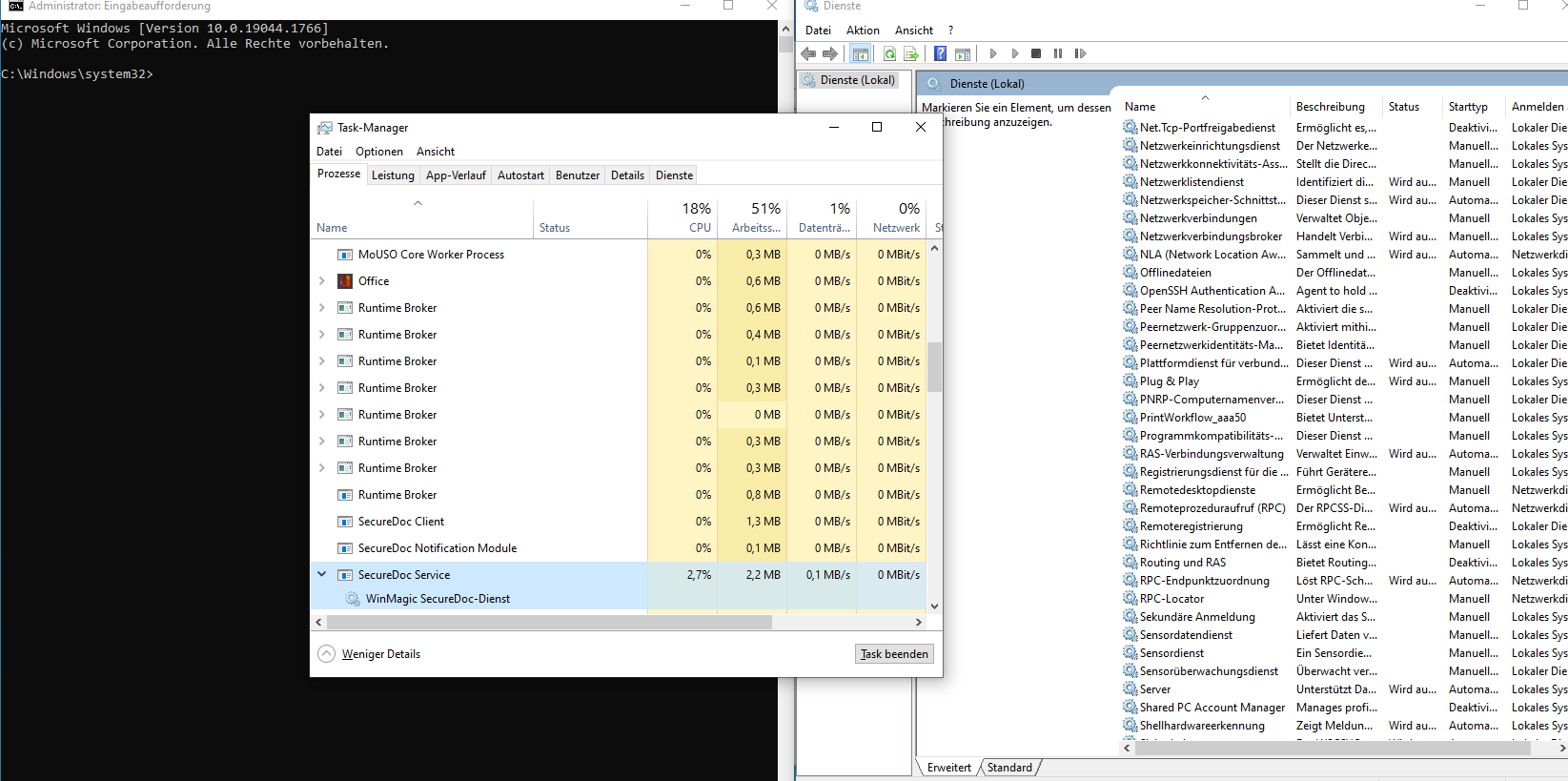
This is the status before we start:
- SecureDoc Service is started and visible in the Task Manager
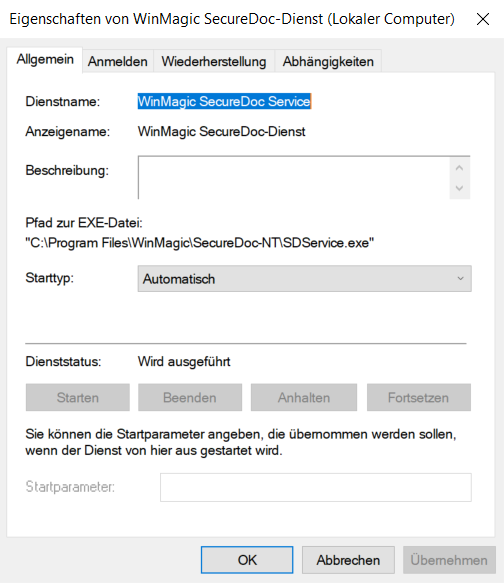
This is what the Service Properties looks like in a German Windows 10 Environment:
- Service status is Running (Dienststatus: Wird ausgeführt)
- Startup type is Automatic (Starttyp: Automatisch)
As the digging in the registry is sometimes difficult, here are the two cmd commands needed.
1) First start the console with elevated privileges. For example by Windows Key and typing cmd and choosing run as administrator.
2) Paste this command and hit enter to add the Value 2 for SDServiceUninst.
reg add "HKLM\SOFTWARE\WinMagic\SecureDoc" /v SDServiceUninst /t REG_DWORD /d 2
When this was successful you will see the line "Der Vorgang wurde erfolgreich beendet".
This means the value was added to the key in the registry.
3) The next step is to stop the Service.
run the command net stop "WinMagic SecureDoc-Dienst" in the same console. 
The success message is: WinMagic SecureDoc-Dienst wurde erfolgreich beendet.
This is what the properties of the service should look like: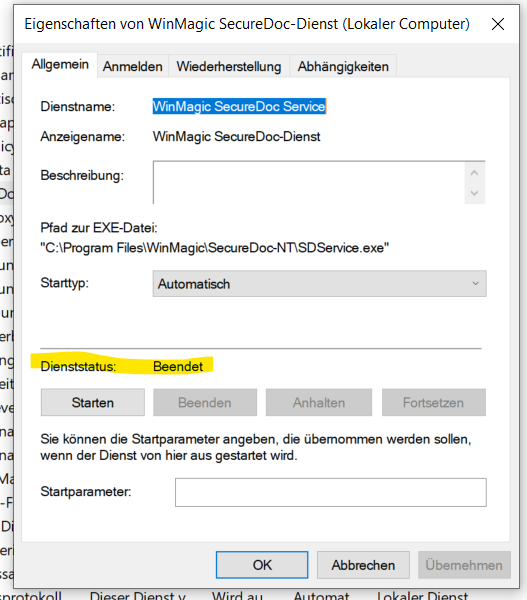
4) To start the service again, if needed use the following command:
net start "WinMagic SecureDoc-Dienst"
The following messages will be on a success: 
WinMagic SecureDoc-Dienst wird gestartet.
WinMagic SecureDoc-Dienst wurde erfolgreich gestartet.
Addendum:
To check the services on a German Windows you will need to look for Dienste instead of services.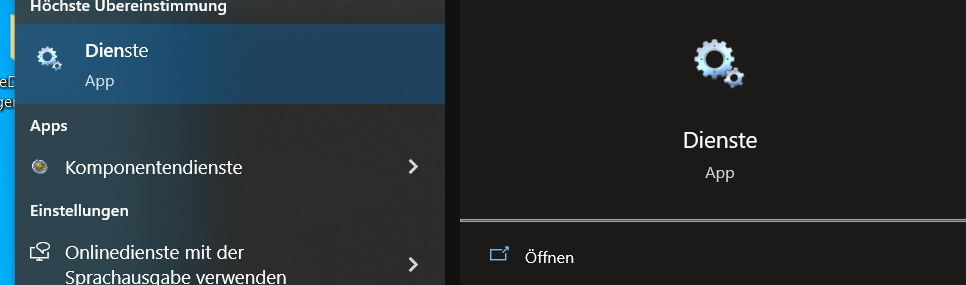
Search terms: Kill SDService command line cmd stop service German Deutsch Dienst beenden