Issue:
Application crash issues can be somewhat tricky to resolve – especially if dealing with a third party application. The WinMagic Support team may request the customer to run the Application Verifier tool to determine how it can be leverage when troubleshooting application issues:
Product Version Affected:
All SD versions
Environment (OS/hardware/software):
Varies
Procedures:
Step 1:
Start > type application.exe > Select either the 32 or 64 bit application verifier app.
Step 2:
Click on File > Select “Add Application” > browse to C:\program files\Winmagic\SecureDoc-NT folder and search for SDService.exe.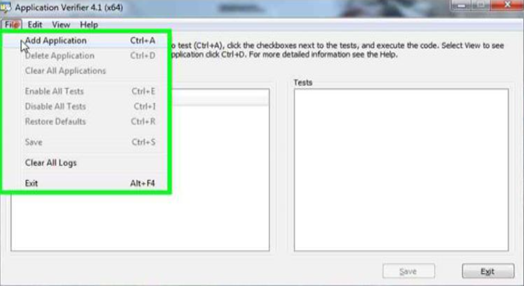
Step 3:
Click on the + sign beside “Basic” and checked off the following options as shown in the screenshot below.
(Optional: Right-click in the left hand pane and select Add Application and then select the executable for the program you are testing. Once you have the program selected, you can select the tests you want to perform in the right-hand pane, and.)
Click OK.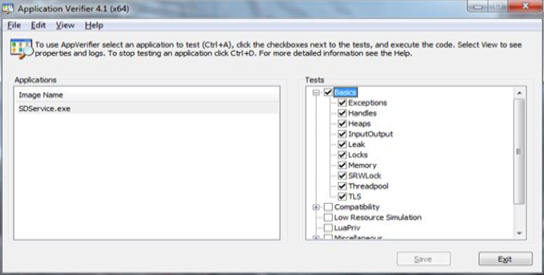
Step 4:
Open the WinMagic Control Center or start the SDService.exe as normal. When you exit the application, or if it encounters an error, you can review the logs to see the results. For our example, we’re using a Sample_Program.exe with known issues.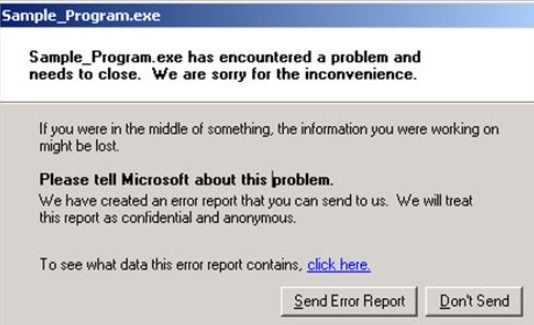
Step 5:
Right-click on the selected log that are needed to be view, select “Save As”, and choose a location to save off the file:
Please save the file as an xml file.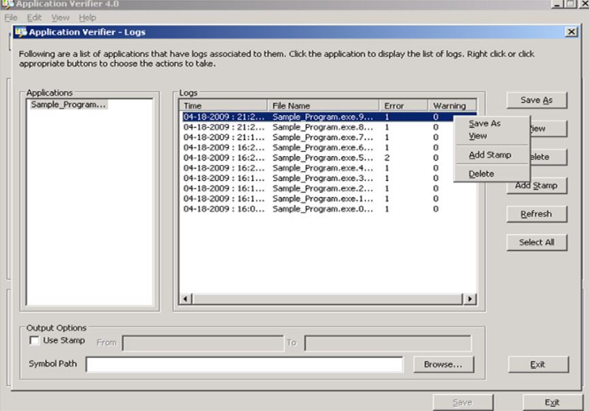
References:
http://blogs.technet.com/b/askperf/archive/2009/05/22/two-minute-drill-application-verifier.aspx