How to perform a manual uninstall of SecureDoc from a client device?
1. PRE-CONDITIONS
The procedure outlined in this document explains how to manually clean SecureDoc drivers from a system in cases of corrupted installation or uninstallation.
Note: Only proceed with steps provided within guide only if ALL of the following conditions were met:
- Drive must not be partially encrypted
- SecureDoc cannot be uninstalled from Add/Remove Programs
- SecureDoc cannot be uninstalled through MSI Command Line Uninstall Procedure
- BootLogon must not be installed on drive
Disclaimer: Failure to ensure the above Pre-Conditions are being met, could result in an unbootable OS and potential data loss.
2. CHECKING FOR PRE-CONDITIONS
2.1 Partial Encryption
Use SDRecovery 3.0 and above to check for drive status. If drive status says encrypting,
do not proceed with the procedure outlined in this document. Contact WinMagic Technical Support or the Partner within your region.
2.2 SecureDoc cannot be cleanly uninstalled
The clean uninstall procedure requires for you to perform the following:
- first decrypt the drive
- uninstall BootLogon
- uninstall SecureDoc from Add/Remove Program.
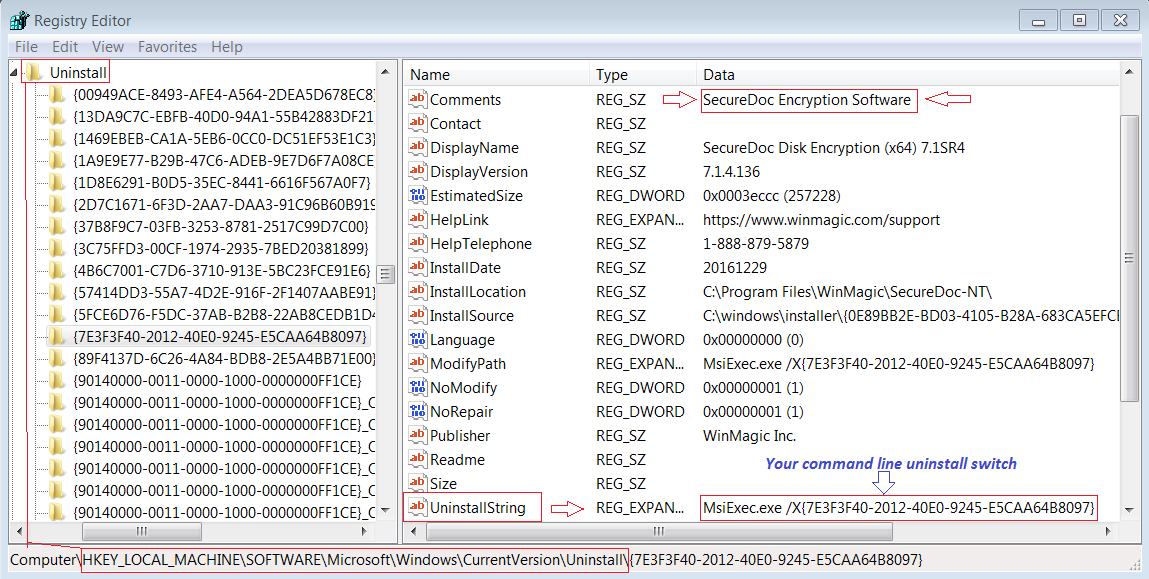
Alternatively, if drive is decrypted and BootLogon uninstalled, SecureDoc can be uninstalled through the command line. You will 1st need to locate the Windows Registry hkey in which will have the required uninstall switch command.
Note: The uninstall switch command will vary depending on which version of SecureDoc was installed.
Steps: Launch Windows Registry Editor (Regedit)
- Go to HKEY_LOCAL_MACHINE\SOFTWARE\Microsoft\Windows\CurrentVersion\Uninstall
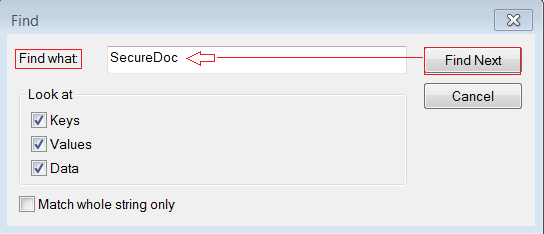
- Right-click on Uninstall then select Find
- Within the Find dialogue window, enter “SecureDoc” in Find what entry field.
- Verify Comments string relates to SecureDoc Encryption Software to confirm you’ve located correct HKEY location path.
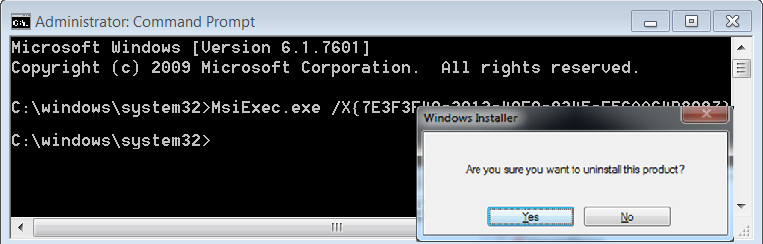
- Launch Command Prompt as Administrator
- Run the command line uninstall switch obtained from UninstallString
2.3 Check for BootLogon Status
Verification Steps:
- Launch Windows Registry Editor (Regedit)
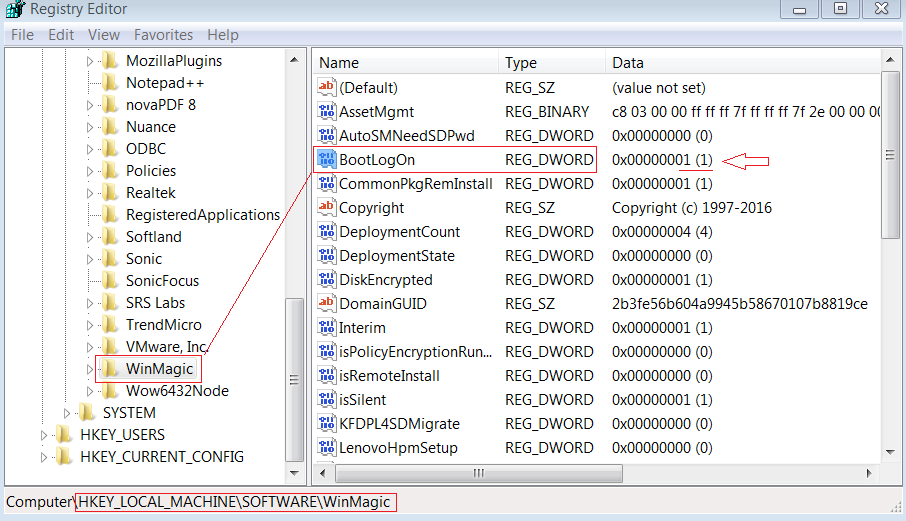
- Go to <HKEY_LOCAL_MACHINE\SOFTWARE\WinMagic>
- Locate value key for BootLogOn
If value key is set to 1 then… Do not proceed with this procedure.
Please Contact WinMagic Technical Support or the Partner within your region.
SDRecovery application is also an indicator as to whether BootLogon is installed.
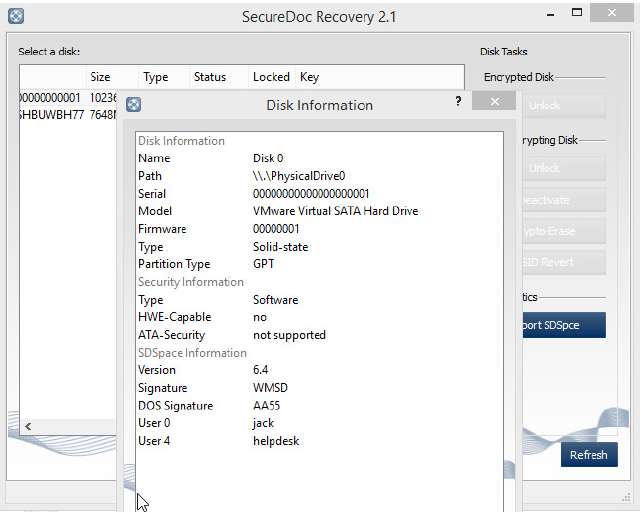
3. KILL SDPIN
Check within Task Manager to see if SDPin.exe is running
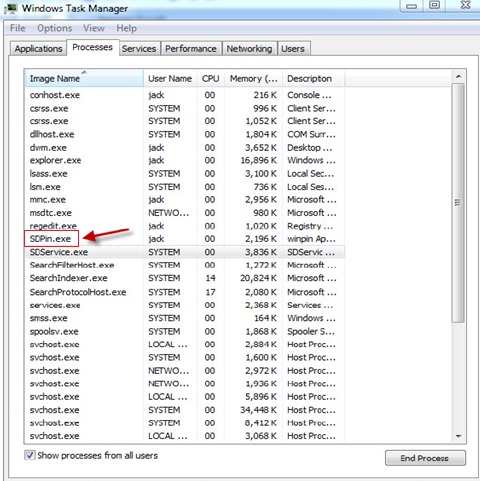
- Right-click on SDPin process then, click on End Task
- Delete SDPin from HKey registry under <HKEY_LOCAL_MACHINE\SOFTWARE\Microsoft\Windows\CurrentVersion\Run>
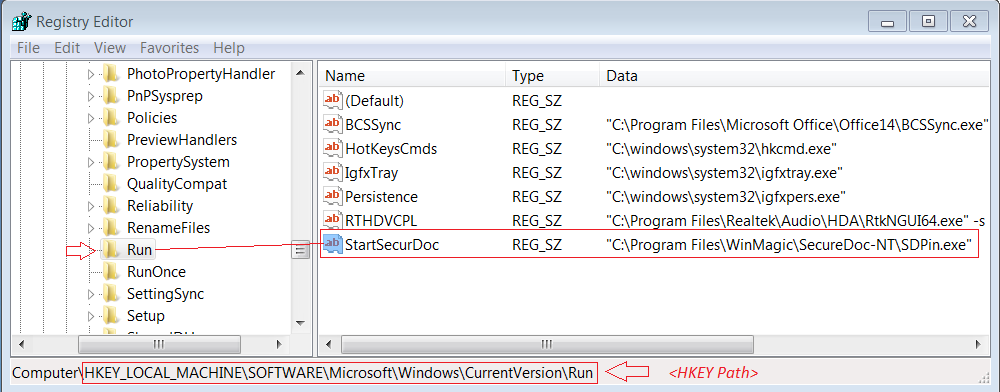
- KILL SDSERVICE
Since SecureDoc 6.4, the option to stop the SDService is greyed out. 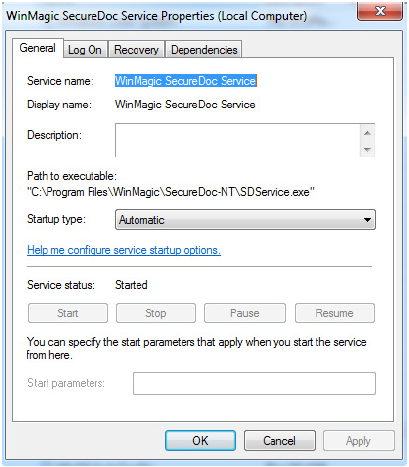
Note: Any version prior to 6.4 - this step is not required.
- Launch Windows Registry Editor (Regedit)
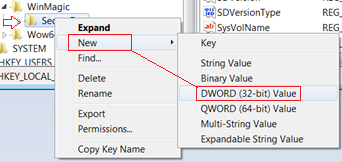
- Go to <HKEY_LOCAL_MACHINE\SOFTWARE\WinMagic\SecureDoc>
- Right Click on SecureDoc then select New - > DWORD (v32-bit) Value
- create the ‘SDServiceUninst’ for DWORD value key and type in a value of ‘2’.
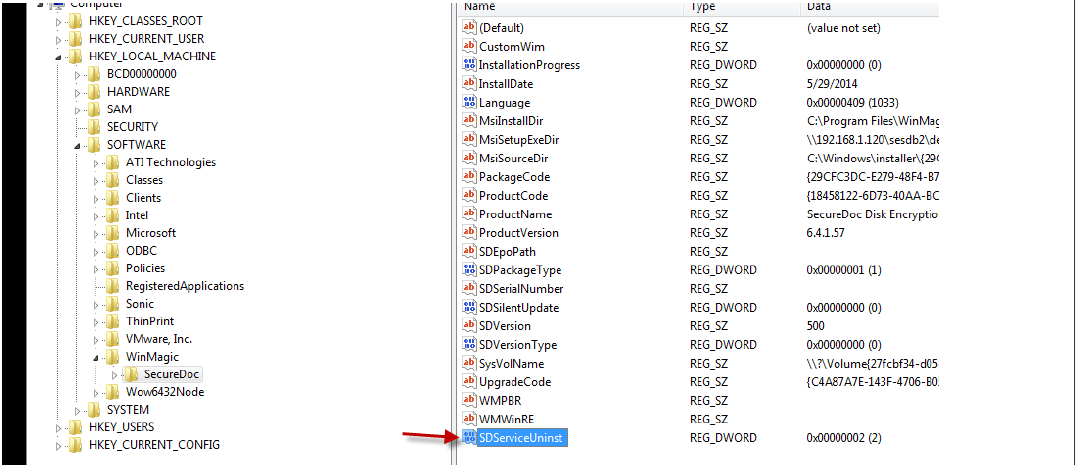
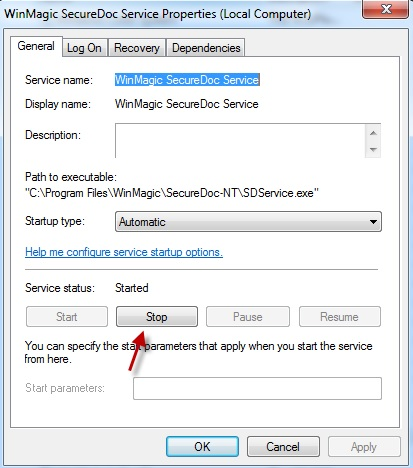
If steps were successful - The option to stop the Service now becomes available.
Proceed to stop the SDService
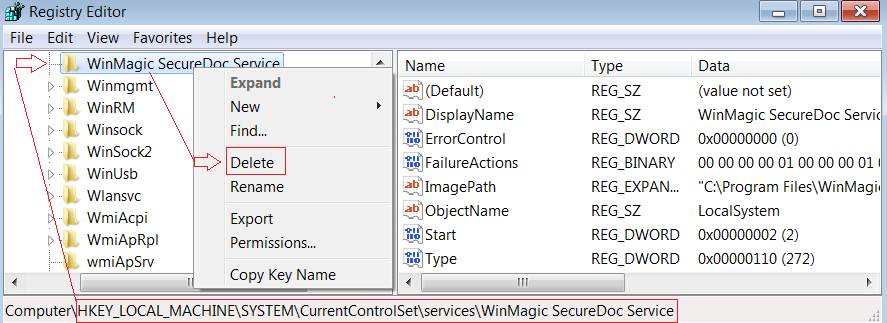
Delete the SDService key in the Registry:
Within Windows Registry Editor:
Proceed to Stop the SDService, then Delete the SDService key in Registry key path -> HKEY_LOCAL_MACHINE\SYSTEM\CurrentControlSet\services\WinMagic SecureDoc Service
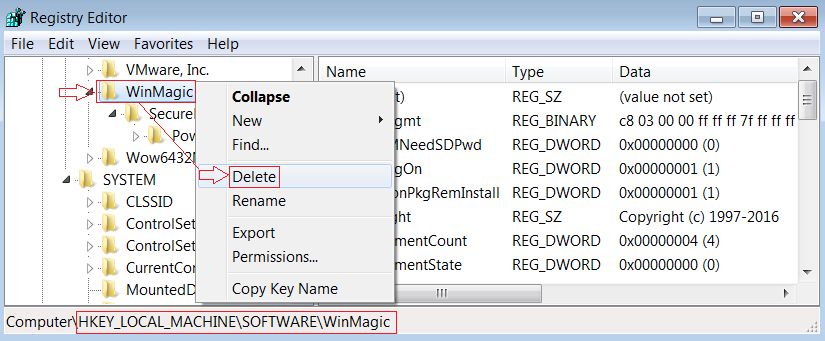
- DELETE WINMAGIC REGISTRY KEYS
Within Windows Registry Editor:
Delete the WinMagic key in Registry key path -> HKEY_LOCAL_MACHINE\SYSTEM\CurrentControlSet\services\WinMagic SecureDoc Service
- DELETE WINMAGIC DRIVER KEYS
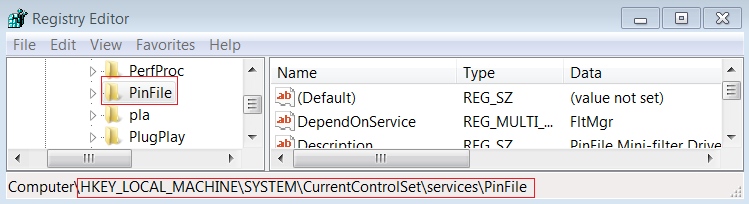
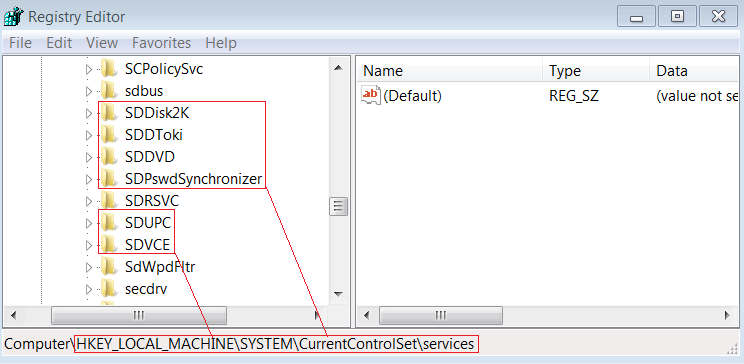
Within Windows Registry Editor:
Delete the following Key entries under: HKEY_LOCAL_MACHINE\SYSTEM\CurrentControlSet\Services
PinFile | SDDToki | SDPswdSynchronizer | SDVCE |
SDDisk2k | SDDVD | SDUPC |
- RENAME WINMAGIC DIRECTORY
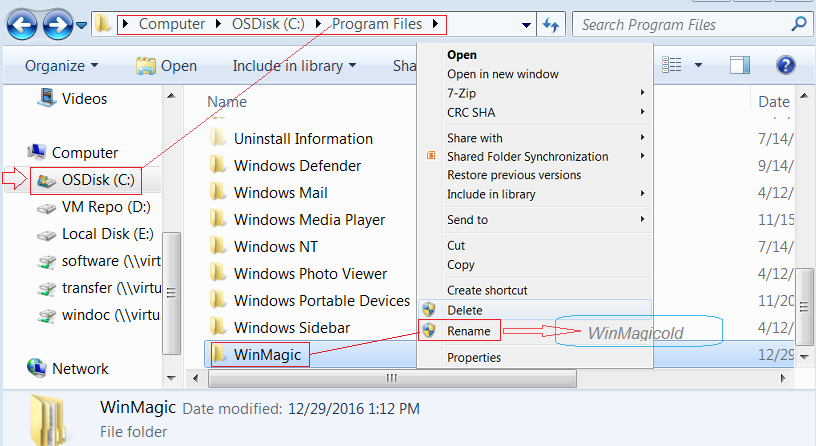
Open Windows File Explorer:
- Go to C:\Program Files and Locate the WinMagic directory folder
- Rename the WinMagic folder.
- In example provided we’ve renamed as ‘WinMagicold’
- DELETE WINMAGIC DRIVERS
Note if any of the driver files are locked, move them to a different folder, e.g. on the Desktop.
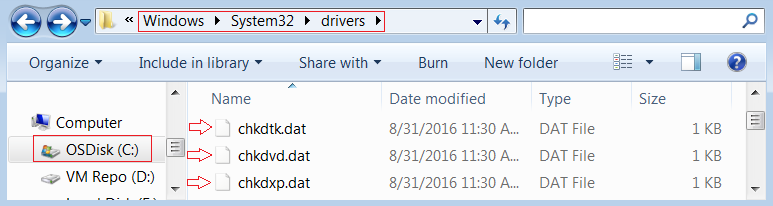
Delete the following driver files under Windows\System32\Drivers:
SDDisk2K.sys | sddToki.sys | Sddvd.sys |
sdupc.sys | sdvce.sys | chkdtk.dat |
chkdvd.dat | chkdxp.dat | pinfile.sys |



- DELETE KERNEL DRIVER KEY
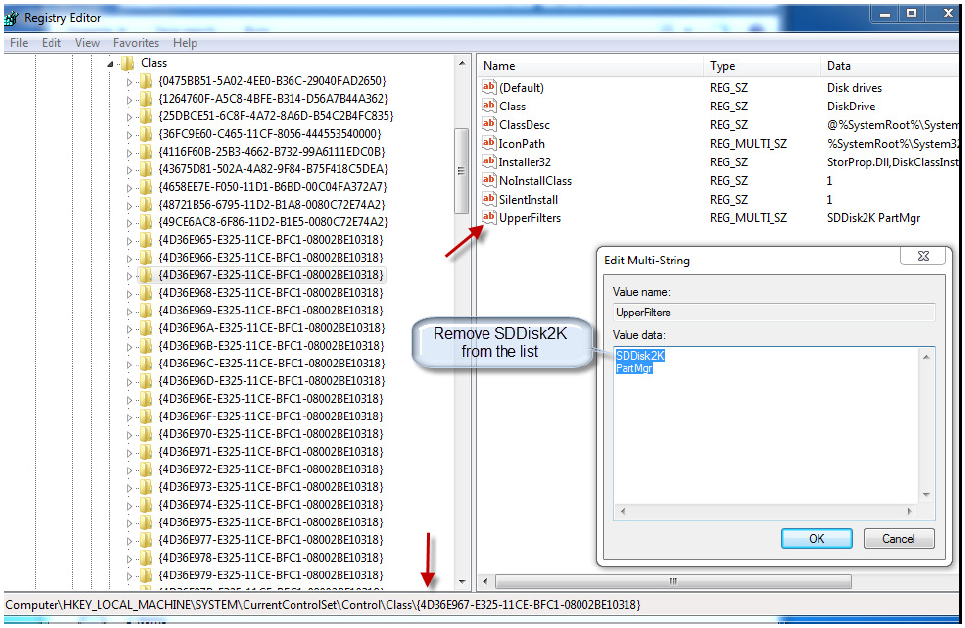
Remove SDDisk2K Kernel driver from the list to load upon boot
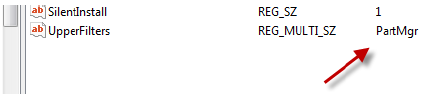
List contents after deletion:
Custom Fields
Article ID: 1223
Operating System: Windows
Version: Affects all versions of SD