Title: BIOS flag, "Allow Microsoft 3rd Party UEFI CA"
Affected Version:
SecureDoc 8.2 or newer
Environment:
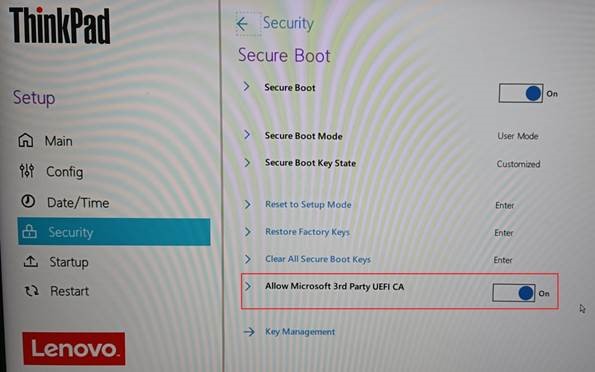
Lenovo Alder Lake chipset laptops or newer
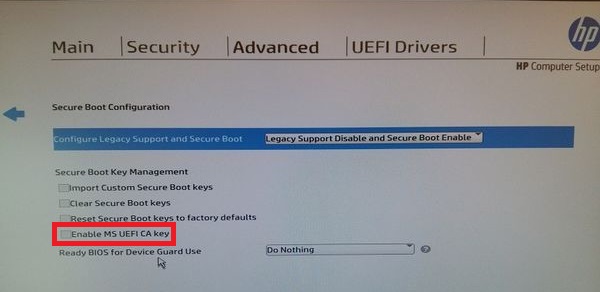
HP Commercial Platforms using HP BIOSphere Gen 3 or newer
Use Case Summary:
Alder Lake chipset laptops from Lenovo now include the BIOS flag, "Allow Microsoft 3rd Party UEFI CA" which has been present on HP Commercial Platforms for some time now. This BIOS flag is disabled by default. When this flag is disabled SecureDoc Software Encryption will fail to encrypt your device, instead showing that there is “No encrypted drive”. SecureDoc Hardware Encryption will encrypt your device even if this BIOS flag is enabled, but pre-boot will not run after the device is powered on since the SecureDoc pre-boot application is co-signed using the WinMagic CA and Microsoft 3rd party UEFI CA. By default, the WinMagic CA is not installed on HP or Lenovo devices, so removing the use of the Microsoft 3rd party UEFI CA will trigger this encryption and pre-boot behavior.
Solution Enable the "Allow Microsoft 3rd Party UEFI CA" BIOS flag on Lenovo Alder Lake chipset laptops prior to the SecureDoc Client installation. On HP Commercial Platforms, enable the “Enable MS UEFI CA key” BIOS flag.
Lenovo BIOS setting:
HP BIOS setting: