BlockSID is a feature that prevents the management of self encrypting hard drives when enabled. This is intended as a security measure to prevent against unauthorized software attempting to take control of the self encrypting drive. Therefore, on SecureDoc 8.5 and earlier, this will stop the SecureDoc installation process from enabling and managing a self encrypting hard drive. Some Lenovo models have this feature enabled with no clear way to disable it. We have discovered this on the following Lenovo models:
- Yoga L13
According to Lenovo, "In general on Tiger Lake generation Lenovo hardware, Block SID authentication is enabled by default and the BIOS does not have an interface to change the setting." You will know if BlockSID is enabled if you see this screen during the install of SecureDoc, using a profile that is configured to use hardware encryption:
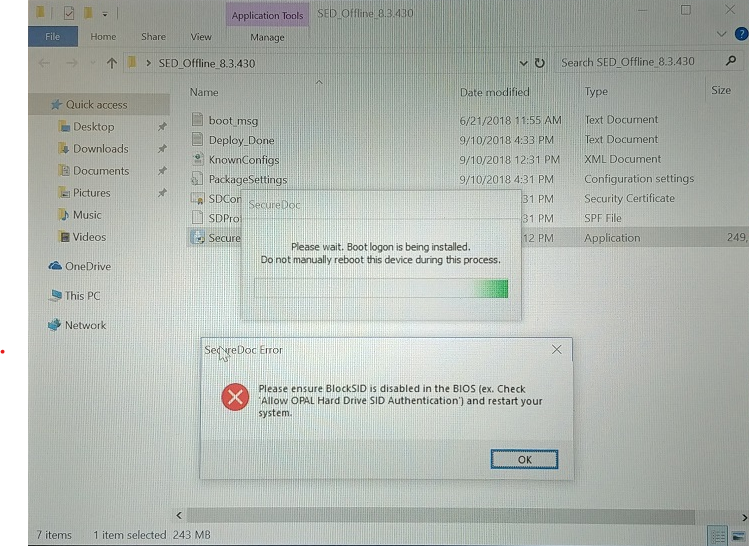
To allow the installation of SecureDoc with hardware encryption, run PowerShell as an administrator and run the command below to disable BlockSID and reboot the device
- $tpm = gwmi -n root\cimv2\security\microsofttpm win32_tpm
- $tpm.SetPhysicalPresenceRequest(97)
Next Boot a prompt will appear to confirm or reject the changes. Hit [F10] to confirm
You can then proceed with the SecureDoc installation as normal.
Starting with SecureDoc 8.6, the SecureDoc installation is able to check for this condition and automatically issue the Physical Presence command during installation. It is also possible to use the above command in conjunction with a larger script to set standard bios settings during imaging. Please see the following link from Lenovo for more information:
https://support.lenovo.com/us/en/solutions/ht100612