KB Title:
SES Disaster Recovery: Have the necessary elements in place will make Disaster Recovery of your SES implementation easy using the steps here.
KB Sub-title:
To prepare your environment for the possibility of Server failure that might require Disaster Recovery, there are a few essential steps that will ensure this process flows smoothly.
KB Article Body:
Disasters can befall any organization. SES is surprisingly easy to recover in the event you have a complete server failure, and this is a great strength of the product.
To prepare your SES environment for the possibility of Server failure that might require Disaster Recovery, there are a few essential steps that will ensure this process flows smoothly. The recovery process is articulated below:
Being Prepared:
1 - The major part of the server’s functionality is actually encapsulated in the data inside the SES Database, so performing regular (ideally daily) backups of your SES database must be considered a best practice. However, keeping your “Run book” up to date to reflect changes in your implementation, as well as screenshots of how the various elements (e.g. SDConnex, ADSync, other services) were configured will save you a lot of time, especially when time is of the essence to get the environment up and running again.
For reference:
KB article # 1367 - Preparation Before Upgrading the SES server (Take as much screenshots as possible of the current server settings)
2 - One element that is not backed up within the SES Database is the Key File that contains the encryption key that protects the SES Database (and without this you will not be able to log in to your recovered SES System)… so a backup of this Key File, as well as its most current Password, is also essential.
The Master Keyfile:
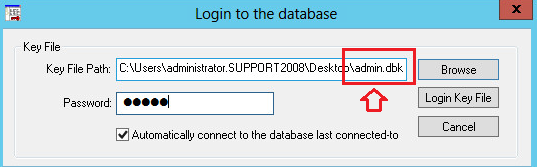
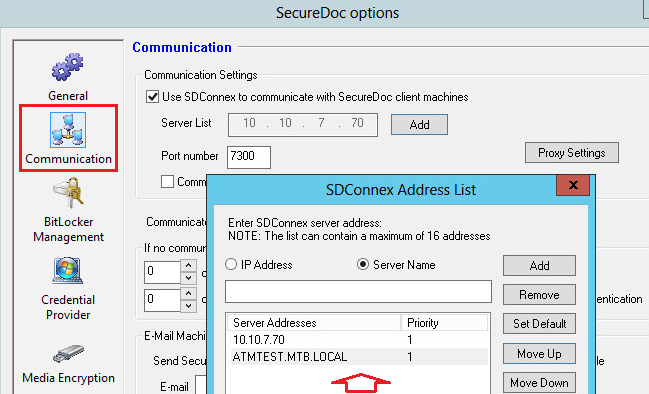
3 - Ensure you have a network plan that indicates the IP Addresses and/or DNS Names of all your SES Server elements – the SES server, SDConnex server(s), ADSync server (especially if your implementation uses DNS Names instead of IP addresses). These items of information are backed up inside the database, but it is dramatically easier to set up exact replacement servers for any server elements that may have failed or are inaccessible, and give them the same IP addresses as what they’re replacing.
Profile à General Options à Communication:
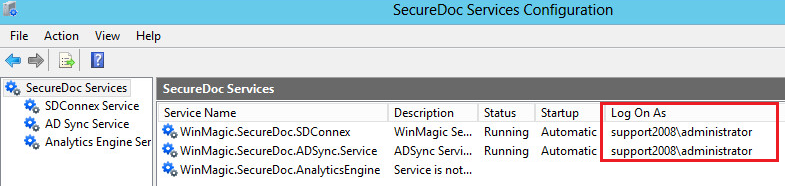
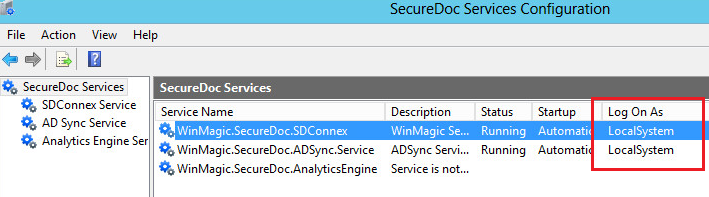
4 – Take notes of the service account used to start and run the SDConnex and ADSync services
For reference:
KB article # 1449 - SQL Rights and Windows Managed Service Accounts
https://winmagic.my.salesforce.com/kA01a000000QT6E?srPos=0&srKp=ka0&lang=en_US
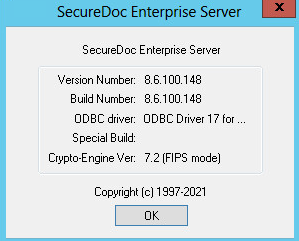
5 – Regularly make notes of the version of SES (down to the Build number) that your server is running. If desired, you may wish to backup your most recent SES Installers and Emergency Disk Files, or you can always ask WinMagic to provide you the Installer you’re currently using – we keep an archive of previous versions.
Example: SES version:
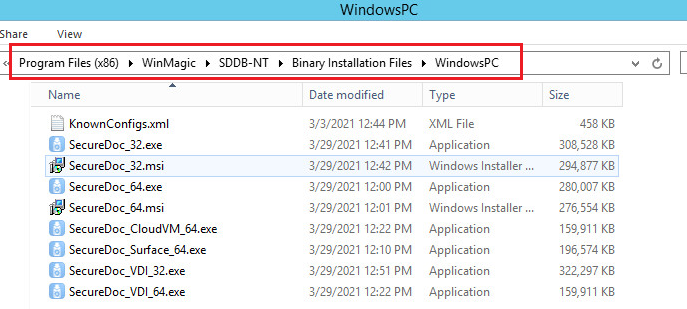
Backup of SD installers:
C:\Program Files (x86)\WinMagic\SDDB-NT\Binary Installation Files\
For Windows:
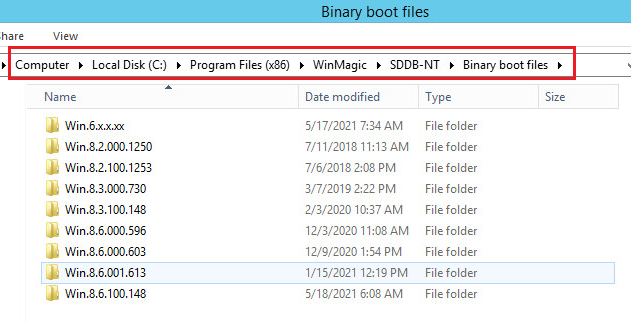
Backup of Emergency Files:
C:\Program Files (x86)\WinMagic\SDDB-NT\Binary Boot Files
Disaster Recovery:
1 - Stand up and install the required OS into the replacement servers.
Please refer to our website for system requirements: https://www.winmagic.com/support/technical-specifications
2 – Using your network plan above, apply the same IP addresses to each replacement server as were originally used.
3 – Recover your SES Database into your Database Server engine from your most recent backup.
For reference:
KB article # 1571 - Restoring a SQL Database Backup Using SQL Server Management Studio
https://winmagic.my.salesforce.com/kA01a0000009dba?srPos=0&srKp=ka0&lang=en_US
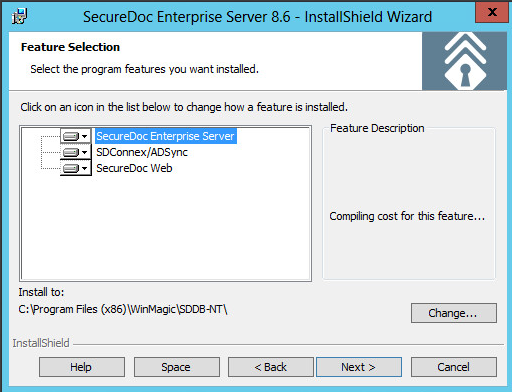
4 – Install and configure the missing components (SES Server, SDConnex on outboard servers, etc). Contact WinMagic Support if you don’t have backups of your current version’s installers.
5 – Log in to your SES Console using the Key File, and validate that you see the expected information as it had been as at the last backup.
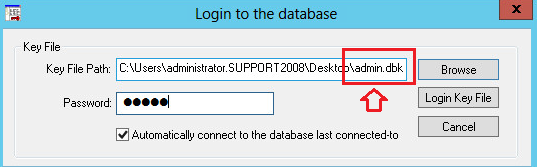
IMPORTANT: BEFORE starting any SDConnex services on any servers:
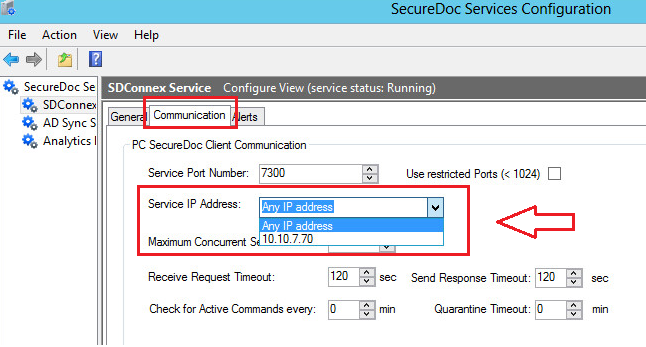
4A - Double-check that all IP Addresses for all elements (e.g. SDConnex servers, Database Server) are configured correctly, and have the same values as they had been in your original implementation.
Example:
4B – Start the ADSync Service, and run a full AD Sync, and let that run to completion. This is essential to ensure that any NEW AD Users that may have been given access to any SecureDoc-protected devices that may have been installed since the last database backup have had their User records synchronized into SES. Without this step, there is a risk that SDConnex could create a non-domain version of that user record. revents SDConnex from cannot permit any devices to communicate until AFTER any Users rios where a user is tied to a device in the real world but that User account might not have been brought in via ADSync).
Please refer to KB articles:
1367 - Preparation Before Upgrading the SES server
https://winmagic.my.salesforce.com/kA01a000000QPP1?srPos=0&srKp=ka0&lang=en_US
5 – Start the SDConnex Service(s) on all SDConnex Server(s).
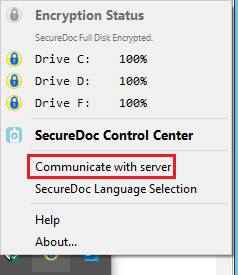
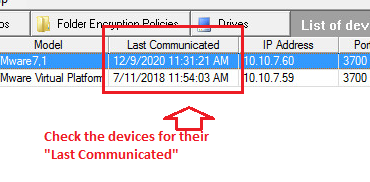
Client devices will now be able to communicate with your recovered SES implementation. Any missing devices installed since the backup should re-insert themselves into the database, and will associate themselves with User records made current in step 4B, above.
Example:
The above is based on recovering discrete infrastructure servers. If using Virtualized Servers, the above process can be made dramatically simpler, and recovery faster, by backing up your SES Server VMs and taking snapshots on a regular basis. As a best practice, both the Server VM backups and their Snapshots should be copied off the virtual host’s disks, to ensure that you have a recovery plan that can compensate for loss of an entire VM host.