Preparation before upgrading the SES
Overview
Before upgrading a production SecureDoc Enterprise Server (SES), it is strongly recommended to record existing configuration settings and back up critical components such as the SQL database and the master key file. This article outlines the necessary steps to ensure a smooth upgrade process and prevent data loss or service disruption.
Procedure applies to:
- Product Versions: All SES versions
- Environment: Windows Server OS 2016 with SQL Server 2016 or newer
Pre-Upgrade Checklist
Step 1: Record Configuration Settings
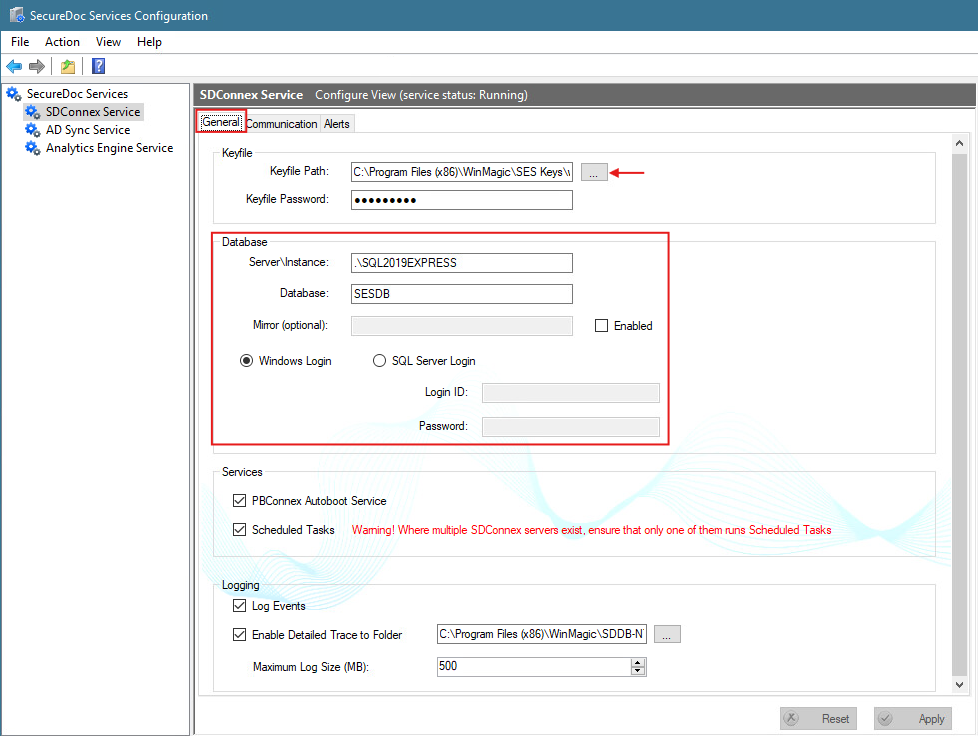
Document current SDConnex and AD Sync settings. Navigate to Start > All Programs > SecureDoc Enterprise Server > SecureDoc Service Configuration, and record the following:
- Location of the master DBK key file
- SQL connection details
- Windows account or SQL account used for database access
- AD Server Name, domain account credentials (read-only access required)
- Under General Tab: verify connection/configuration
- Under Sync Config Tab: note which Organizational Units (OUs) are set to sync
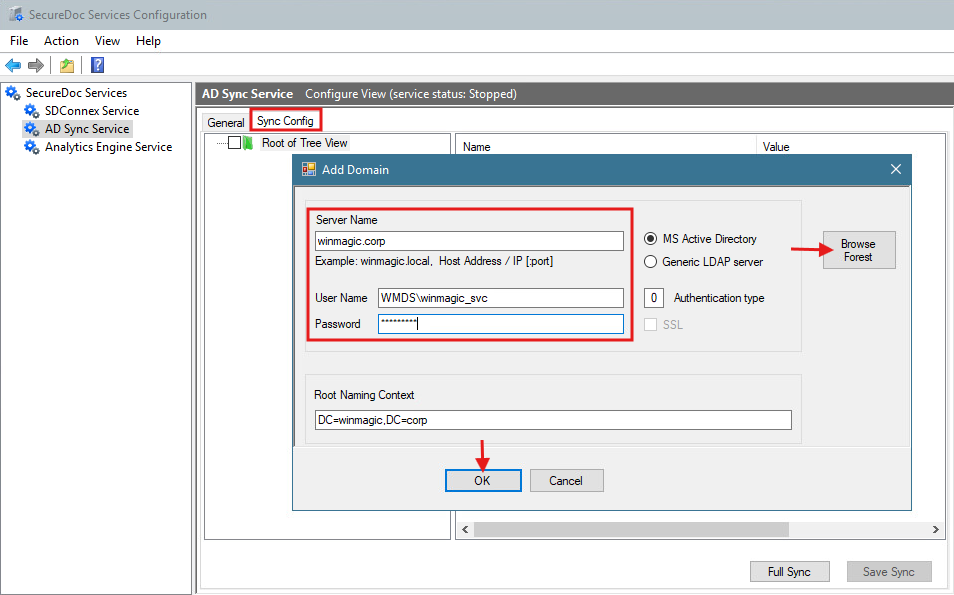
Take screenshots of configuration settings as a backup.
Step 2: Stop Services
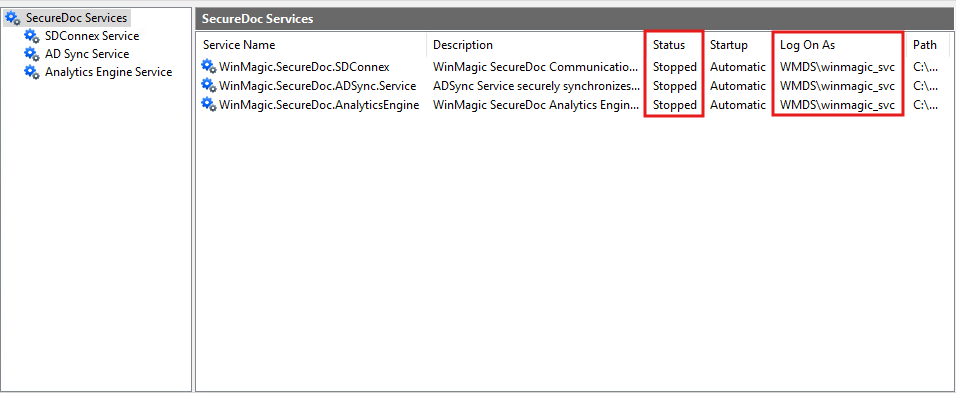
Stop the following services, then close the Console before proceeding:
- SDConnex Service
- AD Sync Service
- SecureDoc Analytics Engine
Step 3: Backup the SES Master Key file
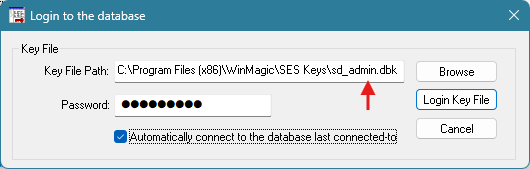
- Master Key File: Back up the file and securely store the associated password.
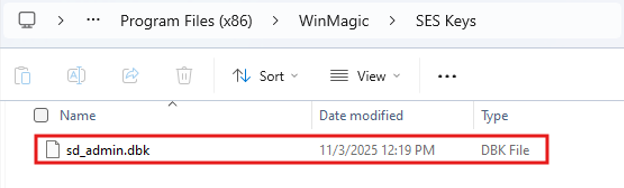
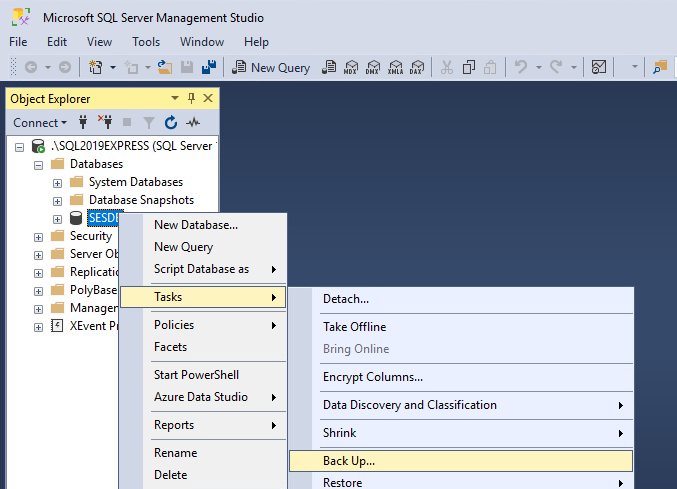
Step 4: Backup the SQL Database
- SQL Database: Ensure a full backup is taken. If the SES is hosted on a Virtual Machine, a snapshot will suffice.
- Confirm that the admin user has appropriate access rights to the SQL database. Refer to KB 1449: SQL Rights and Windows Managed Service Accounts.
Post-Upgrade Considerations
Step 5: Reconfigure IIS Settings Identity for SES Web Console
- Open Internet Information Services (IIS Manager) and expand the server tree
- Go to Application Pools.
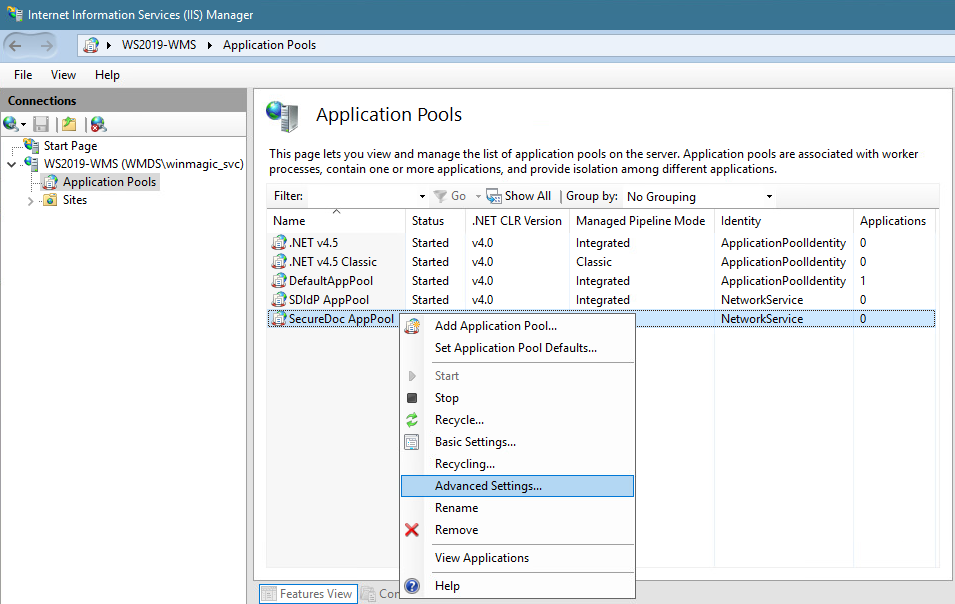
- Right-click on SecureDoc AppPool 🡺 Advanced Settings
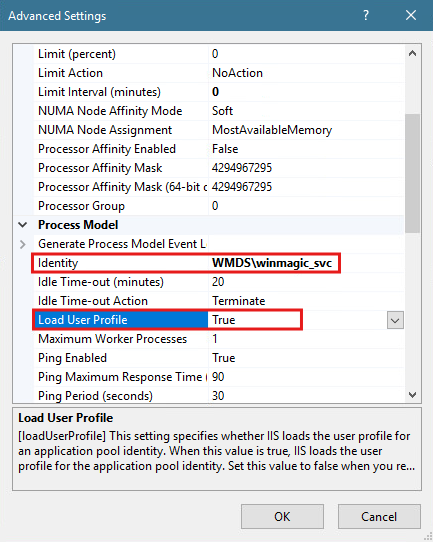
- Set Identity: set the designated WinMagic service.
- Change Load User Profile to True
Access Requirements
To successfully run SDConnex, SQL Server, and SES, the service account used must have:
- Local administrative rights
- Windows administrative rights
- SQL Server administrative rights
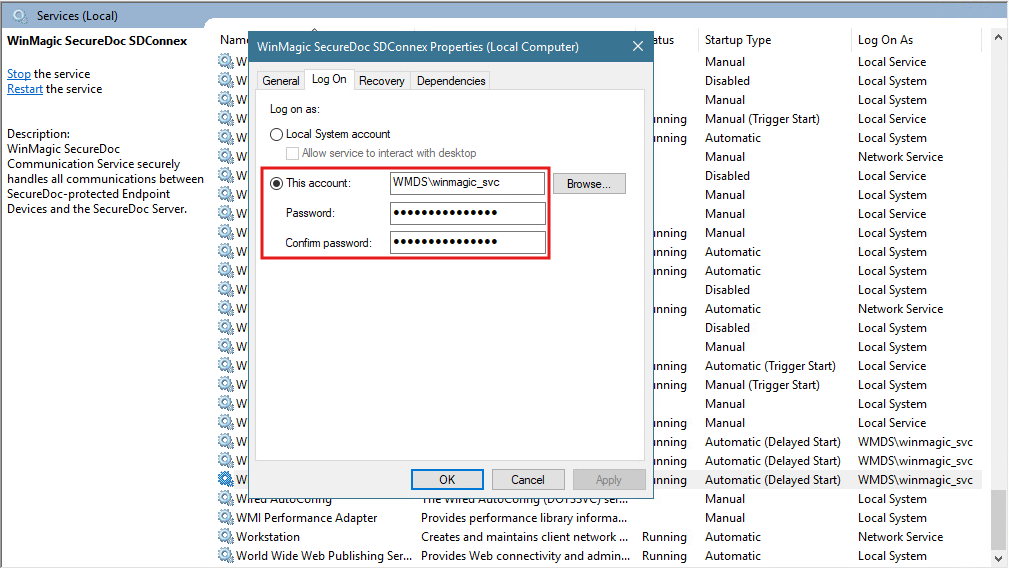
Ensure these permissions are validated before and after the upgrade.
Additional Resources
- KB 1449: SQL Rights and Windows Managed Service Accounts