Title: Using Process Monitor to capture system events
Summary:
Process Monitor is an advanced monitoring tool for Windows that shows real-time file system, Registry and process/thread activity. It combines the features of two legacy Sysinternals utilities, Filemon and Regmon, and adds an extensive list of enhancements including rich and non-destructive filtering, comprehensive event properties such as session IDs and user names, reliable process information, full thread stacks with integrated symbol support for each operation, simultaneous logging to a file, and much more. Its uniquely powerful features will make Process Monitor a core utility in your system troubleshooting and malware hunting toolkit.
Overview of Process Monitor Capabilities
Process Monitor includes powerful monitoring and filtering capabilities, including:
- More data captured for operation input and output parameters
- Non-destructive filters allow you to set filters without losing data
- Capture of thread stacks for each operation make it possible in many cases to identify the root cause of an operation
- Reliable capture of process details, including image path, command line, user and session ID
- Configurable and moveable columns for any event property
- Filters can be set for any data field, including fields not configured as columns
- Advanced logging architecture scales to tens of millions of captured events and gigabytes of log data
- Process tree tool shows relationship of all processes referenced in a trace
- Native log format preserves all data for loading in a different Process Monitor instance
- Process tooltip for easy viewing of process image information
- Detail tooltip allows convenient access to formatted data that doesn't fit in the column
- Cancellable search
- Boot time logging of all operations
The best way to become familiar with Process Monitor's features is to read through the help file and then visit each of its menu items and options on a live system.
Reference: https://docs.microsoft.com/en-us/sysinternals/downloads/procmon
Download Link: https://download.sysinternals.com/files/ProcessMonitor.zip
Scenario that Process Monitor can be use:
- Issue with the SDService running as SYSTEM account, it failed to query for the BitLocker status on boot drive and returned as WBEM_E_ACCESS_DENIED. With process monitor, it would catch where this query failed, in the result log file (.PML), and it would help on investigation.
How to use Process Monitor
Gathering a normal Process Monitor log
- Download Process Monitor from Microsoft TechNet: https://docs.microsoft.com/en-us/sysinternals/downloads/procmon
- Extract the contents of the file ProcessMonitor.zip archive.
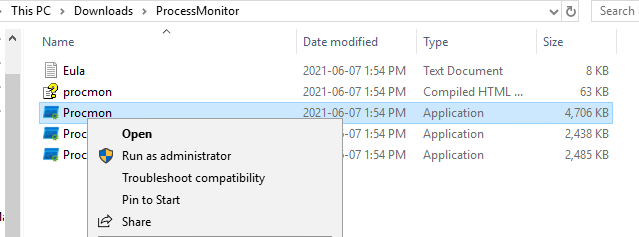
- Run Procmon.exe as administrator.
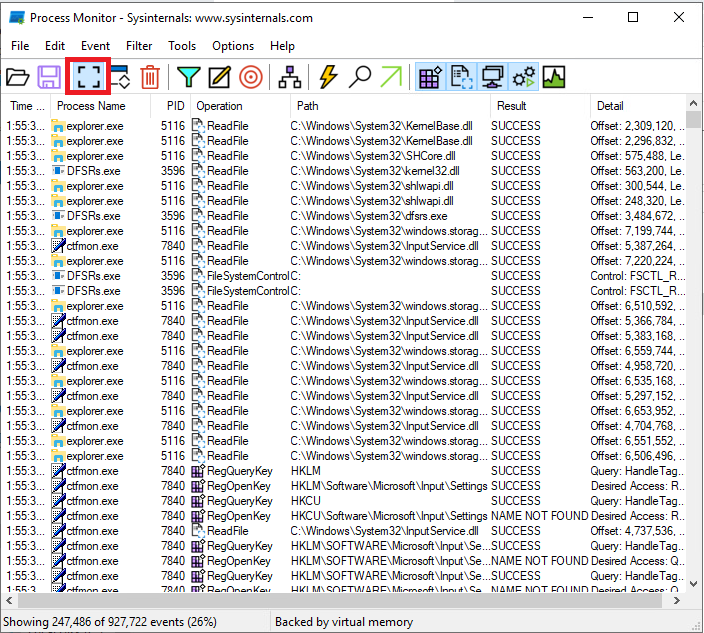
- Process Monitor will begin logging from the moment it starts running. To stop this, click the Capture icon.
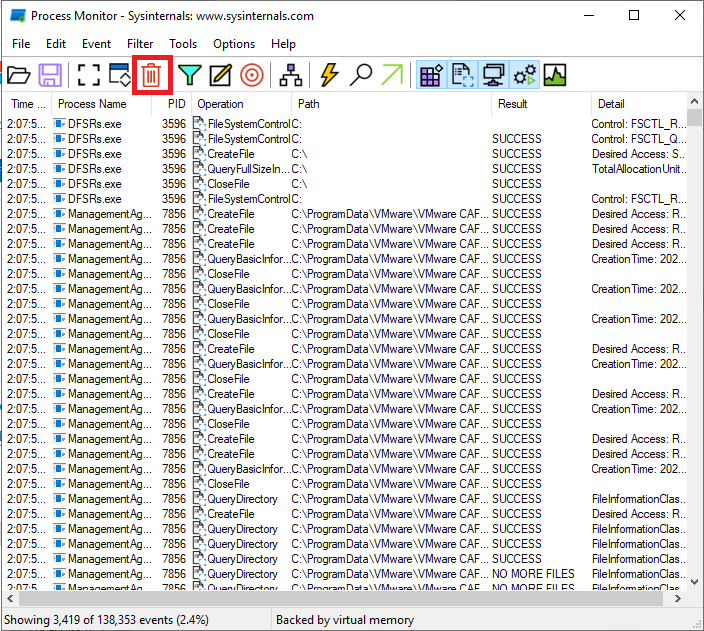
- Clear all the events that Process Monitor recorded by clicking the Clear icon.
- When you are ready to recreate the issue, click the Capture icon to begin logging.

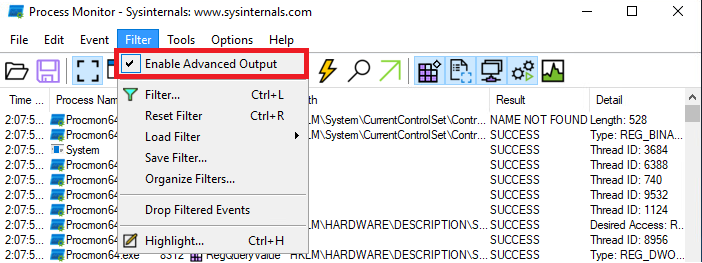
- Click Filter and ensure that Enable Advanced Output is selected.
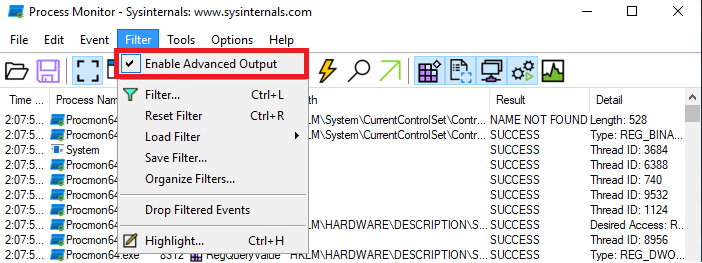
- Once you have recreated the issue or scenario, click the Capture icon to stop logging.

- Click the Save icon. The following dialogue will be displayed. Ensure that you have selected All events and that you save the file in the native PML file format.
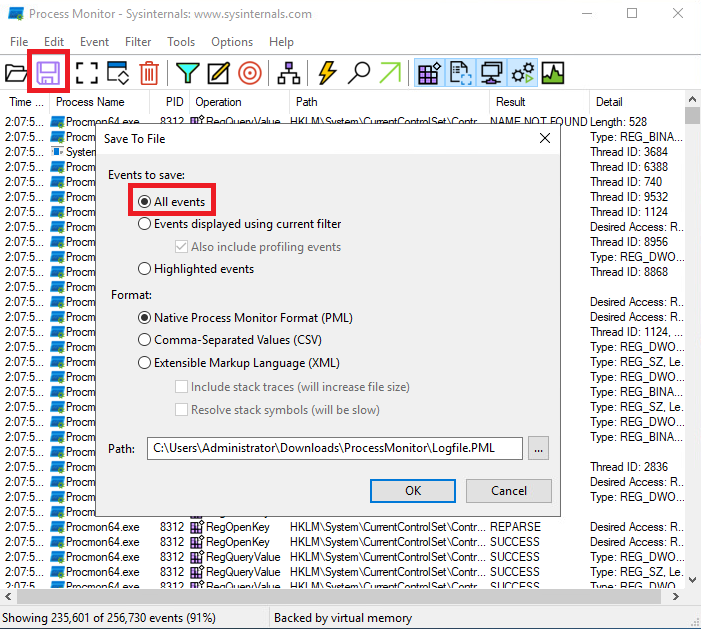
- Close Process Monitor.
- Compress and archive (zip) the PML file.
- Send the .zip archive to Technical Support.
Gathering a boot Process Monitor log
To enable boot logging, follow the following steps.
- Download Process Monitor from Microsoft TechNet: https://docs.microsoft.com/en-us/sysinternals/downloads/procmon
- Extract the contents of the file ProcessMonitor.zip archive.
- Run Procmon.exe as administrator.
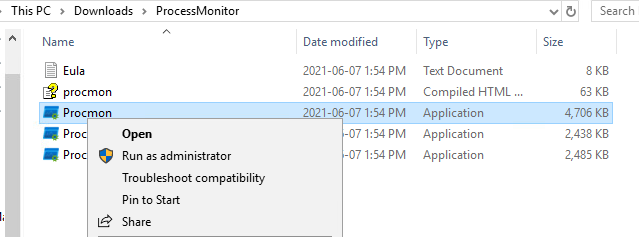
- Process Monitor will begin logging from the moment it starts running. To stop this, click the Capture icon.
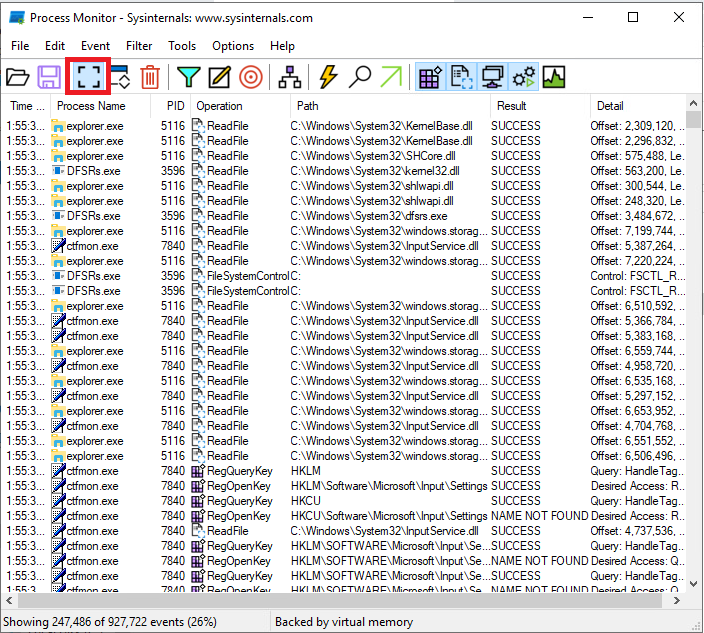
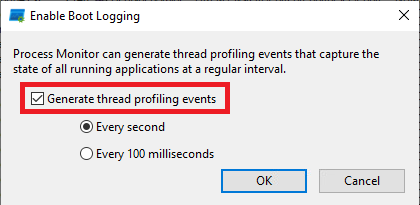
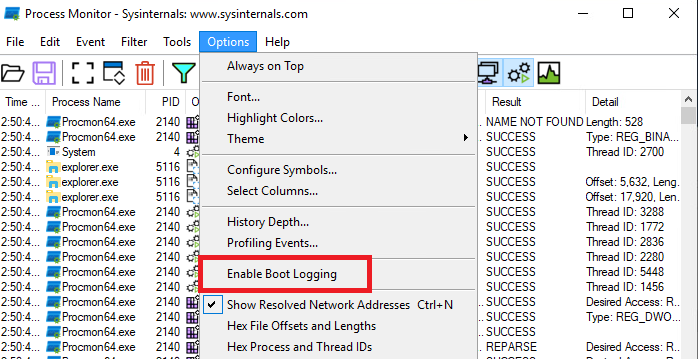
- Click Options > Enable Boot Logging.
- You will be presented with the following dialogue. Ensure that profiling events are generated every second.
-
- Click Filter and ensure that Enable Advanced Output is selected.
- Reboot the machine and recreate the issue you are facing.
- Once back at the Windows desktop, run Procmon.exe.
- Upon opening Procmon.exe, you will be presented with the following dialogue.
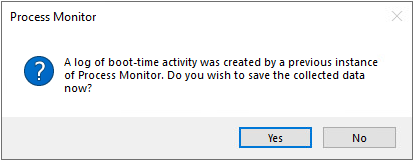
- Click Yes and save the log file.
- Close Process Monitor.
- Compress and archive (zip) the PML file.
- Send the .zip archive to Technical Support.