Title: Windows Update potential problem and how to fix with SDRecovery
Summary:
For systems that do not support UEFI Boot Order mechanism properly, SecureDoc offers an alternative method that replaces the Windows boot loader UEFI executable with the SecureDoc module and then jumps to a saved copy of the Windows boot loader after the drive is unlocked. This alternative approach can possibly be broken by Windows update of the Windows boot loader. While the SecureDoc EFI protective driver will be able to fix the Windows update consequences in most cases WinMagic recommends testing Windows Updates before widespread deployment of them.
Environment:
Devices that uses the MS boot loader replacement(patching) method i.e, not the UEFI Boot order
SWE
Additional Information:
KB 1540 - How To Create a Bootable WinPE USB Tool
KB 1544 - How to Create Emergency Disk from SESWeb Console
Cause and Effect:
One of the following issues occurs after a Windows Update
- Preboot screen does not appear
- Windows goes to recovery
- System unbootable
Proposed Solution:
Use SDRecovery
Steps to restore preboot
- Load WinPE
- Create Emergency Disk for the device in SES
- Launch SDRecovery
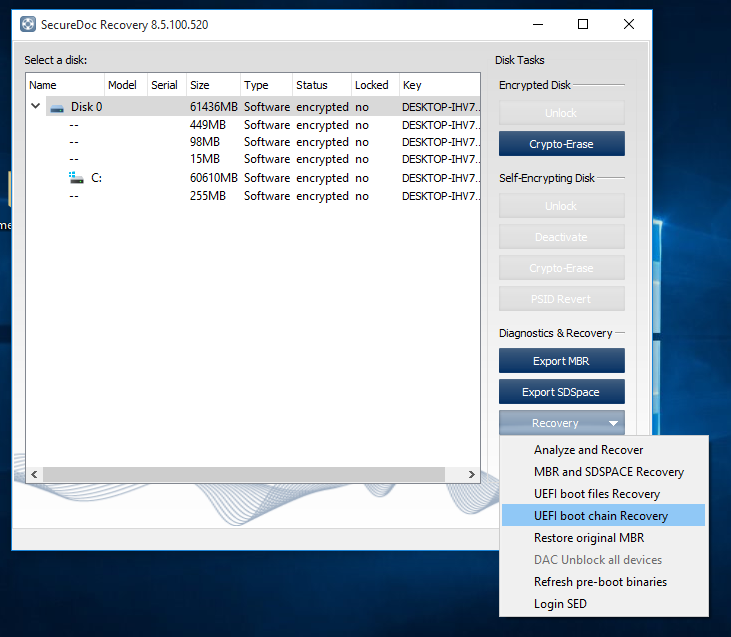
Verify that the device uses the patching method.
To verify that select the «UEFI Boot chain recovery ». If the system uses the patching method the following dialog appears.
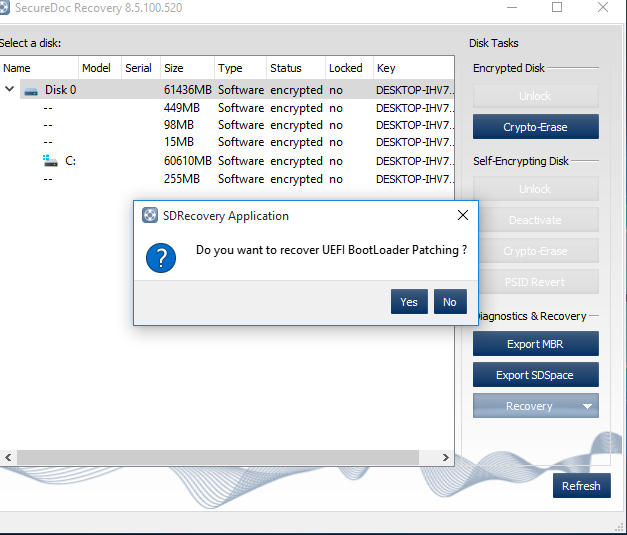
If the system uses the UEFI BootOrder method the text will be different i.e « Do you want to recover UEFI BootOrder variable»
To recover the UEFI BootLoader patching select « yes »
The « Analyze and recover » menu item would analyze if Boot pathing (or bootorder) is not valid and requires recovery.