How to setup SecureDoc on a Surface Book
Preliminary Info:
Processor: Skylake I5 or I7 | Memory: 8 or 16GB Memory |
Graphics Card - Intel HD Graphic 520 GPU (Standard) however later after Nov 2016, possible to obtain custom GPU variant of Nvidia GeForce 940M | SSD: Can include 128,256,512 or 1 TB |
If you already have upgraded to Windows 10 Creators Edition (RS2):
In the event, you're completing a fresh install of SecureDoc on your Surface
Book device in which has already been upgraded to Windows 10 RS2, WinMagic Magic strongly recommends using our latest version of 7.1 SR6. This will allow you to take full advantage of core features of the SecureDoc product.
Surface Book devices can be setup with encryption using native Preboot UEFI under version 7.1 SR1 or higher however, for better support and bypassing UEFI limitation, using 7.1 SR4 or higher would allow you to apply Linux Preboot on UEFI (PBLU) bootloader. Using PBLU option will provide greater advantage of supporting additional devices (notably for Tokens\Smartcards device)
Completing Setup Requirements:
From Within SecureDoc console, go to Profile >> Boot configuration:
- Within the Boot Configuration window:
- locate the UFEI Boot Loader Section and select the radio button for PBLU (Linux Pre-boot for UEFI).
This will also provide additional support for Wireless and Tokens\Smartcards devices
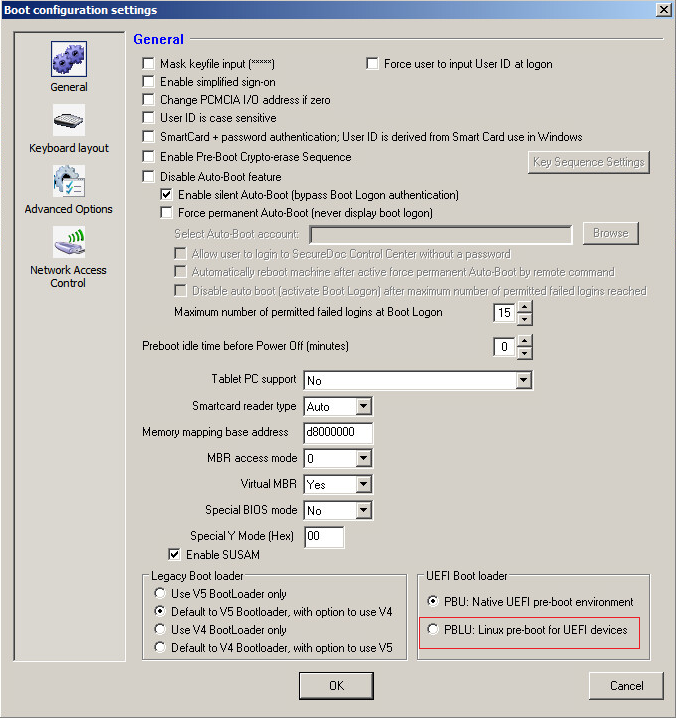
Boot Configuration Settings:
It’s recommended to use PBLU (Linux Pre-boot for UEFI) instead of pbu.
Note when using PBLU: It’s been confirmed that the native keyboard for the Surface Book is currently not detected. There will be a new release is available to address this issue. In the interim, you can still plug in a usb keyboard as your temporary workaround.
WinMagic has scheduled 7.1 SR1 for release to add HID/PID info to be added to linux pblu list to allow detection.
Boot Paramaters Settings:
Within the Boot Configuration Window, Click on Advance Options
Enter additional boot parameters: -console=null quiet nosmp acpi=off reboot=warm,,efi,force in the Advanced Boot Settings section.
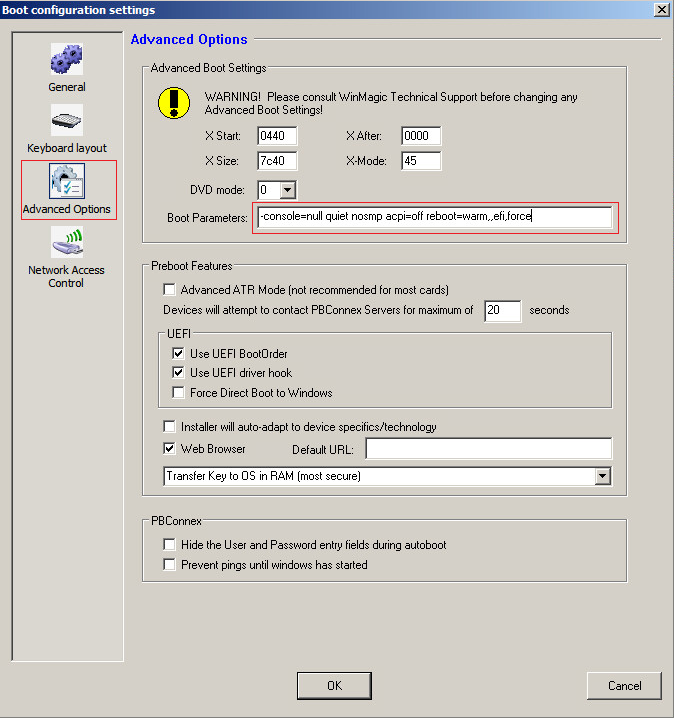
Advanced>>Boot Parameters:
Enter the following boot parameters:
-console=null quiet nosmp acpi=off reboot=warm,,efi,force
Installation Package Settings:
You will need to configure your installation package using the 64 bit kernel settings for Pre-Boot Loader Processor Architecture.
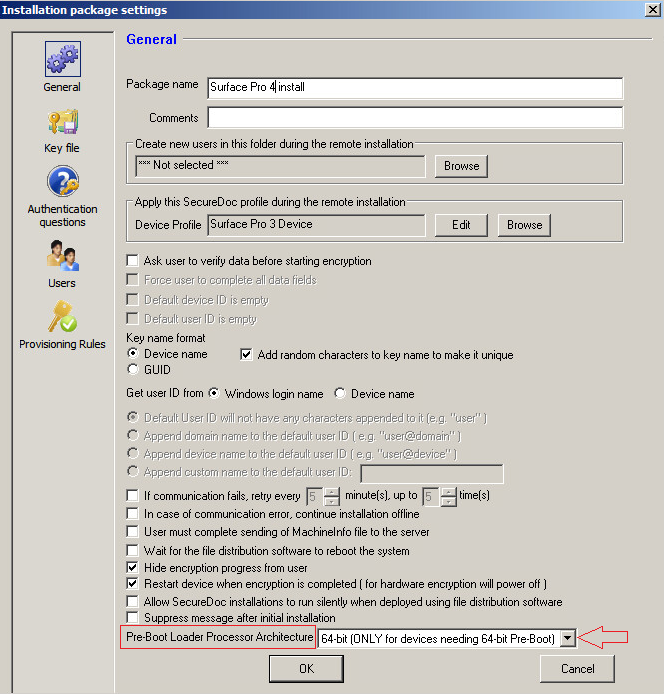
Installation Package Settings:
New Installation package will need to be configured with 64 bit kernel settings for Pre-Boot Loader Processor Architecture
Note: At the time of writing this article, touch and wireless is not supported for PBLUx64.
During boot up process, you may see a kernel window screen which is normal behavior for this device. To suppress the linux kernel output, you can add additional Boot Parameter “ loglevel=0”