How to setup SecureDoc on my Surface Pro 2017
Preliminary Info:
Processor: Skylake I5 or I7 | Memory: 8 or 16GB Memory |
Graphics Card - Intel HD Graphic 520 GPU (Standard) however later after Nov 2016, possible to obtain custom GPU variant of Nvidia GeForce 940M | SSD: Can include 128,256,512 or 1 TB* *preconfigured with 2x 512GB SSD using software Raid - may work only using Bitlocker feature. |
WinMagic recommends using our latest version of 7.5 or higher. This will allow you to take full advantage of core features of the SecureDoc product.
Completing Setup Requirements:
From Within SecureDoc console, go to Profile >> Boot configuration:
- Within the Boot Configuration window:
- locate the UFEI Boot Loader Section and select the radio button for PBLU (Linux Pre-boot for UEFI).
This will also provide additional support for Wireless and Tokens\Smartcards devices
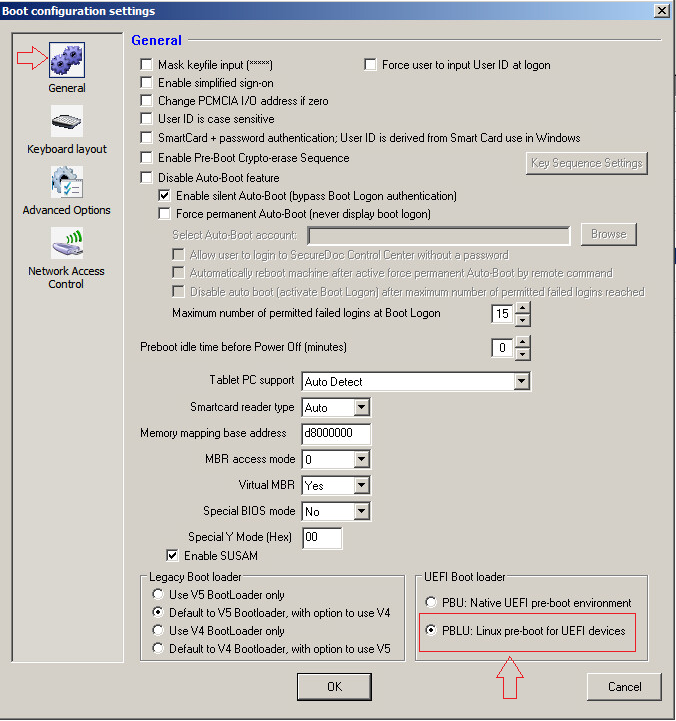
Boot Configuration Settings:
It’s recommended to use PBLU (Linux Pre-boot for UEFI)instead of pbu
Boot Paramaters Settings:
Within the Boot Configuration Window - Click on Advance Options
Enter following boot parameters as recommended requirement:
-console=null quiet nosmp acpi=off reboot=warm,,efi,force
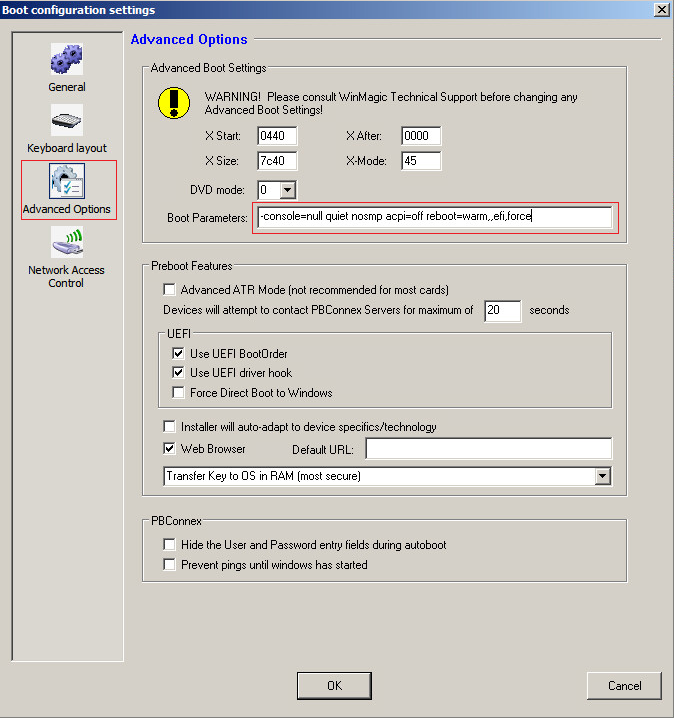
Advanced>>Boot Parameters:
Enter the following boot parameters:
-console=null quiet nosmp acpi=off reboot=warm,,efi,force
Installation Package Settings:
You will need to configure your installation package using the 64 bit kernel settings for Pre-Boot Loader Processor Architecture.
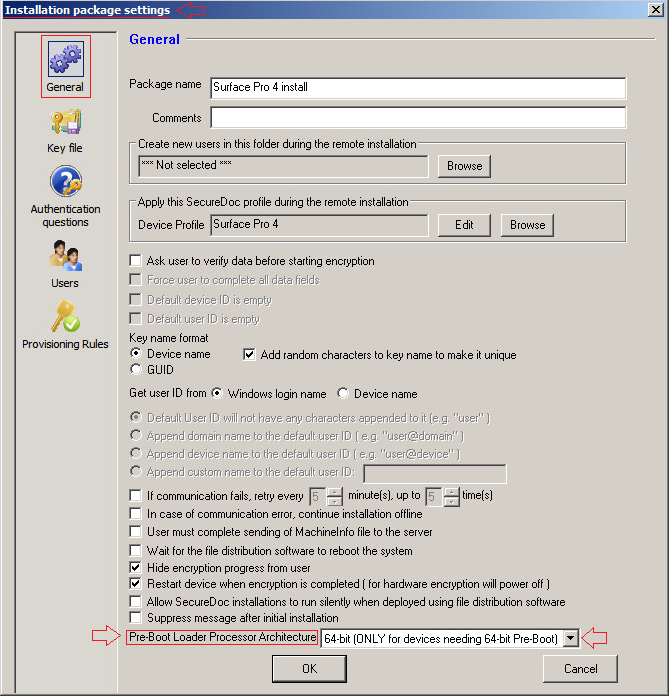
Installation Package Settings:
New Installation package will need to be configured with 64 bit kernel settings for Pre-Boot Loader Processor Architecture
Note: At the time of writing this article, touch and wireless is not supported for PBLUx64.
Also during boot up process, you may see a kernel window screen which is normal behavior for this device. To suppress the linux kernel output, you can add additional Boot Parameter “ loglevel=0”