KB# | 1694 |
Title | SFE Migration Procedures |
URL Name | SFE-Migration-Procedures |
Summary | The SecureDoc File Encryption feature in 7.1 SR6 or earlier versions are not able support direct upgrade to 7.5 due to a compatibility limitation between these versions. The purpose of this article is to explain process requirements to remove SFE from an existing SD client in preparation for the 7.5 upgrade. Upon successful removal, this guide will explain how to then re-enable SFE and the file encryption on the updated 7.5 client. |
Subject:
The SecureDoc File Encryption in v7.1 SR6 and earlier does not support upgrading directly to 7.5. The file encryption is incompatible between these versions. In the event that you will be upgrading to 7.5, you will need to fully remove any existing folder policies and encryption on files before upgrading to version 7.5.
This purpose of this article is to provide required instructions and guidance towards completing the required process of removing SFE from an existing SD client prior to completing your upgrade to SecureDoc 7.5. Upon the successfully completing the removal of SFE, this article will also provide instruction and guidance on how how to successfully re-enable SFE and the file encryption on the updated 7.5 client.
Step-by-step instructions:
1. Disable Persistent Encryption on the SFE client (if it’s enabled).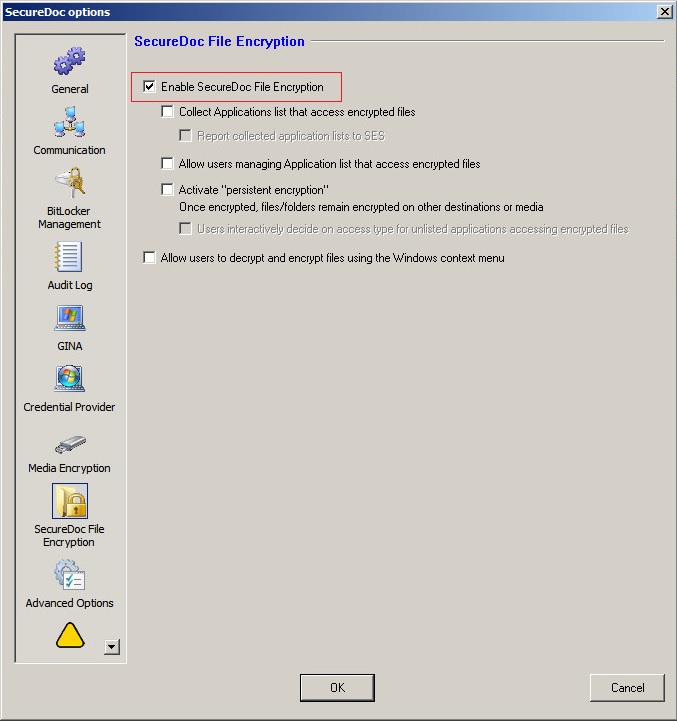
2. On an existing SFE client (7.1 SR6 and earlier), browse to the protected SFE folder that contains encrypted files. This folder should be listed as an SFE policy folder on the client: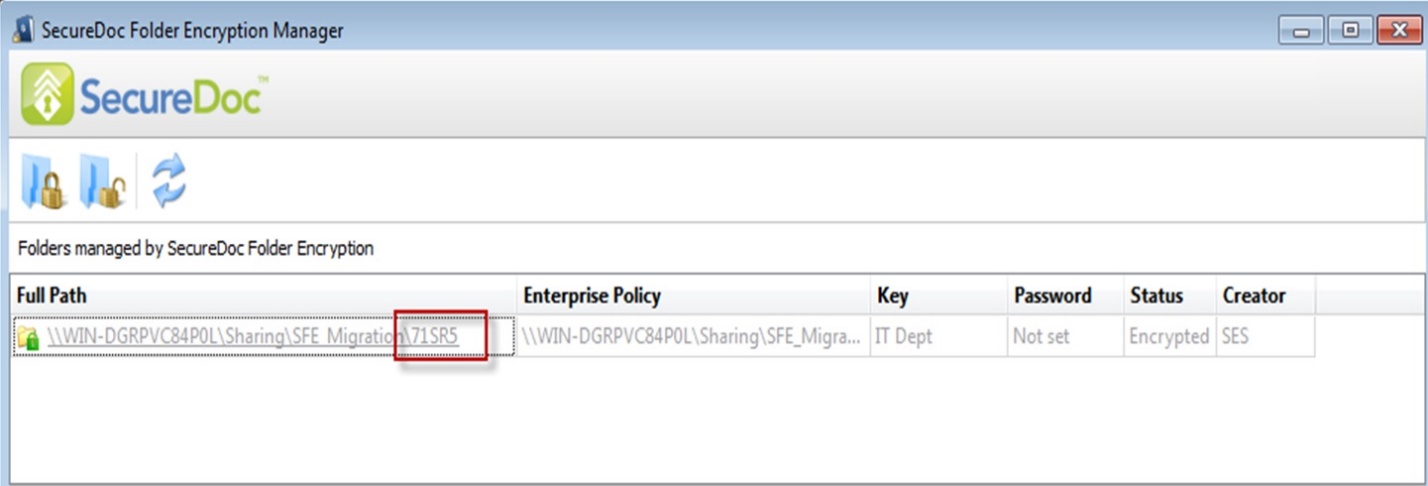
3. Copy the folder and then paste in same directory folder: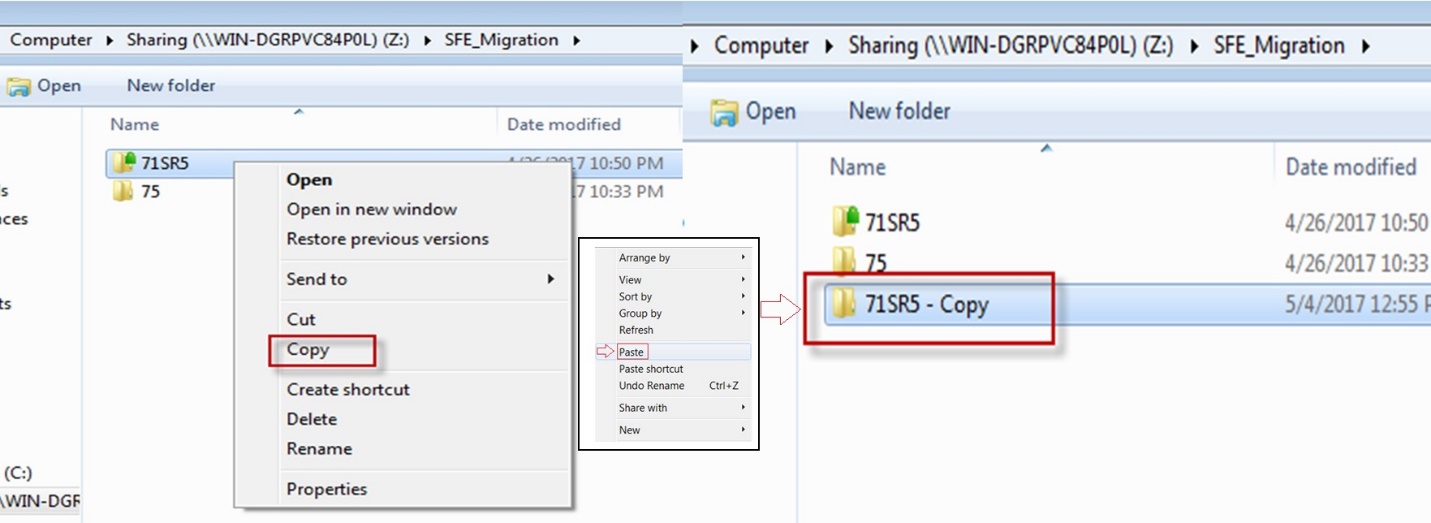
4. The newly copied folder “71SR5 – Copy” will now contain all decrypted copies of the files.
NOTE: Perform the same copy step for all SFE folders that are currently under policy.
- delete the SFE folder policy from the client.
- right-click on SecureDoc icon and then select “SecureDoc File Encryption” -> “Folder Management”:
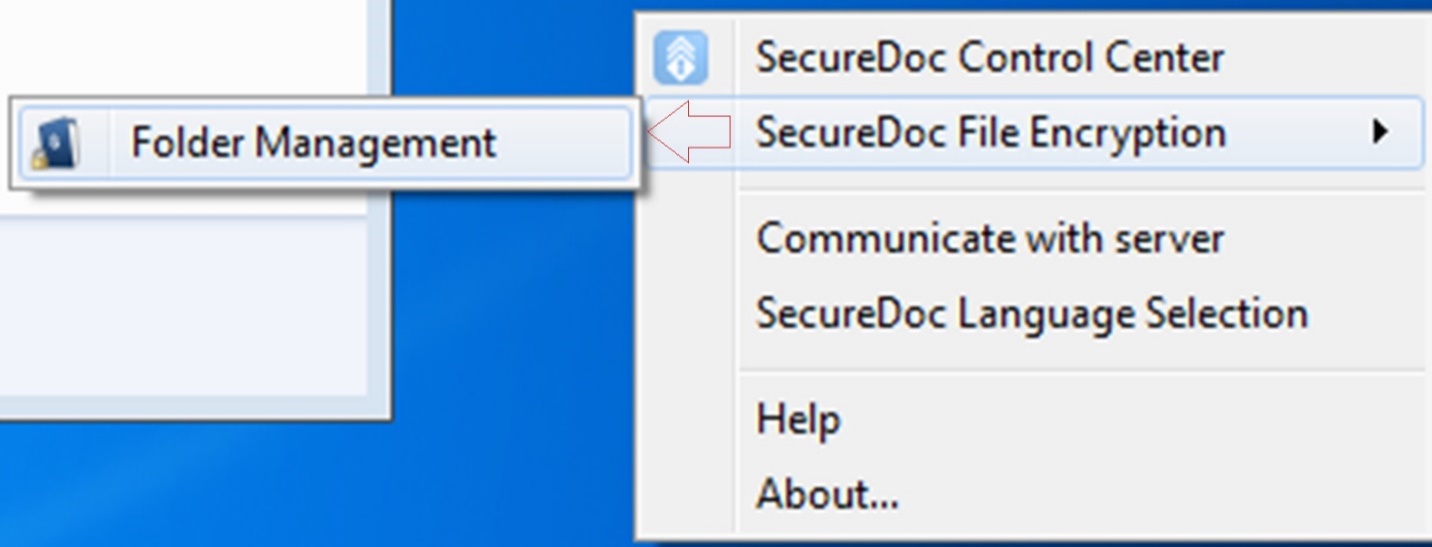
5. Select the SFE policy in the list and click the “Delete Policy” icon:
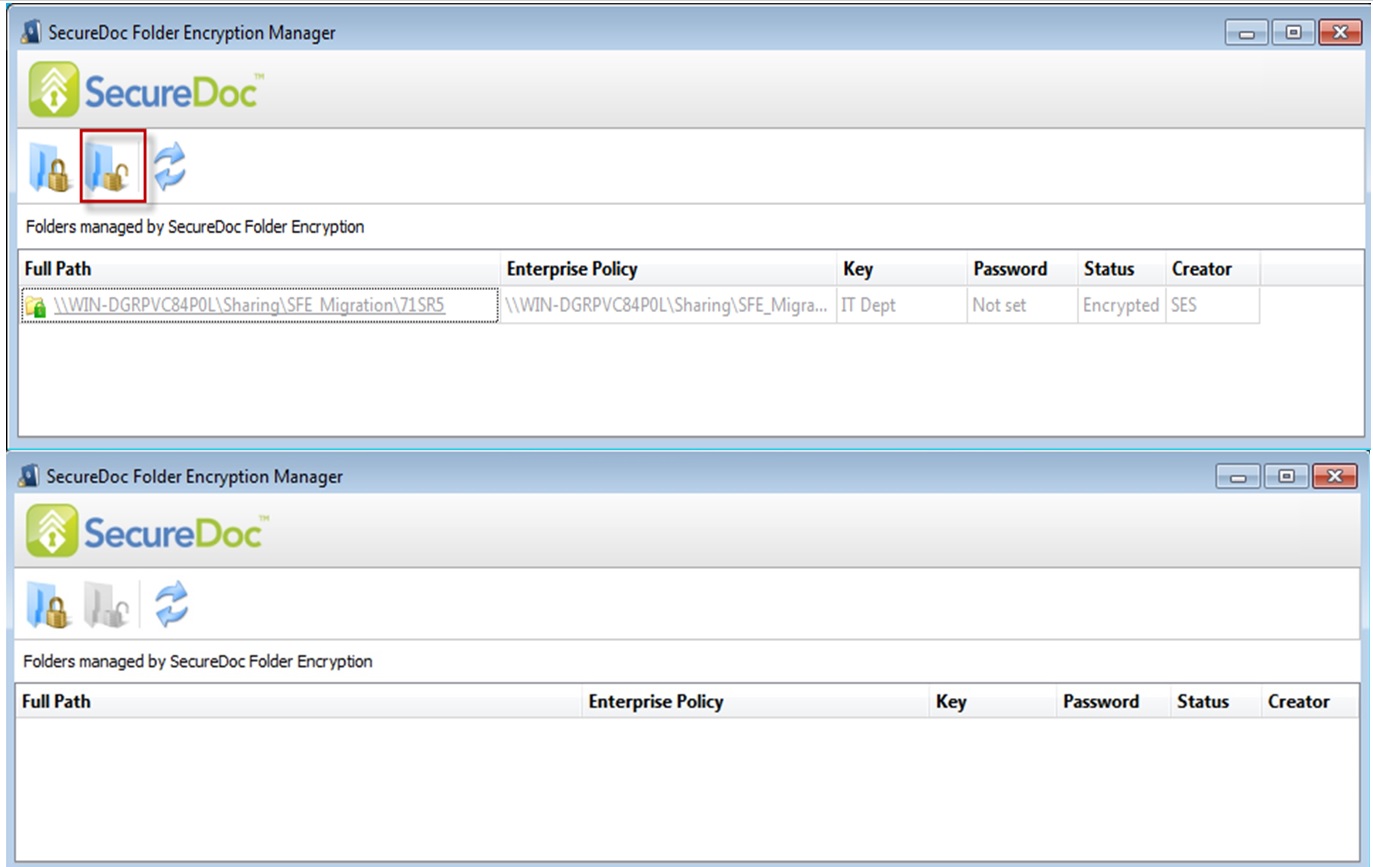
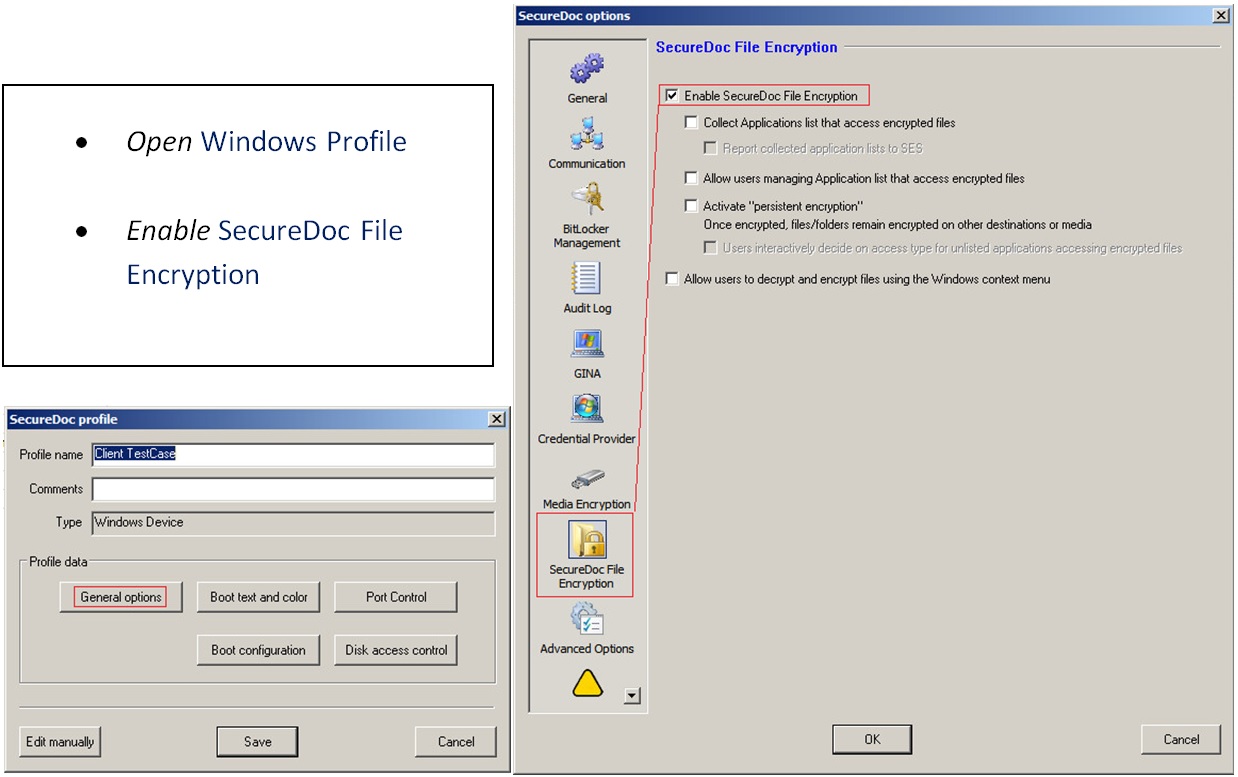
6. Now that all existing SFE folders are decrypted, and corresponding SFE policies have been removed from the client, you will need to update Windows Profile within SES to disable SFE on the client devices:
- Open SES console
- Click on Windows Profile
- Select profile name that contains the SFE policy
- click on General Options
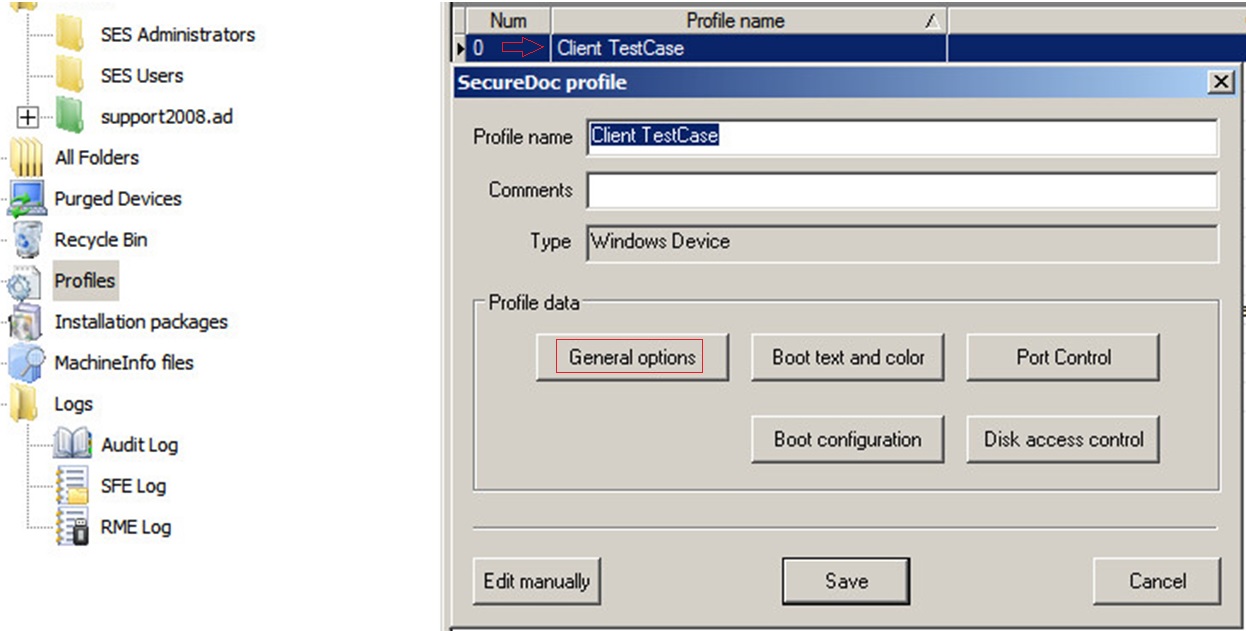
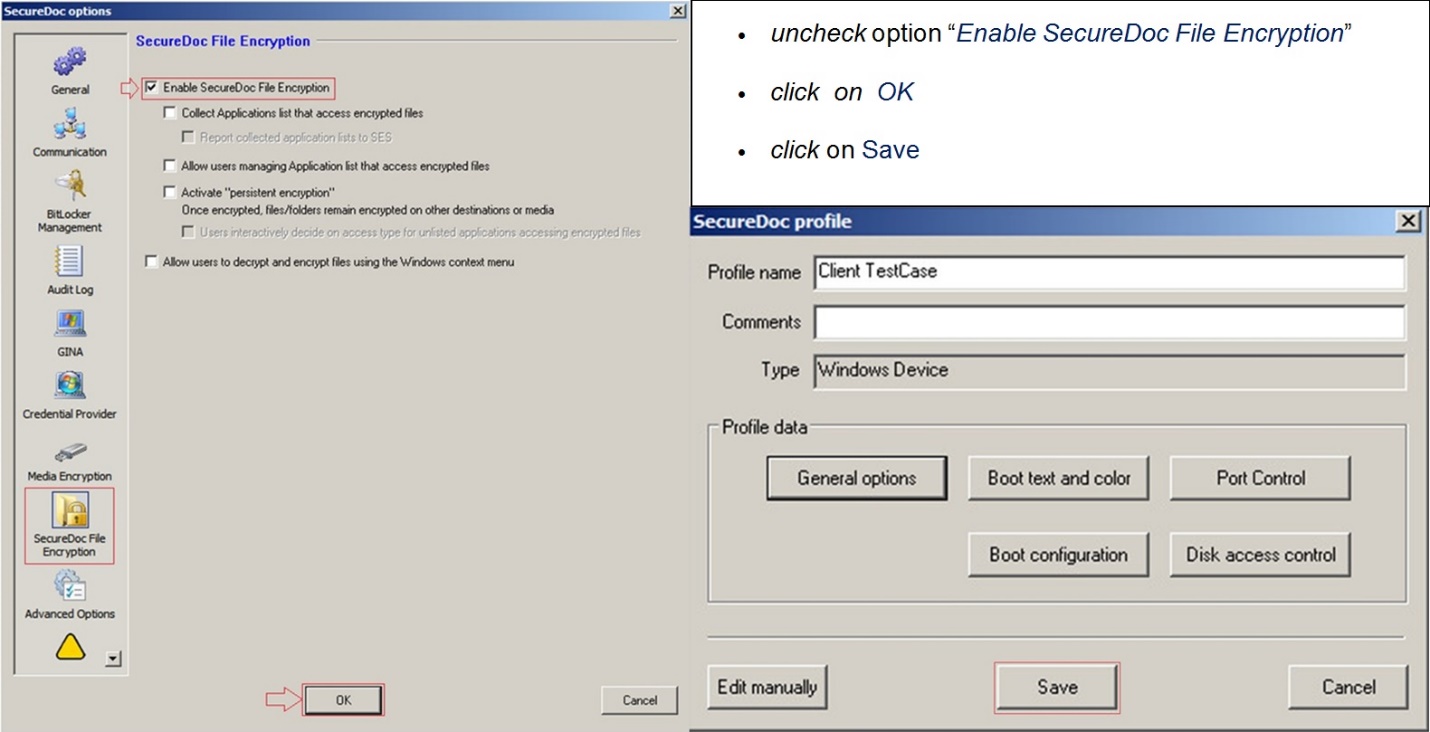
- On the lower left section, click on "SecureDoc File Encryption "(SFE) icon
- uncheck option “Enable SecureDoc File Encryption”
- Click Ok and then Save icon to save profile changes and exit.
a. Additionally, you may want to enable the global option to update all devices when the SD profile has changed.
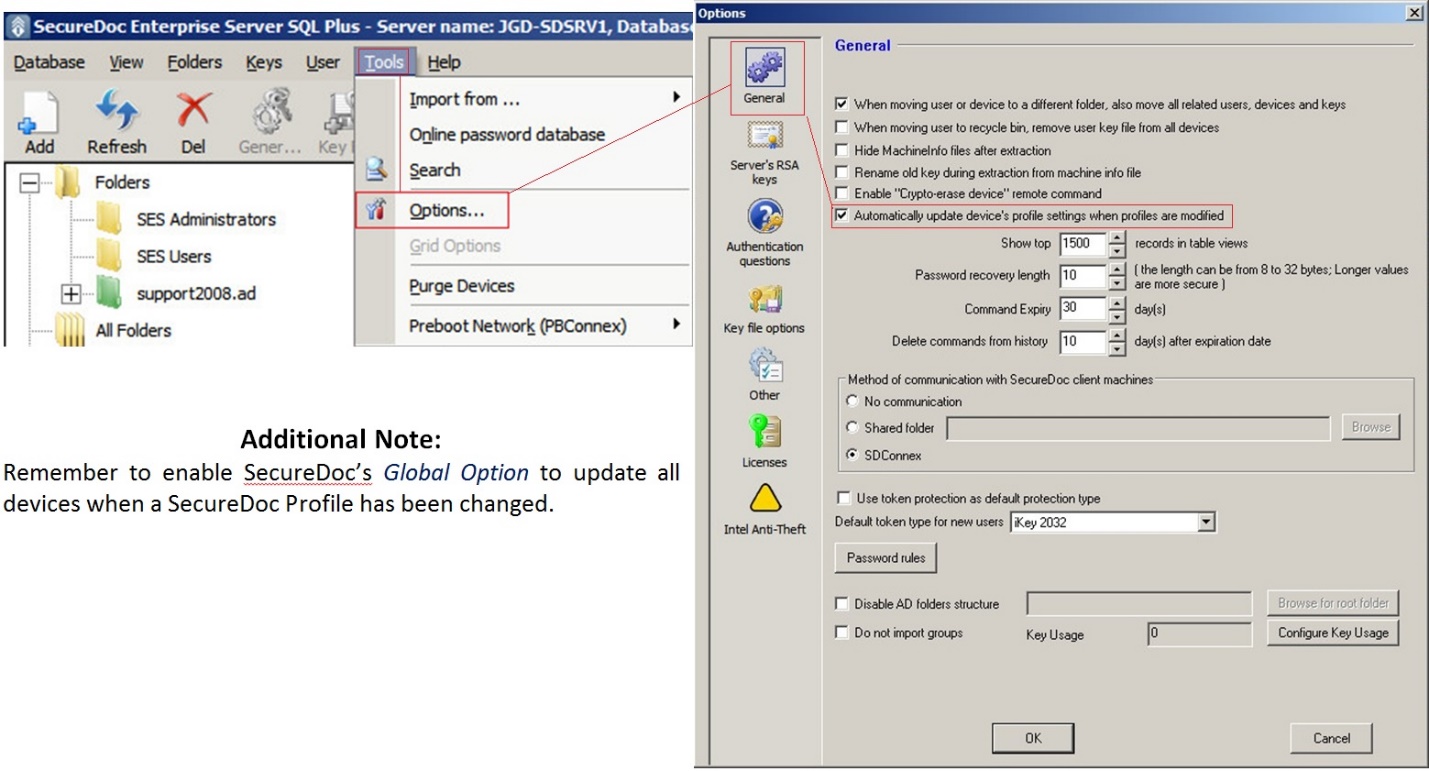
Once the client device has communicated successfully back to the SES server, the device will receive the command task and execute the update. Once completed, the profile change should have completed and you should see update reflected within the SES Console showing SFE Status now reflecting update with new status as "Not activated”.
7. Restart the SFE client for the changes above to take effect.
8. Log into SES v7.1 SR5 and delete the existing SFE folder policies:
Note: Remember to document these folders, as they will be created again after the 7.5 upgrade: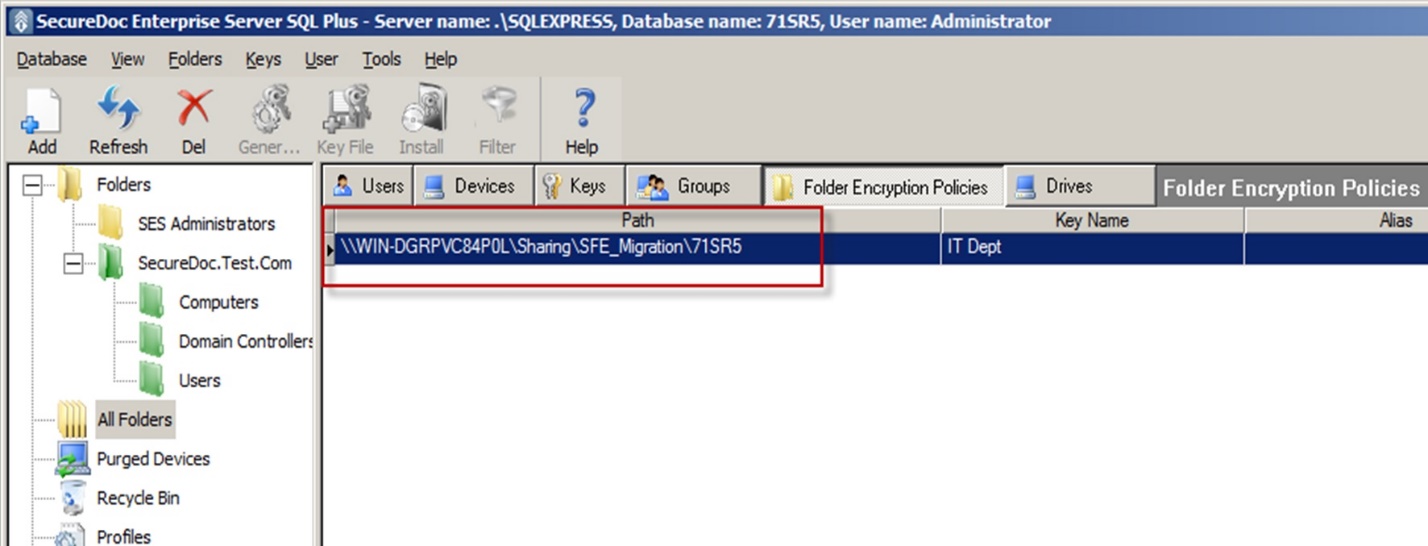
The removal of SFE in 7.1 SR5 is now complete.
The next steps below will provide information needed to upgrade to 7.5 and re-apply SFE to clients:
IMPORTANT: Confirm the “copied” folder (with the plaintext files) have all files from the encrypted folder – using a compare tool. Once confirmed, delete the original SFE policy folder that contains all the encrypted versions of the files and then rename the copied folder to the original folder name – in this example – it will be 71SR5.
Upgrade the SES environment to v7.5 – ensure to complete the following:
- Upgrade the SQL database
- Start SDConnex Service
- Start ADSync Service
Open the Windows Profile, and re-enable the SFE feature:
Upgrade existing SD clients to 7.5. Using the new installation packages files created in 7.5, install SecureDoc on the existing SD clients: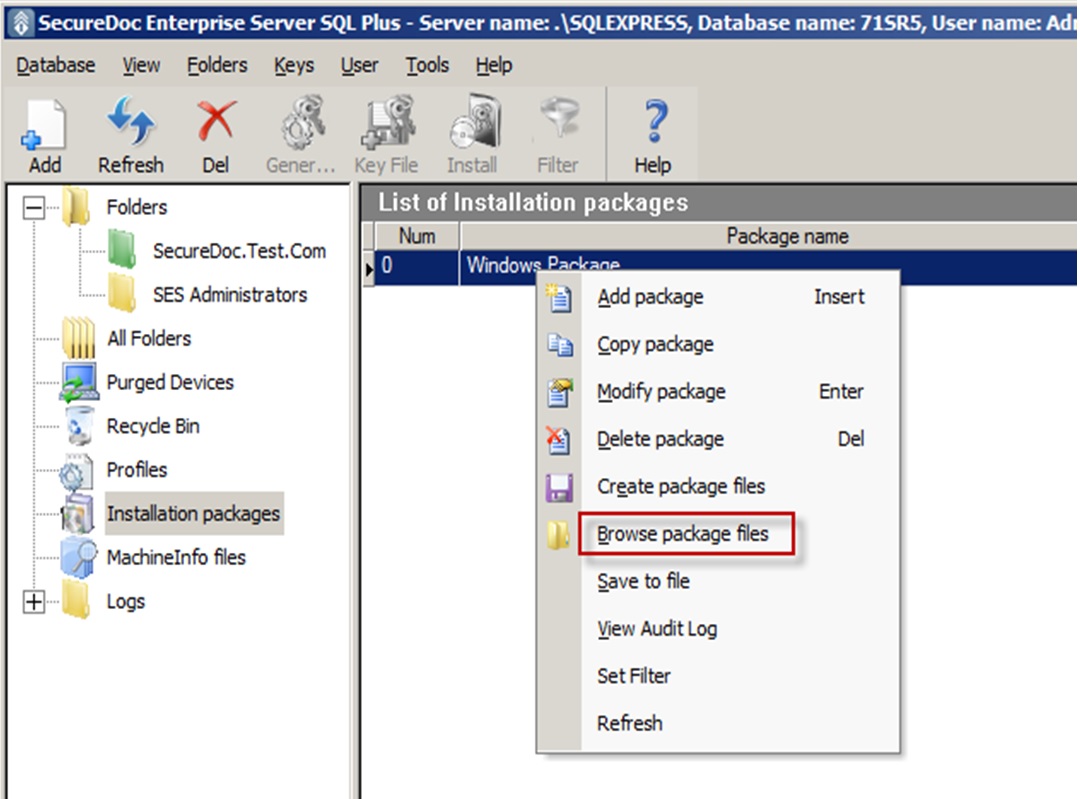
Log into SES and click on Folder Encryption Policies. Next, create the SFE policies again that were removed from previous steps above: 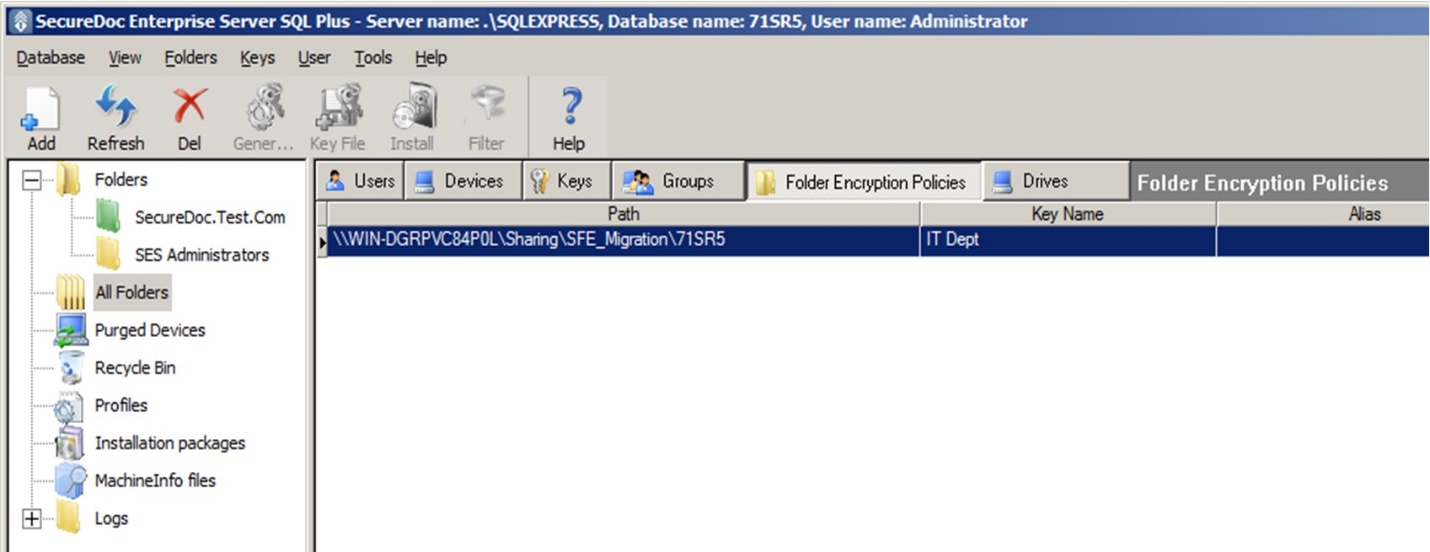
The last step is to re-apply the SFE folder policies to the updated 7.5 clients.
Please note:
- Re-applying “Network” folder policies only need to be sent to a single SFE client
- not all SFE clients need to receive network folder policies.
- Re-applying encryption policies on folders that are local on the clients requires the SFE folder policy to be sent to all client devices needing this policy.