Using SecureDoc on Microsoft Windows 10 RS2 (Creators update) edition
Microsoft will be releasing a new major update to Windows 10. This new version will be available as of April 11, 2017. (Windows 10 RS2 (Creators update) edition – build 1703).
Will I be able to install SecureDoc on Windows 10 RS2 (Creators update) (build 1703)?
WinMagic will be releasing a new version of SecureDoc [v7.1 SR6] to fully support Windows 10 RS2 (Creators update). The scheduled date for this release will be available by end of May 2017(Subject to change).
Currently at this time, it is highly recommended to wait until SecureDoc 7.1 SR6 becomes available as current upgrades to Windows 10 RS2 (Creators update) would introduce limitations in core features of the SecureDoc product. In the event, you already have upgraded to Windows 10 RS2 (Creators update) (e.g... assuming it is 7.1 SR5 or newer) then, some of the following behaviors would be observed on boot up (on UEFI)
1) BSOD screen upon booting up > this is caused because Driver Hook was not enabled (it’s now required for OS upgrades\Usage <WinMagic is currently investigating why BootOrder\DriverBinding is not working>) This is for Software Encrypted drives only
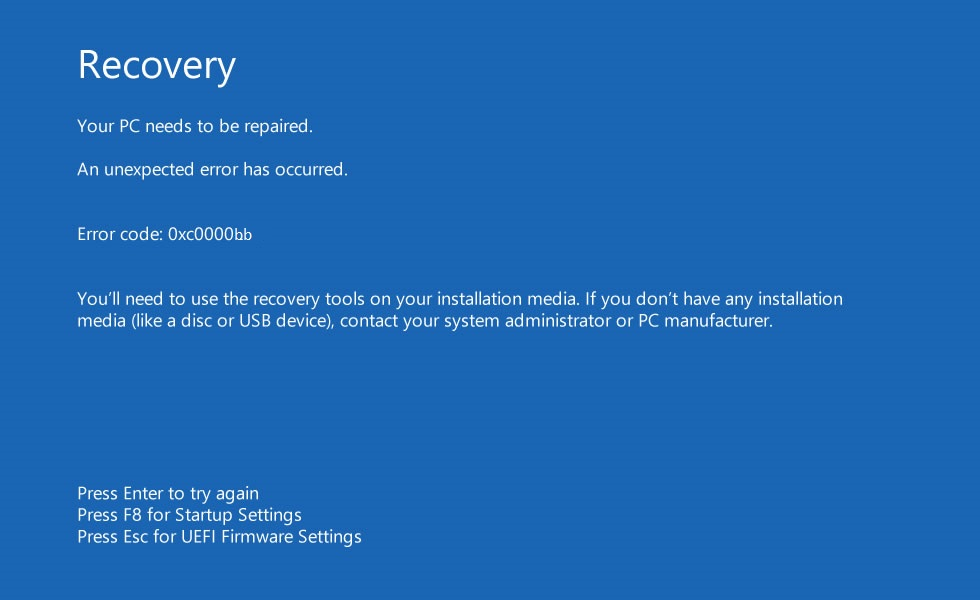
To enabled driver hook at Preboot Login Screen, you will need to use PBU screen. If PBLU is enabled, you can then tap
‘a’ key to revert to PBU:
- A SecureDoc Administrative account for login
- Type Username\Password and press F3 key
- Click on “Configuration”
- Disable “DriveBinding” option
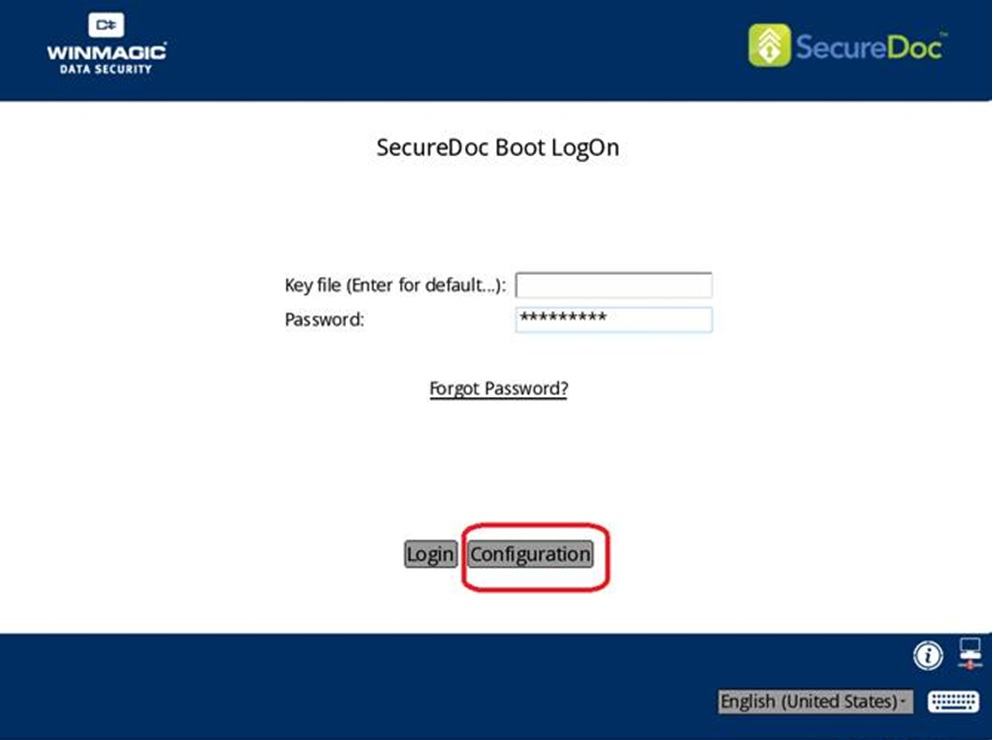
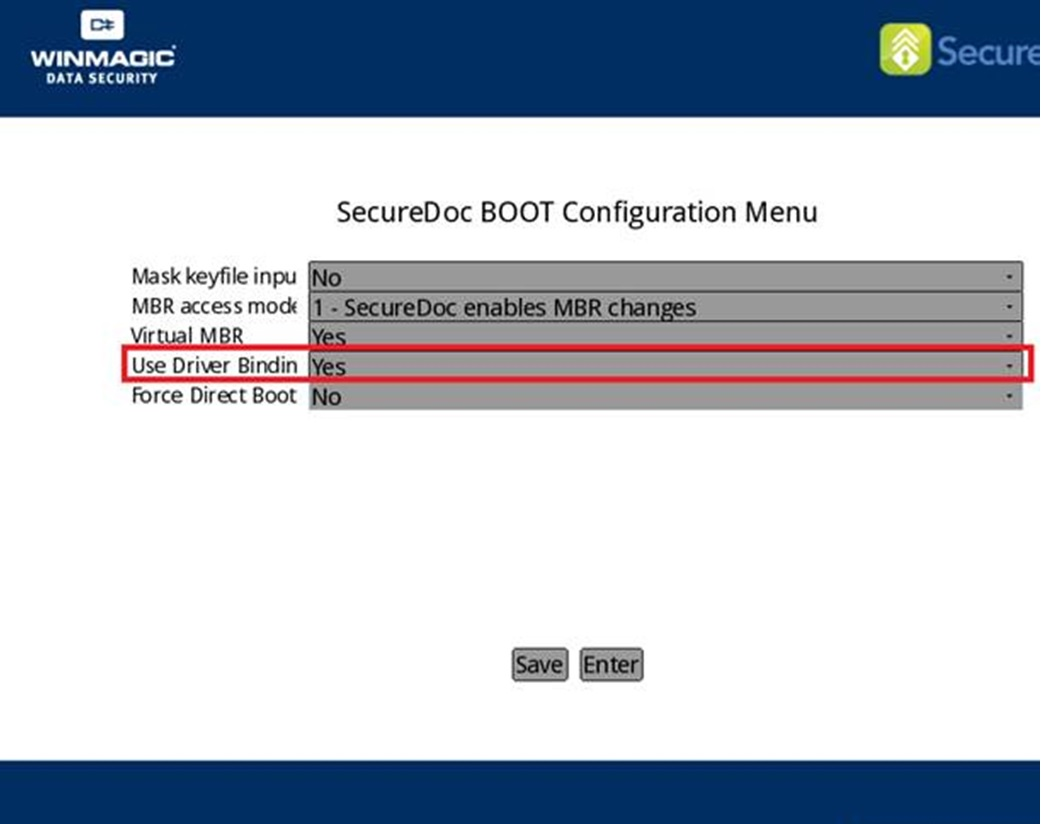
2) Once the system gets past BSOD (or Black Screen with 0x0c00000bb), Windows will attempt to load but, gets stuck at Black Screen with
spinning icon (both Software and OPAL)
This is caused as a result of an incompatible Password Synchronization mechanism. The following procedures are required for recovery:
1. Boot into WinPE
2. Unlock of drive will be required
3. Navigate to the UserData folder. <path C:\Program Files\WinMagic\SecureDoc-NT\>
4. Open SecureDoc.ini and disable password sync:
- SynchPswdNoSDGina=1 set to 0
- SynchPswdWithMatchingAccountOnly=1 set to 0
5. Navigate to C:\Windows\System32\SDPswdSynchronizer.dll and rename dll to
C:\Windows\System32\SDPswdSynchronizer.ORG
If you are unable to wait for new version of SecureDoc scheduled end of May 2017:
In the event, you are unable to wait for new release of SecureDoc; you will need to ensure the following criteria are met to be able to successfully complete an upgrade to Windows 10 RS2 (Creators update):
- Ensure you complete upgrade of SecureDoc to 7.1 SR5 HF4 (This is mandatory)
After the server has been upgraded successfully, you will need to configure SecureDoc Profile with the following changes:
Please make sure 1st to create copy of existing profile and assign it to a few test devices (to avoid mass send of profile to devices that don’t require this change)
- disable ‘Password Synchronization’
- disable ‘UEFI BootOrder’
- enable ‘UEFI Driver Hooking’
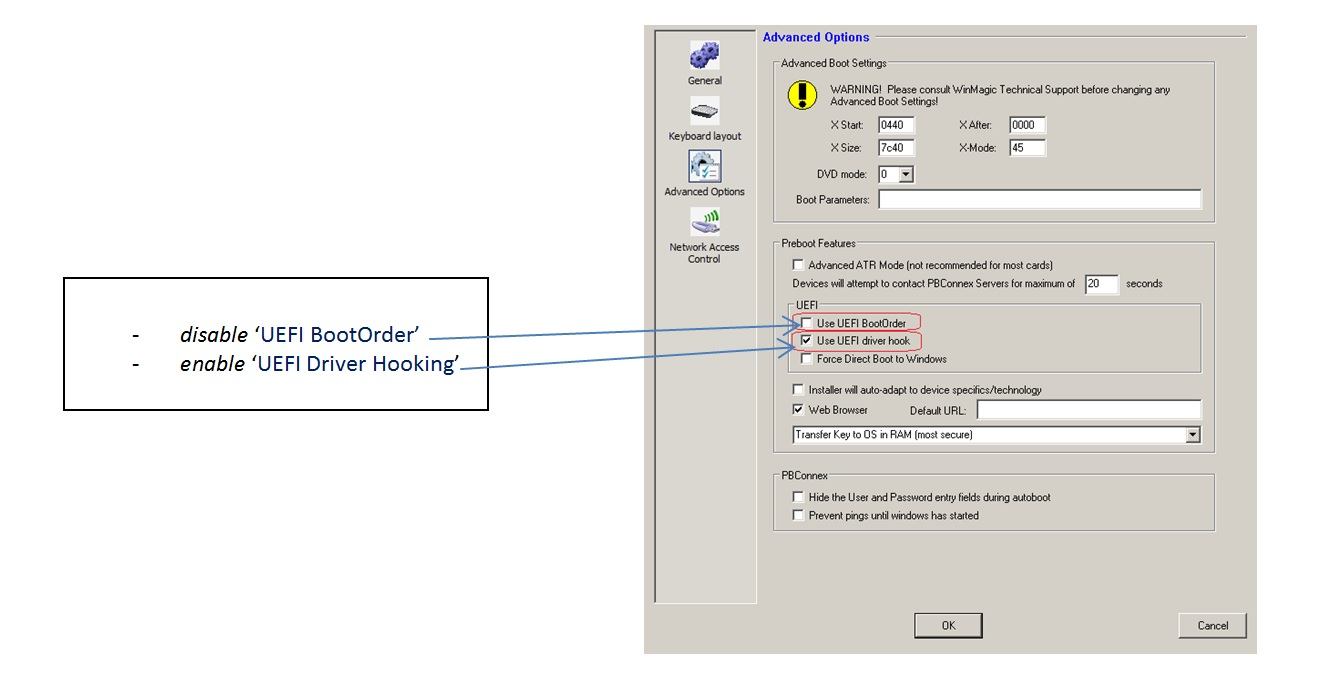
Here are the full steps required before upgrading the system to Windows 10 RS2 (Creators update).
Upgrade Windows 8.1 /Windows 10 (TH1, TH2, RS1) UEFI to Windows 10 RS2 (Creators update) (Encrypted by SecureDoc v7.1SR5 HF4):
- On client system, ensure SecureDoc is at least at SecureDoc v7.1SR5 HF4
- On SES – create/modify profile with the following settings (permanent changes required):
- Disable Password Sync
- Enable “UEFI Driver Hooking”
- Update the client with this updated profile
- On client system, manually rename C:\Windows\System32\SDPswdSynchronizer.dll to C:\Windows\System32\SDPswdSynchronizer.ORG
- Manually reboot the system
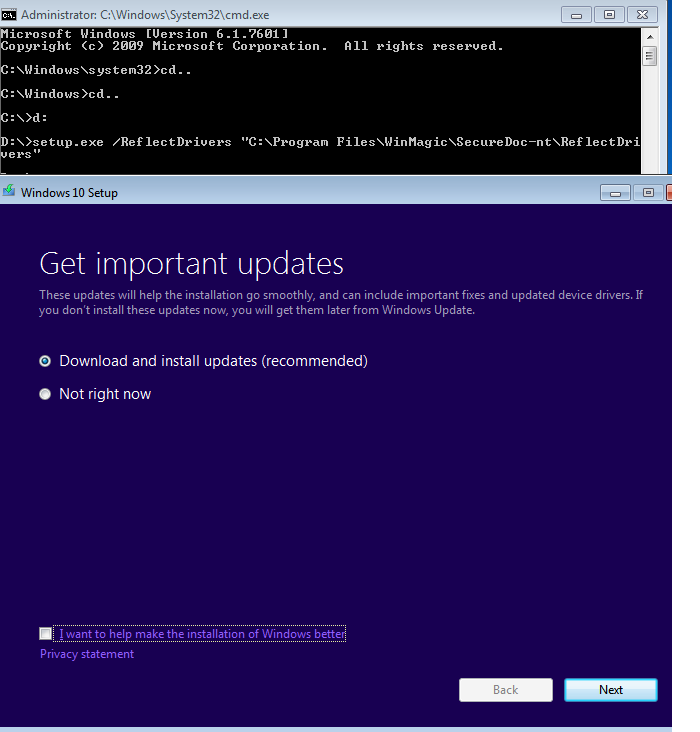
- Perform OS upgrade to Win10 RS2 by running:
Note: Do not copy and paste this line but actually type everything out:
Setup.exe /ReflectDrivers "C:\Program Files\WinMagic\SecureDoc-NT\ReflectDrivers"
OR...
- Run the Tool SDWin10Update_x64 before OS upgrade.
- You can obtain the tool from: https://fileshare.winmagic.com/link/prgIKerCeZJZyLcO17aECt
How to run the tool:
- Copy tool to any directory on your local machine
- Ensure your CD\DVD\USB includes latest Windows 10 RS2 (Creators update) and is attached/mounted
- Run appropriate 32 or 64 bit SDWin10Update.exe as Administrator
- Executable will detect the mounted installer and run the upgrade
- Confirm that you are able to logon past preboot and that Windows 10 version has been upgraded
Upgrade Windows 7 / Windows 8.1 / Windows 10 (TH1, TH2, RS1) LEGACY to Windows 10 RS2 (Creators update) (Encrypted by SecureDoc v7.1SR5 HF4):
- On client system, ensure SecureDoc is at least at SecureDoc v7.1SR5 HF4
- On SES – create/modify profile with the following settings:
- Disable Password Sync
3. Update the client with this new profile
4. On client system, manually rename C:\Windows\System32\SDPswdSynchronizer.dll to C:\Windows\System32\SDPswdSynchronizer.ORG
5. Manually reboot the system
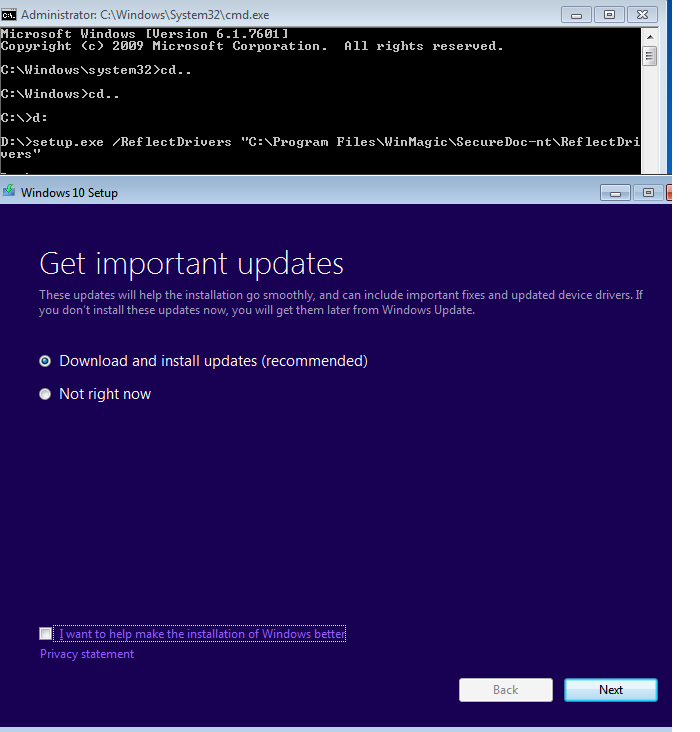
6. Perform OS upgrade to Win10 RS2 by running:
Note: Do not copy and paste this line but actually type everything out:
Setup.exe /ReflectDrivers "C:\Program Files\WinMagic\SecureDoc-NT\ReflectDrivers"
OR...
- Run the tool SDWin10Update_x64 before OS upgrade
- You can obtain tool from here: https://fileshare.winmagic.com/link/prgIKerCeZJZyLcO17aECt
How to run the tool:
- Copy tool to any directory on your local machine
- Ensure your CD\DVD\USB includes latest Windows 10 RS2 (Creators update) and is attached/mounted
- Run appropriate 32 or 64 bit SDWin10Update.exe as Administrator
- Executable will detect the mounted installer and run the upgrade
- Confirm that you are able to logon past preboot and that Windows 10 version has been upgraded
FRESH INSTALLATIONS
Fresh installation using 7.1 SR5 HF4 (if we can’t wait) on Windows 10 RS2 (Creators update) UEFI:
- Disable ‘Password Synchronization’ from Profile
- Enable ‘UEFI Driver Hooking’ from Boot Configuration
Fresh installation using 7.1 SR6 on Windows 10 RS2 UEFI:
- Enable ‘UEFI Driver Hooking’ from SD Profile
Additional Note regarding installation with older version of SecureDoc:
Our Support and development team have confirmed that in the event you attempt to install SecureDoc version older then SecureDoc 7.1 SR5 HF4 and did not use the ReflectDrivers, then the upgrade from Windows 10 to Windows 10 RS2 (Creators update) edition should fail and boot back up to RS1 or previous OS.