Issue:
Customers may experience the following issue when the green lock icons are no longer appearing on the SFE folders on an encrypted device. This article provides a solution on how to reinstate these SFE-encrypted file/folder icons. (NOTE: In previous versions, SFE was referred to as FFE - File and Folder Encryption).
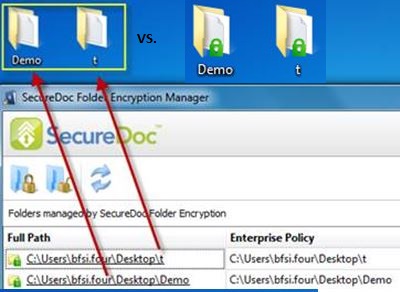
Probable Causes:
By default, Windows only accepts up to 15 registered icon overlays. If there are more than 15 entries, only the first 15 in alphabetical order are recognized.
The missing green icon behavior can occur when customers are using cloud service applications such as Dropbox, and SugarSync that prioritize their overlay icons ahead of the SD overlay icons in alphabetical order.
Product version affected:
Reported in 6.4SR1 and newer
Environment (OS/hardware/software):
All Windows OS and SFE enabled devices
Informational Gathering and Troubleshooting:
1. Refreshing the Windows Explorer screen or restart the device for the locks icon to appear
2. Customer may not have logged in with the correct key file and so the keys are not available. Log into SecureDoc Control Center to see if the icons appear or not.
3. Determine if registry is registering the icons information correctly or not when SFE is enabled.
[HKEY_LOCAL_MACHINE\SOFTWARE\Microsoft\Windows\CurrentVersion\Explorer\ShellIconOverlayIdentifiers\WMNoKey]
[HKEY_LOCAL_MACHINE\SOFTWARE\Microsoft\Windows\CurrentVersion\Explorer\ShellIconOverlayIdentifiers\WMPartialKey]
[HKEY_LOCAL_MACHINE\SOFTWARE\Microsoft\Windows\CurrentVersion\Explorer\ShellIconOverlayIdentifiers\WMNotTransformed]
[HKEY_LOCAL_MACHINE\SOFTWARE\Microsoft\Windows\CurrentVersion\Explorer\ShellIconOverlayIdentifiers\WMAllKey]
4. Once the other three issues have been ruled out, then it is possible that other cloud service applications can affect the SD SFE overlay icons from appearing in alphabetical order.
Workaround:
For most Windows versions, the icon references are stored in the following registry key.
HKEY_LOCAL_MACHINE\SOFTWARE\Microsoft\Windows\CurrentVersion\Explorer\ShellIconOverlayIdentifiers\
If this registry key is expanded, inside there are the four SecureDoc overlay keys:
WMAllKey, WMNoKey, WMNotTransformed, and WMPartialKey.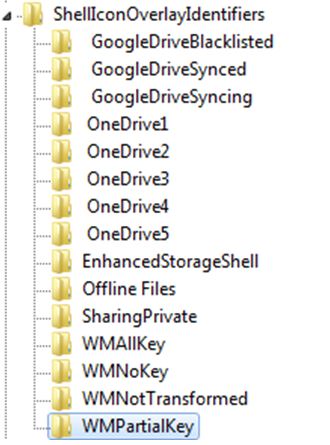
If in a given computer implementation the user isn't seeing icon overlays on SFE-protected folders or files and wishes to ensure these are displayed, the following steps must be taken:
1 - Edit the registry, and rename these keys to be alphabetically earlier than any other keys. One easy way to do this is to add one or more spaces in front of each of their key names.
Try to adding two spaces before WM*?
See the screenshot below: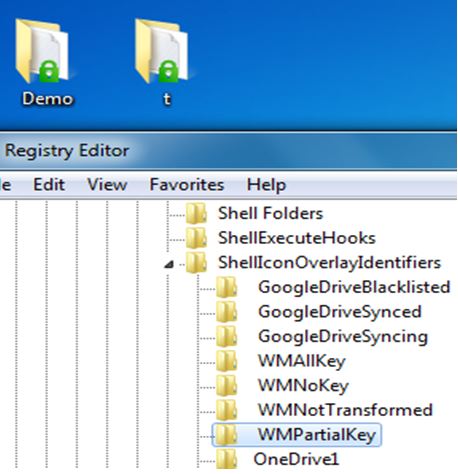
2 - Restart the computer, or restart Explorer.
Limitation:
Where a SecureDoc client has implemented SecureDoc File Encryption (SFE), the automatic behavior under SFE is that encrypted files and folders will have a "lock" icon in Windows Explorer, providing the user with a visual indication that the file or folder has been encrypted. If this lock icon does not appear on encrypted files or folders, it may be because Windows allows only 15 different icon overlays to be displayed, and those lock introduced by SFE may not be among the first 15 icon overlays.
Internal Reference:
SD-9919
SD-4761
Addressed in Release Notes 6.5 under Known Limitations section
1638 Green Lock Icons Are Not Displayed on SFE Folders Of An Encrypted Device
- Updated on Feb 6, 2026
- 2 minute(s) read
- VN
Was this article helpful?