Topic:
This How-To article provides instructions on how to clear the old license file from the SQL DB.
Product version affected:
All SES versions
Environment:
Windows 2008/2012 Servers and SQL 2008/2012
http://www.winmagic.com/support/technical-specifications
Steps to follow:
In order to clear the license file from the SES, please do the following:
- In Microsoft SQL Server Management Studio open the databases table.
- Locate and open the database folder.
- Locate the dboSettings table.
- Right click and choose Edit top 200 rows.
- Locate "IDNLW_DB_DATA_BSI_SERVER_FILE" in the Name column. If there is no such row, please skip step 6.
- Delete this row by right clicking on the row to the left of it and selecting delete. (view screenshot)
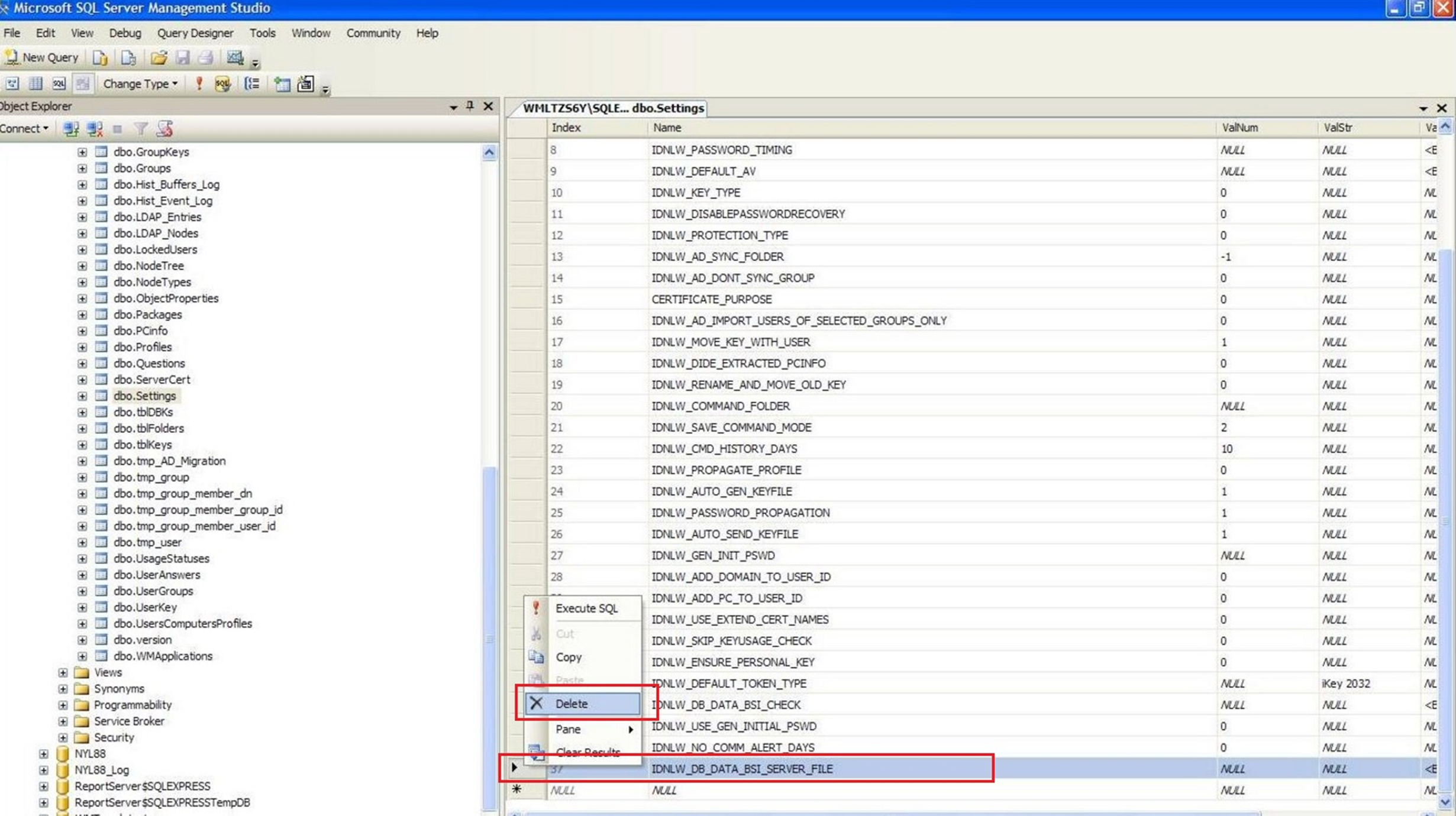
- In order to confirm the license count is reset to default license count, please click on Tools > Options > Licenses. Most of the "Available" fields should have a default value of 10.
- Please load the new license file and confirm the correct number of licenses loaded. To confirm click on Tools > Options > Licenses in SES console.
- If for any reason that the new loaded license file contains an incorrect number of purchased licenses, please contact [email protected]. They will be able to reissue a new license file.