Topic:
This How-To article provides instructions on how to obtain the two important server logs required for investigation by WinMagic development team.
Logs:
- SDconnex log: SDConnexAppTrace.svclog
- ADSync log: Winmagic.SecureDoc.ADSync.Service.svclog
- EventLogs
Product version affected:
All SD versions
Environment:
Windows Server OS where the SES server is installed
Steps to enable SDConnex Logs:
- From Windows Start Menu, launch SecureDoc Service's Configuration
- Select SDConnex Service
- Checkmark Enable Detailed Trace to Folder
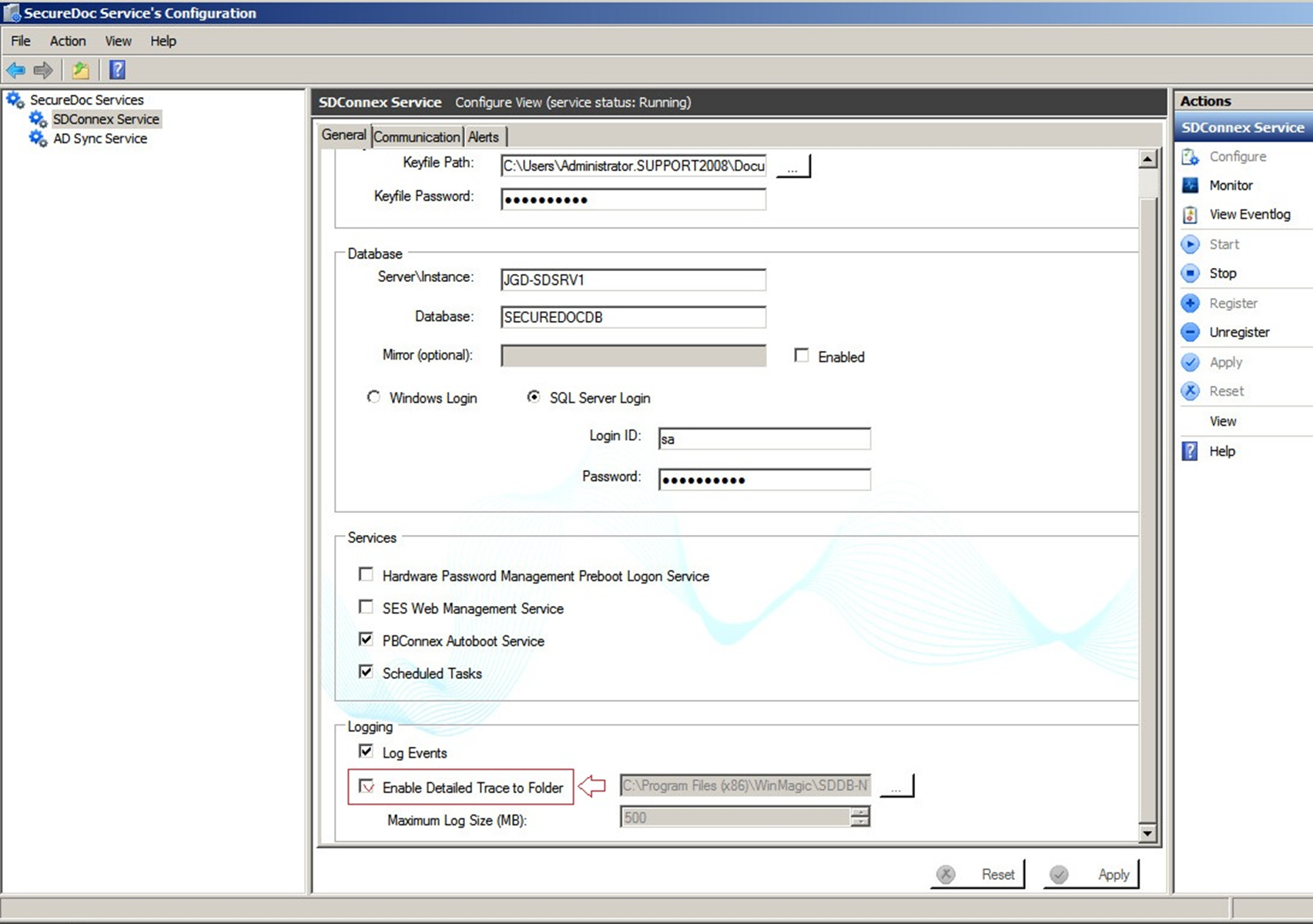
- Stop and Start the service after enabling logging to activate the feature.
- Reproduce the issue and let logs collected in to process memory.
- Once this log gets to 500MB, it will start creating a new log file.
- Once the log is captured, you can disable this logging feature.
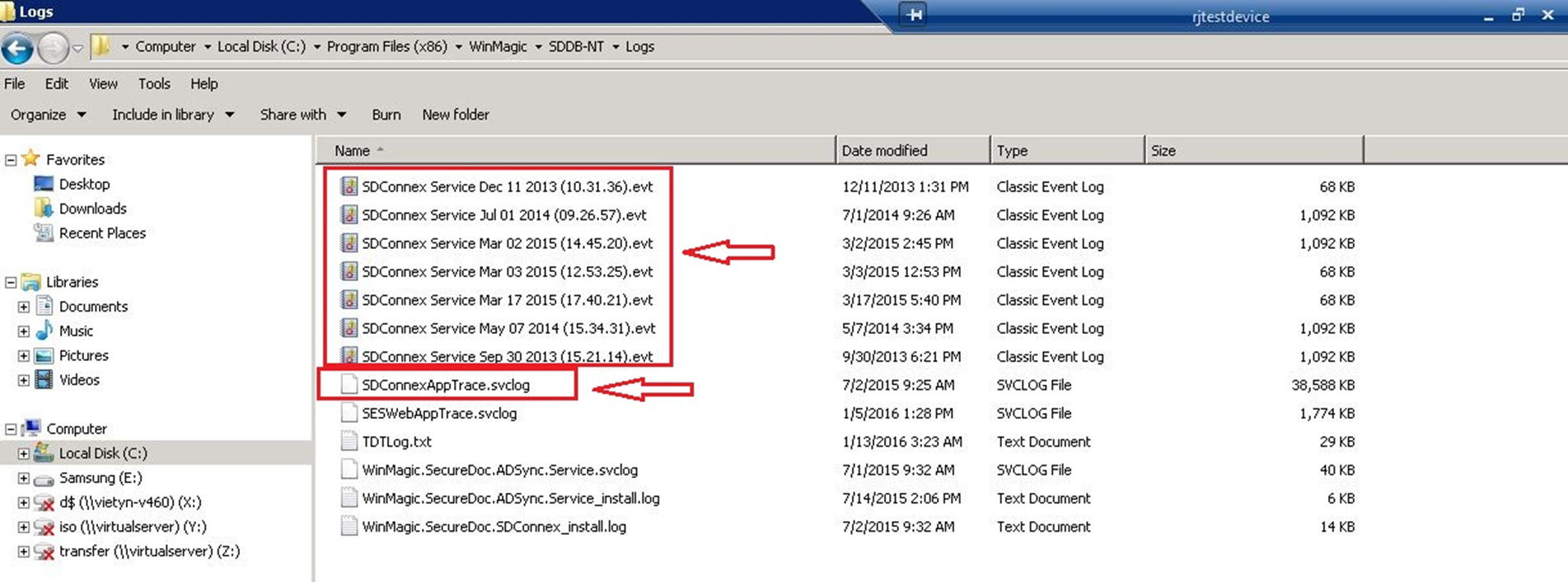
By default, the logs will be saved under: C:/ProgramFiles(x86)/WinMagic/SDDB-NT/Logs/SDConnexAppTrace.svclog
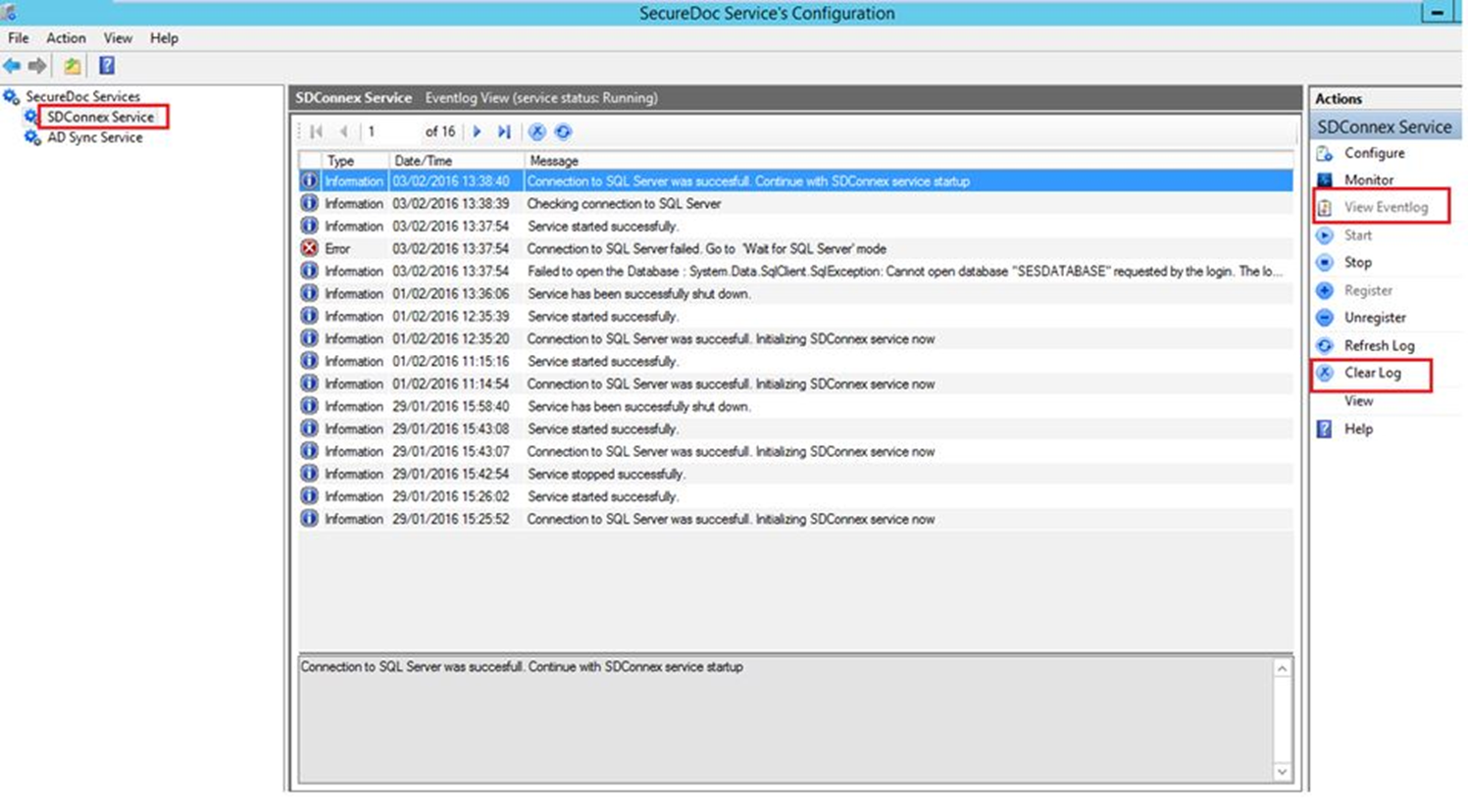
Along with above mentioned log, it is advisable to get a copy of the EventLogs as it may help narrow the timeframe as the date and time of the error will reflect in Event logs.
To Export the Event Logs:
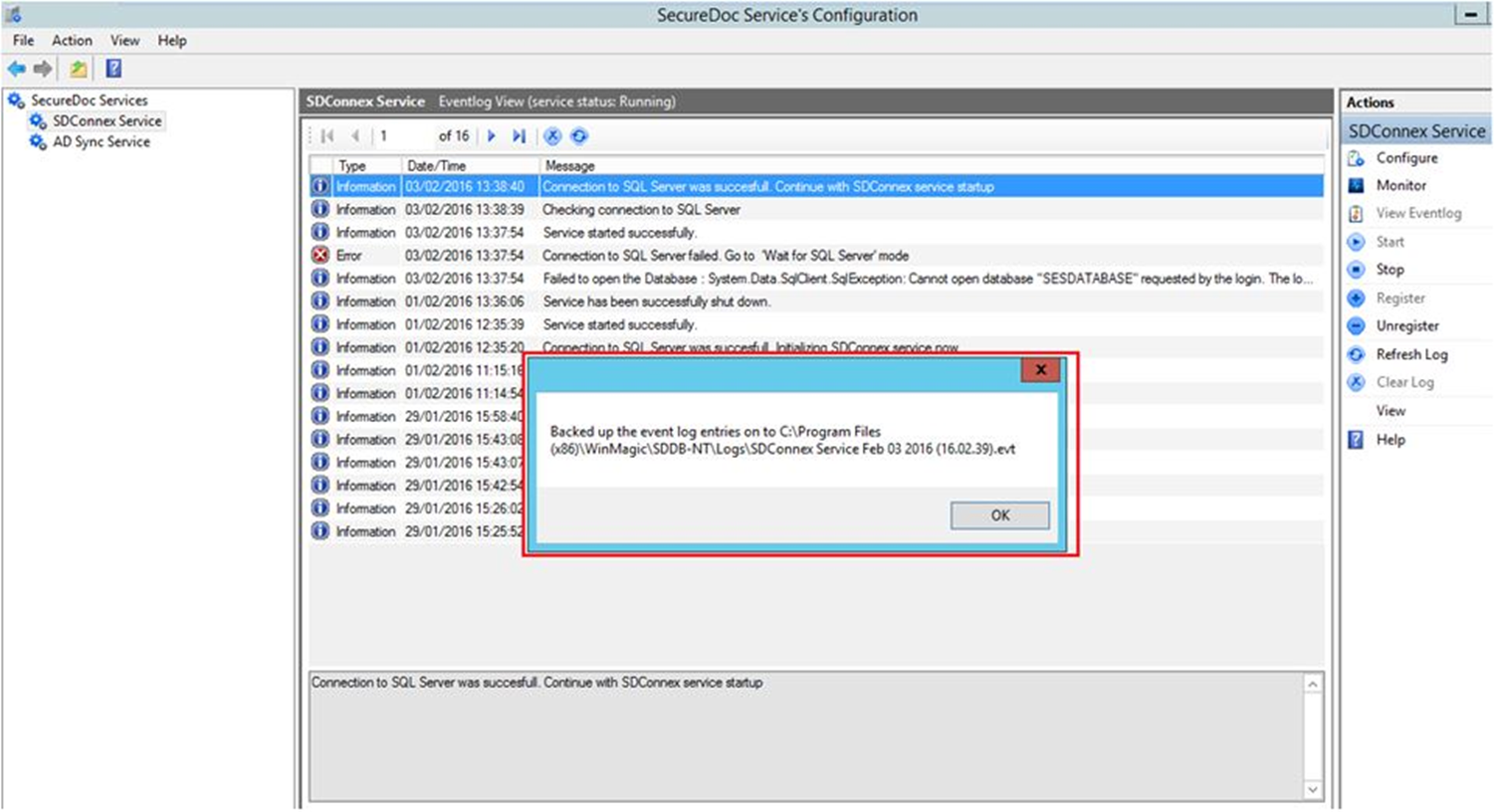
- Click View Event Logs > Click Clear Log.
A pop-up will appear which will tell about the location where the logs will be backed up.
- The logs will be saved with Service Name, Date and Time when the logs were created.
- It is important to disable these logs after completing the troubleshooting as these logs will keep growing otherwise and will consume large hard drive space.
- Restart the SDConnex service.
Steps to enable ADSync logs:
- From Windows Start Menu - Launch SecureDoc Service's Configuration
- Select AD Sync Service
- Checkmark Enable Detailed Trace
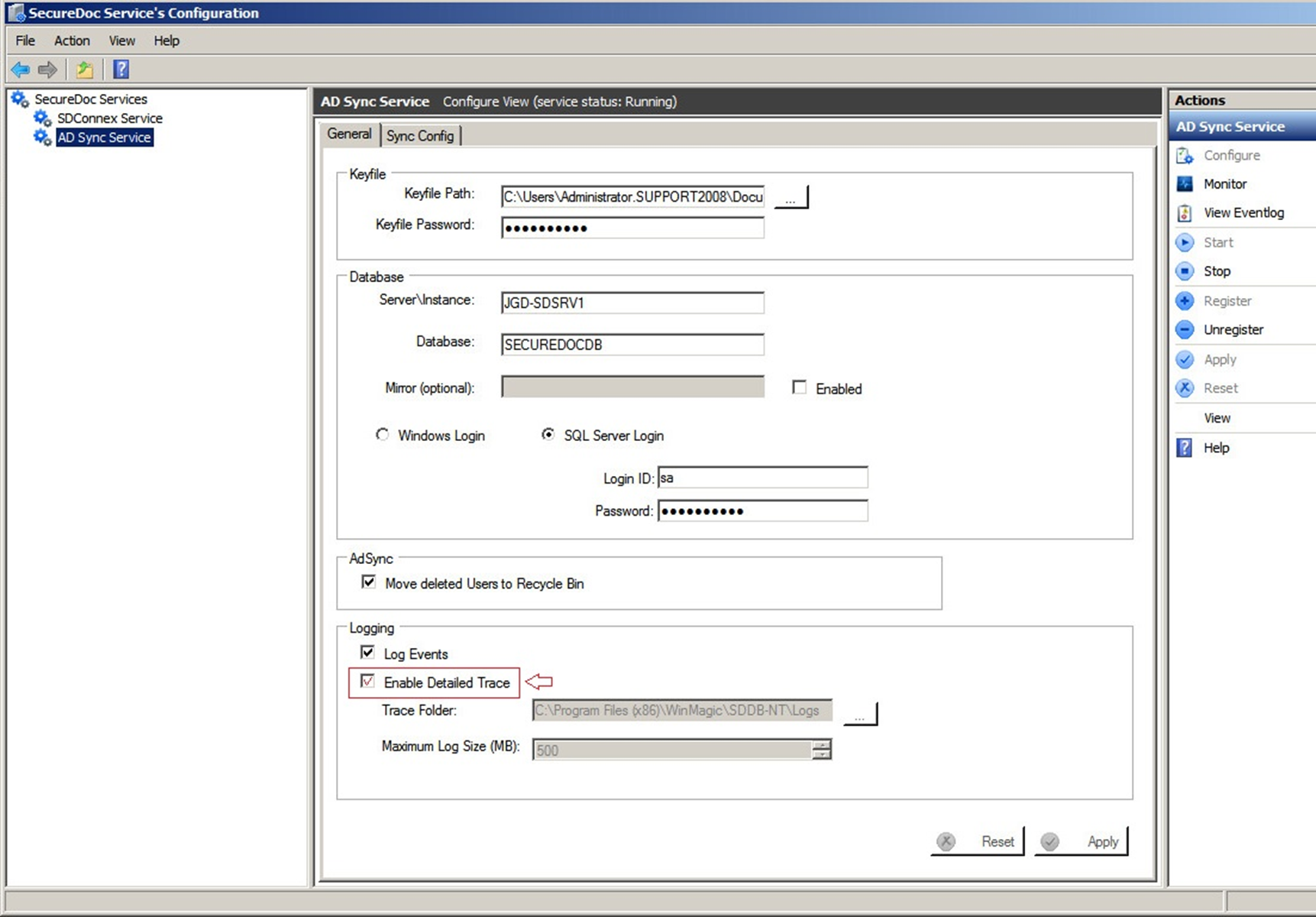
- Stop and Start the service after enabling logging to activate the feature.
By default, the logs will be saved under: C:/ProgramFiles(x86)/WinMagic/SDDB-NT/Logs/WinMagic.SecureDoc.AdSync.Services.svclog
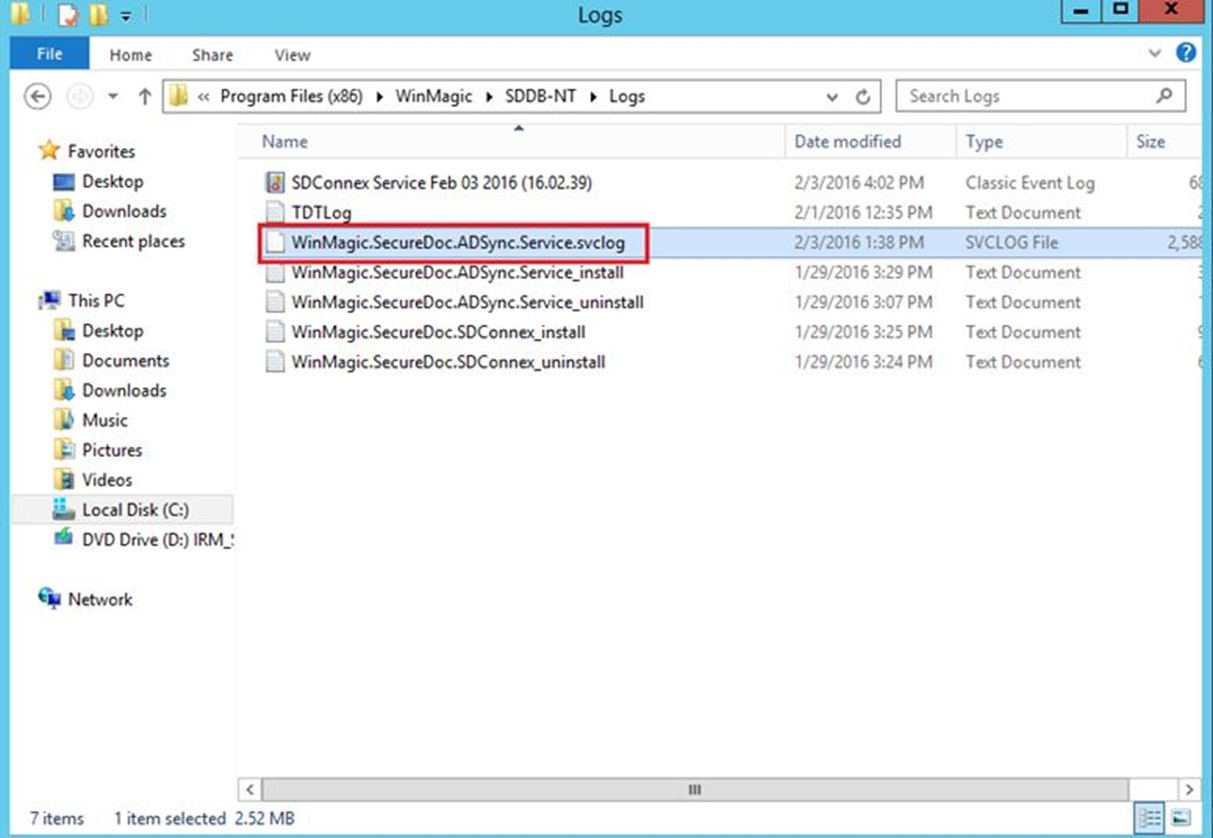
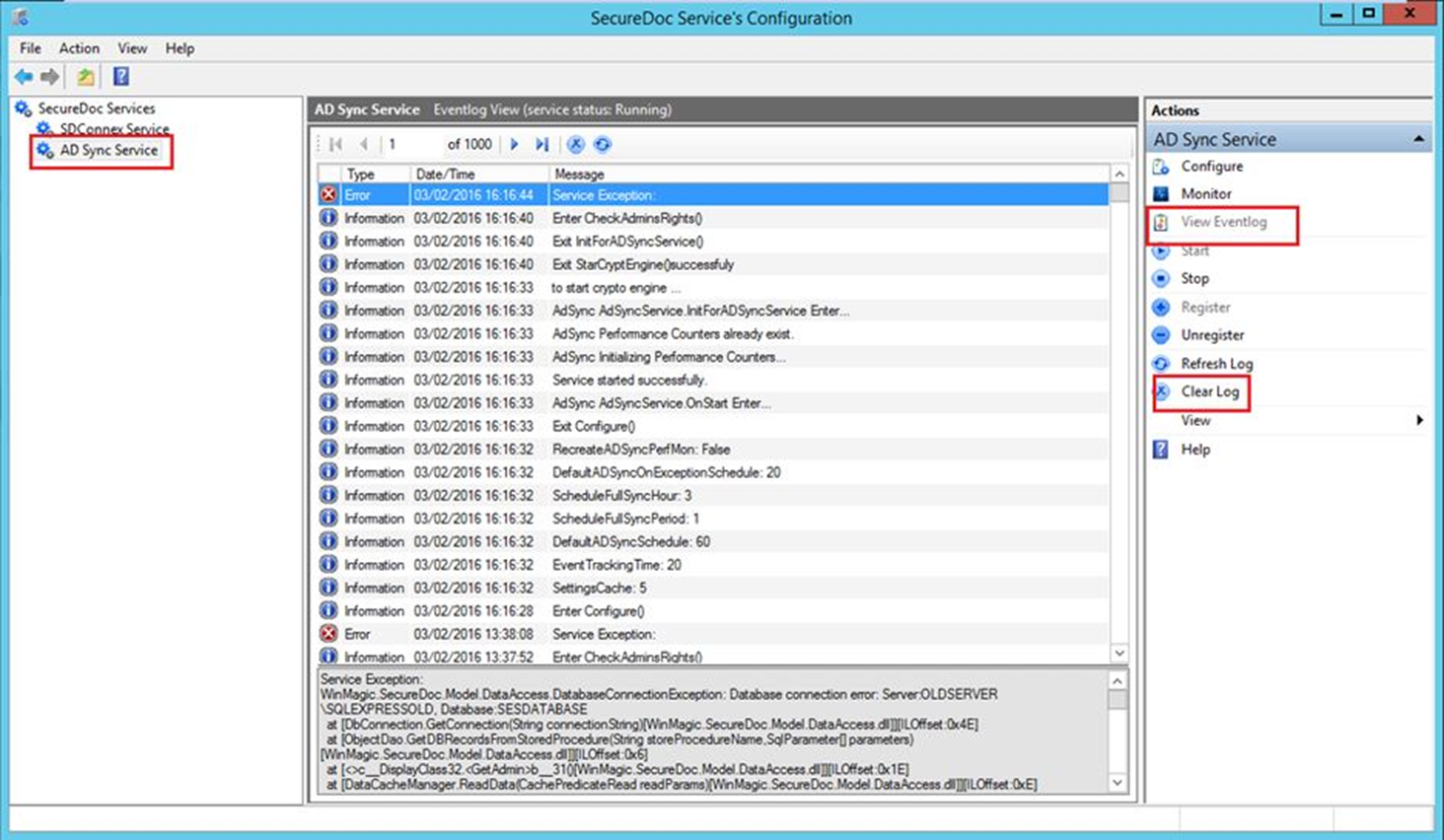
- Along with above mentioned log, it is advisable to get a copy of the EventLogs as it may help narrow the timeframe as the date and time of the error will reflect in Event logs.
- To Export the Event Logs: Click View EventLog > Click Clear Log.
- A pop-up will appear which will tell about the location where the logs will be backed up.
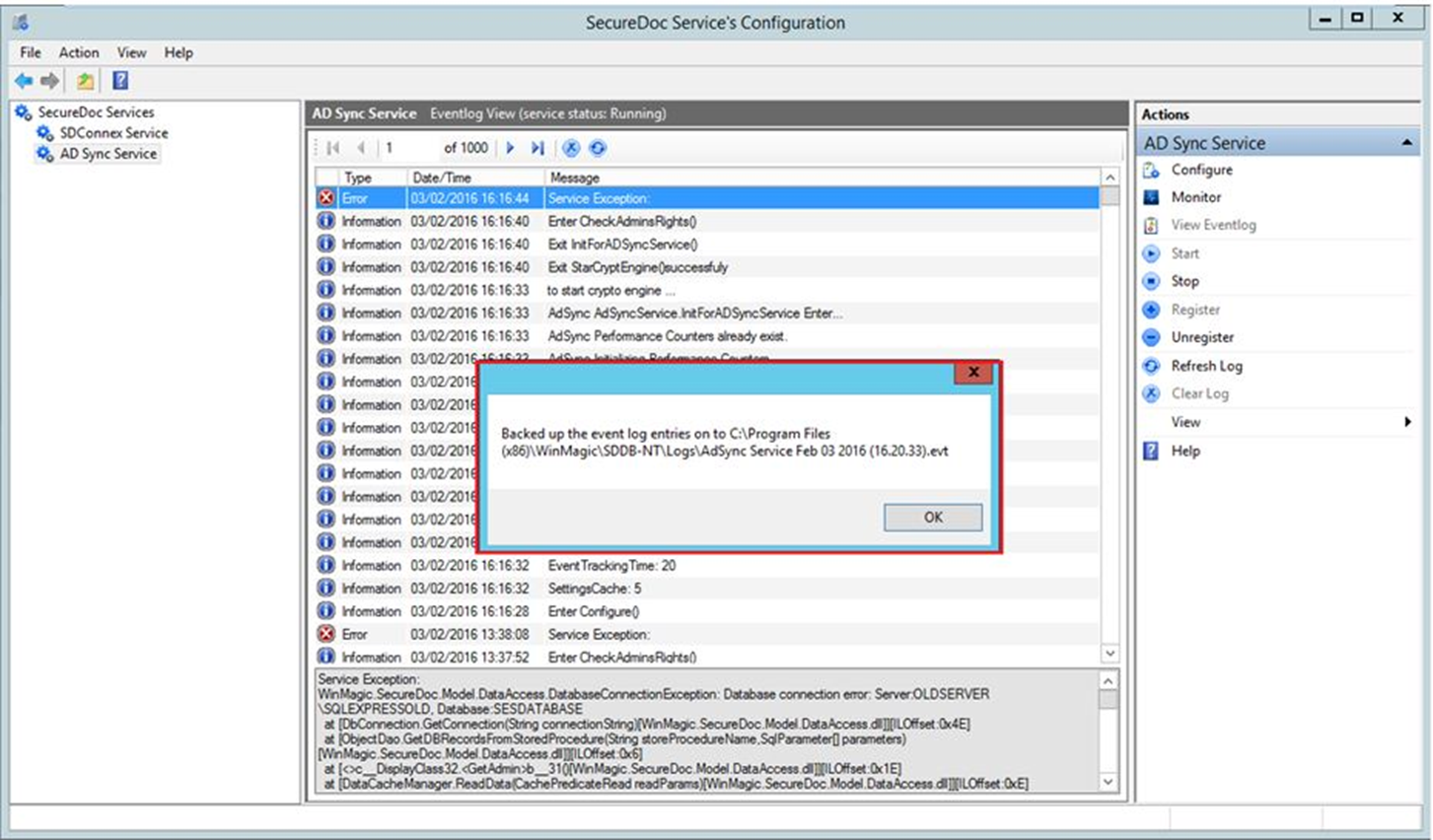
- The logs will be saved with Service Name, Date and Time when the logs were created.
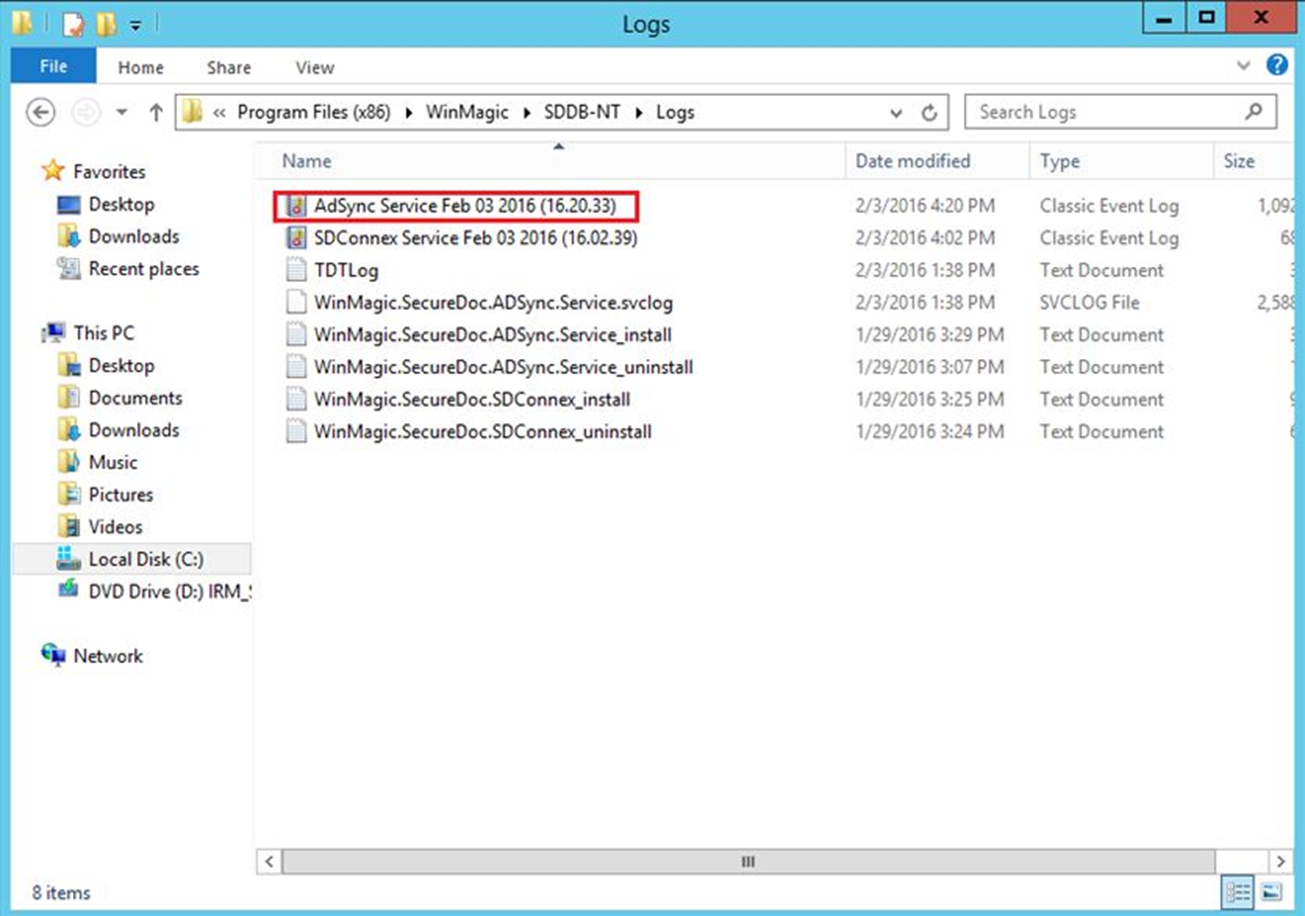
- It is important to disable these logs after completing the troubleshooting as these logs will keep growing otherwise and will consume large hard drive space.
- Restart the ADSync service.