Method 1: Challenge response
From the DEVICE USER's perspective:
Start the computer that you have forgotten the password to, and when you see the SecureDoc Boot Logon screen, press F8
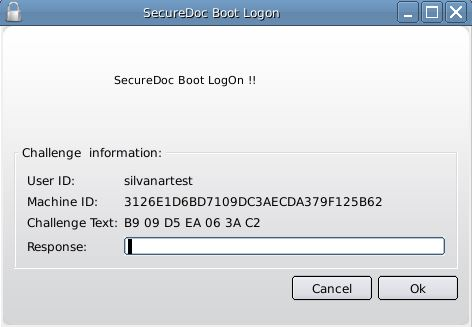
You will see a SecureDoc Boot Logon screen with Challenge information, as in the image below. Leave the computer running and note down the challenge text
The end user should now call the SES Administrator, or help desk user.
THE SES ADMINISTRATOR/HELP DESK STAFF will perform the next steps.
Locate the device on the SES console
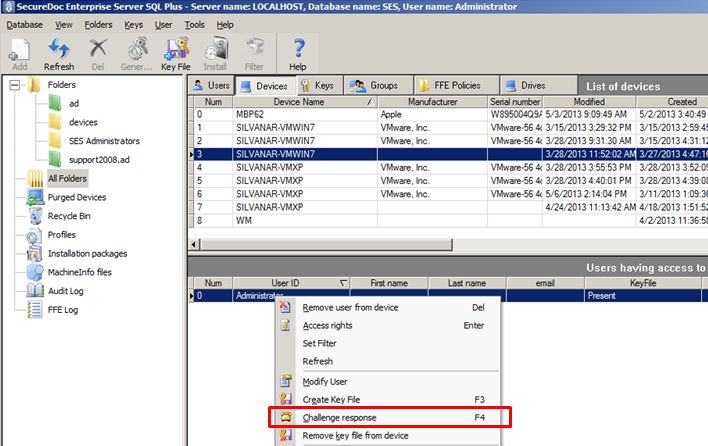
Right click on the user that has called you (found underneath the device) to select his/her user record and to cause a pop-up menu to appear. In that menu, select the menu item entitled "Challenge response", as shown highlighted in red in the image below:
As the user to read the Challenge Text to you (this will probably be over the phone). Type the Challenge text that you got from the client computer into the box beside "challenge”, as highlighted in red in the image below.
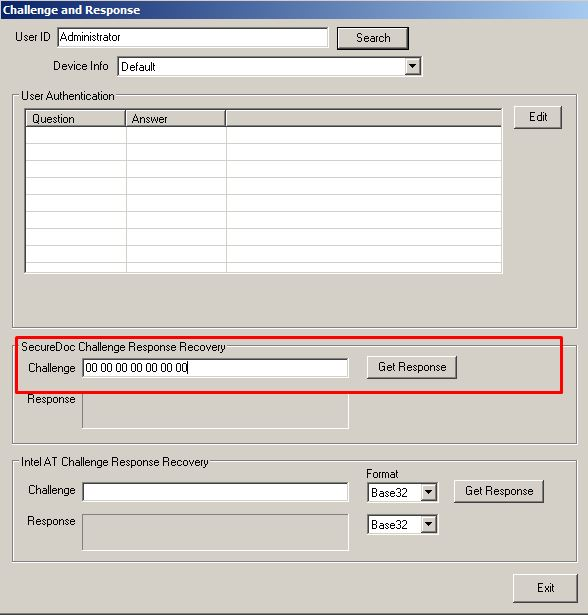
Then press Get Response and record the response and read it over the phone to the user. (NOTE: Do not read the spaces back to the user - they're shown in the response field to make it easy to read. The user will not need to enter spaces either.).
THE USER MUST:
The user must type the characters into the Response Field on the Challenge Response Panel (as shown in the first image in this article), as read to him/her by the Administrator. Do not use the space bar to add extra characters, only digits 0 through 9 or letters A through F, even if the Administrator inadvertently inidicates there are spaces in what he sees.
Method 2: Use a dbk file to login to the computer
Please refer to : https://www.winmagic.com/knowledgebase/article.php?id=250
Custom Fields
Operating System: All
Product_Documentation: Yes
Version: Affects all versions of SD