Topic:
Port Control is a way of restricting/limiting access to USB enabled devices on a SecureDoc-managed encrypted device. This article providing steps to configuring the port control feature within a Device Profile using the SecureDoc Enterprise Server Console.
Product version affected:
All SD versions
Environment:
All Windows OS environment
All devices
Steps to follow:
Right click on the specific profile or create a new profile > select Port Control > Select “Install Port Control” and “Block unauthorized USB devices” > and then click on “Authorized Devices” > click on Add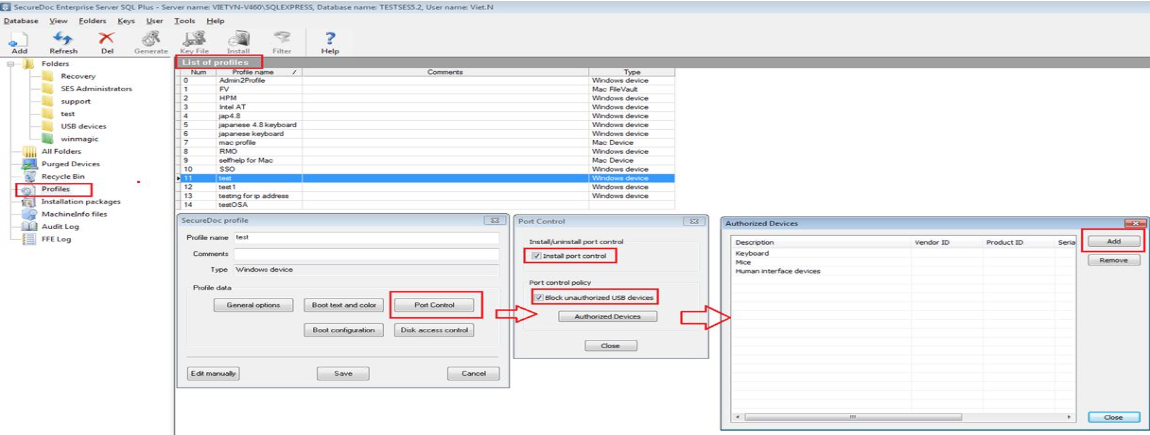
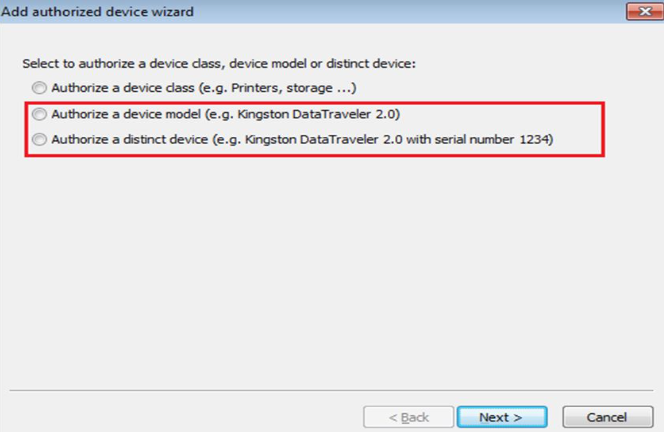
Customer can have the option to select “Authorized a device model (e.g. Kingston DataTraveler 2.0) and “Authorized a distinct device (e.g. Kingston DataTraveler 2.0 with serial number 1234)
Click Next
Click on “Show Previously connected devices” and select the device that appear in the list > click Finish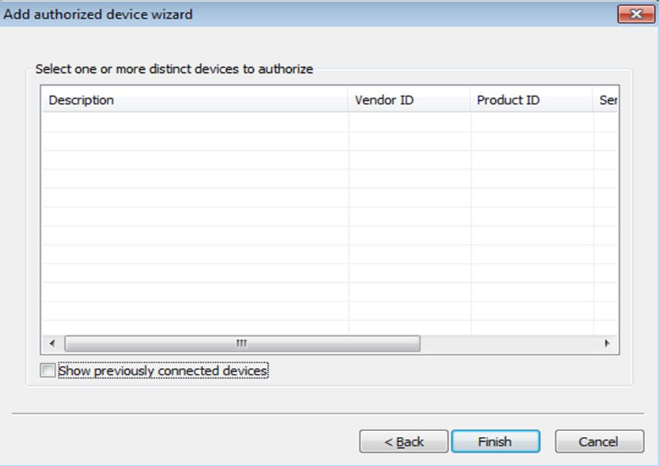
After the profile has been assigned to the device, communicate with the server and then restart the device.
1535 How to Enable Port Control in SES
- Updated on Feb 6, 2026
- 1 minute(s) read
- VN
Was this article helpful?