Details:
This article provides steps for setting up disk access control (DAC) on a SD encrypted device up to 6.5SR3 version.
Purpose:
Disk Access Control (DAC) provides a means of controlling access to the data (read/write/lock access) from a USB and CD/DVD media on a encrypted device.
Pre-Requisites:
In order to define Disk Access Control rules, user logging into the SecureDoc Control Center must have SecureDoc Administrative rights - (an Admin-level Key File).
Steps to follows:
1. Log into the SecureDoc Control Center (SDCC) with an admin key file.
2. - Click on "Tools" > "Disk Access Control" > Select "Profile Options" Tab.
- Highlight the "Default" profile and click "Edit".
Note: Please refer to the Standalone user manual for further details regarding each of the available options
http://downloads.winmagic.info/manuals/SecureDoc_Standalone_v65_User_Manual.pdf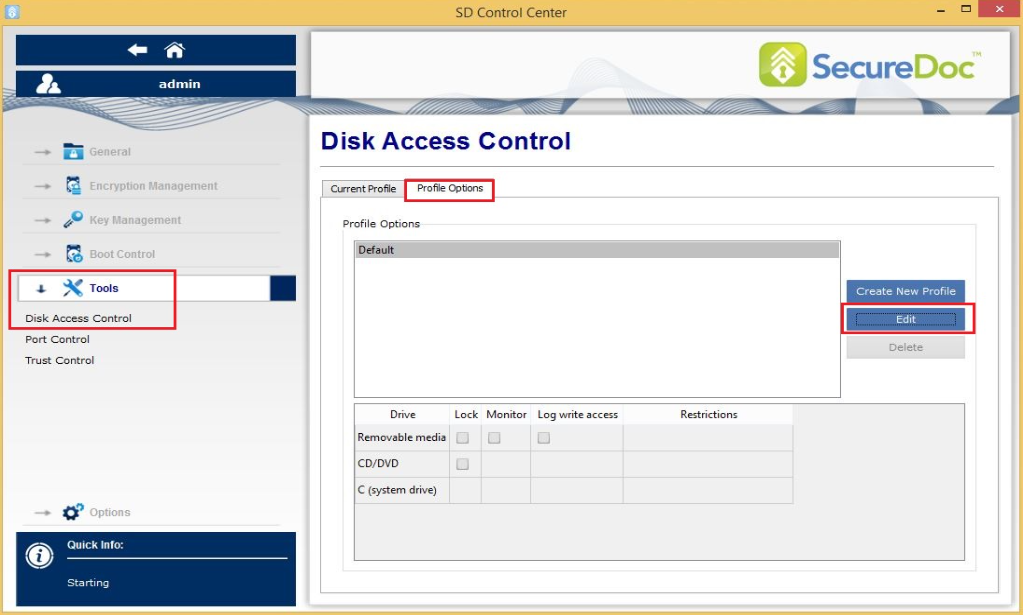
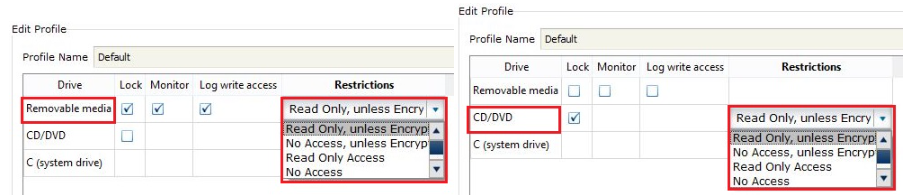
3. Edit the default profile and select the desired features for USB and CD/DVD media.
Below are screenshots of what restrictions available for USB and CD/DVD drive.
Note:
If selecting the following options for CD/DVD, a warning message will appear. Click 'Yes' to the warning message > click 'Save' to save the changes made.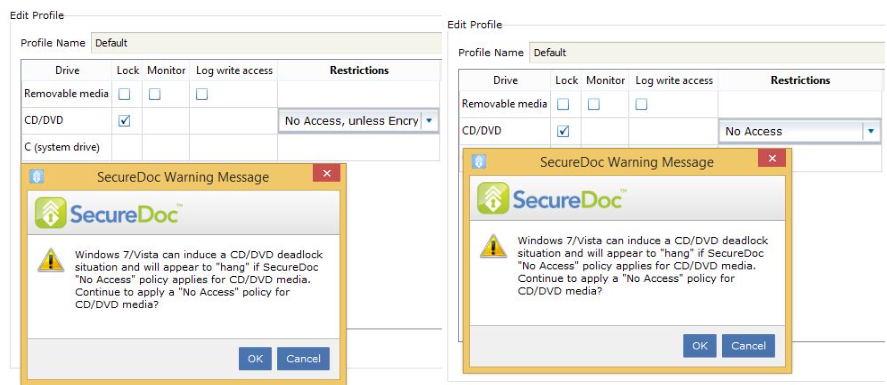
4. After clicking 'Save' to profile, a SecureDoc message briefly appears to inform the at the profile has been successfully edited.
The change will take affects upon restarting the device.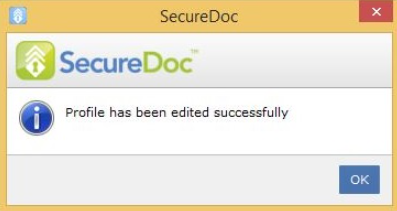
Additional Information:
KB 1631 - SES 7.1 New GUI Description "No Restrictions" Added for Disk Access Control