How to Expand a Partition in a SecureDoc-protected Device
Summary
Normally it is not recommended to resize or otherwise alter the Partitions within a SecureDoc-protected device, but this article provides guidance on how to do this as well as reminding users that a full data backup should be taken in advance of any such attempts. Note that this differs from Dynamic Disks, which are not supported under SecureDoc.
Important steps to remember before performing a partition re-sizing.
Back up all the important data to prevent data loss incase of failure.
To perform a partition re-sizing:
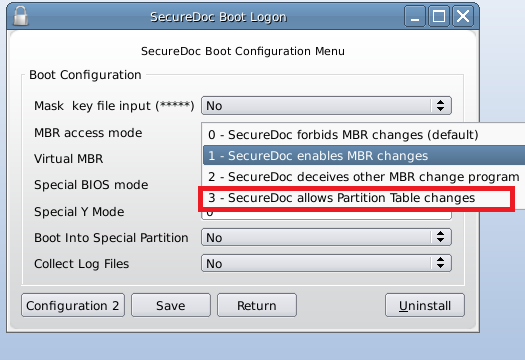
Make changes to the Virtual MBR from Pre-boot (Requires an Admin-level Key file; Input the admin account and password, then press F8 to access the Configuration Menu, as shown below)
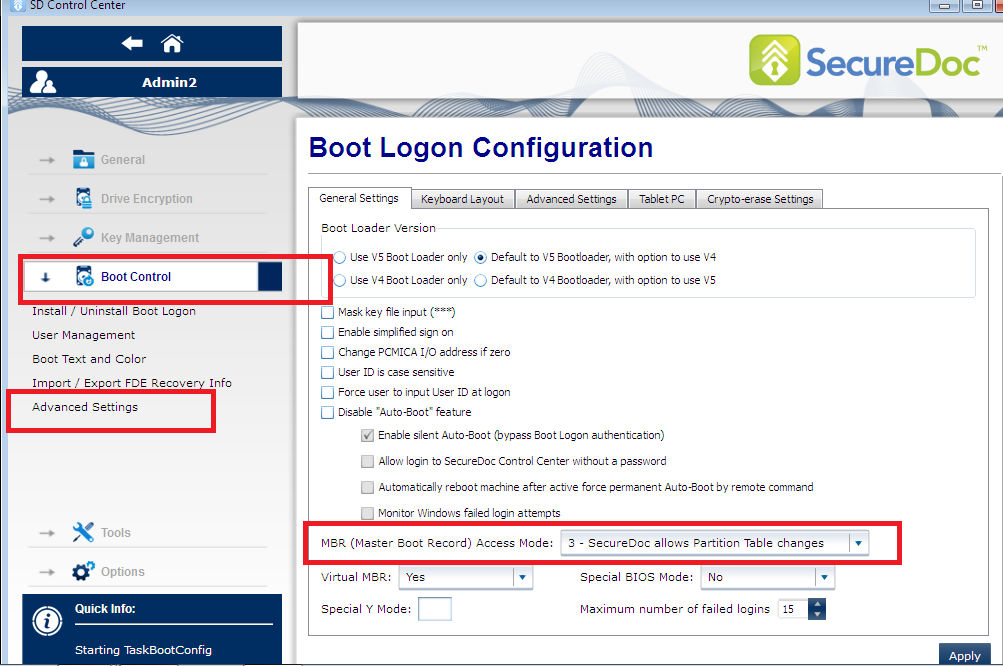
This can also be done in Windows under SecureDoc Control Center -> Boot Control -> Advanced Settings (again, this requires that the user has logged into an Admin-rights Key File).
Set the value to "3 - SecureDoc allows Partition Table changes"
Re-size the partition and validate that data is intact.
Remember to set the value back to its original state afterward, to guard against inadvertent changes.