How to use Hwemngr in Windows
Article Summary:
This article provides how to instructions on using Hwemngr.exe to manage Self Encrypting OPAL 2.0 hard drives.
Note:
Please contact customer support for details and where to download the utility.
Product version affected:
All SD versions
Environment:
Self Encrypting OPAL 2.0 hard drives
Windows Based OS
All devices
Steps to follow:
A - If the drive is bootable to Windows
When the drive is bootable, then the HWEmngr.exe can be run locally:
- Obtain the HWEmngr.exe and sduser.dll files from WinMagic Technical Support and extract/unzip file if necessary.
- Launch a DOS command prompt, with elevated rights:
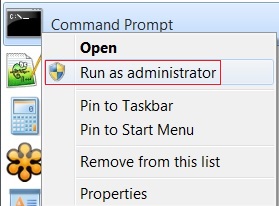
- Click on Windows Start Menu
- Then type “command” within Search Programs and files:

- Locate and right click on Command Prompt and then click on Run as Administrator
- Navigate to the folder location in which HWEmngr.exe and sduser.dll files were saved to.
- To list the drives and see the status enter command : Hwemngr.exe –l
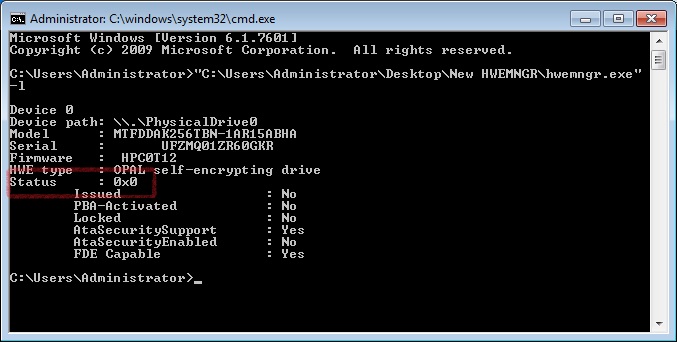
Please refer to the Results status mentioned at bottom section of this article.
B - If the drive is NOT bootable to Windows
In the event the drive is not bootable, then the drive will need to be slaved to another Windows device:
Note: For best results, we recommend attaching drive via SATA cable connection, or use a USB docking station.
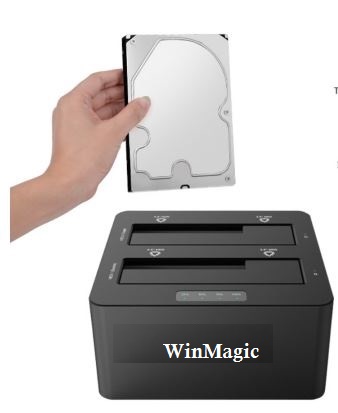
- Obtain the HWEmngr.exe and sduser.dll files from WinMagic Technical Support and extract/unzip file if necessary.
- Obtain the recovery files: (Please refer to – How to obtain recovery files)
- Place either the export hardware encryption data file or the two files into the same utility folder.
- Launch a DOS command prompt, with elevated rights:
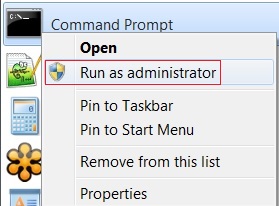
- Click on Windows Start Menu
- Then type “command” within Search Programs and files:

- Locate and right click on Command Prompt and then click on Run as Administrator
- Navigate to the folder location in which HWEmngr.exe and sduser.dll files were saved to.
- To list the drives and see the status enter command : Hwemngr.exe –l
Please refer to Results status mentioned at bottom section of this article
How to obtain recovery files
- Obtain the recovery.dbk file from the SES server:
- Right click on device
- Click on Export hardware encryption data
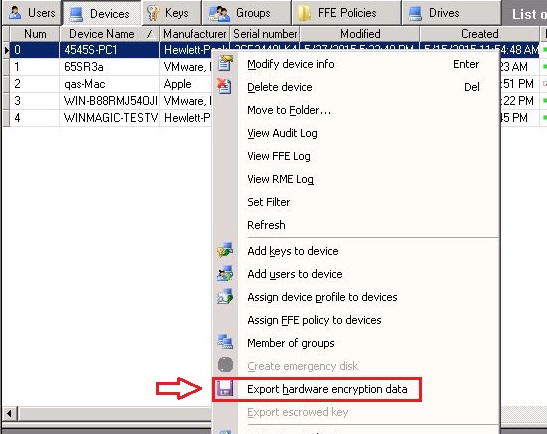
- The driveSerial#.dbk and driveSerial#.enc files from the client device:
- These files are located in C:\Program Files\WinMagic\SecureDoc-NT\Userdata folder.
- Note: the *.enc file contains the password to the dbk file
Results status
Error/Status messages:
0x0 > – clean (demanaged the drive)
0x4 > – boot logon installed but not encrypted
0x6 > – fully managed but unlocked
0x7 > – fully locked and encrypted
SUCCESS 0x00
NOT_AUTHORIZED 0x01
OBSOLETE 0x02
SP_BUSY 0x03
SP_FAILED 0x04
SP_DISABLED 0x05
SP_FROZEN 0x06
NO_SESSIONS_AVAILABLE 0x07
UNIQUENESS_CONFLICT 0x08
INSUFFICIENT_SPACE 0x09
INSUFFICIENT_ROWS 0x0A
INVALID_PARAMETER 0x0C
OBSOLETE 0x0D
OBSOLETE 0x0E
TPER_MALFUNCTION 0x0F
TRANSACTION_FAILURE 0x10
RESPONSE_OVERFLOW 0x11
AUTHORITY_LOCKED_OUT 0x12
FAIL 0x3F
Advanced Options
To de-manage the drive: Hwemngr.exe 1 –r –k <recovery>.dbk
To bypass boot logon: Hwemngr.exe 1 –u –k recovery.dbk
(0 being the internal drive and 1 if using drive with USB connection)
To remove boot logon: Hwemngr.exe 1 –r –k recovery.dbk
To crypto-erase the drive: Hwemngr.exe 1 –w –k recovery.dbk
Executing the hwemngr using the recovery files obtained from the drive:
Hwemngr.exe 1 –r –k <driveSerial#>.dbk -n <driveSerial#>.enc (this will deactivate the drive)
For Help: hwemngr.exe –h
Note: Replace“ –r” with the appropriate character listed in help for any other operations.
NOTES:
Seagate momentus drivetrust – doesn’t work if using OPAL cryptoerase tool
Hwemngr works on all SED OPAL drives.