Enabling Bi‑Directional Password Synchronization in SecureDoc
Overview
This article explains how to configure bi‑directional password synchronization between Windows and SecureDoc. When enabled, changes made to a user’s Windows password will synchronize with their SecureDoc Pre‑Boot Authentication (PBA) password.
Important: Password synchronization occurs only when the user changes their Windows password locally on the system using Ctrl+Alt+Del.
Prerequisites
- SecureDoc Enterprise Server (SES) access
- An existing SES device profile
- SecureDoc client installed on the endpoint
Applies to:
Operating System: Windows
SecureDoc Versions: All versions
Configuration Steps
1. Enable Password Synchronization in the SES Profile
- In the SES Console, select the desired Device Profile and choose Modify.
- Navigate to the General tab.
- Enable the option: Synchronize SecureDoc with Windows Password (bi-directional).
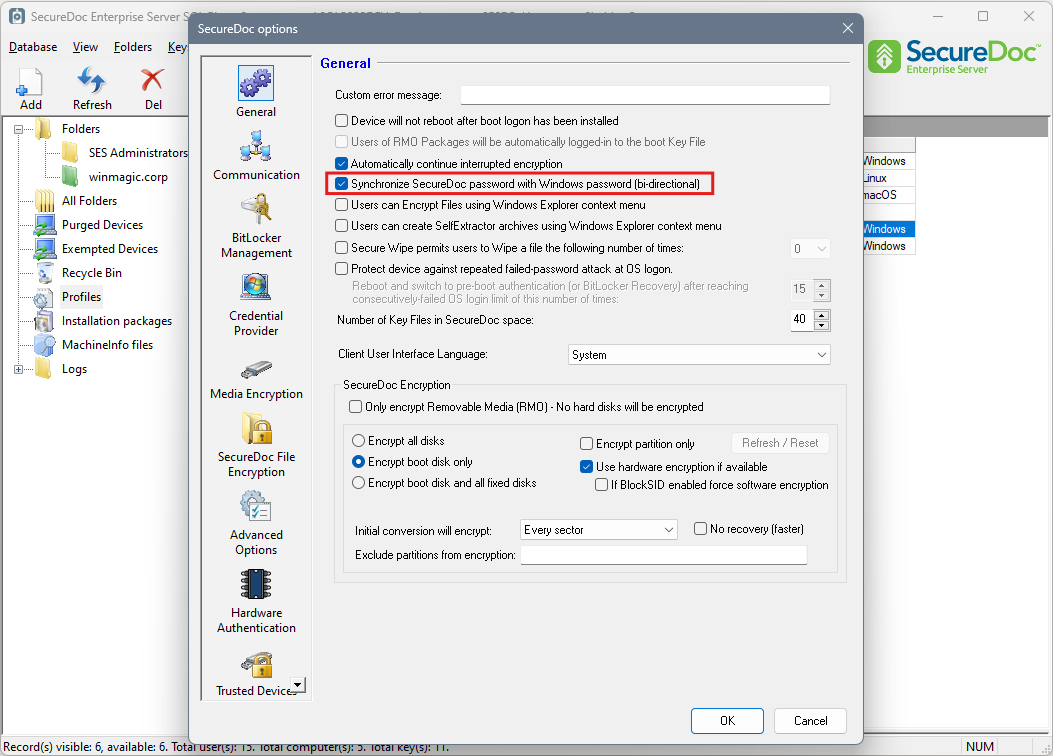
- Save the profile.
2. Push the Updated Profile to Existing Devices
For devices already deployed:
- In the SES Console, go to the Devices tab.
- Right‑click the target device and select Assign Device Profile to Devices.
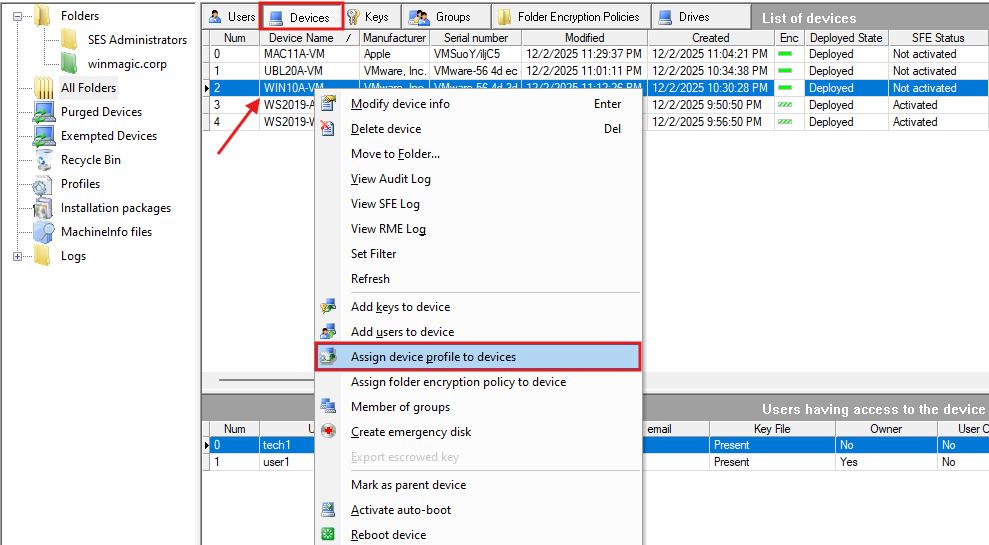
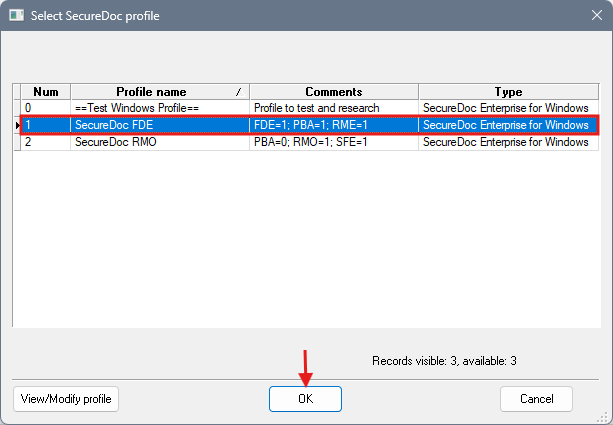
- Choose the updated profile and click OK.
- Restart the device to apply the changes.
3. End‑User Experience
Once the updated profile is applied:
- The user logs in at Pre‑Boot Authentication (PBA).
- The user then logs into Windows using their Windows password.
- After this login, password synchronization becomes active.
- On the next reboot, the user must enter their Windows password at PBA.
Password Change Requirements
Because synchronization requires the Ctrl+Alt+Del password change workflow:
- If Windows prompts the user to change their password automatically, instruct them to cancel the prompt.
- Instead, they must press Ctrl+Alt+Del → Change a Password, complete the change, and then restart the device.
- At the next boot, the user must enter the new Windows password at PBA.
Troubleshooting
If password synchronization does not occur:
- Disable the SecureDoc Credential Provider on the endpoint.
- Re‑enable the Credential Provider.
- Restart the device and test again.