Using SecureDoc System Scanner (9.0 and later)
Overview
This article provides step-by-step instructions for running the SecureDoc System Scanner tool on Windows devices. The tool was introduced in SecureDoc version 8.6 and is used to perform system compatibility checks and generate diagnostic results.
Environment
- Operating System: All Windows OS versions
- Hardware: All devices (including Microsoft Surface models)
- Software: SecureDoc v9.0 and later
Download Links
Select the appropriate version of the System Scanner Tool for your environment:
SecureDoc Version | Standard Tool | Surface Tool |
9.0 | ||
9.0 SR1 | ||
9.0 SR2 | ||
9.0 SR3 | ||
9.0 SR4 | ||
9.1 | ||
9.1 SR1 | ||
9.2 |
Procedure
Step 1: Download and Extract
- Download the appropriate tool version from the links above.
- Extract the contents of the .zip file. The folder will contain the executable file SecureDoc_64.exe.
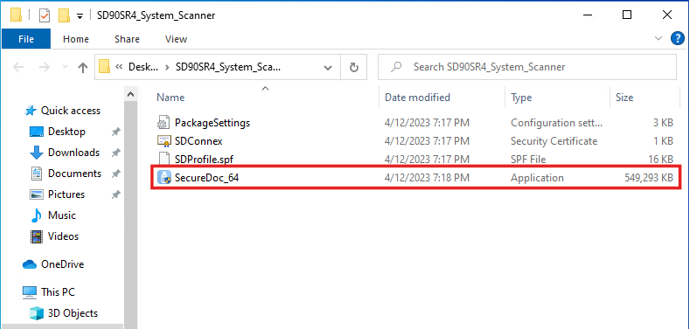
Step 2: Run the Tool
- Right-click SecureDoc_64.exe and select Run as Administrator.
- When prompted, click Yes to allow the application to make changes to the device.
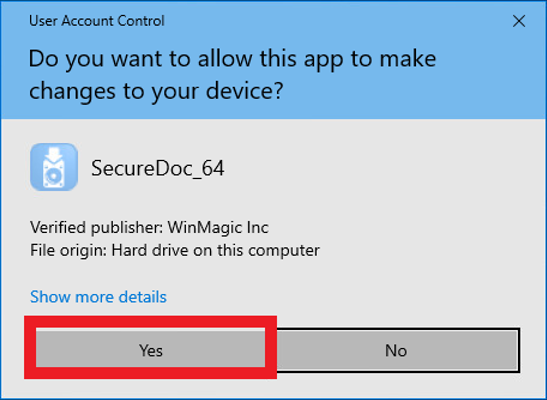
- The installer will begin running.
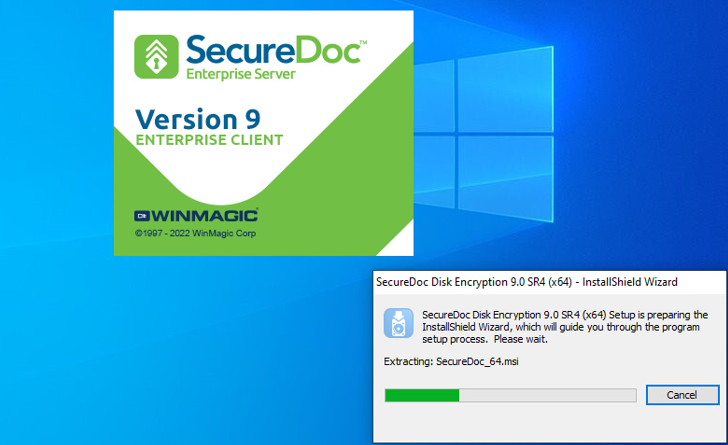
Step 3: Boot Logon Installation
- The SecureDoc Boot Logon component will be installed.
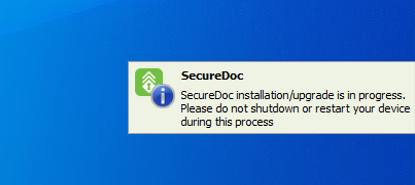
- Once installation is completed, the Windows will automatically reboot.
- Log back into Windows using the same account.
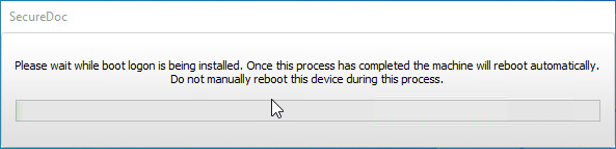
Step 4: System Scan Execution
- After login, the tool will run in the background.
- The scan may take several minutes to complete.
- When finished, a prompt will confirm completion.
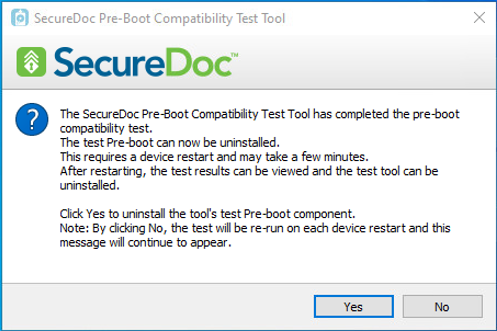
Step 5: Boot Logon Removal
- Click Yes when prompted to uninstall Boot Logon.
- The Operating System will reboot again.
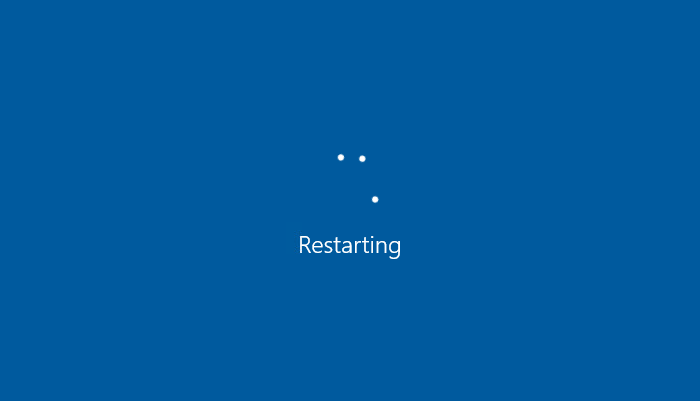
- Log back into Windows with the same account.
Step 6: Review Results
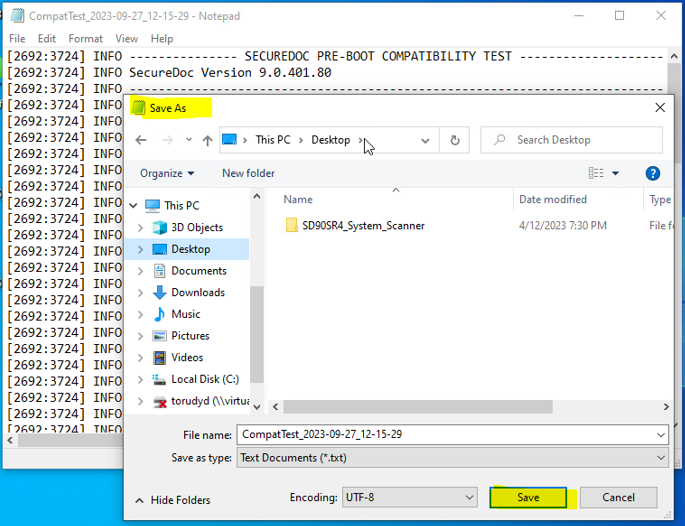
- After rebooting, a summary of the test results will be displayed.
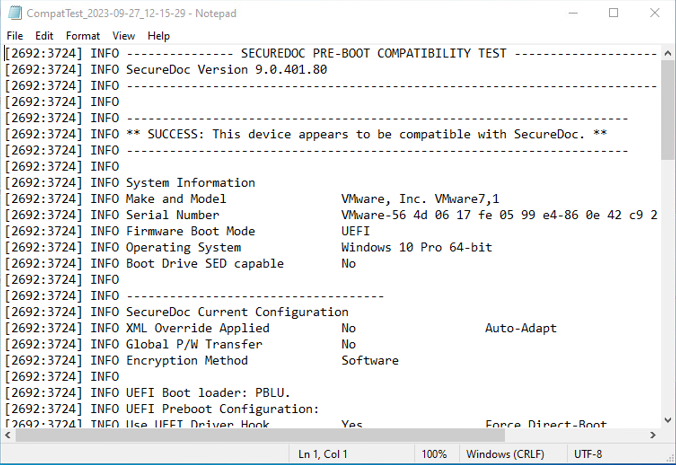
- Save this file for future reference.
- Click OK to complete the process.
Step 7: Uninstall the Tool
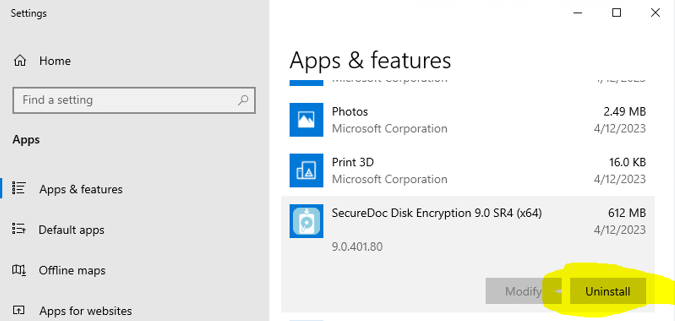
- Uninstall the SecureDoc System Scanner Tool from the system.
- The saved summary file can now be reviewed or sent to SecureDoc Support for analysis.
Outcome
The SecureDoc System Scanner Tool verifies system compatibility and generates a diagnostic summary. Once completed, the tool can be safely removed, and the results file should be retained for troubleshooting or support purposes.