Configuring the SecureDoc Compatibility Test Tool in V8.6 (and later versions)
The SecureDoc Compatibility Test Tool in SES 8.6 (and later versions) cannot complete successfully and will cause problems when used with certain Profile and Installation Package settings relating to the use of either BitLocker-managed endpoints that do not utilize SecureDoc's Pre-Boot, or Hardware encryption (of Self-Encrypting Drives):
In versions 8.6 and later the Compatibility Test tool is configured in the SES Profile as follows:
Navigate to [Profile] -> [General Options] button -> [Advanced Options] panel ->
In the bottom of the panel you will find [SecureDoc Boot Logon Auto-Adapt]
Check/Enable the option entitled: "Installer will auto-adapt to device specifics/technologies"
From the drop-down menu below choose "Stop after Pre-Boot compatibility test and report results only"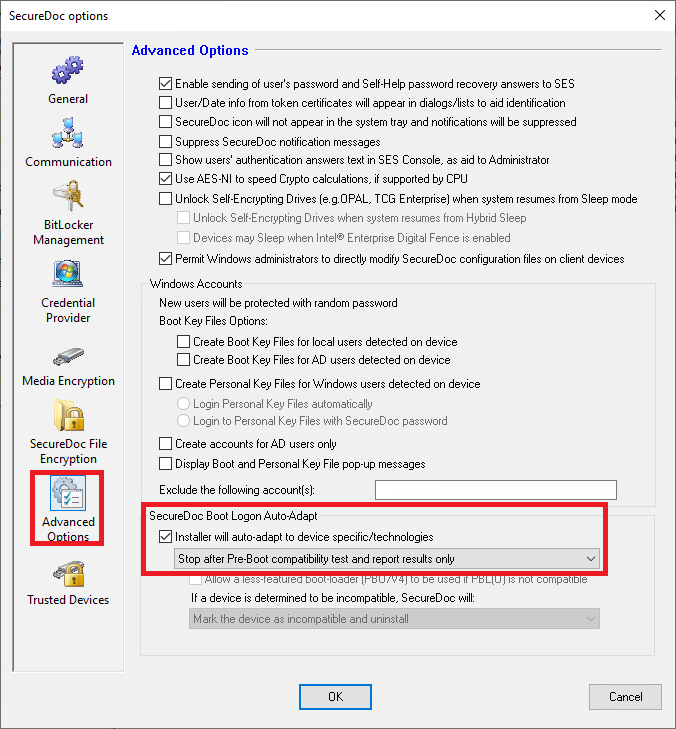
Now that Compatibility Test mode has been enabled. The following settings must be set as defined below, to avoid problems during the test, and to make sure all needed Options are tested.
Profile:
From the main profile navigation panel, click the [General Options] button.
Navigate to the [General] panel. In the lower half of the panel are the SecureDoc Encryption settings.
1 - Ensure: [Use hardware encryption if available option] is un-checked (even if testing compatibility on devices that may contain Self-Encrypting Drives).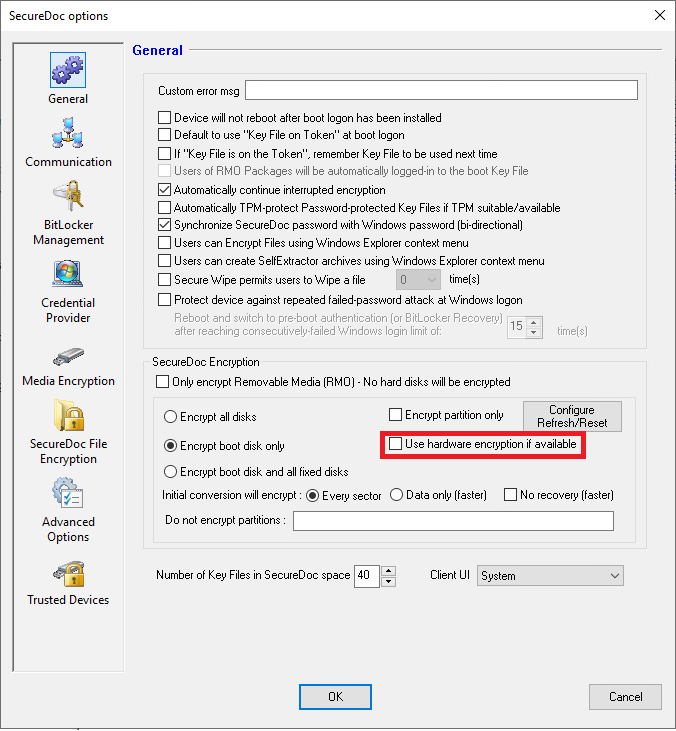
Installation Package:
1 – Navigate to [Boot configuration settings]. Set the settings in [General] as following:
Check [Enable SUSAM]
Check [Enable SUSAM for UEFI]
In the Legacy Boot Loader Options select [Default to V5 Bootloader, with option to use V4]
In the UEFI Boot Loader select [PBLU Linux pre-boot for UEFI devices]
** NOTE ** If [PBLU Linux pre-boot for UEFI devices] is not selected then the Compatibility Test Tool will ONLY test PBU preboot version. Selecting PBLU will force the Compatibility Test Tool to test and report on both PBU and PBLU.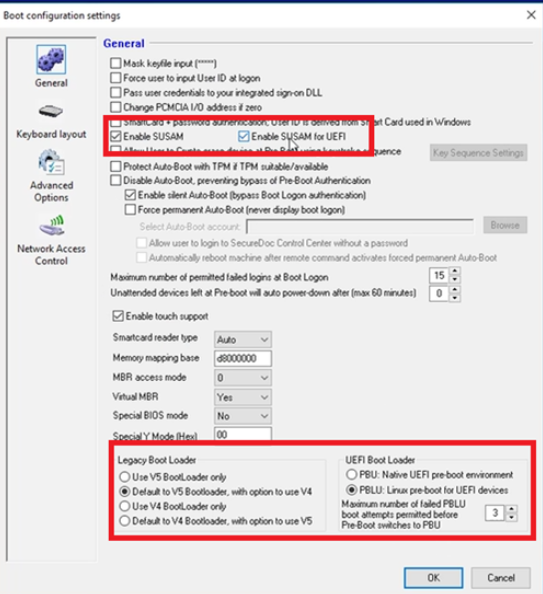
2 - Ensure the following [Device Provisioning Rules] are DISABLED in the installation package.
3 - Disable/Un-check [Enable a provisioning state so as to allow access to device until its owner has been identified]
By disabling the above option, the option [Device(s) will auto-boot to Windows logon] will be grayed-out/inaccessible.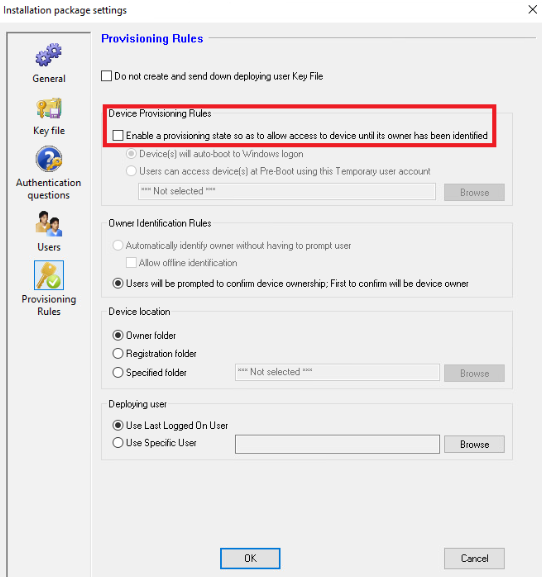
4 - Ensure that the Installation Package you will be using for the Compatibility Test does NOT include a KnownConfigs.XML file. Delete this file if present.
NOTE: The KnownConfigs.XML file will be re-added to the Package whenever the Package is edited, so you may be best served by completing the above changes, then copying the contents of your Package to another folder (minus the KnownConfigs.XML file), then using that folder's contents for your compatibility testing.
5 - Deploy your Compatibility Tool test installation package from the contents of the separate folder created in step 4 above.
Your Installation Package should look like this: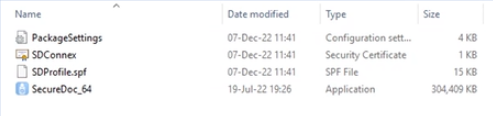
NOTE: The location of the compatibility result file is in the userdata folder. For example: C:\Program Files\WinMagic\SecureDoc-NT\UserData
Using the Pre-Boot Compatibility Tool:
Remember to remove all files that are not shown in the image above beforehand.
To run the Pre-Boot Compatibility tool, execute the SecureDoc_64 Application with elevated privileges from the above shown folder. This will install the Compatibility tool’s pre-boot layer, and then it reboots the device.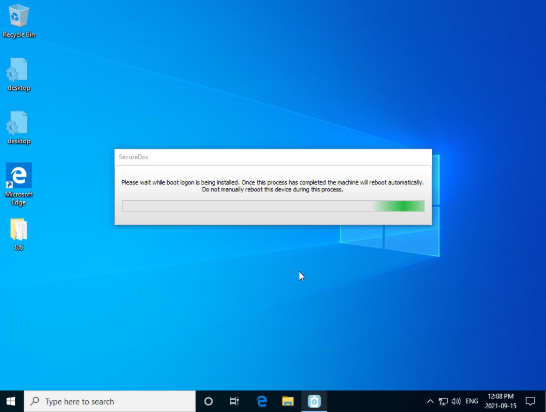
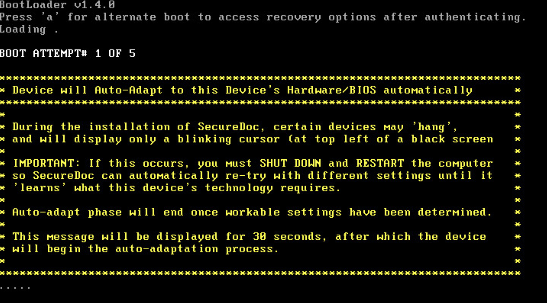
During this pre-boot, the device will go through its compatibility pre-boot test, which will gather information about the device and exercise various aspects of SecureDoc to determine how best to handle the specifics of the device’s hardware and firmware.
When the device starts back into Windows, it shows the following message, indicating that Pre-Boot can be uninstalled, and the device must be rebooted.
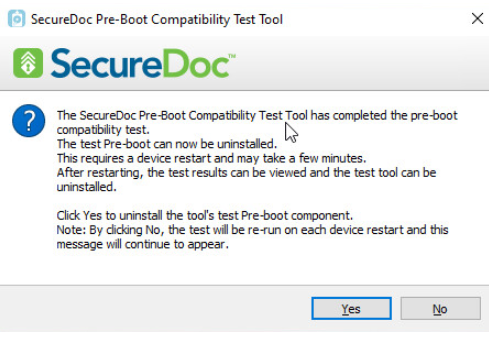
Click [Yes] to uninstall the test tool’s Pre-Boot. The tool will be removed, and the device rebooted.
If the user responds in the negative or cancels the prompt, the tool will run each time the device is rebooted until the tool has been removed.
After having uninstalled the compatibility test tool’s Pre-Boot, the device should be rebooted.
When the device has rebooted the following message appears.
This message mentions that the report can be seen. The report will look like this: 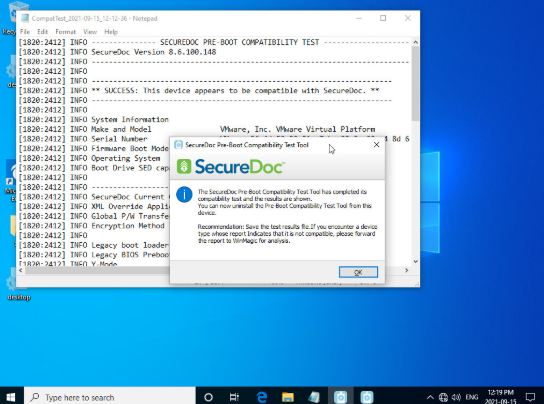
The report will be saved as a plain-text file in the UserData folder of the install within CompatTest_YYYY-MM-DD_HH-MM-SS.log format for its filename.
NOTE: The UserData folder is a hidden folder. Enable show Hidden folder to view the folder or type in the folder name in the directory to access it C:\Program Files\WinMagic\SecureDoc-NT\UserData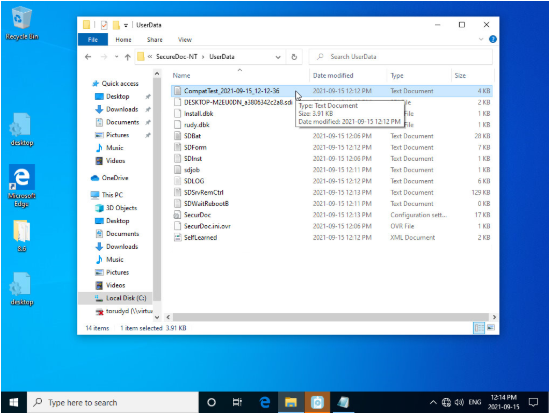
In the same path you might find a file called ClientSysteminfo.TXT.
Please send CompatTest_YYYY-MM-DD_HH-MM-SS.log to your service request. If you find a ClientSysteminfo.TXT, please send that file too.
Note: Please also have a look at KB 1996 Configuring the SecureDoc System Scanner Tool. v8.6 HF3 (and later versions)