Azure SQL Setup
- Login to https://portal.azure.com/ with admin privilege
- Search for Azure SQL
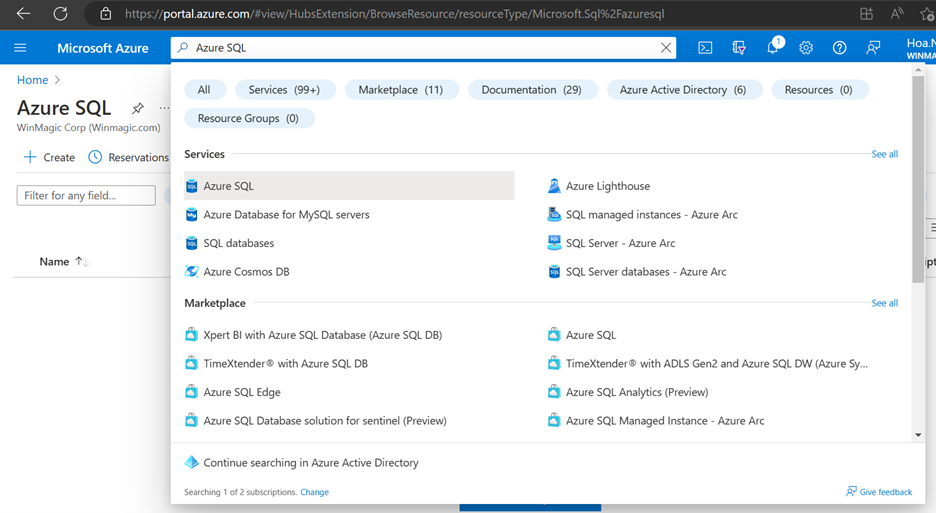
- Select “Azure SQL” service from the list
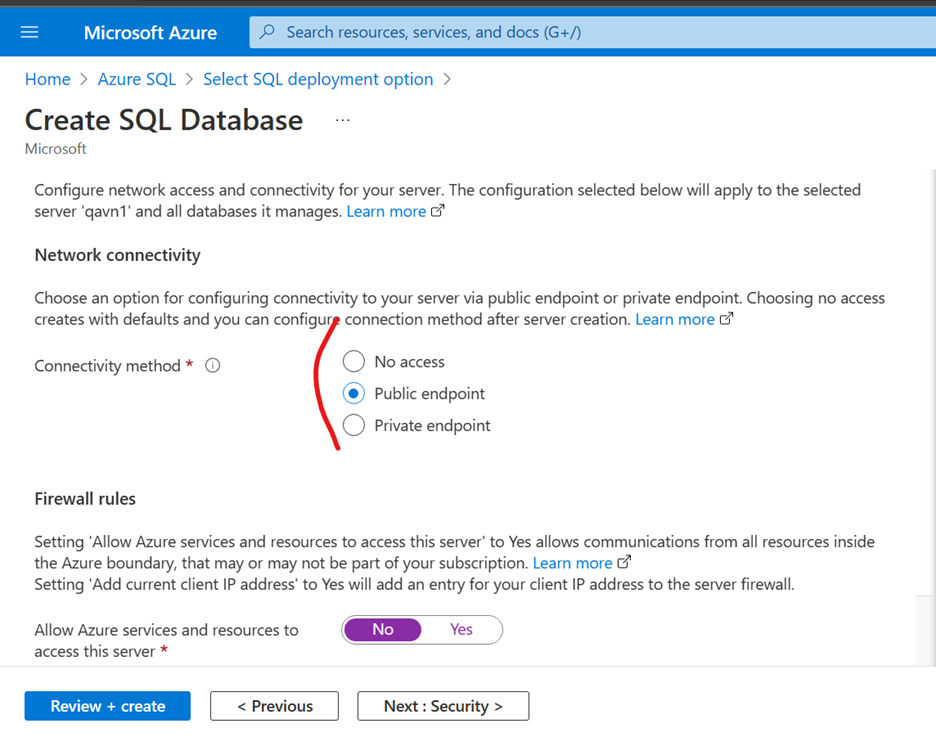
- From Azure SQL page, click “create” then select “SQL Databases” and resource type to create (e.g. I chose “single database”). Follow the instructions to customize the size of database/server, SQL admin account and any other options you wish to have.
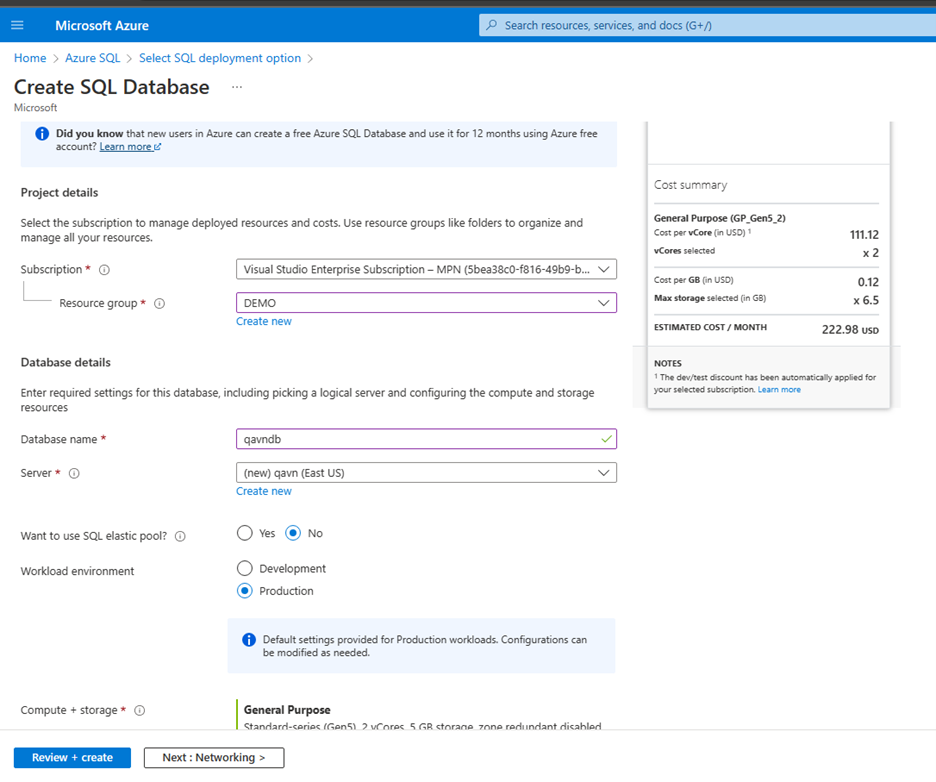
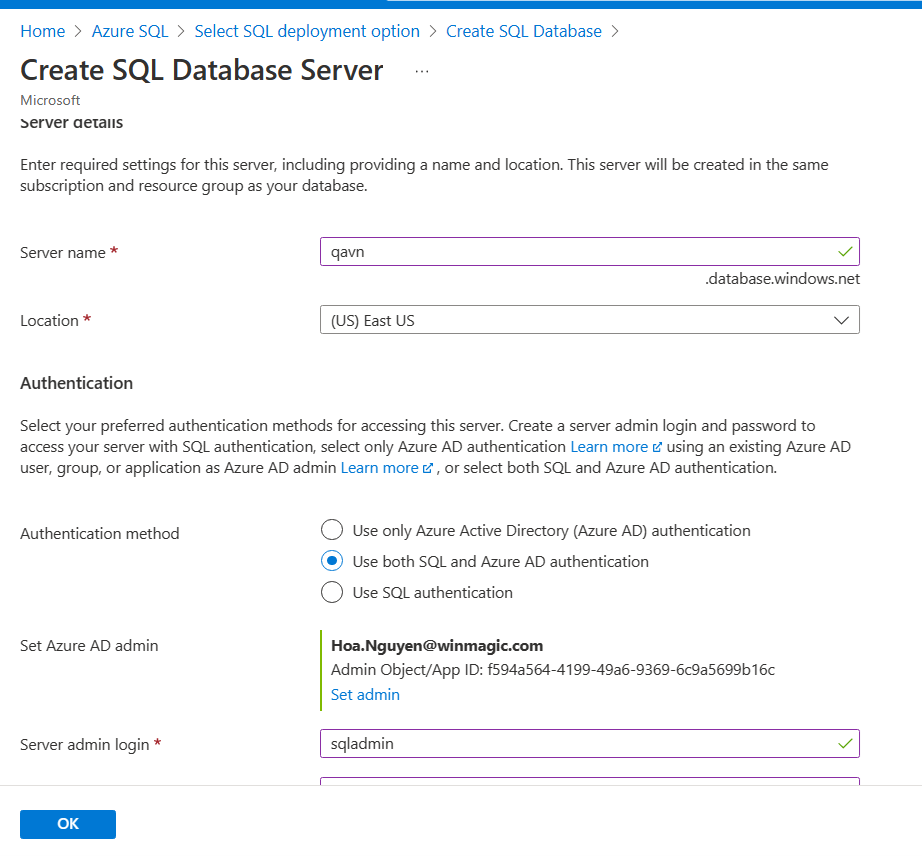
- Create new SQL database Server (if no server available during Azure SQL creation)
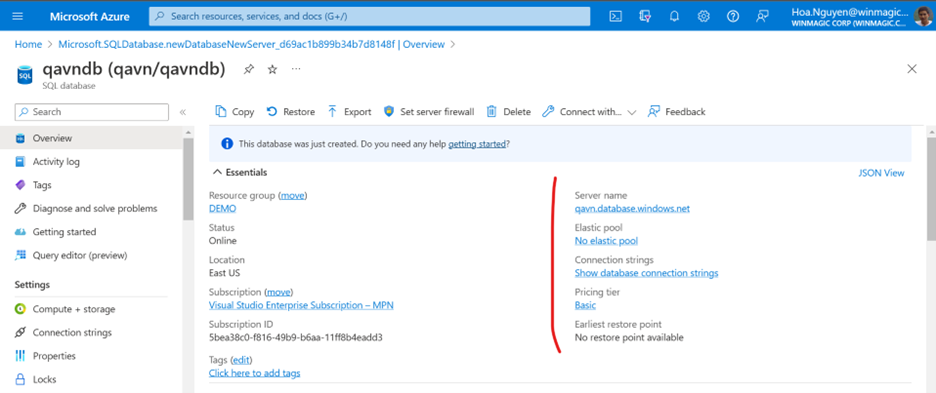
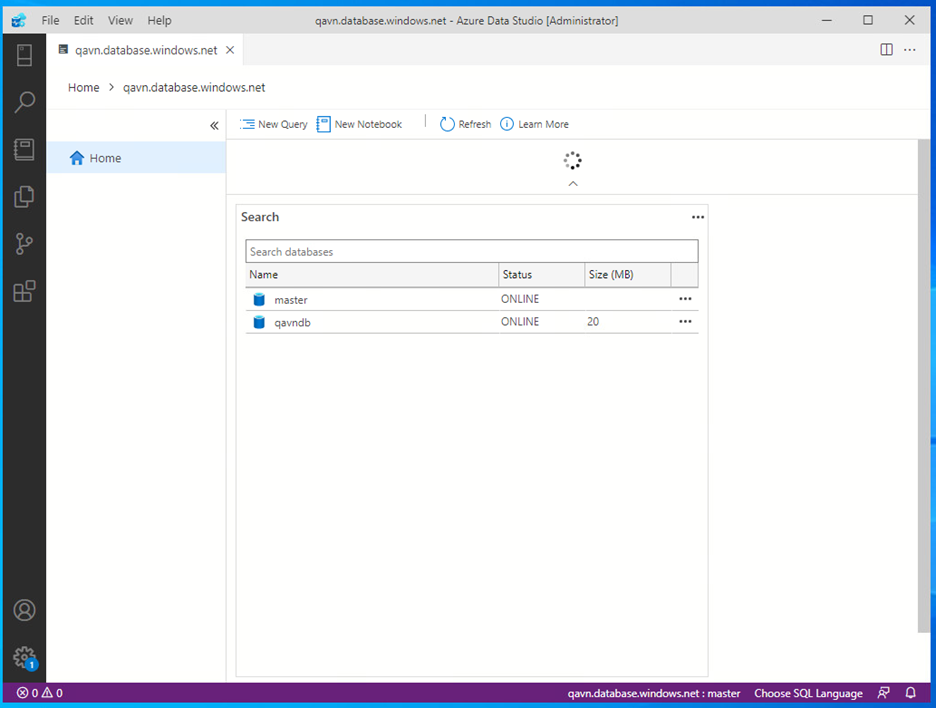
- After Azure SQL created, you can access to Azure SQL DB set from any device have “Azure Data Studio” app or any MS SQL Server Management Studio supported version
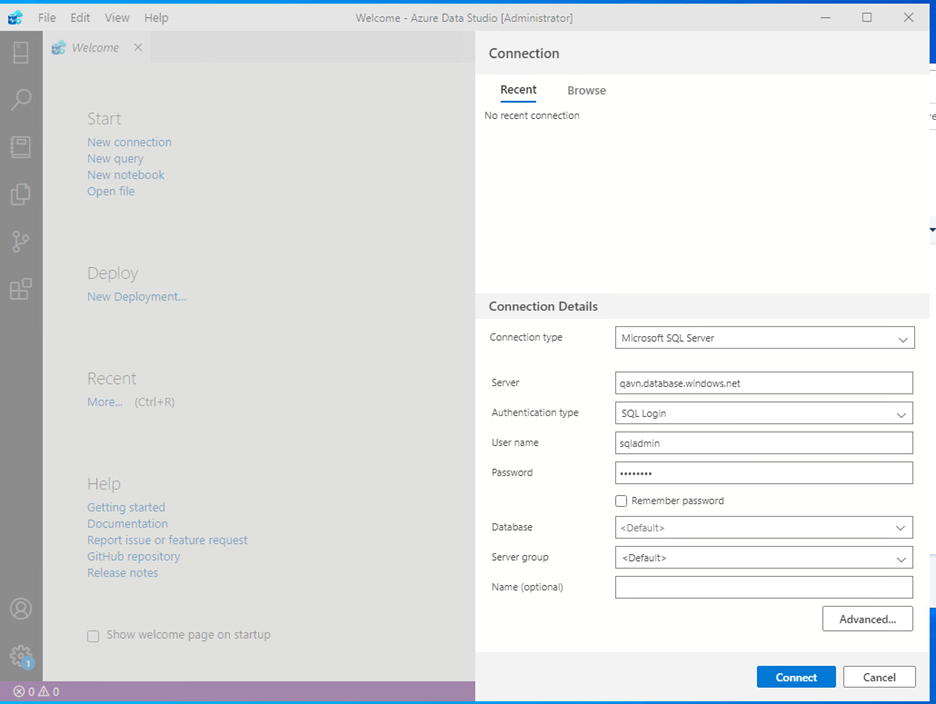
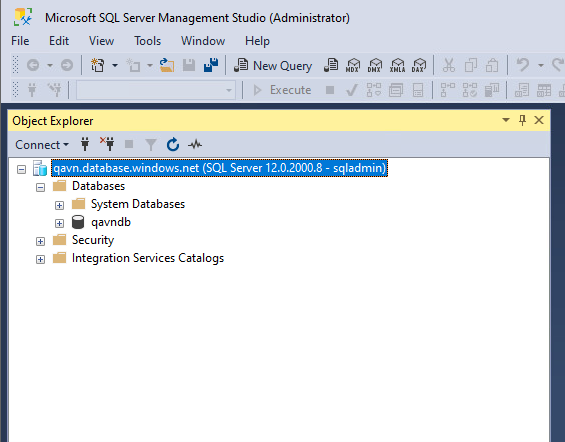
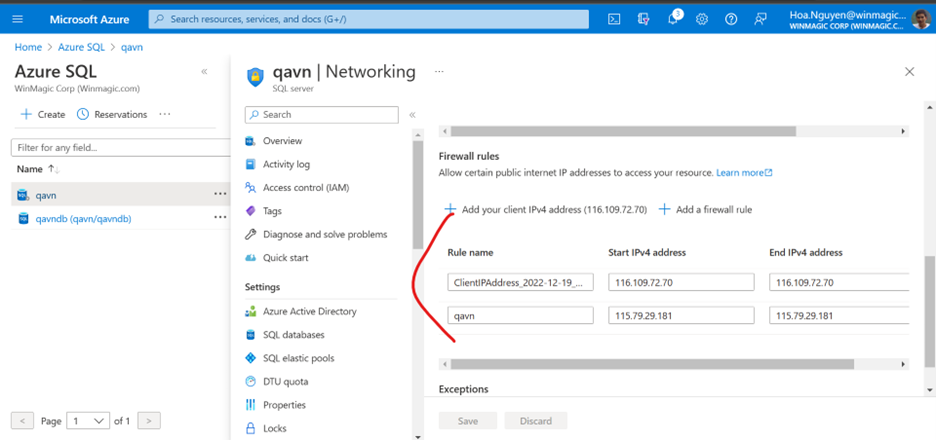
NOTE: You may need to set allowed IP address to be able to access into Azure database