Topic: This How-To article provides instructions and explains what requirements to configure the SES Web
NOTE: If the database is running on a different server (registered), please refer to KB 1482: How to set up SES server certificate.
Step 1: Before installing SDWeb, ensure the following settings are enabled/installed from the Server Manager > Roles > Web Server (IIS). (See the screenshot below for the list of roles that need to be installed.)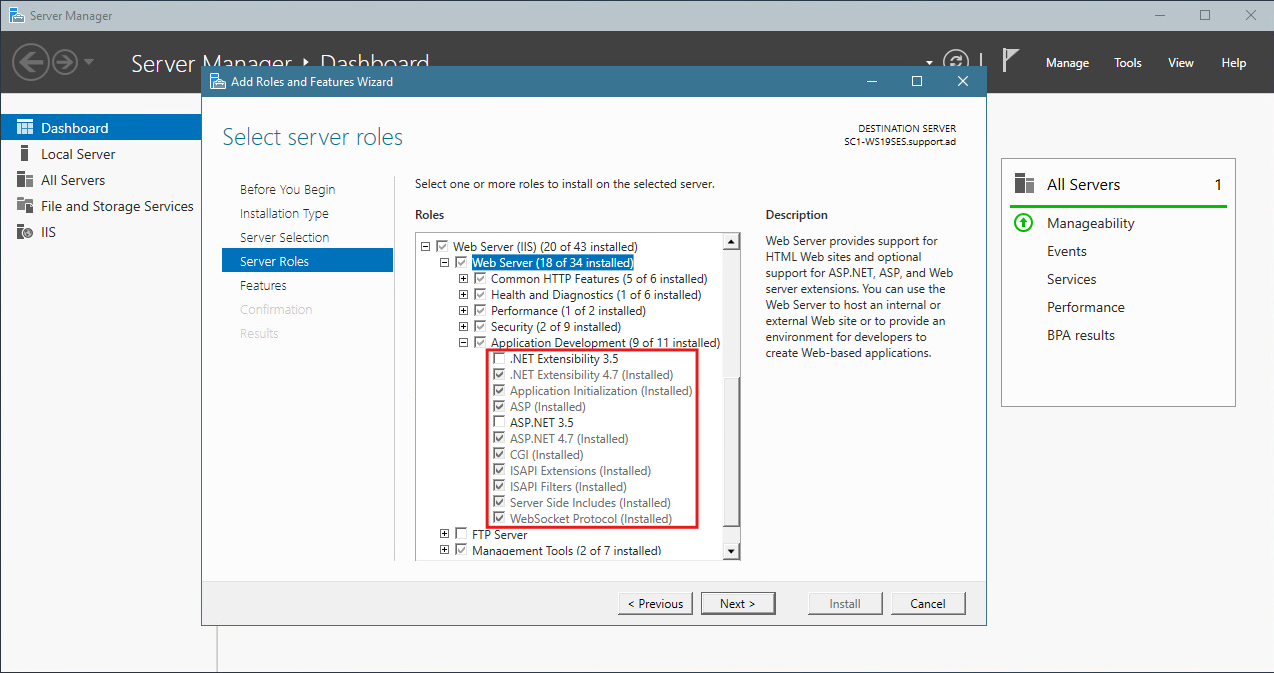
Step 2: Open IIS Manager, expand the server tree on the left column and click on Application Pools. From here, right click on the SecureDoc AppPool and select Advanced Settings… as shown: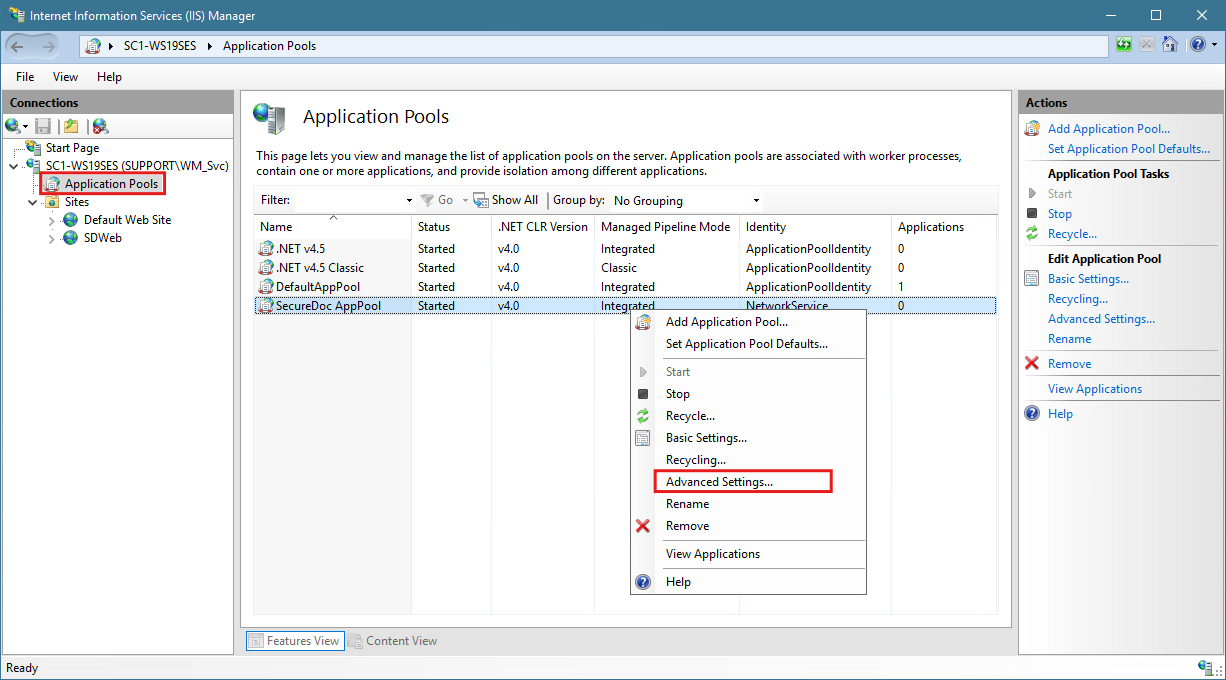
Step 3: Once in Advanced Settings, look down the list for Identity (You may need to scroll down), and select it and click on the small button to the right with the three dots […]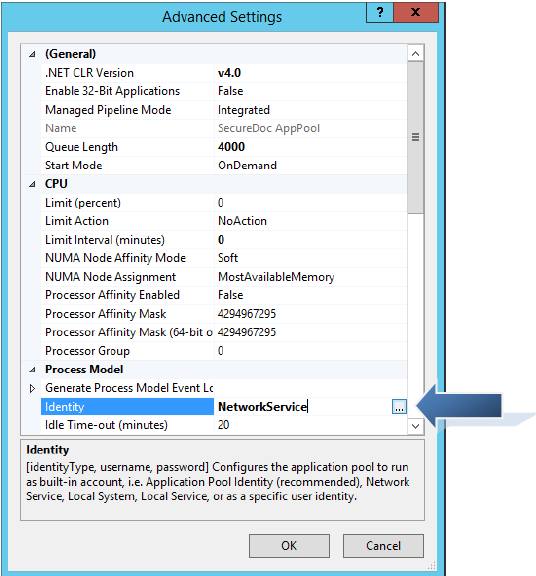
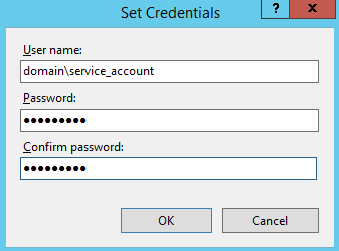
Step 4: Select the radio button for Custom account and click the Set… button, Enter the credentials for your service account (same account used to run SDConnex) and click OK:
|
|
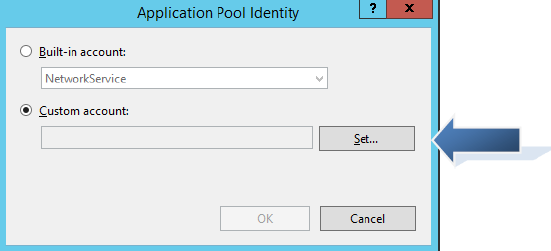
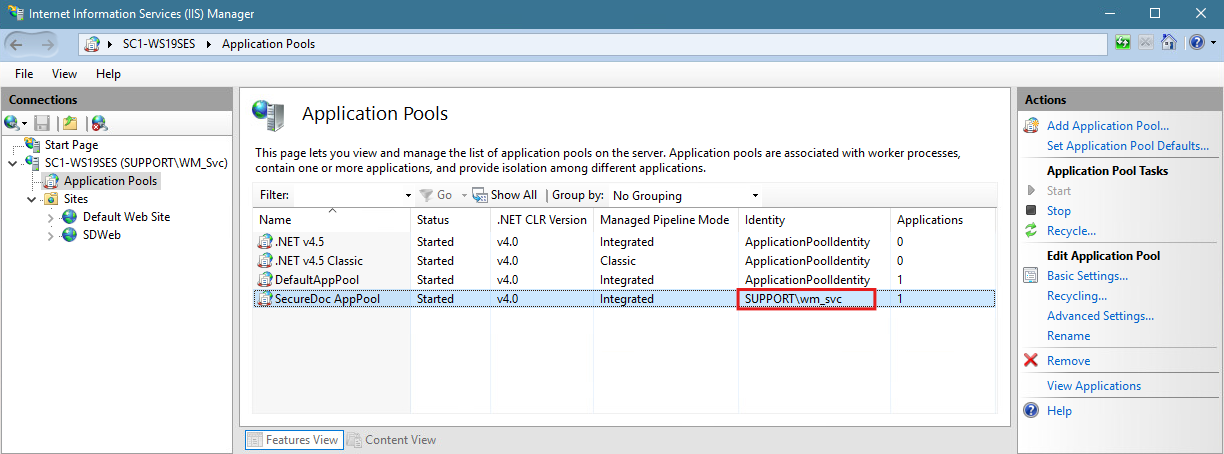
After setting the custom account
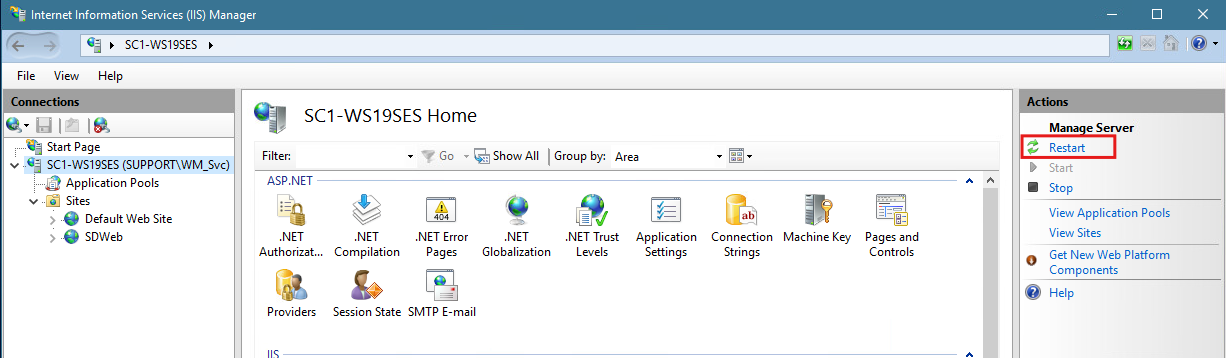
Step 5: Click on the IIS Server name in the left column and restart the Web server by either right clicking or clicking in the right column:
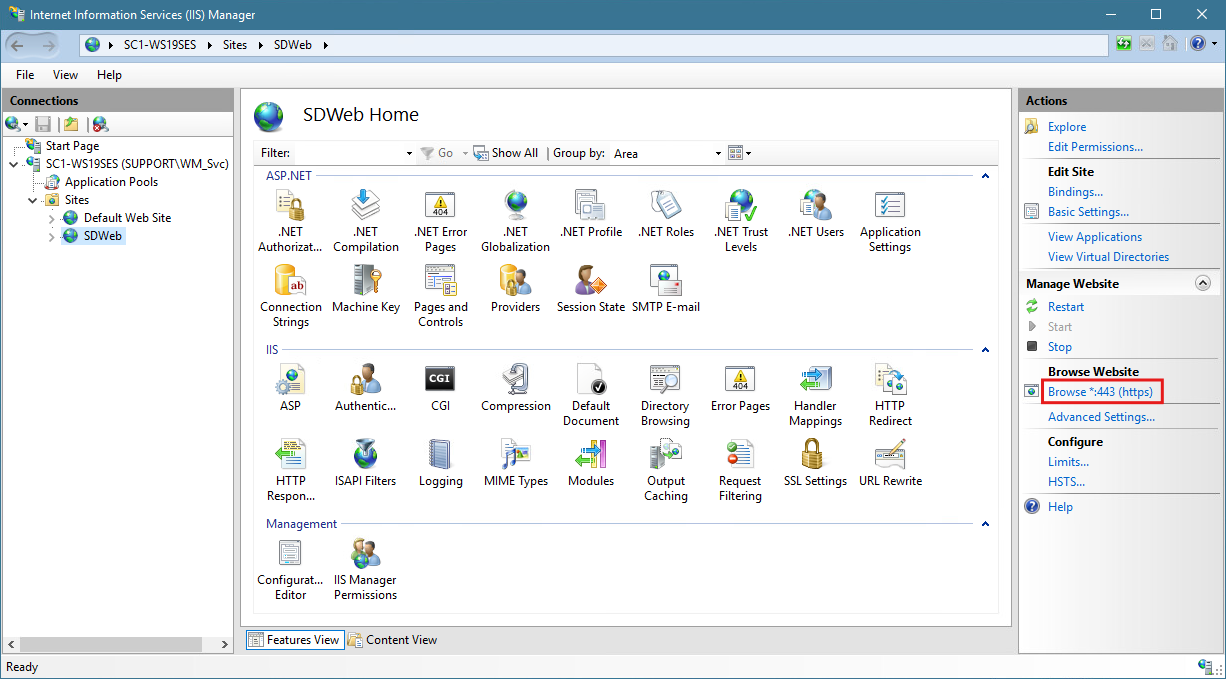
Step 6: Open Internet Information Services (IIS) Manager, select SDWeb under Sites click on Browse *.443 (https) to launch the Web application.
Step 7: It should open up the SDWeb configuration page in the browser.
- Select the Master Key File location – This is the master key file created on page 18 of this guide
- Enter the Password that protects the master key file.
- Enter the name of the Server which is running SQL Server
- Enter the name of your SES Database
- In the Authentication dropdown, select whether you’ll be using SQL Authentication (the ‘sa’ account) or windows credentials. Windows credentials are derived from the SecureDoc AppPool.
- If using SQL authentication, enter the username of the account you’ll be using
- If using SQL authentication, enter the Password for the account you’ll be using
- If desired, enable logging (suitable primarily if you had previously experienced issues when running SESWeb).
- Click the Configure button
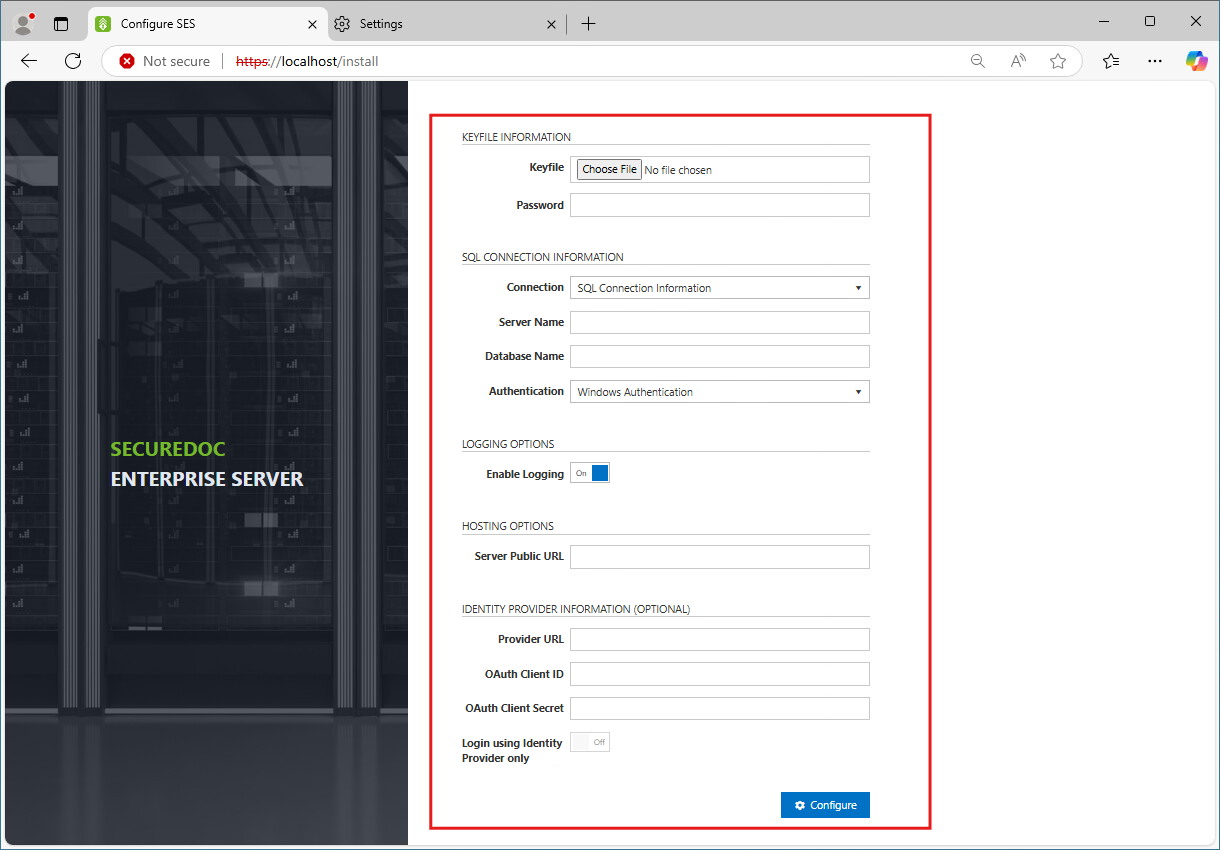
Optional – Using IdP-based Authentication If configuring SecureDoc Identity Provider (IdP), scroll the panel down to show the IdP information prompts
- Enter the Provider URL – This information comes from your Identity Provider host’s URL and Port: e.g. https://idp.company.com:8080
- Enter the OAuth Client ID – This information comes from your Identity Provider’s specifics – please refer to your Identity Provider documentation
- Enter the OAuth Client Secret– This information comes from your Identity Provider’s specifics – please refer to your Identity Provider documentation
- Click the Configure button.
Step 8: Use the SES root admin account to log in to the console.
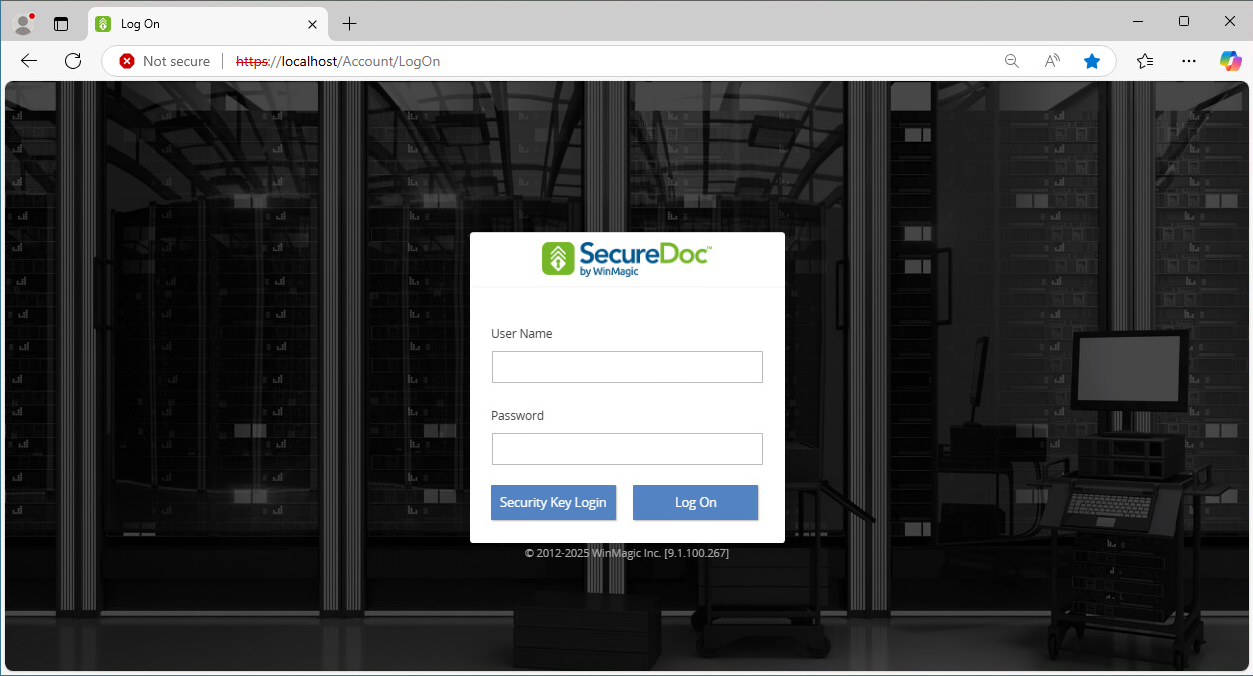
It should open up the SDWeb on the browser. Use the SES master admin account to log in to the console.