Password Synchronization fails with message "The user name or password is incorrect. (Windows error code 1326). This occurs on Windows 10 devices using Windows Hello for Business authentication, where device is joined to Azure AD and has SecureDoc installed using SecureDoc password synchronized with Windows Password.
Scenario:
Client device has been joined to Azure AD, and SecureDoc client software has been installed successfully. The SecureDoc Profile defines Password Sync, and installation has deployed the SecureDoc Installation Package successfully. Windows Hello for Business-based authentication will be used at Windows to authenticate, and the user will transition to that after having first logged in using a Password.
1. If attempting to change the Windows password, that change is accepted as successful
2. If the user then signs-out from Windows, then attempts to sign in again to Windows using using Windows Hello for Business (PIN or FingerPrint), then "SecureDoc Password Synchronization" dialog is shown
3. The user then enters the valid password (which applies to both SecureDoc and Windows). At this point the user would expect that SecureDoc should be synchronized with Windows password successfully
The actual result is that it has failed to synchronize, producing a message: "The user name or password is incorrect. (Windows error code 1326)", as in the image below: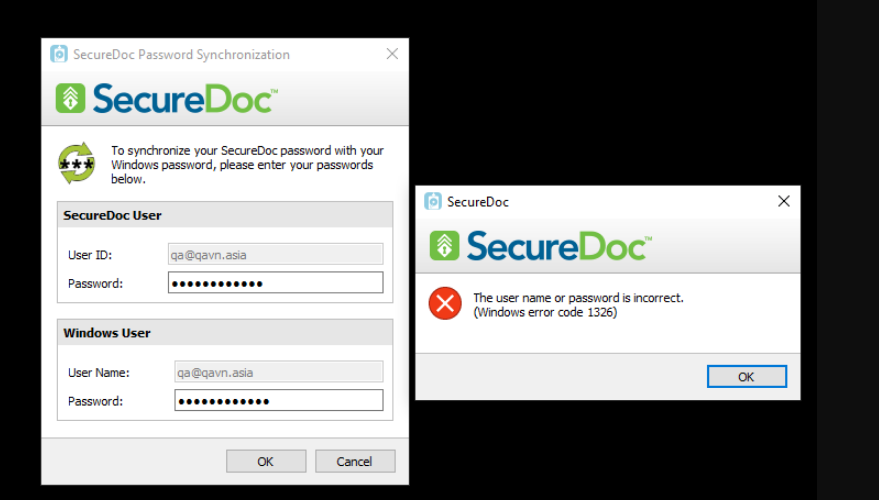
Note: This issue does NOT occur after logging in to Windows using the real windows password at step #2
Users noted they were also unable to run commands using the "runas" option entering the desired User ID, as the password known to be correct would not be acceptable, as in the image below:
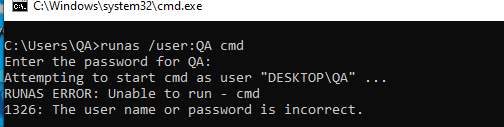
Attempts above to run command runas /user:QA cmd produces error 1326 on both failed and passed scenarios.
Conclusion: Windows is caching the user's authentication finger/PIN but is still using the old password.
Attempts to power-cycle the device and log in through SecureDoc Pre-Boot using the old password, then into Windows using Windows Hello PIN at the Windows screen were not followed by the presentation of the "SecureDoc Password Synchronization" dialog, and no messages were presented relating to password sync.
Attempts to re-try cmd: runas /user:AzureAD\,<user id> failed to login with new windows password, throwing error 1326, but it is possible to use the old Windows password successfully
Our research indicates there may be a bug in Windows Hello for Business (on Windows 10), becaues the "SecureDoc Password Synchronization" dialog should not be shown when the user changes the Windows Password, then signs out and signs in again using Windows Hello functionality.
If using passwords only, after logging in with a new password (instead of WinHello PIN or fingerprint) the confirming message "SecureDoc password has been synchronized with Windows password." will be shown and the new password will be accepted thereafter, and additionally using command with "runas" works correctly with the new password.
WinMagic has brought this behavior to the attention of Microsoft, since this issue does not occur under Windows 11.
Solution/Work-Around: At this stage, if using Windows Hello for Business-based authentication, please upgrade affected devices to Windows 11