How to switch to a YubiKey token
Product version:
SecureDoc 8.5 SR2 and up only
Environment (hardware):
YubiKey 5 NFC: https://www.yubico.com/product/YubiKey-5-nfc
YubiKey 5 Nano: https://www.yubico.com/product/YubiKey-5-nano
YubiKey 5C: https://www.yubico.com/product/YubiKey-5c
YubiKey 5C Nano: https://www.yubico.com/product/YubiKey-5c-nano
Notes:
This is article is for making a conversion from username and password to using the YubiKey token
In 8.5 SR2, only the YubiKey 5 NFC and YubiKey 5 Nano device types work under 32 bit PBLU or with SecureDoc's Native Pre-Boot for UEFI (PBU). All of the above tokens are supported under 64 bit Pre-boot architecture PBLU.
The YubiKey token type must be “PIV Card”
To convert a user from username and password to token you must select Protection Method as “Use Certificate on token” even if they are using a PIN on the token. This is just for conversion.
To Convert a User from Username and Password to Token
- Make sure the device for the user has at least 8.5 SR2 or higher installed.
- Make sure the device for the user can communicate successfully
- In the SES Console find the device and select the user to convert to token.
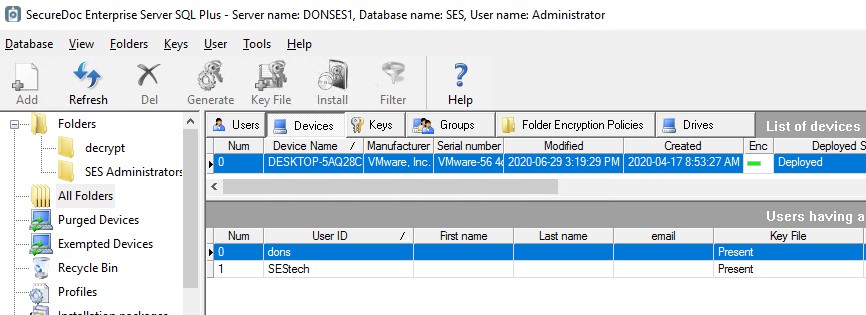
- Right click on the user and select Create Key File.
- In the Key file window, check Apply User Password from database.
- Check Ask user to convert to token protection.
- Select PIV Card from the firs drop down, select Use Certificate on token in the second. NOTE: even if they plan to use Token with Pin, they need to select certificate for conversion
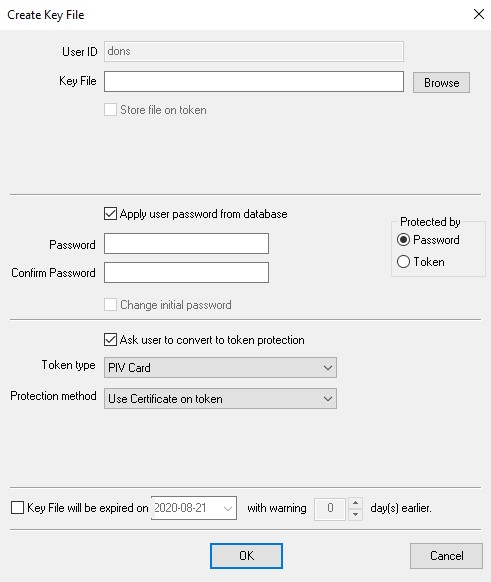
- Once the device has communicated with the server, and the key file is downloaded, reboot and login again. The user will see a screen like this:
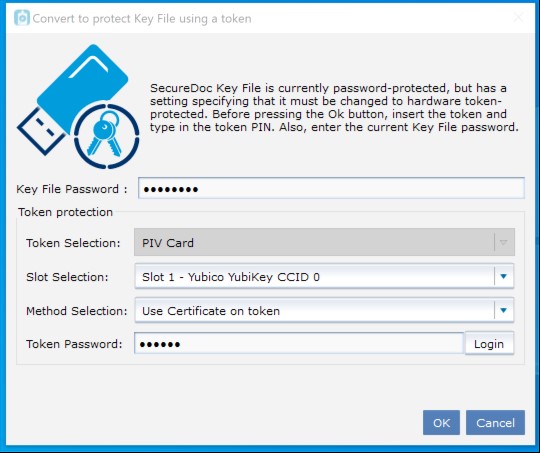
- Enter the user key file password, and the token password (the PIN) and click ok.
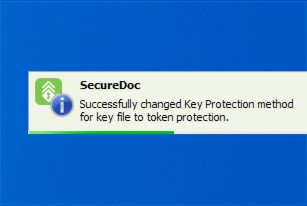
- There will be a confirmation down near the clock:
Reference:
SD-34264
https://www.winmagic.com/support/release-notes/securedoc-v8-5-sr2