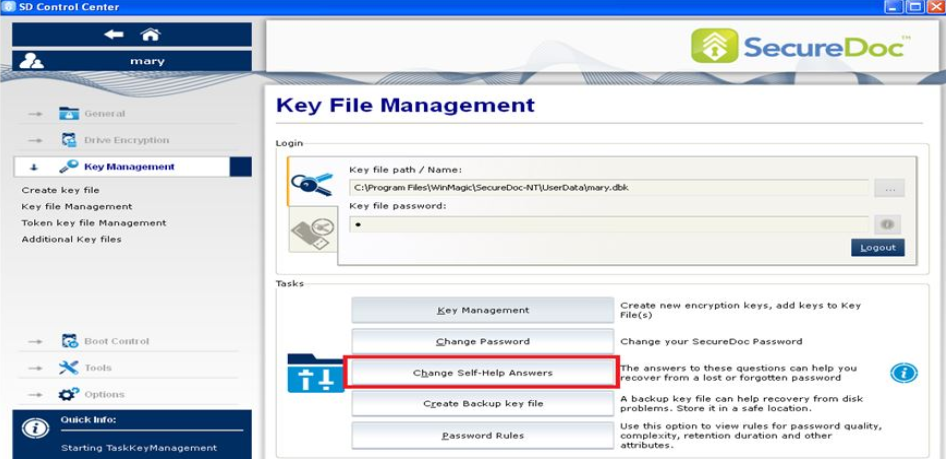
Topic:
This How-To article details how to change the default self-help questions to suit the end user’s needs in the SecureDoc Stand-Alone version.
Product version affected:
All versions of SecureDoc standalone
Environment (OS/hardware/software):
Windows OS and devices
Steps to follow:
1. Key Management > Create key file
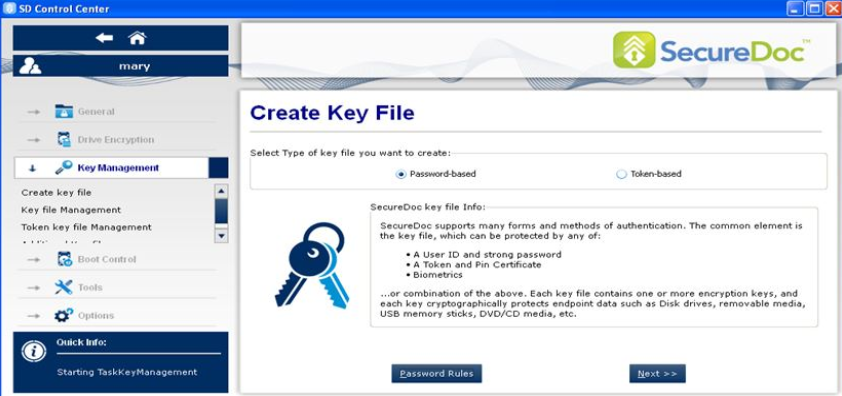
Click on Password Rules > Deselect the “Disable password hint” > select the number of questions you want to answer > click OK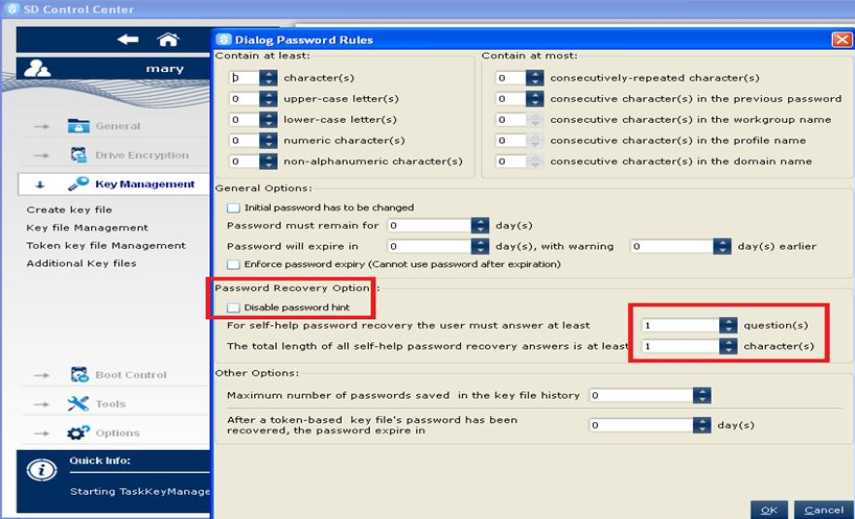
Do not put a check mark on the option “Use Self-help password recovery”. Go through the normal process of creating the user id. And then restart the device and log in as the user for the first time.
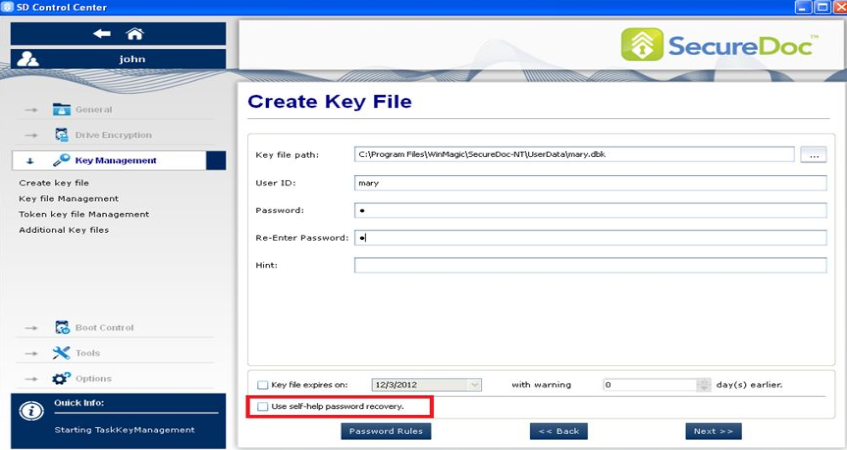
After enabling the self-help questions, reboot the device is required. Once the end user logs in with the new user id, it will prompt for the self-help questions. 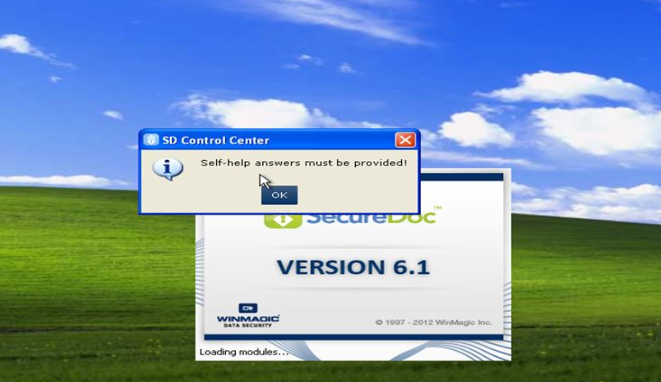
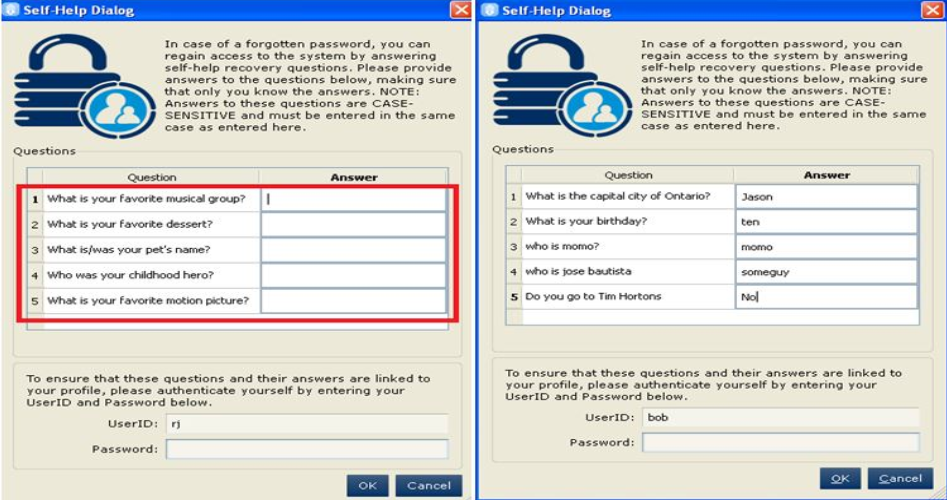
This is when the password can be changed. Double click on the questions to change the questions. The screen on the left contains the default questionnaires. The image on the right contains questions that were changed to.
To verify, go to Boot control > user management > highlight the user id and click on “Change Self-Help Answers”.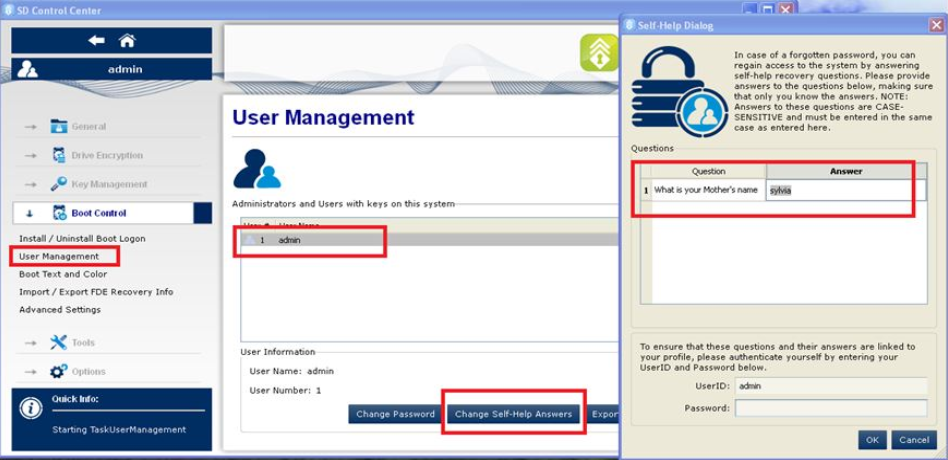
Please export the a new key file because it will contain the new settings. The new key file contains the updated questionaires. Put it in c:\program files\winmagic\securedoc-nt\userdata folder.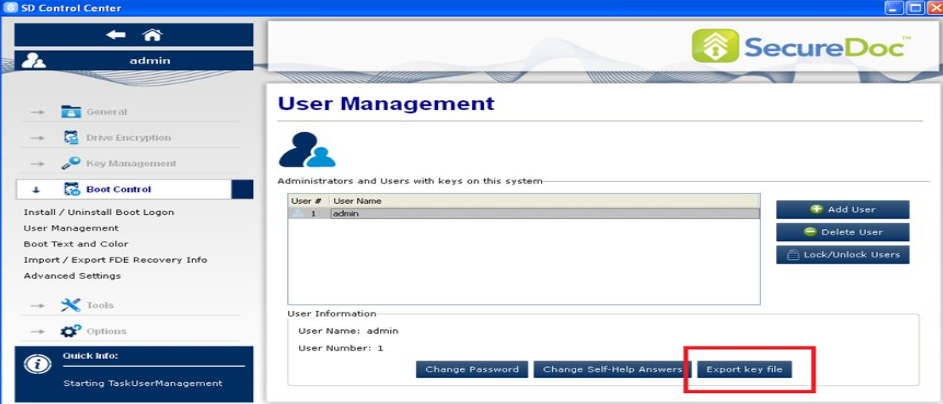
Restart the computer and see if the password questions have changed or not.