Issue:
This article outlines two ways to configure PBConnex Autoboot:
Option 1: Enable Autoboot for all users and devices (two methods available).
Option 2: Enable Autoboot for selected users and devices.
PBConnex network-brokered Autoboot is useful in long-term scenarios (e.g., ensuring servers return to service quickly after a power outage or for cloud-hosted IaaS virtual servers). It can also be applied in short-term situations, such as bringing devices to the Windows logon prompt for patching or application installation, after which they can return to normal pre-boot authentication behavior.
Product Version Affected:
All SecureDoc versions.
Prerequisites:
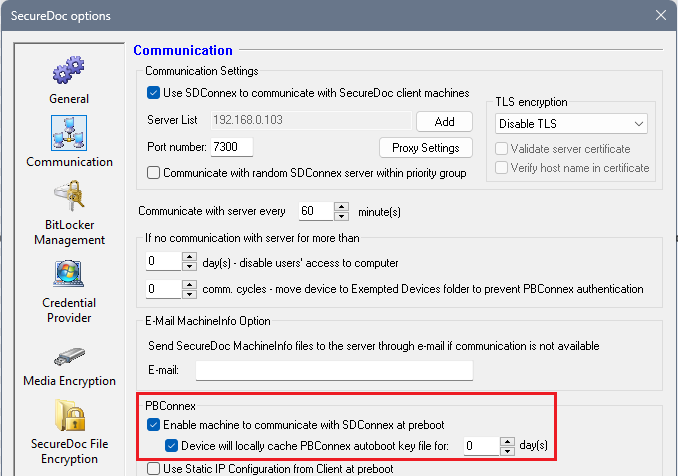
In the Profile, ensure the following option under Communication is enabled:
“Enable Machine to communicate with SDConnex at preboot.”The option “Enable PBConnex autoboot key file caching” is optional.
Assign the profile to the devices and ensure they reboot before configuration.
Option 1: Enable Autoboot for All Users and Devices
Method 1:
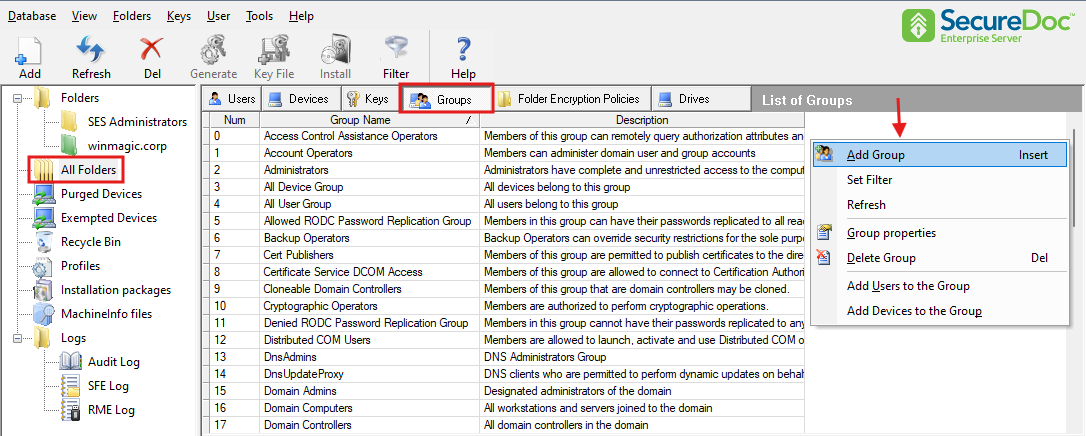
Navigate to All folders > Groups tab.
Right-click and select Add Group.
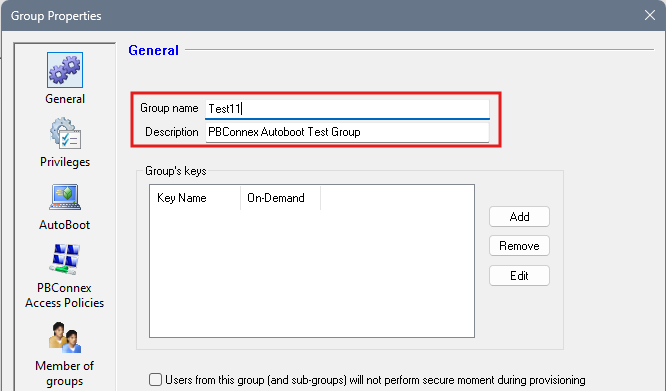
Enter a group name (e.g., Test11).
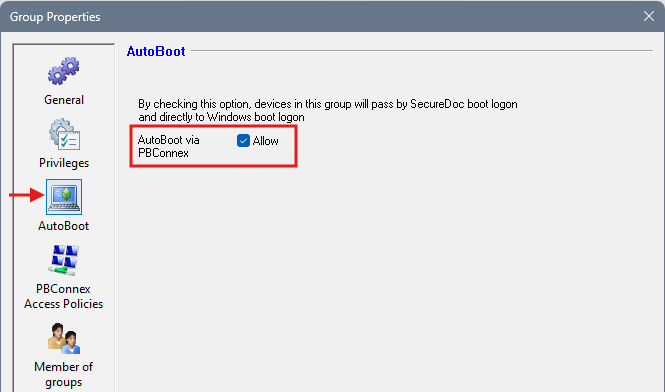
Select AutoBoot and check the option Allow.
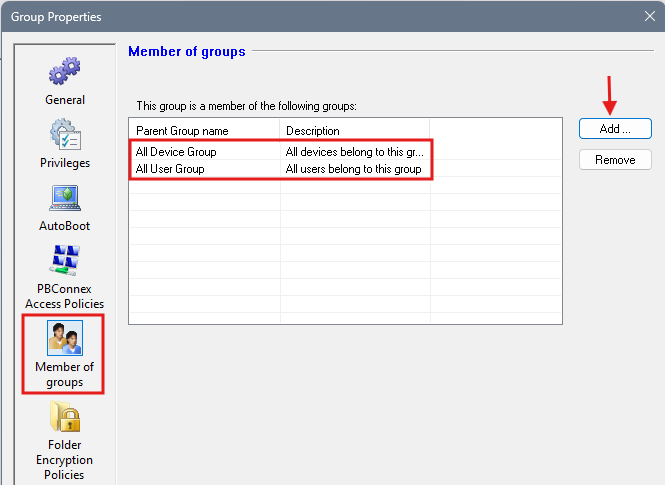
Go to Member of Groups > click Add > select All Device Group and All User Group > click OK.
Method 2:
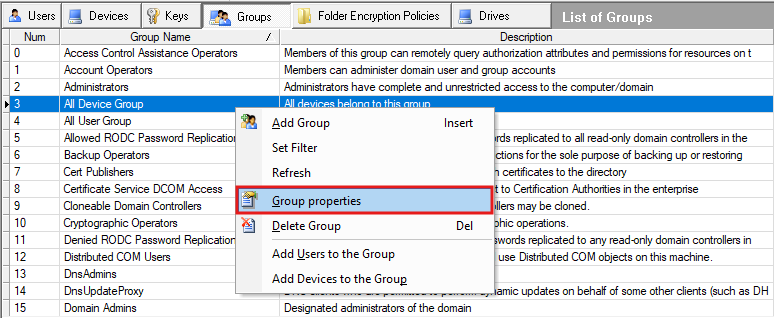
In the Groups tab, right-click All Device Group > select Group Properties.
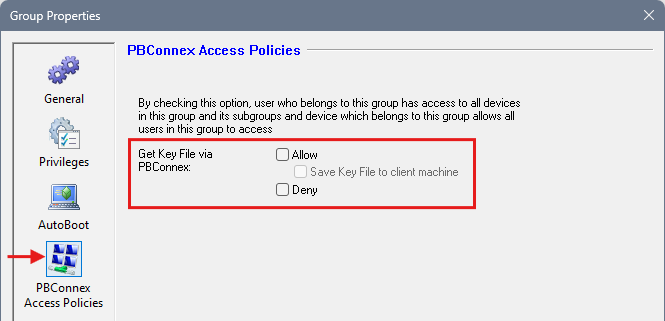
Under PBConnex Access Policies, deselect the option Allow.
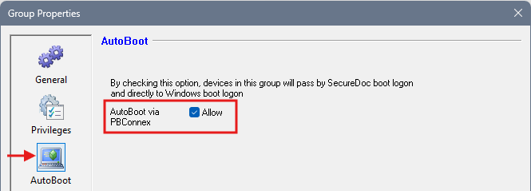
Under Autoboot, enable the option Allow for AutoBoot via PBConnex > click OK.
Option 2: Enable Autoboot for Specific Users and Devices
To configure Autoboot for selected users and devices:
Do not perform Step 4 from Option 1. Instead, save the settings.
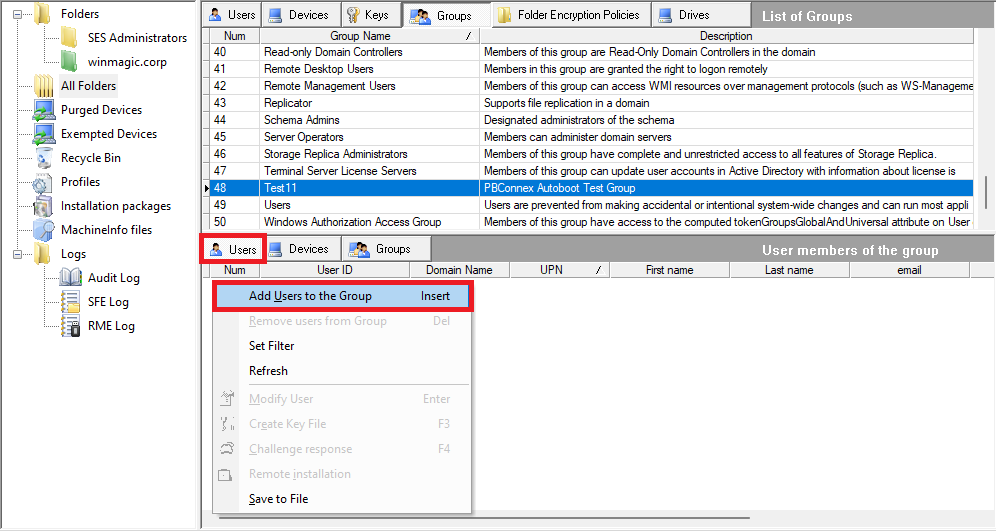
Highlight the group name (e.g., Test11).
Go to the Users tab > right-click Add Users to the Group.
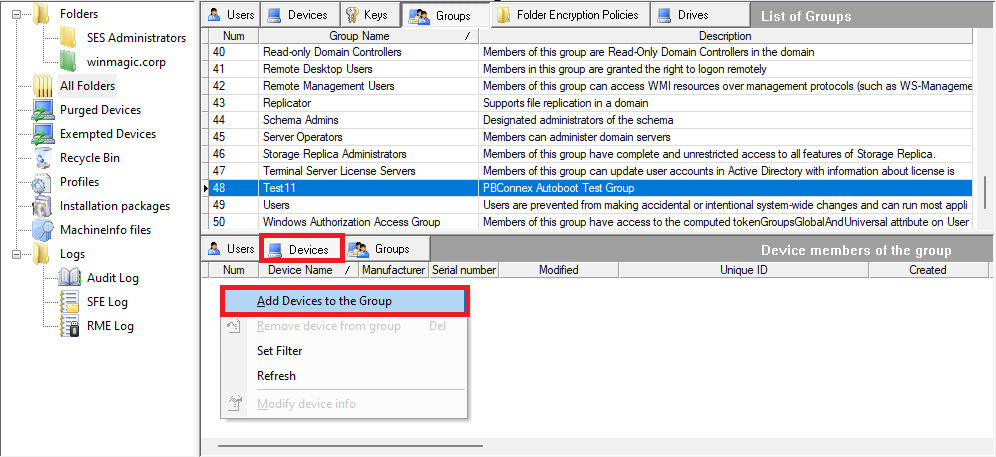
Go to the Devices tab > right-click Add Devices to the Group.
✅ Result: Autoboot via PBConnex is now configured either globally (all users/devices) or selectively (specific users/devices), depending on your chosen option.