Article Summary:
This article describes how to create and use an auto-boot account to bypass pre-boot login; users authenticate at Windows instead of pre-boot.
1. Create an account for autoboot. Right click in the Users section of the SES server console, select Add User.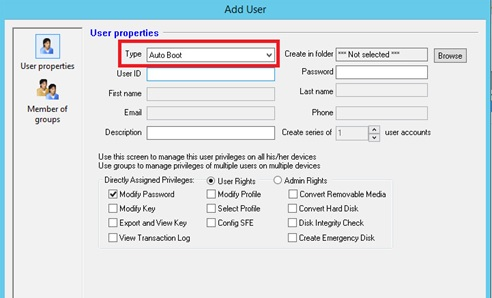
Note: When creating an autoboot account, select Auto Boot from the Type dropdown menu.
2. Next is to create a profile for autoboot:
- Go to Profile -> Boot Configuration Settings)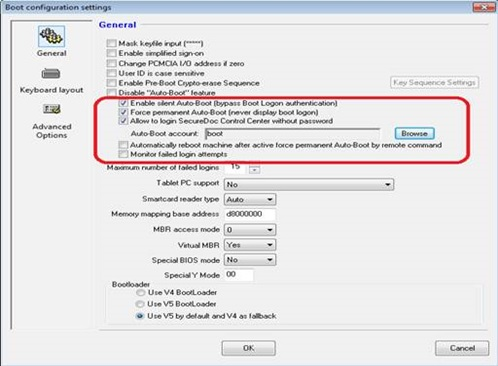
3. Now assign this profile to the device from within the SES Server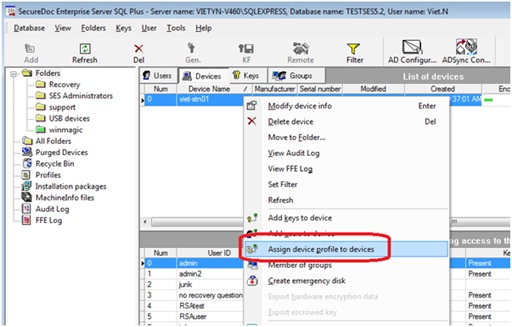
Note: You will want to ensure that the client device is in Windows when you push down the profile.
4. On the client side, right-click on the SecureDoc icon and select "Communicate with the server".
After device is restarted, the client passes boot logon and goes straight to the Windows login screen.
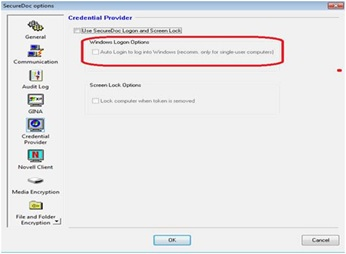
It’s recommended that you turn off password synchronization and also turn off the Windows credential provider option to "Auto login to log into Windows (recommended only for single-user computers)".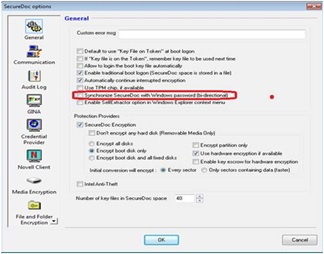
Custom Fields
Operating System: All
Product_Documentation: Yes
Version: Affects all versions of SD