How To Create New Certificate For SESWeb
Issue:
The how to guide will instruct the user to create and configure a new IIS server certificate.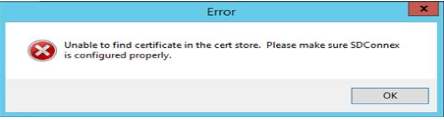
Product version affected:
SD 6.1 and up
Environment (OS/hardware/software):
Please refer to the latest system requirements from
http://www.winmagic.com/support/technical-specifications
Solution/Workaround:
Step 1:
Open Server Manager > Roles > Highlight Internet Information Services (IIS) Manager
Highlight server device name i.e RJTestdevice > Double click on "Server Certificates"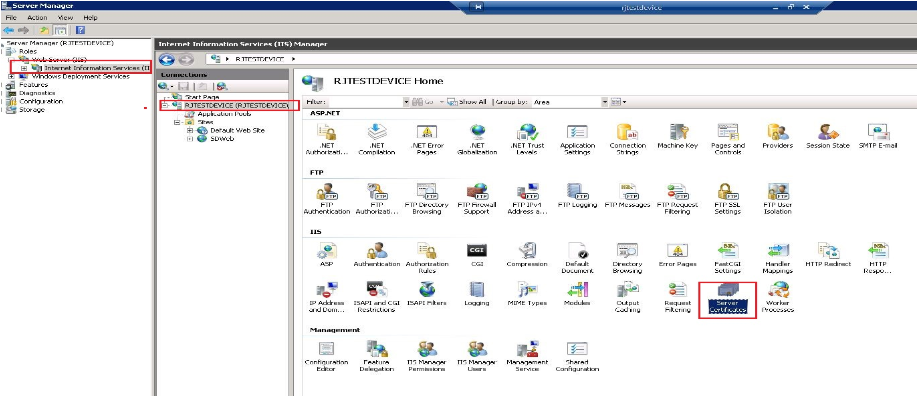
Step 2:
Select "Create Self-Signed Certificate" > Enter a certificate name i.e SESweb cert > click OK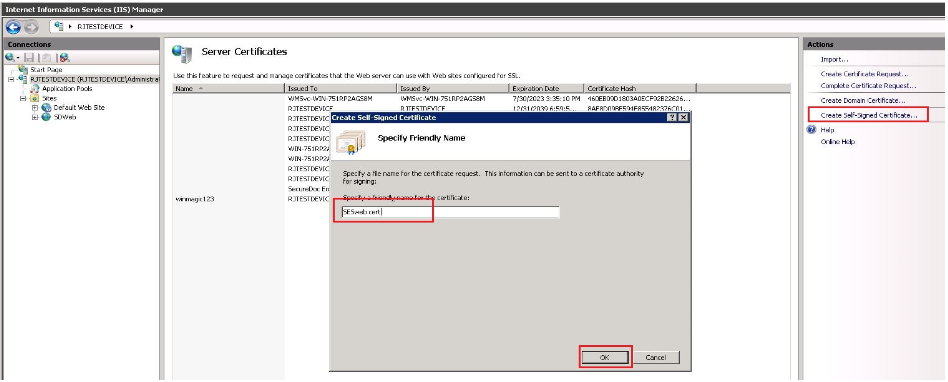
Step 3:
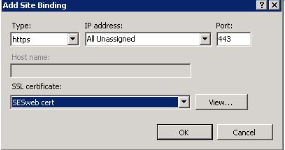
Highligh SDWeb > Click "Bindings" > Click "Add"
In the "Add Site Binding" screen > Select Type to be "https"
Under SSL certificate section > Select newly created certificate, i.e. SESweb cert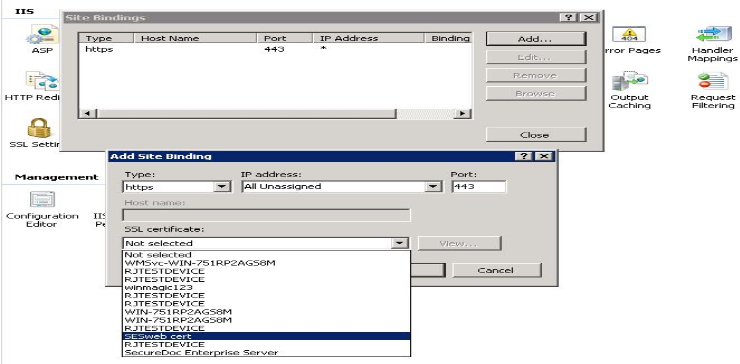
Step 4:
a. Restart IIS server
b. Stop and restart the SDConnex Service
Step 5:
a. Stop the SDConnex Service
b. Click "Configure" from the SDConnex Service, uncheck SES Web Management Service > apply.
c. Re-enable SES Web Management Service > apply
d. Restart the SDConnex Service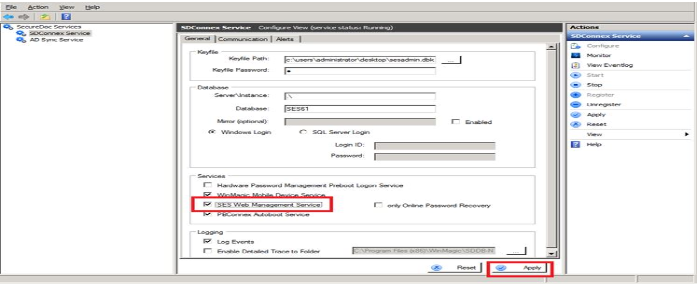
Step 6:
Click on Start Menu > right click and run as administrator for SDWeb configurator > Click on Configure > Close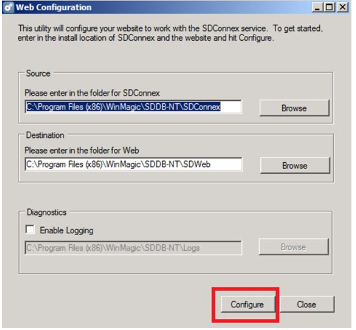
Step 7:
Open the browser https://localhost or https://server:443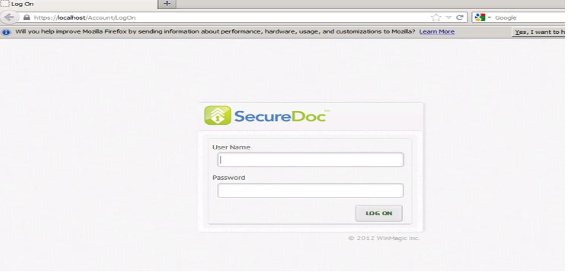
This is the account that you will need to log in.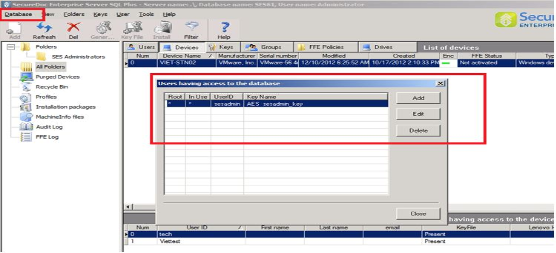
Please also refer to the KB 1483 on how to configure the SES web.