Issue:
This How-To article discusses how to configure and execute the remote crypto-erase tool on devices.
Product version affected:
All version of SD
Environment (OS/hardware/software):
All Windows OS versions
Procedures:
Step1:
From SES Console's Global Options: Select Tools > Options > General
Step 2:
Check this option "Enable "Crypto-erase device" remote command
This will enable the remote command used to zeroize a client device.
Once the option is selected, a Warning message appears - " Crypto-erasing a computer will render it unusable. Confirm - Enable the command?
Please click "Yes".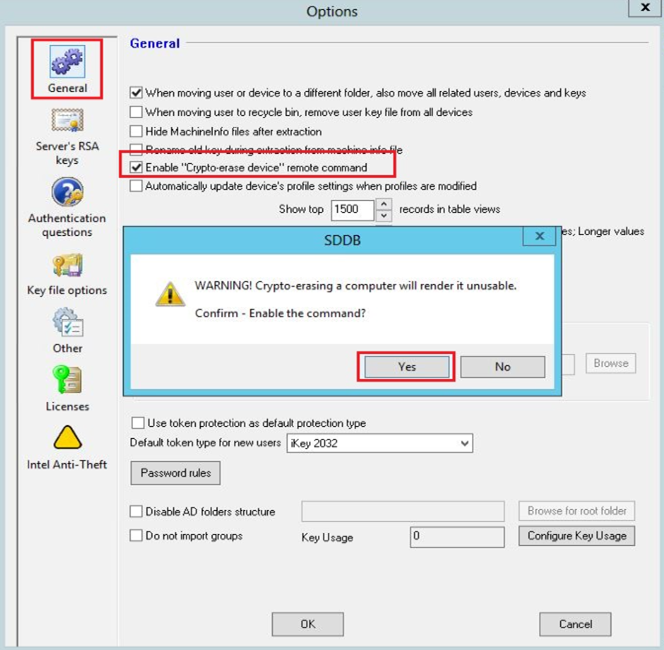
Executing the Crypto-erase on a Client Device
To Crypto-erase a client device, rendering it unusable (for example, in the case of theft):
1. Right-click on one or more devices (this command cannot be performed on a folder), and choose
Cryptoerase Device from the menu.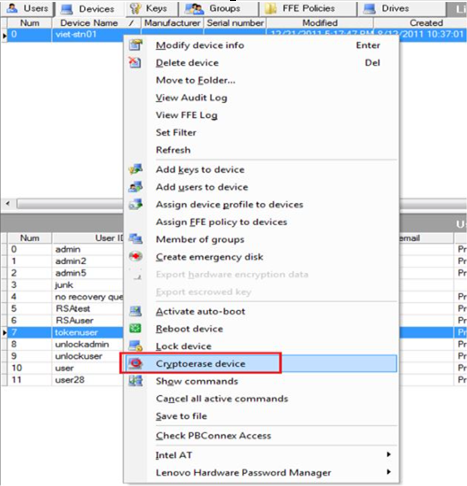
To enable manual Cryptoerase function at preboot login screen
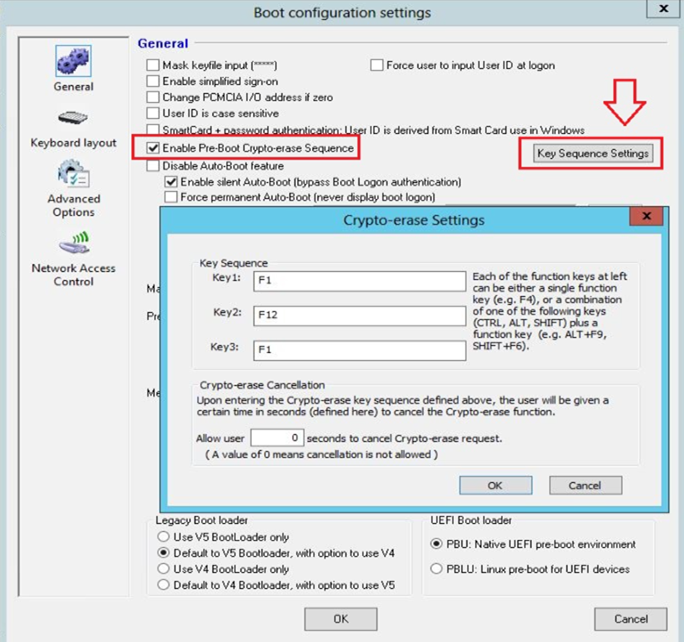
Select the profile > Modify profile > Boot Configuration > General > select "Enable Preboot Crypto-erase Sequence" and click on "Key Sequence Settings"
Click Ok > OK
This option is for manual cryptoerase at preboot screen.
Check to allow user to Crypto-erase a device (remove the encryption key from the device, rendering it inaccessible).
Click Change Key Sequence and, in the new screen that appears, specify the three key strokes to be used for this purpose. Supported keys are Function keys (F1, F2, etc.), alone or in conjunction with the Shift, Ctrl, or Alt key. For
example, the sequence could be SHIFT+F1, CTRL+F2 and F3. To allow the user to cancel the Crypto-erase function, enter the number of seconds of delay before the Crypto-erase will be carried out. You are prompted to confirm the action. Depending on configuration, you may be able to cancel the Crypto-erase before it is complete.