This How-To-Guide article will help SES administrator to create secondary SES account(s) that can be use to manage the SES console from their own device.
Step 1:
Creating the Admin key file:
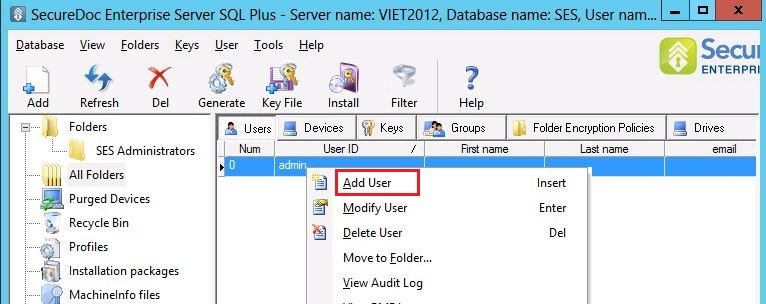
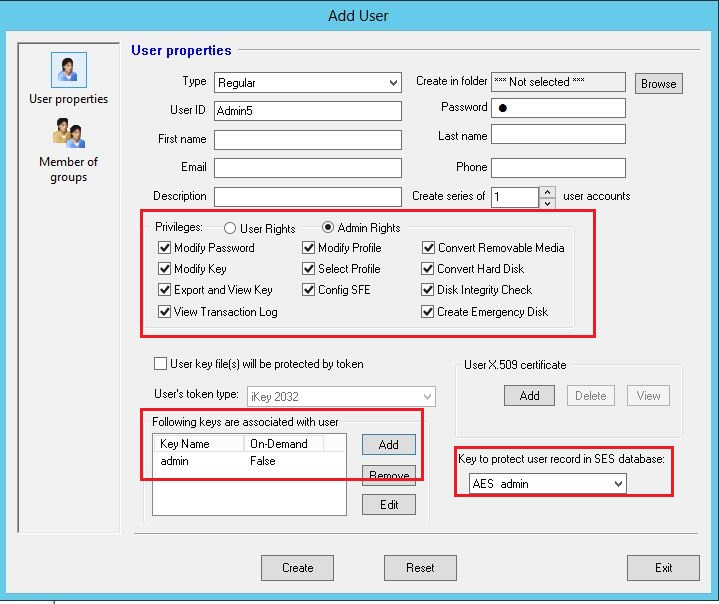
- From the SES Administrators folder, right click and select "Add User"
- Fill out User ID and Password fields within Edit User Info Window
- Within the Privileges section – Click on radio button option Admin Rights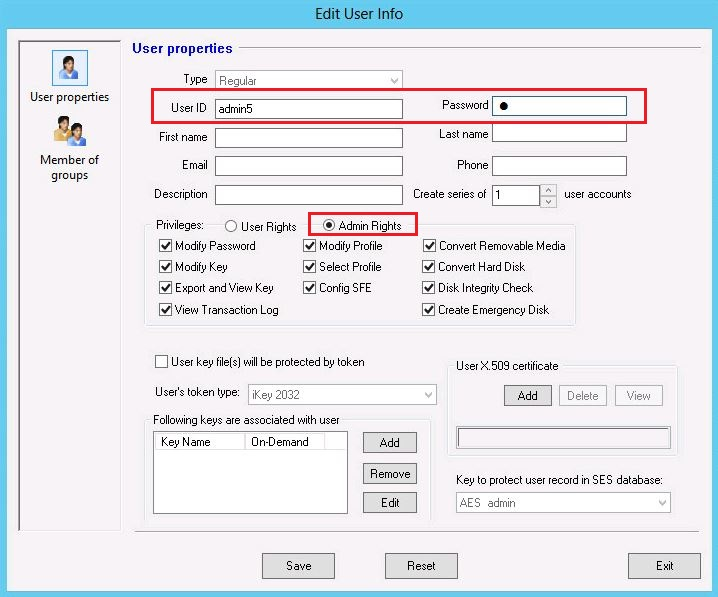
From section "Following keys are associated with user:
- Click Add then select the AES encryption key that matches the "Key to protect user record in SES database" —> click OK —> Click Create
As shown in our example: The Key Name is -> AES Admin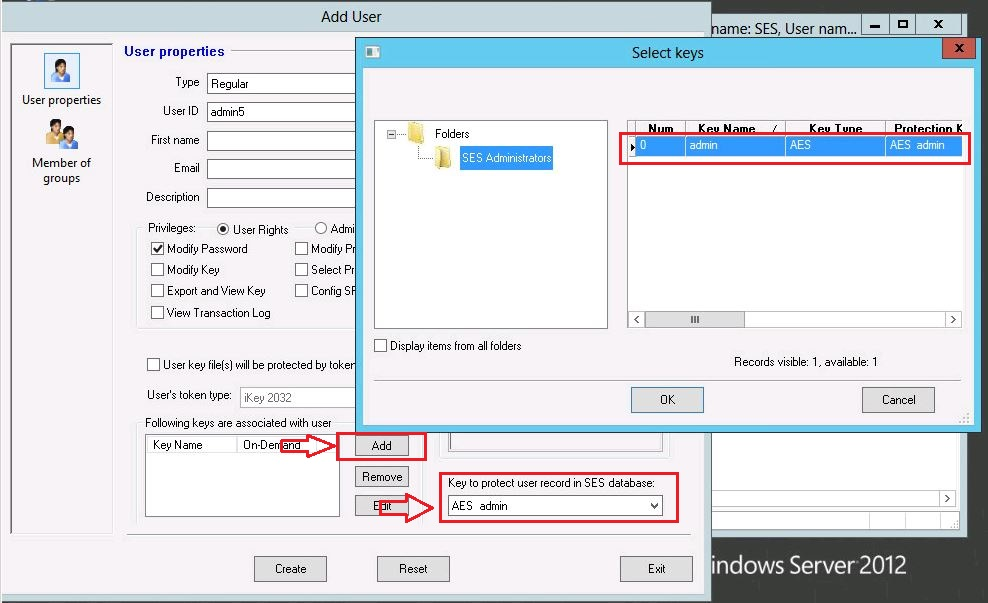
- Right click on the User ID i.e admin5 and select "Create Key File" (dbk)
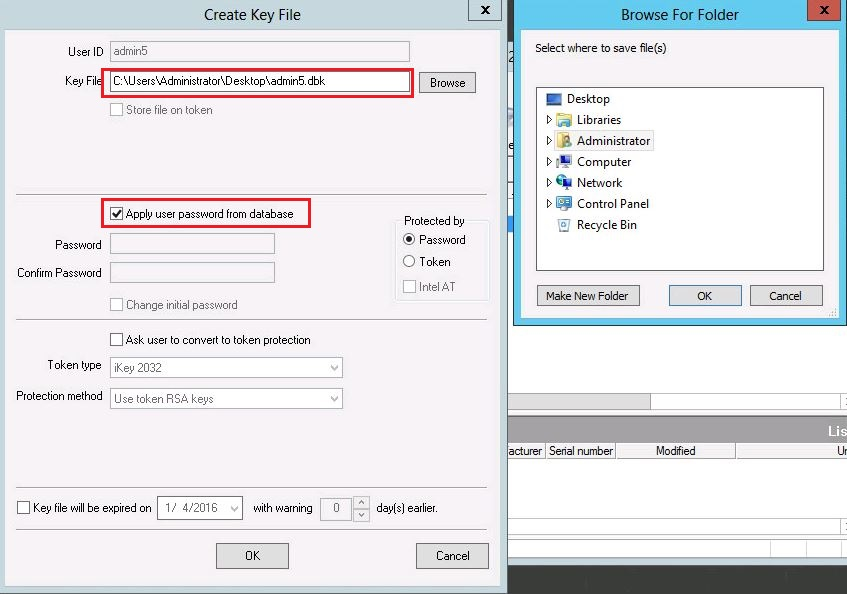
(Save the file to desktop).
- Check mark option " Apply user password from database" > Click OK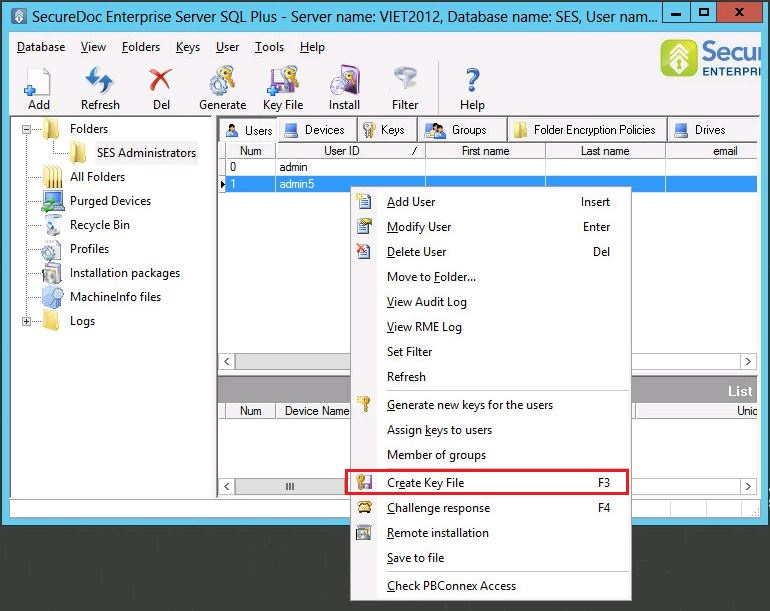
Step 2:
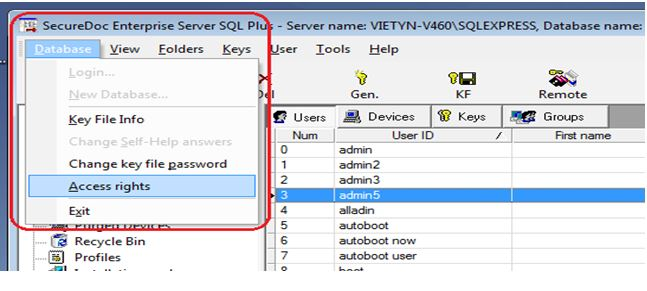
From SES Console:
click on Database > Access Rights
select the user account i.e Admin5
 Step 3:
Click on Add
Browse to the selected keyfile then click on Open
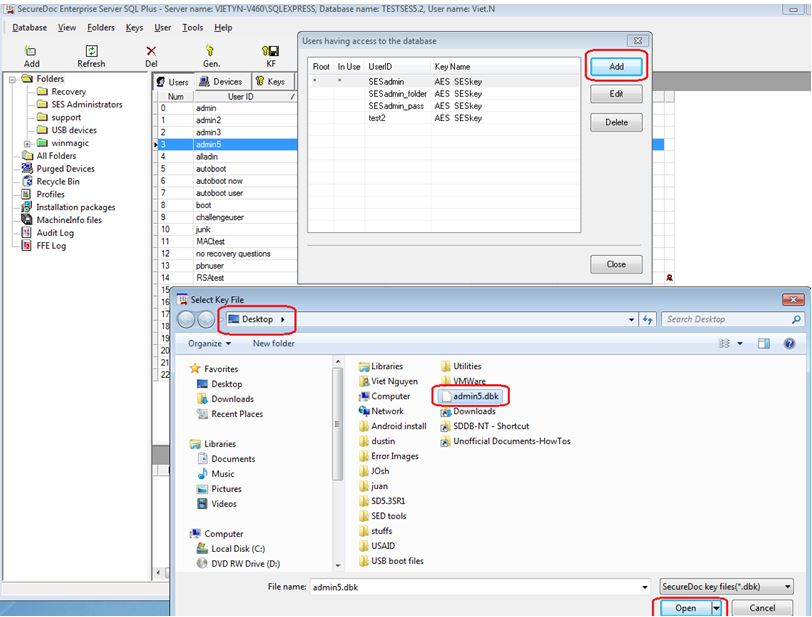
Step 4:
- Enter the password in the Key file password field and then click on Login
You will see that the User’s default key file will now appear as shown in example.
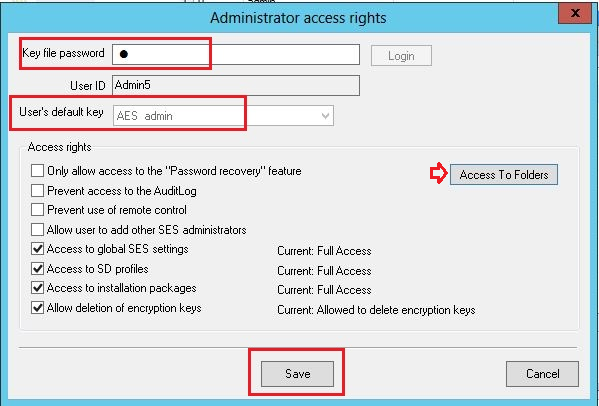
Note: By default, the following Access rights options will be checked off:
Access to global SES settings
Access to SD profiles
Access to installation packages
It will be up to you to assign any other access requirements to the user.
- Click on Access to Folders
- Please check off the folders you want the user to have access to.
Step 5:
Install only the SES server console on your end user machine. Use the key file that you created,(i.e admin5.dbk) and log into the server console using the original server’s configuration (please see below screen shot). 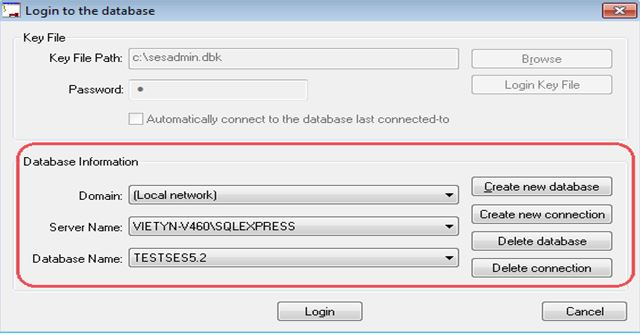
SQL server access rights
Make sure you install SQL Server Management Studio if not yet installed on the pc.
For SQL express 2012:
http://www.microsoft.com/en-ca/download/details.aspx?id=29062
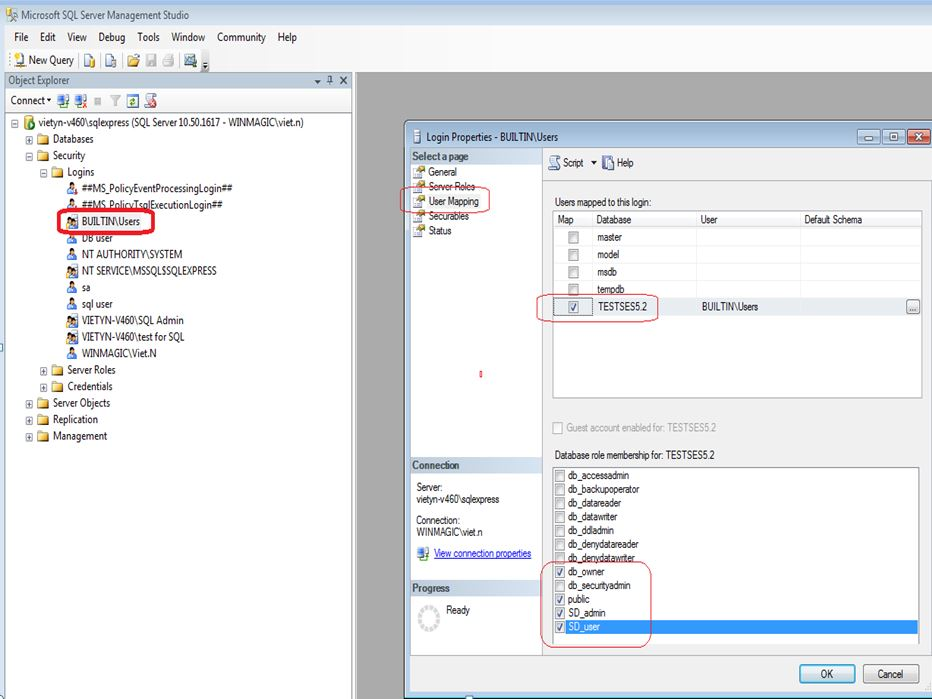
These steps provided are for an illustrative example based on the user viet.n logging into MS SQL Server Management Studio. The objective of these instructions are to provide a walk thru on how to check your own SQL Server /SES Database and locate your own credentials to ensure you have the required Database Role memberships.
Step 1:
Login with your credential that you have when you log into SQL Server Management Studio.
example...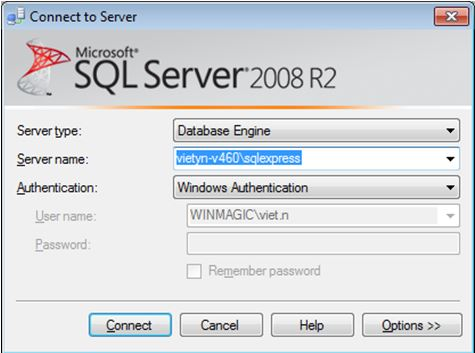
Once logged in successfully from your Object Explorer:
Under Security > logins > builtin\users: Click on user mapping then adding a checkmark to TESTSES5.2 user:
Check to ensure that the user TESTSESS5.2 has the required Database role membership permissions which should be as follows:
db_owner,
public,
SD_admin
SD_user
example: