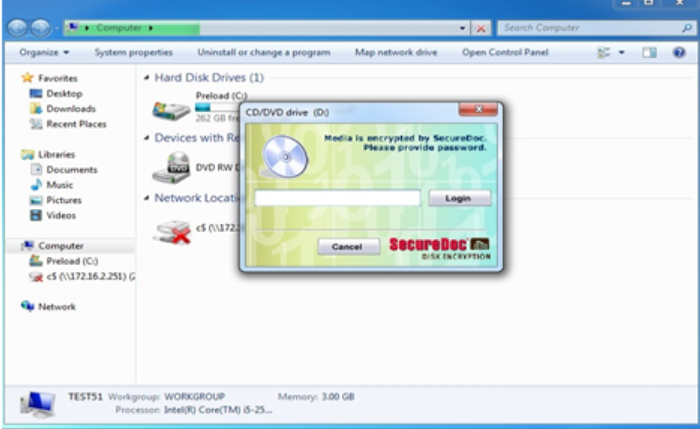
SecureDoc’s CD and DVD Encryption
This document will explain how to: Enable CD/DVD encryption within SES, push the policy to computers, and lastly how users will encrypt these CD/DVD discs.
Configuring the CD/DVD Encryption Policy in SES
CD/DVD encryption must be enabled within the SecureDoc profile.
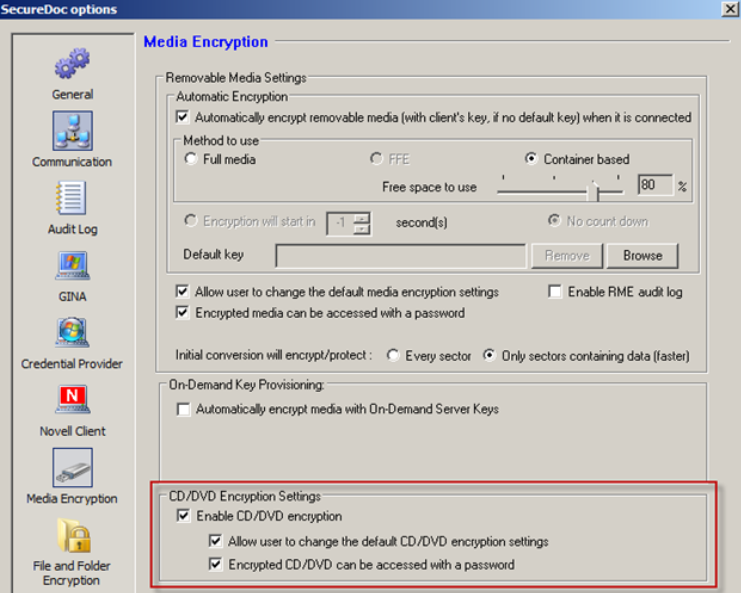
1. Log into SES and open the SecureDoc profile. Click on Media Encryption and enable the CD/DVD settings highlighted below:
2. Ensure the profile is updated on the device by right-clicking on the SecureDoc icon and selecting Communicate with server. Confirm there is a small black circle on the SecureDoc icon:

3. Restart the local computer upon the profile being updated.
Setting the CD/DVD Encryption Key and Password (optional)
Once the policy has been set, the users are now required to select the AES encryption key and password they will be using to protect the CD/DVD:
1. Right-click on the SecureDoc icon and select SecureDoc Control Center.
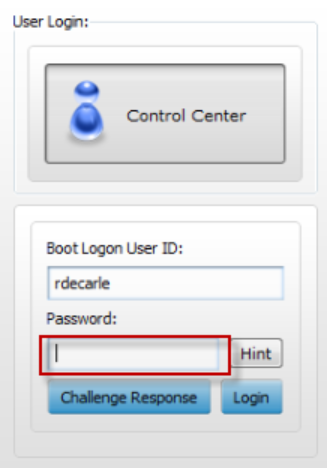
2. Log into the Control Center:
3. Next, click on Device Encryption and select Media Encryption Settings. In the right working pane, select the AES encryption key and the password used to protect the disc.
IMPORTANT: The key and password must be set prior to encrypting the CD/DVD.
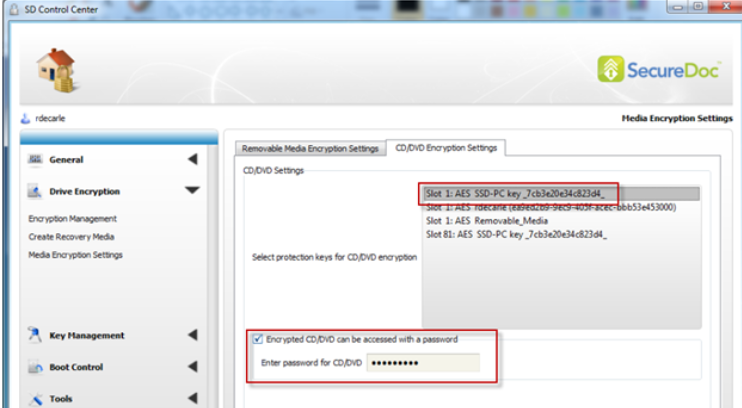
4. Once completed, click Apply.
IMPORTANT: Once the local computer restarts, the password is removed from this area. The user is required to log back in to set their password (when encrypting new CD/DVD discs).
Encrypting a CD/DVD
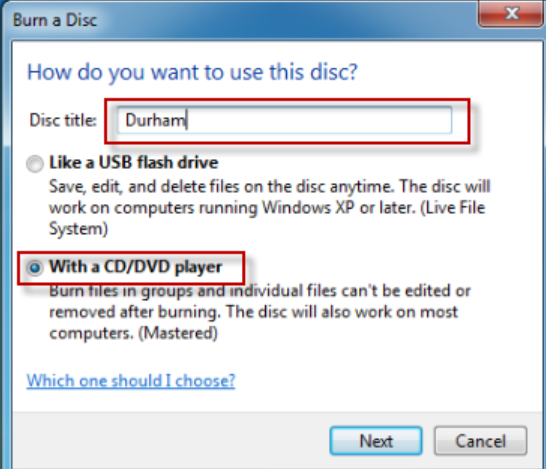
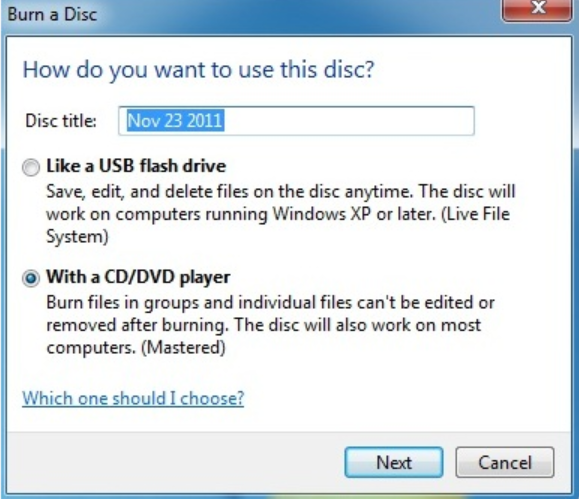
- To encrypt a CD/DVD, simply insert a blank disc. When prompted, ensure to add a Disc title and select “With a CD/DVD player” option and click Next:
2. Copy data to the disc by drag and dropping information to the CD/DVD. You should see a message in the system tray similar to below:

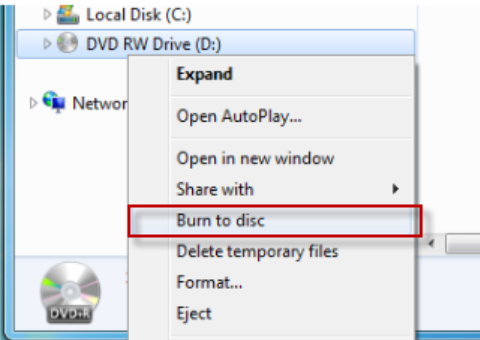
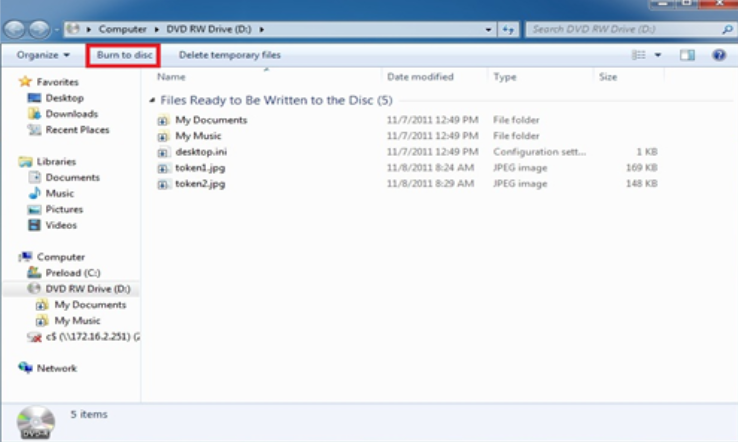
3. Once the files are in place, right-click on the DVD RW Drive and select Burn to disc:
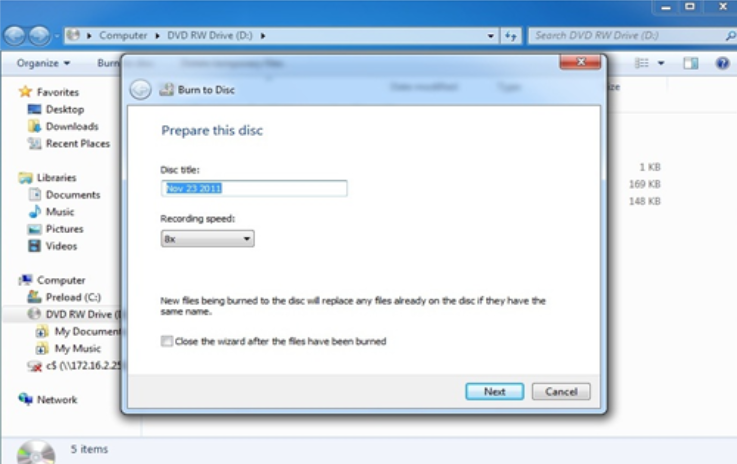
4. You will be prompted again to reconfirm the disc information:
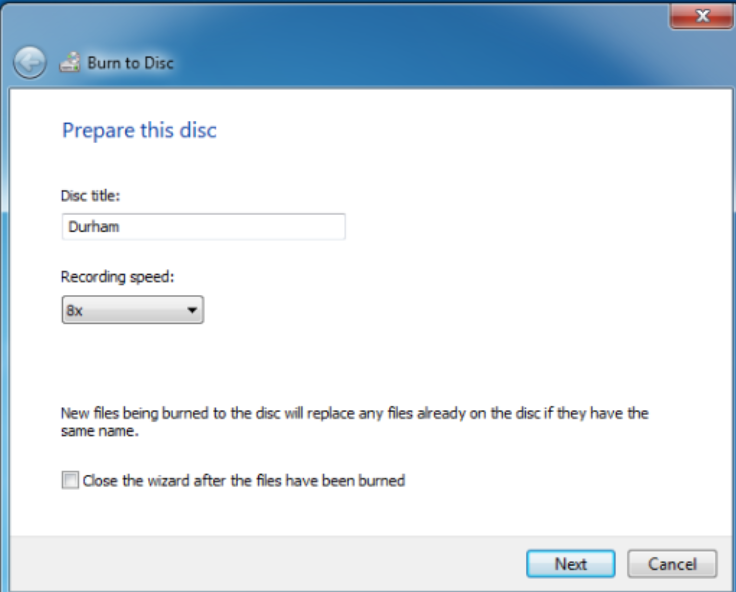
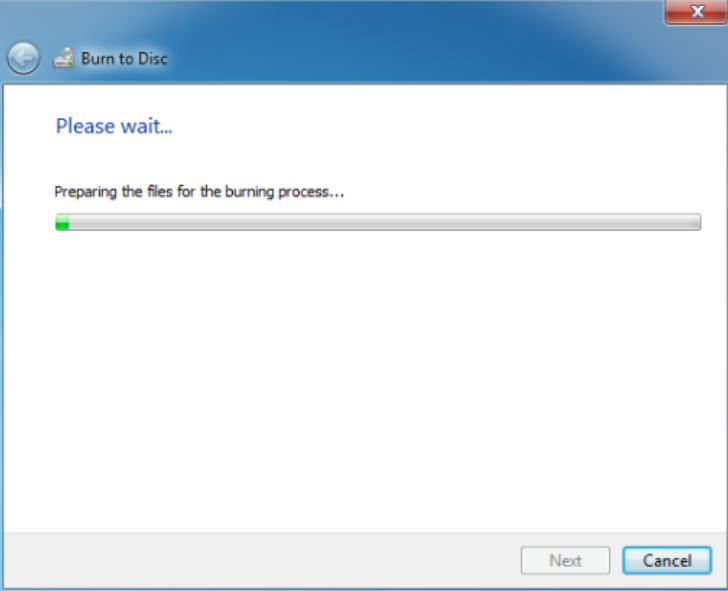
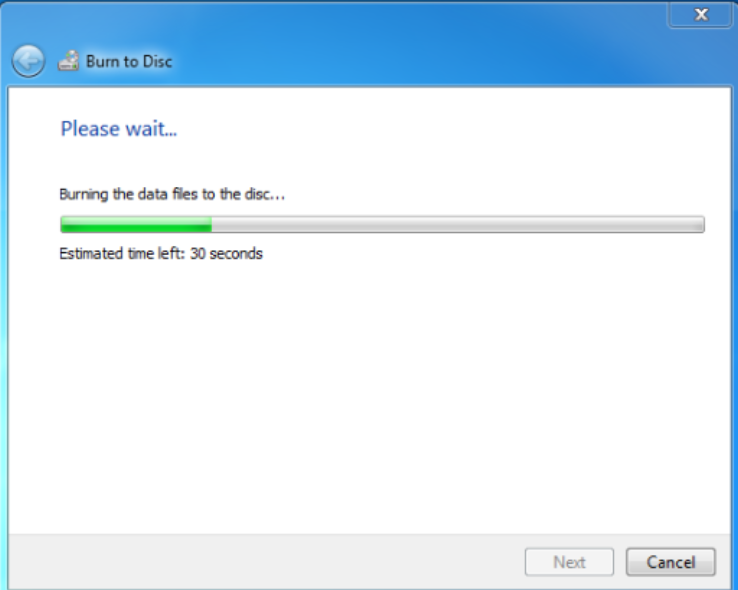
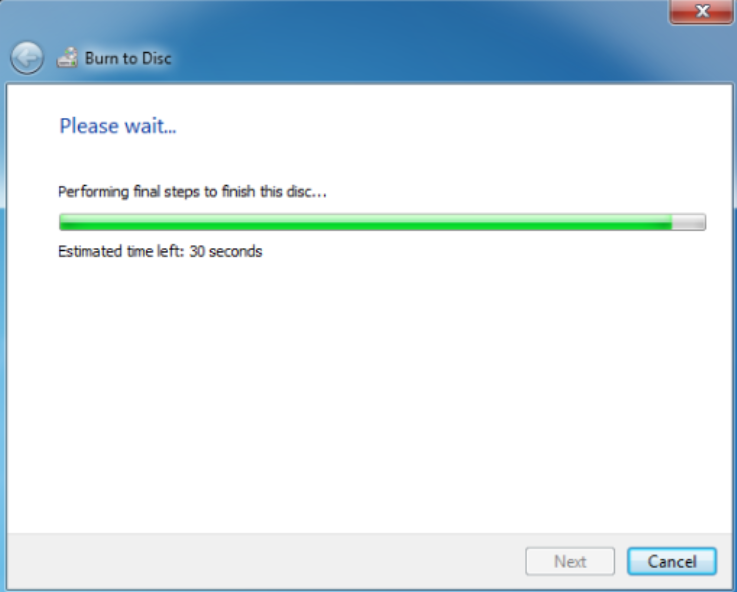
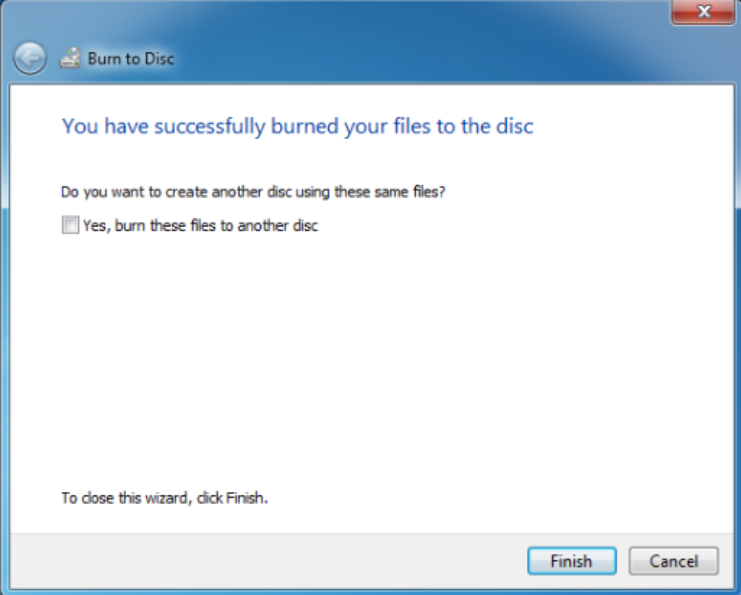
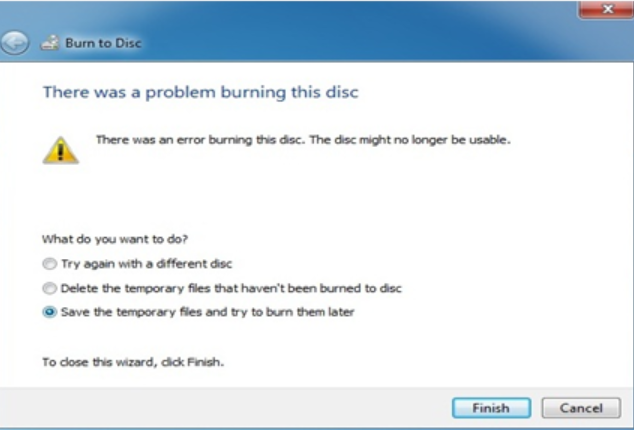
5. Click Next. The files will be burned to the disc. Click Finish at the end of this process. The disc is now encrypted.
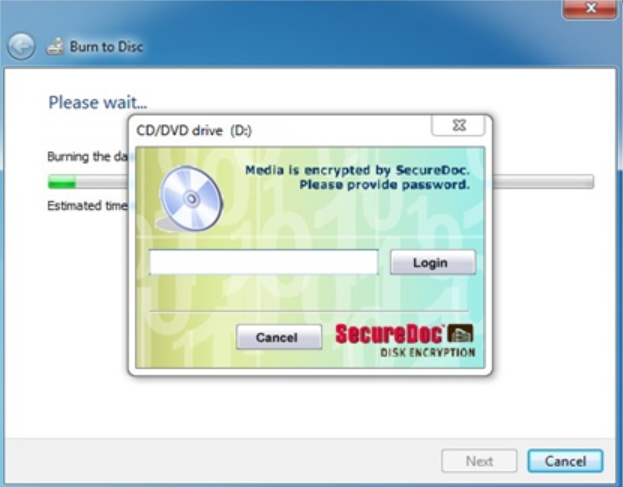
Note: The encryption is taking place during the burning process, there are no prompts pertaining to the actual encryption.
Using the Encrypted CD/DVD on a Different Computer
This section explains how to use the encrypted CD/DVD on another computer (with and without SecureDoc being installed):
With SecureDoc Installed
- Insert the encrypted CD/DVD into the ROM:
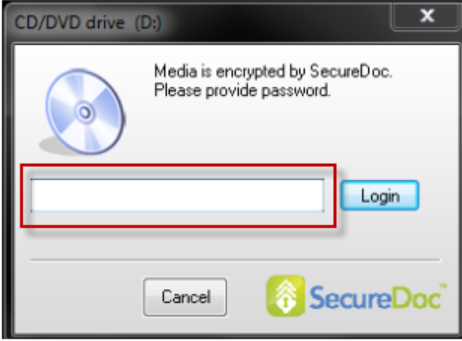
2. SecureDoc will prompt the user for the password. Enter the password assigned when encrypting the CD/DVD:
3. If the password is correct, the data on the disc will be accessible:
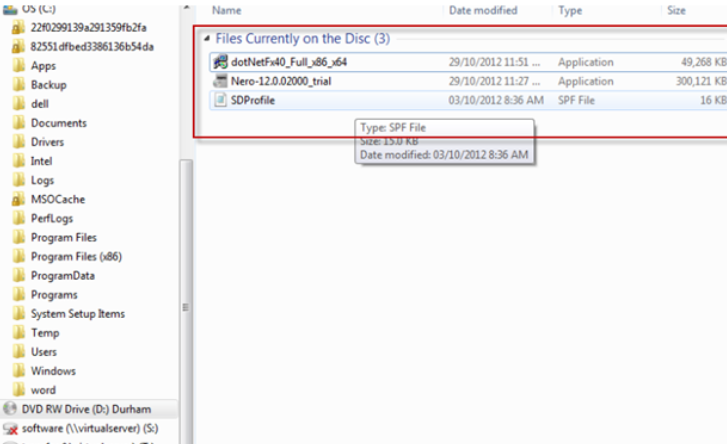
Without SecureDoc Installed
If SecureDoc isn’t installed on the computer, you will need to download and install the free SecureDoc MediaViewer application. This can be found on WinMagic’s website:
https://fileshare.winmagic.com/link/ciSKv0cAoqku0dcfoVEvQl
Note: Once the viewer is downloaded, it can be shared between users internally, e.g. made available via a network share. It might also be a good idea to have the viewer available via USB device or a different CD/DVD should the sharing of the CD/DVD be with non-SecureDoc computers.
How to burn and encrypt files to a CD/DVD disk
Highlight the files --> right click send to dvd rw drive (d:)
The autoplay may come up. Click on “Burn files to disc”.
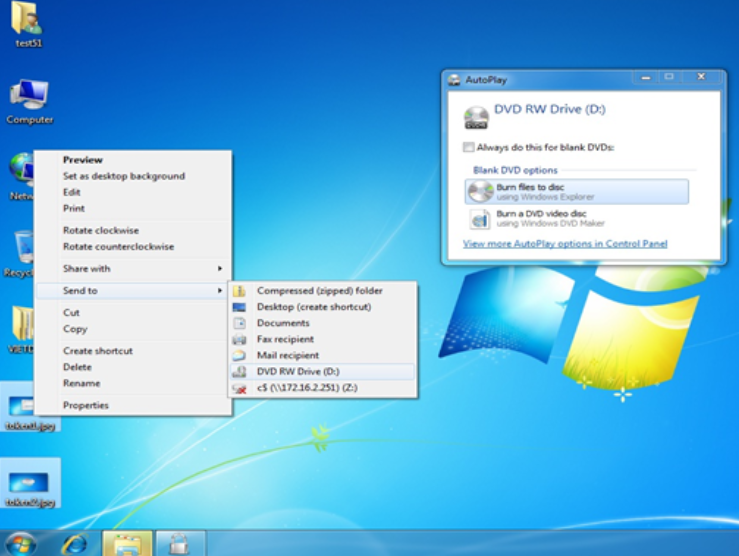
It will ask to label the disk. Select “with a cd/dvd player”.
Click on “burn to disc”
Click on next (see below picture)
Securedoc password login screen will show up. Please enter the password that you set up in Control Centre.
Click Finish
The last screen shot should shows the securedoc login screen and ask for a password.