Recent changes to the Status of executed commands in Show Commands
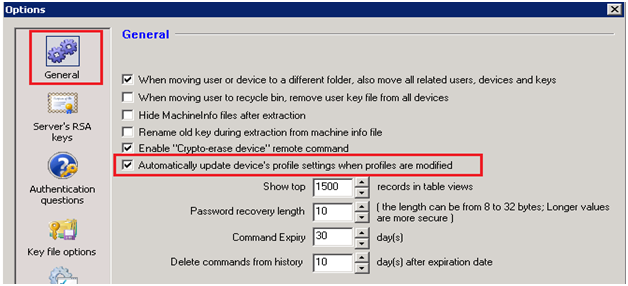
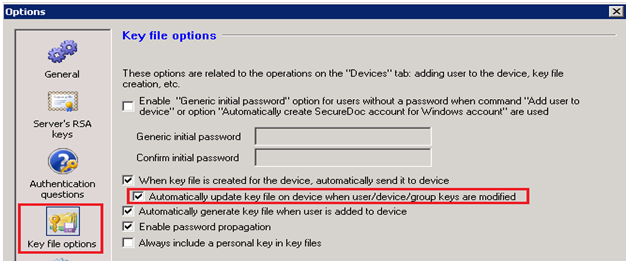
This article explains the purpose of using the following options in the Tools à Options à General and Key File Options
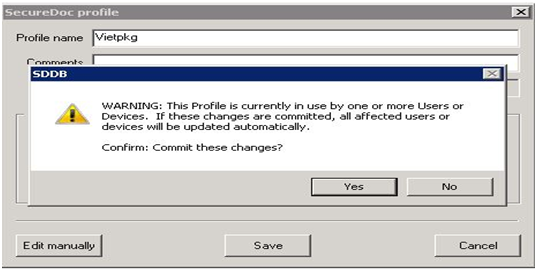
After modifying and saving the profile, there is a Warning message:
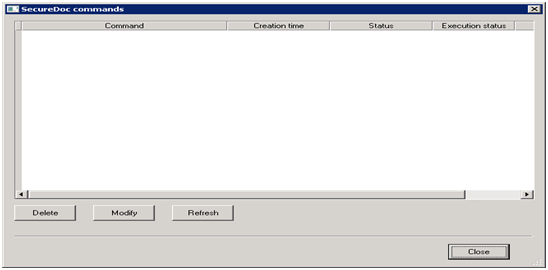
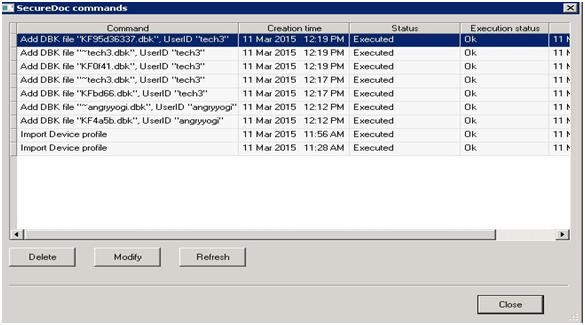
If you make a change(s) to a user account or profile, and then open the “Show Commands”, you will not see any execution status appearing right away for the pending device.
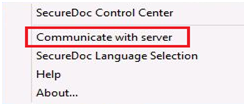
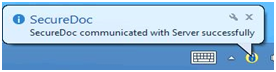
The global change(s) will not take effect until the device has communicated with the server successfully. At which time, the “Show Commands” will display the execution status of the profile and keyfile.
After you have modified the profile, you will see under the device’s “Modified Profile” column displaying “Out of Date” status.
Once the device has successfully communicated with the server, the status will change to “Up to Date”.
In previous version of SD, if you make a change to the profile or a user account, it will take effect immediately. The profile and key files status(es) will automatically appear in “Show Commands”. Starting with version 6.4SR1 and newer the commands are pre-queued, and will only be queue for execution once the device has communicated successfully with the server. This is to lessen the work load on the SDConnex and SQL server to push out the commands to every device all at once. Furthermore, we have made changes to the SES server to disable sending of UDP packets to the client devices to avoid “flooding” SDConnex server Therefore it does not know where to push the updates to the device until the device has communicated back to the server.
|
Custom Fields
|