KB-2092
Installing the SecureDoc 2023 Secure Boot Certificate Patch
Step-by-Step Installation Guide
Article Information | |
Article ID | KB-2092 |
Product | SecureDoc Enterprise Server 9.0 SR1 and above |
Affected Versions | SecureDoc Client 9.0 and above with Secure Boot enabled |
Published | May 2026 |
Last Updated | May 13, 2026 |
Article Type | Installation Procedure |
Overview
This article provides step-by-step instructions for installing the WinMagic SecureDoc 2023 Secure Boot Certificate Patch. This patch is required to maintain boot capability on systems with Secure Boot enabled due to the Microsoft 2011 Secure Boot certificate expiration on June 26, 2026.
The patch updates SecureDoc Pre-Boot Authentication (PBA) components with new binaries signed using the Microsoft 2023 certificate chain, ensuring continued compatibility with updated UEFI firmware.
⚠ CRITICAL WARNING
Do NOT install this patch until you have verified that Windows KB5025885 is installed and the 2023 certificates are physically present in your system NVRAM. Installing the patch before certificate verification will result in a Secure Boot Violation and render the system unable to boot.
Scope and Key Points
- Applies to SecureDoc Client versions 9.0 and above with Secure Boot enabled
- Requires Windows KB5025885 to be installed and certificates verified BEFORE patch installation
- Patch is delivered as a simple .exe installer that updates client binaries
- Available as SecureDoc 9.2 SR1 Hotfix 1 for existing 9.2 SR1 deployments
- All SecureDoc upgrades after June 26, 2026 must use version 9.2 SR1 HF1 or later
- Installation order is CRITICAL: Windows certificate update must complete before SecureDoc patch
Prerequisites
Required Software Updates
Before installing the SecureDoc patch, you must verify the following:
- Windows KB5025885 must be installed
- The 2023 Secure Boot certificates must be physically present in system NVRAM
- SecureDoc Client version 9.0 or above must be installed
- Administrative privileges required for installation
Certificate Verification Requirements
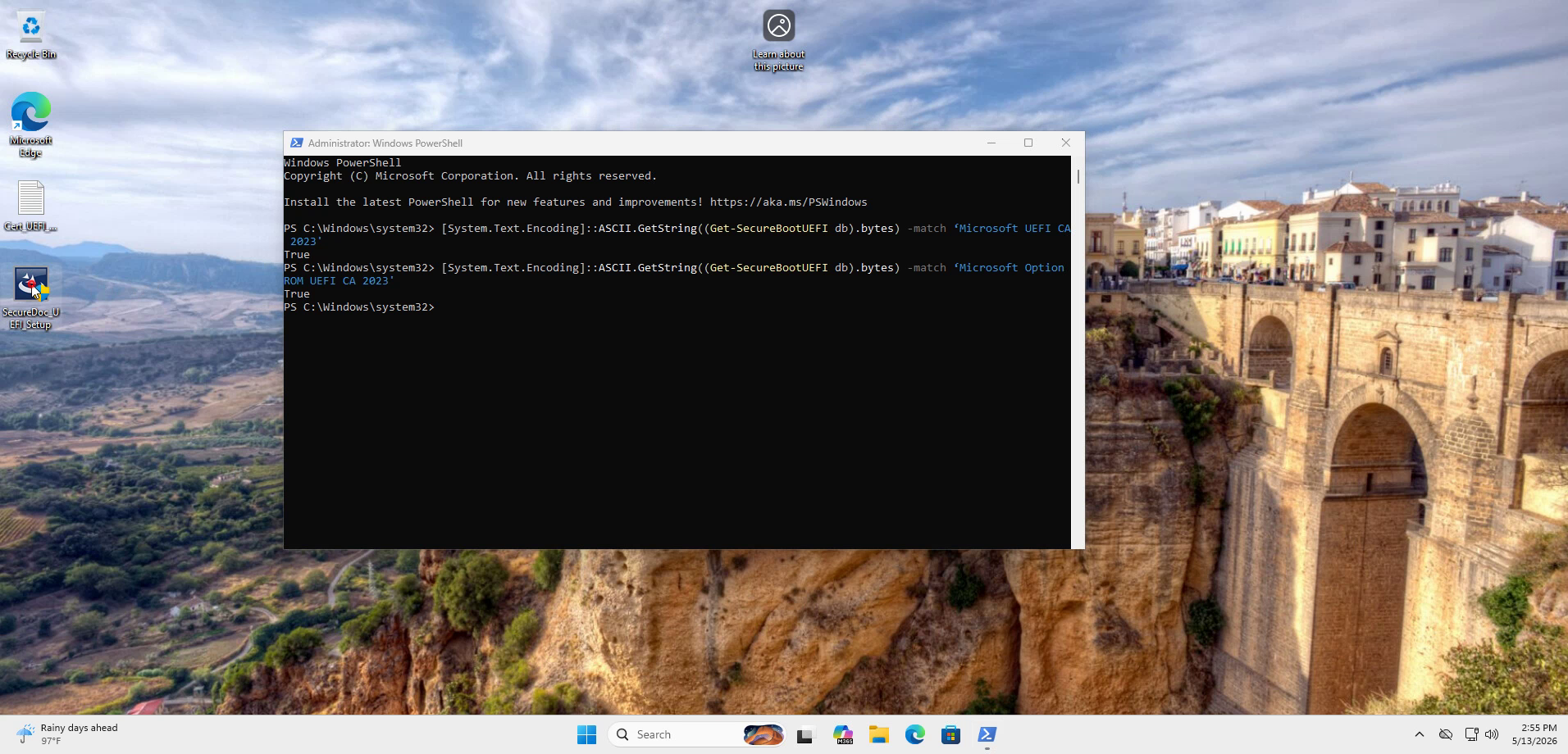
Use the PowerShell commands below to verify that the 2023 certificates are installed in your system's Secure Boot database. Both commands must return "True" before proceeding with the patch installation.
[System.Text.Encoding]::ASCII.GetString((Get-SecureBootUEFI db).bytes) -match 'Microsoft UEFI CA 2023'
[System.Text.Encoding]::ASCII.GetString((Get-SecureBootUEFI db).bytes) -match 'Microsoft Option ROM UEFI CA 2023'
Certificate Verification
Both PowerShell commands must return "True" before installing the SecureDoc patch. If either returns "False", the system is not ready. Do not proceed with patch installation until both certificates are confirmed present in NVRAM.
Installation Procedure
Follow these steps in order to install the SecureDoc 2023 Secure Boot Certificate Patch.
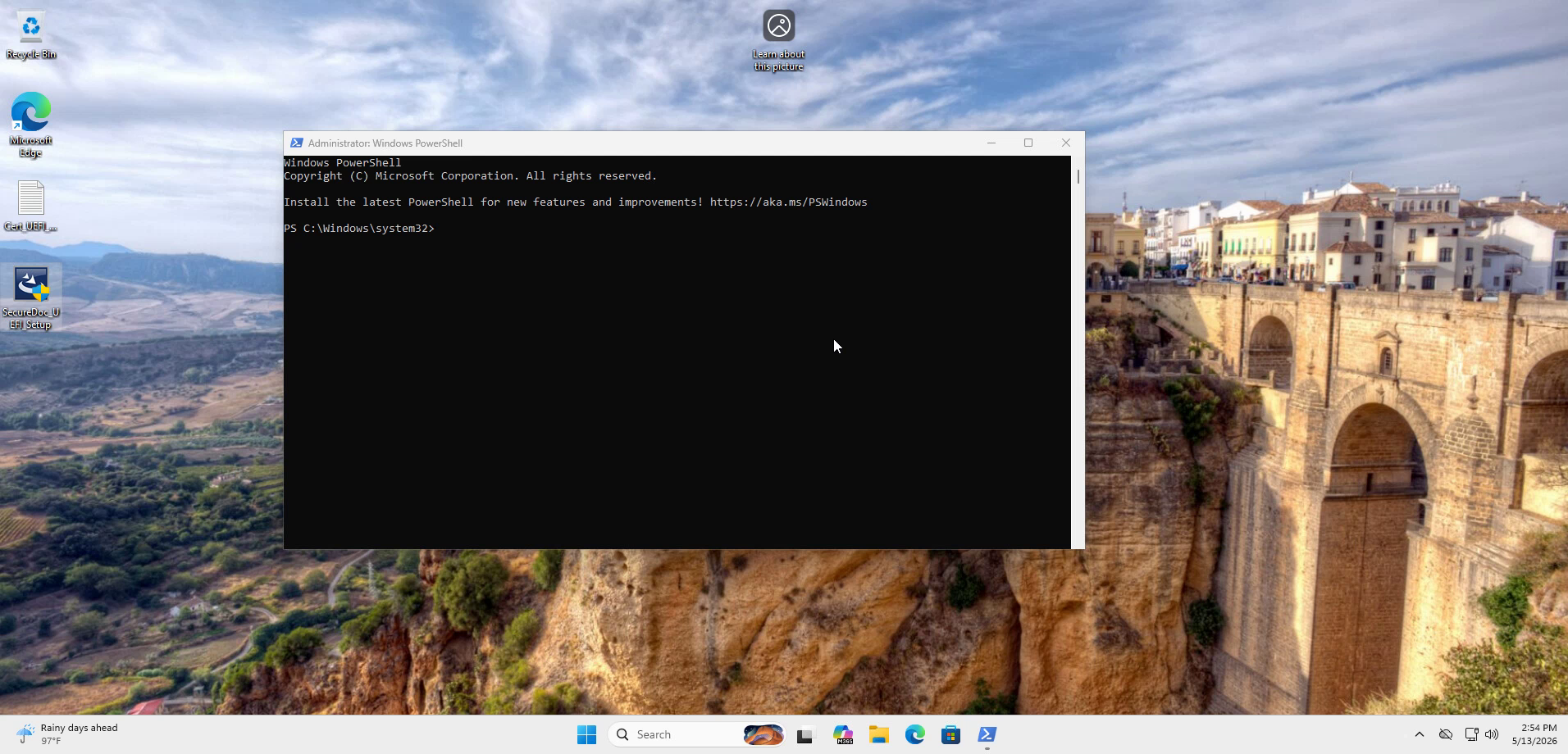
Step 1: Open PowerShell as Administrator
Right-click the Windows Start button and select "Windows PowerShell (Admin)" or "Terminal (Admin)" from the menu. Verify that you see "Administrator: Windows PowerShell" in the title bar.
Step 2: Verify Certificate Installation
Run both PowerShell verification commands to confirm the 2023 certificates are present in NVRAM. Both commands must return "True". If either return "False", stop immediately and do not proceed with the patch installation.
Registry Verification (Optional)
You can also check the registry key for Windows UEFI CA 2023 status:
HKLM\SYSTEM\CurrentControlSet\Control\SecureBoot\Servicing
Look for the value "UEFICA2023Status" = 0x4000 (indicates Windows UEFI CA 2023 update complete).
Note: This registry value does NOT directly confirm the presence of 3rd-party certificates. Always use the PowerShell verification commands above for complete validation.
STOP if Verification Fails
If either PowerShell command returns "False", your system is NOT ready for the SecureDoc patch. You must first ensure Windows KB5025885 is fully installed and the certificates have been seeded into NVRAM. Proceeding without proper certificate verification will cause boot failure.
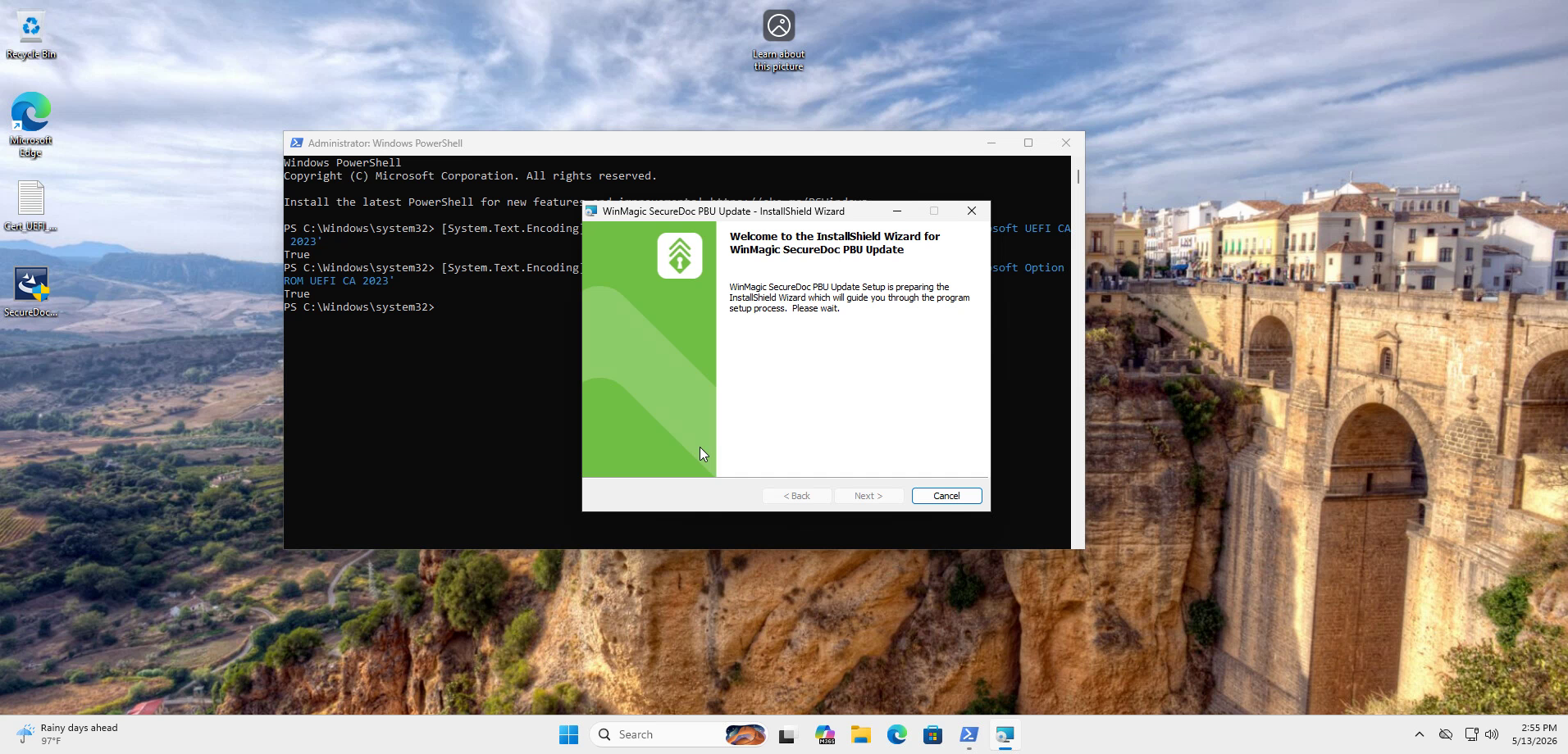
Step 3: Launch the SecureDoc PBU Update Installer
Double-click the SecureDoc PBU Update installer executable. The InstallShield Wizard will launch and prepare the installation. Click "Next" to begin the setup process.
Step 4: Follow the Installation Wizard
The InstallShield Wizard will guide you through the installation. Review the license agreement, select installation options if prompted, and click "Next" to proceed through each screen. The installer will automatically update the SecureDoc PBA binaries with 2023-signed versions.
Step 5: Complete Installation
Once the installation completes successfully, click "Finish" to close the wizard. The system may require a reboot to complete the update.
Step 6: Reboot the System
Restart your computer to apply the changes. After reboot, the system will load to a blue screen briefly, then display the Windows login screen with a "Welcome" message, indicating successful boot with the updated PBA.
Step 7: Verify Successful Boot
After the system reboots, confirm that you can successfully authenticate and boot into Windows. The updated SecureDoc PBA should load without any errors and return you to the Windows login screen. If SSO is enabled, you should be able to log in successfully without any issues.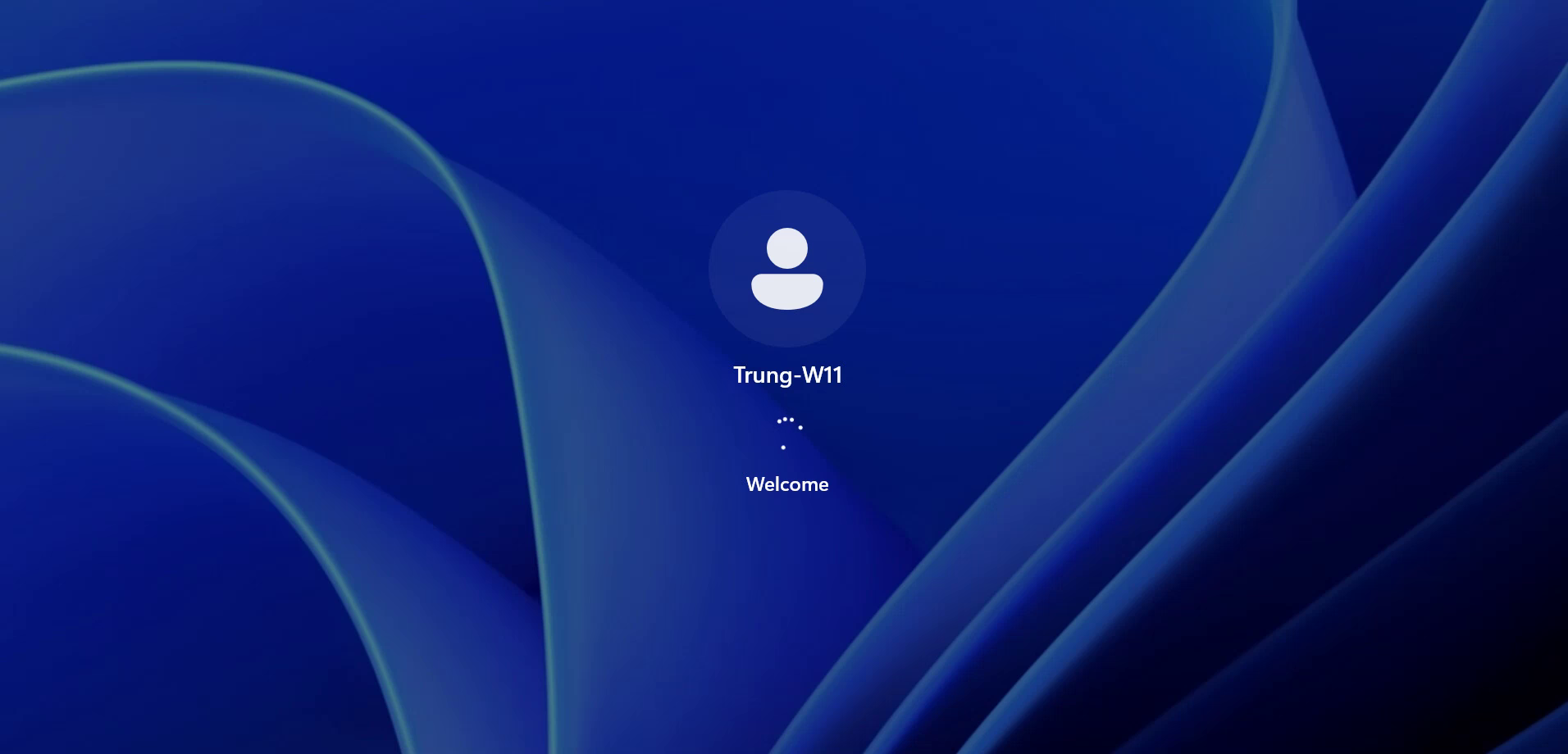
Verifying Patch Installation via Registry
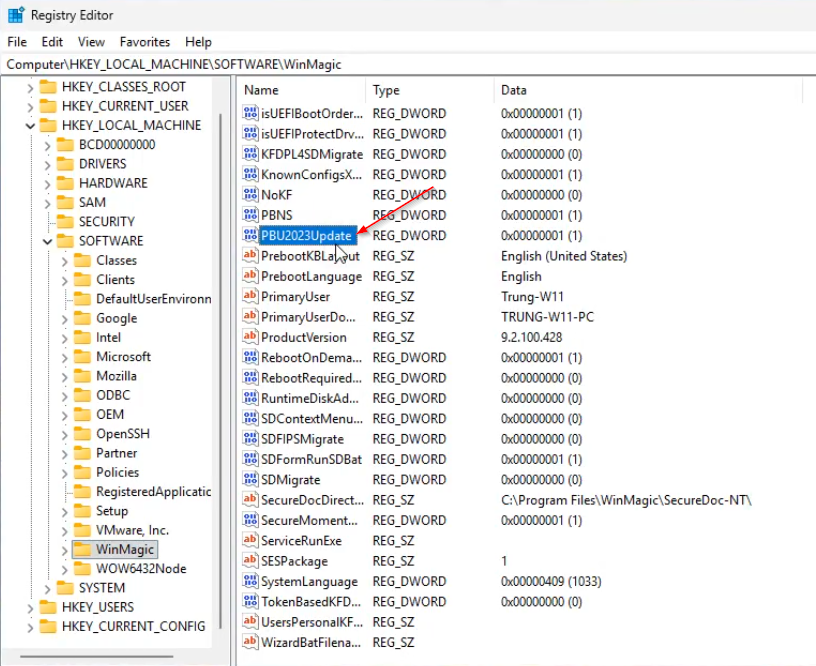
After running the patch installer, confirm successful deployment by checking the registry:
- Open Registry Editor (regedit.exe) as Administrator
- Navigate to HKEY_LOCAL_MACHINE\SOFTWARE\WinMagic
- Locate the PBUC2230Update REG_DWORD value
- Verify the Data field shows 0x00000001 (1)
If the value reads 0x00000001 (1), the patch installed correctly. A value of 0x00000000 (0) or the absence of the key indicates the patch did not apply.
Note: Registry changes may require a system restart to populate. If the key is missing immediately after installation, reboot before concluding the patch failed.
Grounding Check
- Registry path HKEY_LOCAL_MACHINE\SOFTWARE\WinMagic — sourced from uploaded screenshot
- REG_DWORD name PBUC2230Update — sourced from uploaded screenshot
- Success value 0x00000001 (1) — sourced from uploaded screenshot
- Need for Administrator rights to open regedit — standard Windows requirement (verified through system behavior, not web-sourced)
- Restart requirement — unverified (common pattern for registry-dependent software but not confirmed for this specific patch)
Troubleshooting
PowerShell Commands Return "False"
If the certificate verification PowerShell commands return "False":
- Confirm KB5025885 is installed by checking Windows Update history
- Check the registry value at HKLM\SYSTEM\CurrentControlSet\Control\SecureBoot\Servicing
- If UEFICA2023Status shows 0x5944, the update is staged but pending reboot
- Reboot the system and re-run the verification commands
- If certificates still do not appear, check for firmware updates from your OEM
Installer Fails to Run
If the SecureDoc PBU Update installer fails to launch or encounters errors:
- Verify you are running the installer with administrative privileges
- Check that SecureDoc Client is already installed on the system
- Confirm you are using the correct patch version for your SecureDoc installation
- Review Windows Event Viewer for installation error details
- Contact WinMagic support with error codes and log files
Related Resources
For additional information about the 2026 Secure Boot certificate transition, refer to these resources:
- KB-2090: Secure Boot Certificate Updates – Impact on SecureDoc
- Secure Boot FAQ 2026 (Updated May 12, 2026)
- Microsoft KB5025885: Windows Boot Manager Revocations for Secure Boot
- WinMagic Support Portal: documentation.winmagic.com
Need Help?
For technical assistance with SecureDoc patch deployment, contact WinMagic Support at [email protected] or call 1-888-879-5879.
11-80 Galaxy Blvd. Toronto, ON | M9W 4Y8 | Canada
Tel: (905) 502-7000 | Fax: (905) 502-7001
Web: www.winmagic.com | Email: [email protected]
WinMagic provides the world's most secure, manageable and easy-to-use data encryption solutions. Compatible with all editions of Microsoft Windows Vista, 7, and 10 as well as Mac and Linux platforms, WinMagic's SecureDoc protects sensitive data stored on portable media such as laptops and removable media including USB thumb drives and CD/DVDs. Thousands of the most security-conscious enterprises and government organizations around the world depend on SecureDoc to minimize business risks, meet privacy and regulatory compliance requirements, and protect valuable information assets against unauthorized access.
SecureDoc, SecureDoc Enterprise Server, Compartmental SecureDoc, SecureDoc PDA, SecureDoc Personal Edition, SecureDoc RME, SecureDoc Removable Media Encryption, MySecureDoc, MySecureDoc Personal Edition Plus, MySecureDoc Media, and SecureDoc Central Database are trademarks of WinMagic Inc. Other products mentioned herein may be trademarks and/or registered trademarks of their respective owner.
© Copyright 2026 WinMagic Inc. All rights reserved. This document is for informational purpose only. WinMagic Inc. makes NO WARRANTIES, expressed or implied, in this document. All specification stated herein are subject to change without notice.