How to create an SCCM 2012 SP1 package for SecureDoc installation.
Introduction
This setup reference will provide a walk-though for creating a SCCM 2012 SP1 package for SecureDoc.
Considerations
- You already have a working SCCM 2012 SP1 server.
If you do not have a SCCM server installed, please follow this guide
http://www.youtube.com/watch?v=NUxYU1oSiMc
- You have a SecureDoc SES server installed and configured.
Please see, your installation manual, the root of SecureDoc install directory
Steps for creating SCCM Package:
- Open SCCM console
- Select Software Library
- Select application management
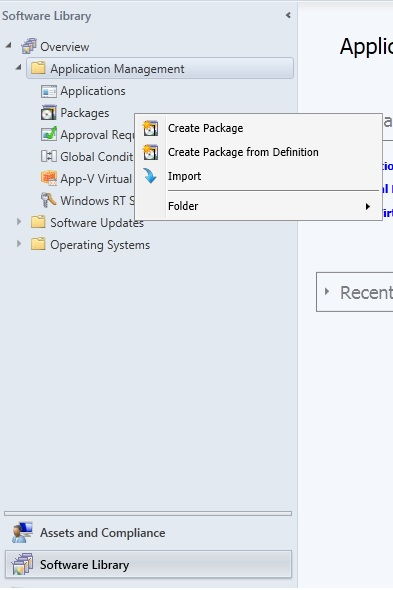
- Right click “Packages”
- Click on “Create Package”
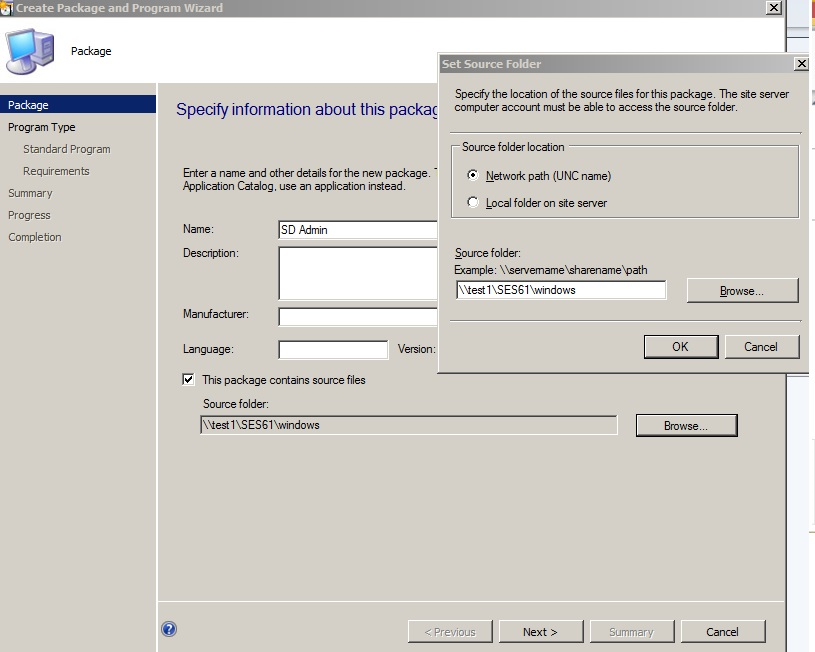
- Enter the package name that you would like displayed to the on client machines and add a description, then check the option “this package contains source files”
- Enter the source folder of where the package files reside, using a UNC name or local directory.
8. Select “Standard Program” and click next
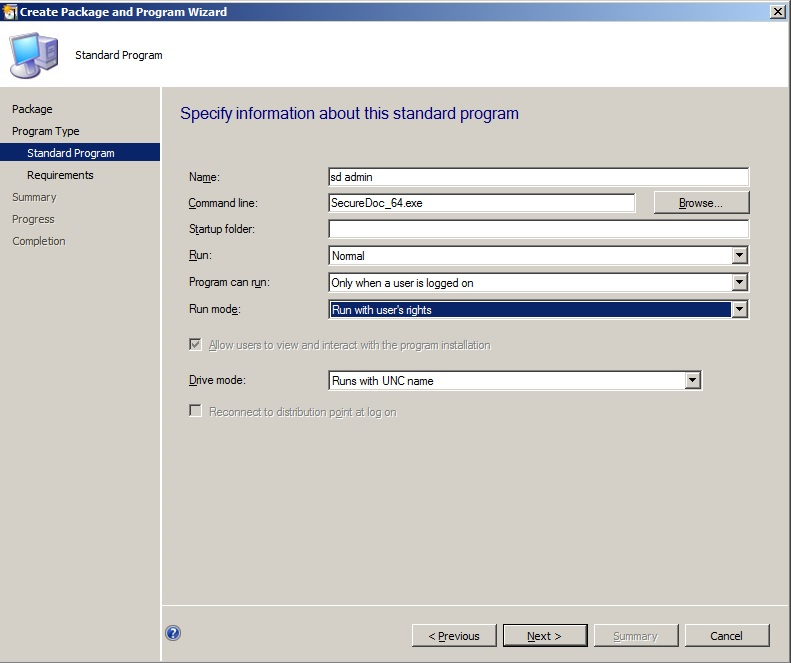
9. Enter a name for the package
10. On the “command line” section select the 32bit or 64bit executable of the SecureDoc client.
11. On the command line section add the following to ensure a silent install with no user interaction. “/S /v /qn”
The install command line should look like this “SecureDoc_xx.exe /S /v /qn” (replacing the xx’s with the version)
12. Leave the “Run” section as normal
13. Change the “Program can run:” to “Only when a user is logged on”
14. The “Run Mode:” should be to run with users rights and allow the user to interact with the desktop
15. Drive mode can be left as default
16. You may select the program to run only on 32 bit or 64 bit clients though the “Platform requirements”
17. You must now deploy the package by right clicking on the package you just created and clicking “Deploy”
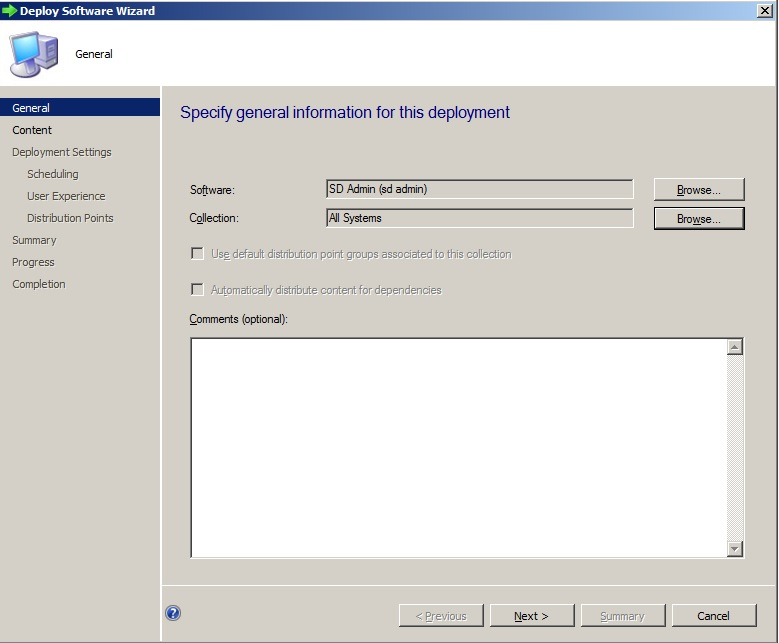
18. Click browse on the “Collection” and select which collection of systems you would like this package to be available to.
19. Click next and add a “Distribution point”
20. Specify the “Purpose” weather this is a required install or available
21. Specify the times that the package is available
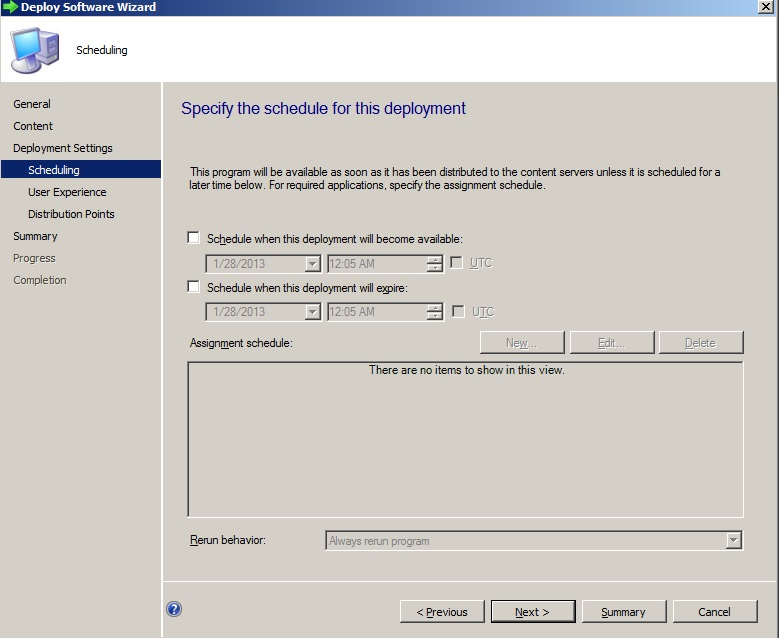
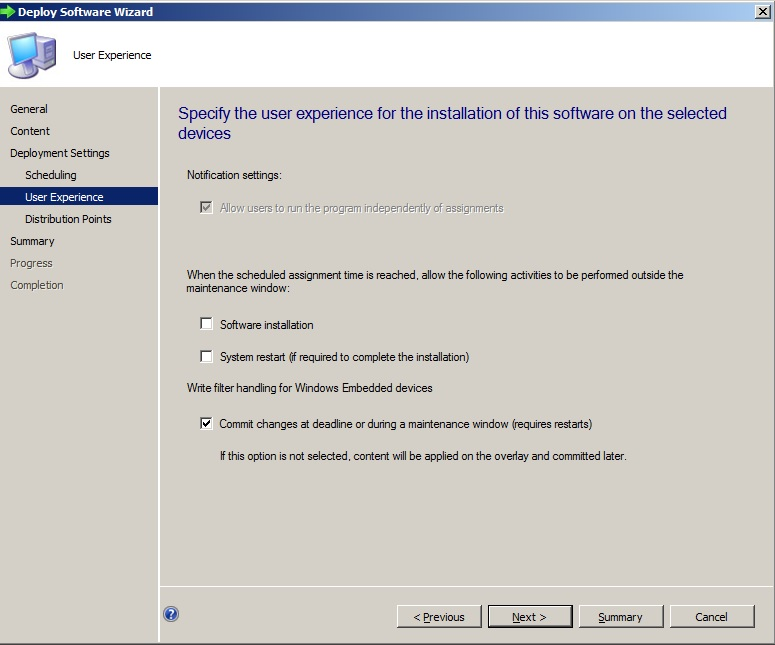
22. Specify the “User experience”
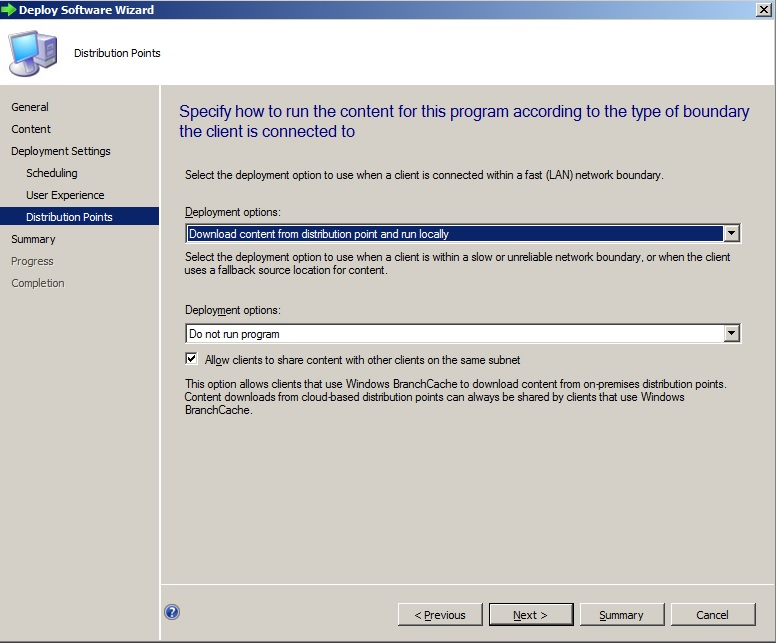
23. Select the “Deployment options”
24. Complete the deployment steps by clicking next until finished.
Congragulations, you’ve created a SCCM package for deploying SecureDoc.
These are the following command used to setup the MSI and EXE package for SCCM or SMS:
NOTE: Information here can probably be adapted to other install tools, such as LANDESK, TIVOLI, etc.
For MSI:
The following command line would have to be in a batch or cmd file to run because of the commands used are for batch scripting.
Msiexec /i SecureDoc_64.msi /qn SETUPEXEDIR="%~dpn0”
If you want to run the command directly from command line try this as it will read current working directory which should also do the trick
msiexec /i SecureDoc_64.msi /l*v C:\sd.log /qn setupdir="%cd%"
Explanation:
Msiexec calls the installer the switches are as follows:
/i – install the application requires the application path and file name after
/l*v means log the file verbosely
/qn means quiet no user interaction
Setupdir= is the path where the setup files are, since sccm uses a generated path which changes every time we need a variable. In this case %cd% calls current working directory. The SETUPEXEDIR clause points to the exact location where both the client installer and the "helper" files reside - the .spf file, the .ini file and the .cer file required by the SES SecureDoc client installer to understand that it is intended to install an SES-managed client.
You can also view all the switches by typing msiexec /?
For EXE:
Below are examples of running silent install\upgrade with MSI and EXE.
Commands:
QN = NO Reboot Screen at the end of conversion just reboots.
QB = Shows the reboot Screen with the option for the user to cancel the reboot.
Example:
MSIEXEC.EXE /i "C:\WIP\Nike\WINMAG~1.3SR\Scripts\Components\SecureDoc_32.msi" /l* "C:\Windows\System32\CCM\Logs\Apps\SecureDoc x32 5.3 SR4.log" REBOOT=ReallySuppress
/QB-! SETUPEXEDIR="C:\WIP\Nike\WINMAG~1.3SR\Scripts\Components" REINSTALLMODE=amus SDREBOOT="NO"
Msiexec /i SecureDoc_64.msi /qn /norestart /l*v %TEMP%\SDSetupSilent.log SETUPEXEDIR="<path where msi and SDProfile.spf>"
Example: Msiexec /i SecureDoc_64.msi /qn /norestart /l*v %TEMP%\SDSetupSilent.log SETUPEXEDIR="C:\securedocinstallerlocation"
Msiexec /i SecureDoc_32.msi /qn /norestart /l*v %TEMP%\SDSetupSilent.log SETUPEXEDIR="<path where msi and SDProfile.spf>"
Example: Msiexec /i SecureDoc_32.msi /qn /norestart /l*v %TEMP%\SDSetupSilent.log SETUPEXEDIR="C:\securedocinstallerlocation"
Switches that can be applied to exe on deployment:
SecureDoc_32.exe /s /v" /qn /l*v %TEMP%\SDSetupSilent.log ALLUSERS=2 MSIRMSHUTDOWN=2 SDREBOOT="NO"
SecureDoc_64.exe /s /v" /qn /l*v %TEMP%\SDSetupSilent.log ALLUSERS=2 MSIRMSHUTDOWN=2 SDREBOOT="NO"
Custom Fields
• Article ID: 412
• Operating System: Windows
• Product_Documentation: Yes
• Version: Affects all versions of SD