SecureDoc Decryption and Boot Logon Removal
This article outlines the steps required to decrypt a SecureDoc-encrypted disk and remove Boot Logon using scripting tools provided by WinMagic. It also includes instructions for executing these tasks locally and across a network.
NOTE to Support and PSE Staff: Before this information can be released, the customer must sign a Non-Disclosure Agreement (NDA).
Pre-requisites:
- A SecureDoc encrypted computer.
- SecureDoc 8.3 and later
- User running the SDBat.exe command needs to have Windows Admin rights.
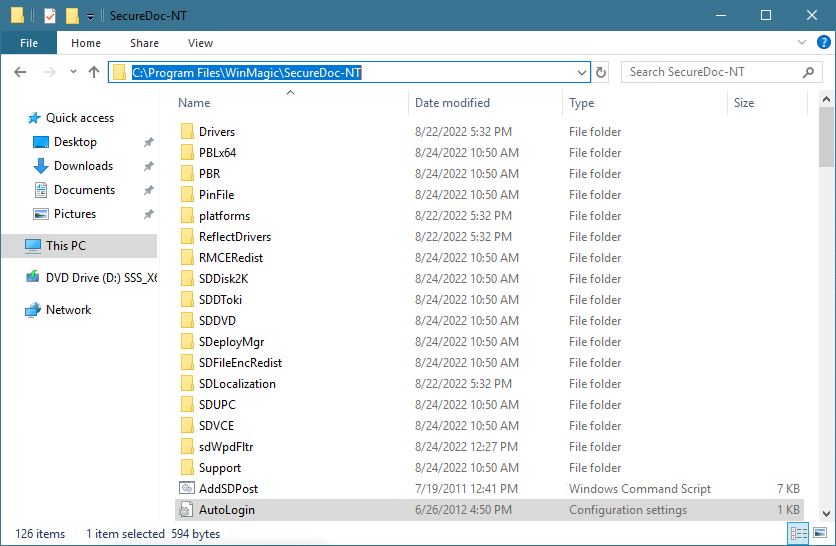
The executable being used to run the script will be SDBat.exe, and the configuration file that contains the script will be AutoLogin.ini. Both files are in C:\Program Files\WinMagic\SecureDoc-NT
Step 1: Decrypt the disk
Scripting options
Keyword | /D - Decrypt w/ Thorough mode (slow) /H - Decrypt w/ Standard mode (fast) |
Command | Decrypt disk. (Thorough mode) |
Prototype | SDUTIL HDx /D "[Key ID]” [/Hide] |
Example | SDUTIL HDA /D "” /Hide |
Function | Decrypt all hard disk or hard disk number x. "HDA” means all hard disk. "HDx” means hard disk number x. |
Parameter | "Key ID” is empty. It will use default key to decrypt. /Hide – don't show progress bar during the conversion process. The default is to show progress bar if ‘/Hide' is not in command line. |
✅ Preparation
- Ensure you have a valid admin key file (e.g., Administrator.dbk) capable of decrypting the drive.
- Copy AutoLogin.ini and rename it (e.g., Decrypt.ini).
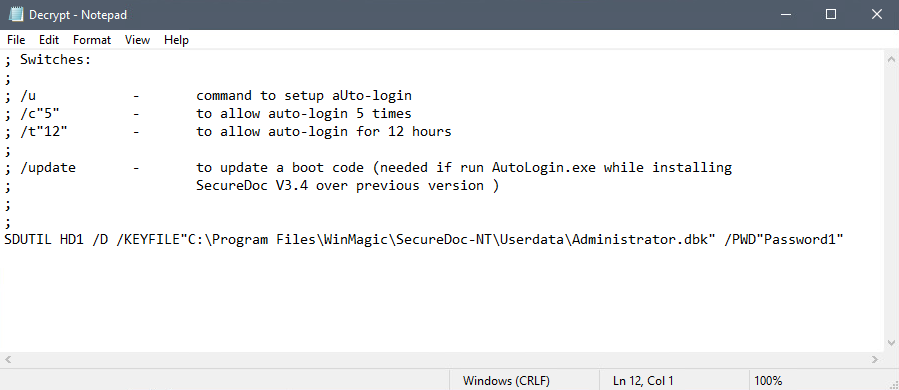
- Edit Decrypt.ini with the following command: SDUTIL HD1 /D /KEYFILE "path to Administrator.dbk" /PWD "Password1"
- Save the file with UTF-16 LE encoding.
🔧 Decryption Command Syntax
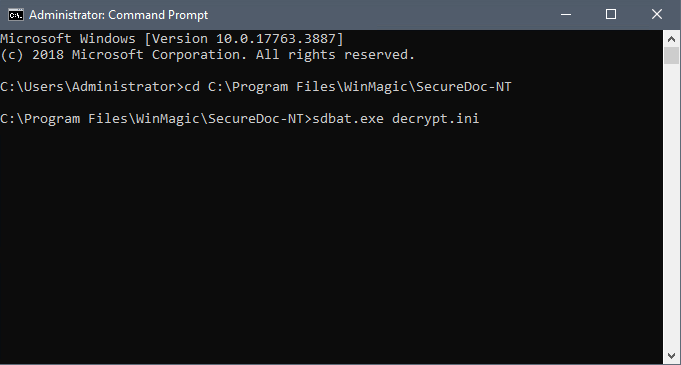
From an elevated Command Prompt, cd to the WinMagic\SecureDoc-NT, where the SDBat.exe and configured Decrypt.ini files are located, and run sdbat.exe decrypt.ini. See screenshot below
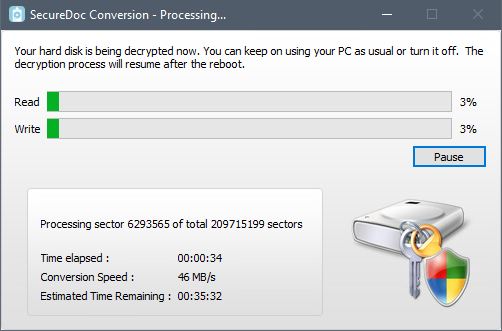
The disk conversion windows should appears as shown below. Once decryption completes, proceed to remove Boot Logon before rebooting. Failure to do so may trigger re-encryption.
🚫 Step 2: Remove Boot Logon
Keyword | /V |
Command | Remove boot logon or remove software package. |
Prototype | SDUTIL /V [/RemoveBL] [/RemoveTestPKG] [/RemoveSDPKG] |
Example | SDUTIL /V /RemoveBL |
Parameter | If there is no parameter, it will take remove boot logon as default. |
✅ Instructions
- Make another copy of AutoLogin.ini and rename it (e.g., RemoveBL.ini) and edit RemoveBL.ini with the following line: SDUTIL /V /RemoveBL /Force.
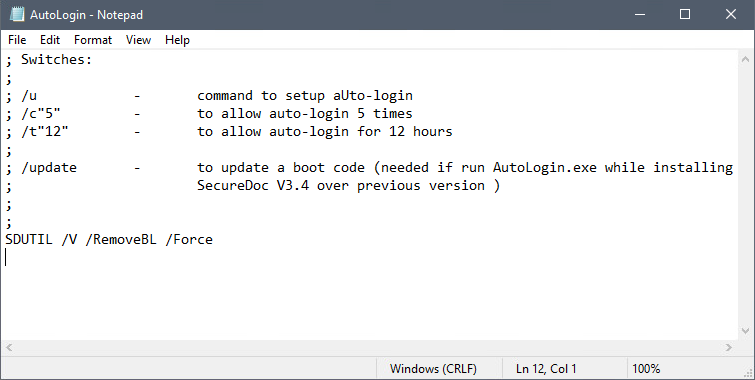
- Save the file with UTF-16 LE encoding.
- Run the script: sdbat.exe removebl.ini
The device will reboot automatically after Boot Logon is removed.
📌 Note for Legacy Boot Devices
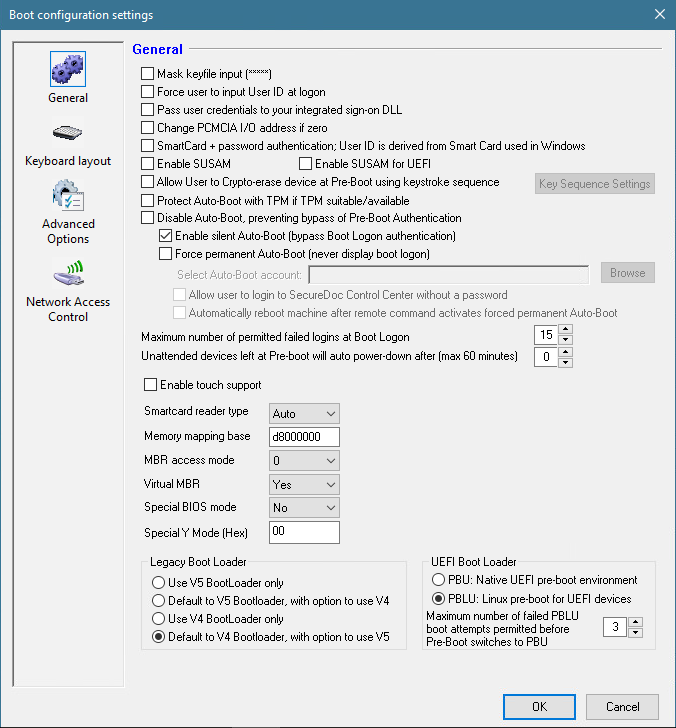
For legacy systems, configure the profile to use V4 Boot Logon. Push the updated profile to selected devices, ensure communication with the SecureDoc server, and restart the device to apply changes.
🌐 Scripting Over a Network
To perform decryption remotely, push the modified AutoLogin.ini file to C:\Program Files\WinMagic\SecureDoc-NT on the target device using standard deployment tools (e.g., MS SMS, ZENworks). On the client machine, use an elevated Command Prompt to execute C:\Program Files\WinMagic\SecureDoc-NT\SDBat.exe AutoLogin.ini
⚠️ Note: SDBat.exe is already present in the SecureDoc-NT folder and does not need to be copied.