Purpose:
This article describes the process for configuring Intel Anti-Theft (Intel AT) from the SecureDoc Enterprise Server (SES) and how to activate it on a device.
Notice:
WinMagic will stop supporting Intel AntiTheft (Intel AT) at end of February 2016.
Customers can anticipate that SES Version 7.1 will not have support for Intel AT.
Since Intel had cancelled support for Intel AT for all regions in April 2014, WinMagic anticipates that removal of support for Intel AT should have no negative impact on existing customers who would have suspended use of Intel AT functionality at the point that Intel took down their Intel AT servers, the communication with which had been necessary for Intel AT functionality to be enabled on endpoint devices.
Any remaining customers still using Intel AT functionality should not upgrade to SES Version 7.1 until after they have disabled any remaining Intel AT functionality that might still be in effect on any legacy devices. They are encouraged to uninstall Intel AT functionality and deploy non-AT SecureDoc profiles to all affected devices before they could upgrade to any versions of SES from V7.1 onward.
Product version affected:
All SD versions up to 6.5SR3
SD 7.1 and newer will no longer supports Intel-AT features
Note: Please refer to the KB 1500: How to Disable the Intel-AT Feature from SES Console
Environment (OS/hardware/software):
All devices with Intel-AT features
All Windows OS
Steps to Follow:
1. In the SES server console, click on Tools and then select Options.
2. Click on the "Intel Anti-Theft" icon, and configure the following Intel AT settings (this establishes the connection between SES and the Intel Permit Server):
a. Name or IP: https://test-ias.intel.com
b. Port: 443
c. Product key (provide key and number of activations)
d. Click on OK.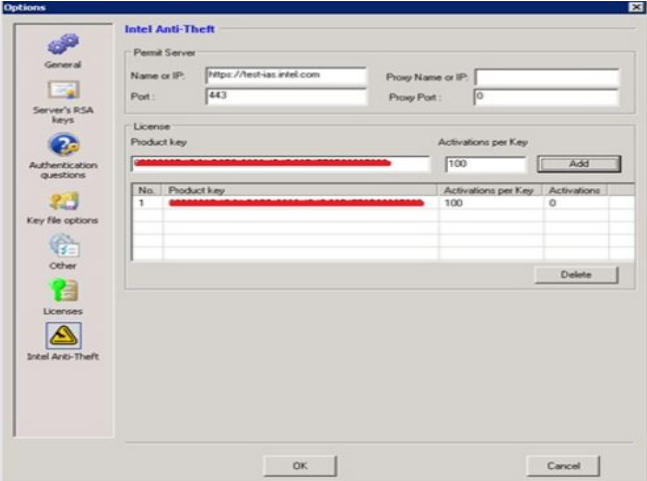
3. Create a profile to enable Intel AT for each device.
- In the Profile window, click "General Options"
- Under "General" Tab > enable the option "Intel Anti-Theft". 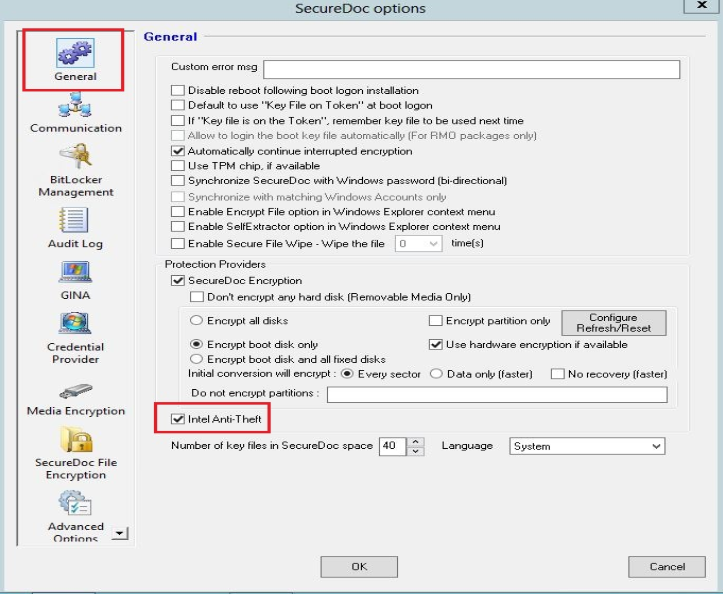
4. Under "Intel Anti-Theft" option > select "Enable” for "Authorization" > Click OK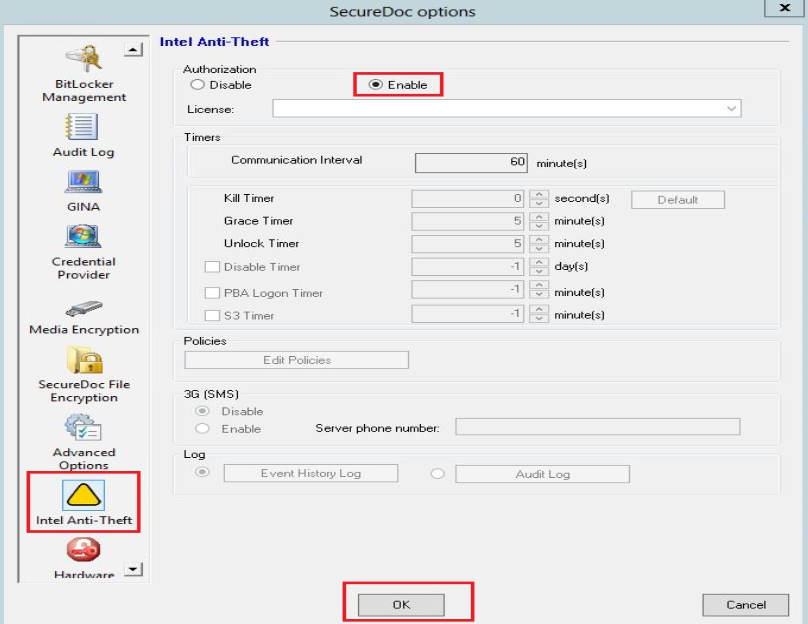
5. Navigate to the Intel AT device(s) in the SES console, right-click, and select "Assign device profile to devices”.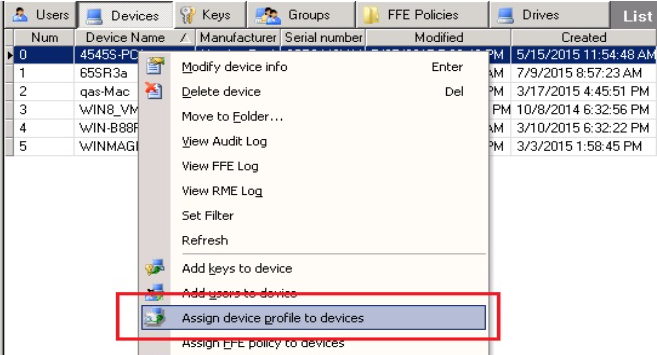
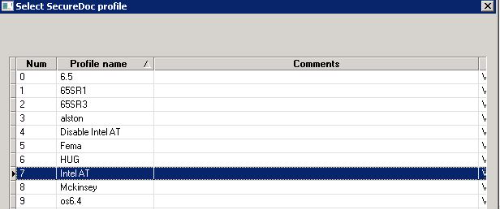
6. From the client device, right-click on the SecureDoc icon in the system tray > select "Communicate with the server”.
7. Re-boot the device.
Reference:
KB 1500: How to Disable the Intel-AT Feature from SES Console
Legacy KB article
https://knowledgebase.winmagic.com/admin/preview-articles.php?id=226