Topic
This How-To article provides steps to work around a "Connection failed" error with SQL ODBC Driver 18 when using SecureDoc SES Server v9.1 and later. It also explains why the issue occurs and why it may appear after a database migration, application upgrade, ODBC driver update, or DSN recreation.
Background
SecureDoc SES Server v9.1 added support for Microsoft ODBC Driver 18 for SQL Server. Microsoft changed the default behavior in ODBC Driver 18: SQL Server connections are encrypted by default. The driver now validates the SQL Server TLS certificate. If the certificate is self-signed, issued by an untrusted authority, has a missing intermediate CA, has expired, lacks Server Authentication usage, or does not match the SQL Server name used by SES, the SES Console connection fails before SQL authentication completes.
This was a Microsoft driver behavior change. ODBC Driver 17-era configurations commonly defaulted to Encrypt=no unless encryption was explicitly configured. ODBC Driver 18 defaults to Encrypt=yes. Trusted certificates were always needed when certificate validation was enforced, but Driver 18 exposes environments where the certificate was previously not being validated.
If an existing SES database is moved to a new SQL Server, the database backup does not transfer the SQL Server TLS certificate, certificate binding, service-account private-key access, or client CA trust. The new SQL Server must be configured independently with a trusted certificate that includes the exact SQL Server FQDN, listener, or alias used by SES.
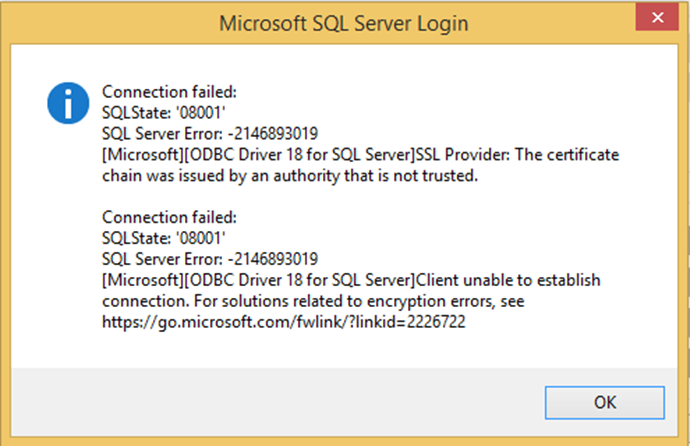
Figure 1. ODBC Driver 18 certificate-chain trust error seen from the SES Console connection flow.
Environment (OS/hardware/software)
SES Server v9.1 and later
All supported Windows Server OS
All devices
Microsoft ODBC Driver 18 for SQL Server
Workaround
Warning
This article describes a Windows Registry change. Create a backup of the registry before beginning. This SES-specific setting causes SES to trust the presented SQL Server certificate. It can restore connectivity, but it bypasses normal certificate-chain validation and should be handled as a controlled, time-bound exception.
Run these steps on the SES Server while signed in using the same Windows user account that runs the SES Console. The setting is under HKEY_CURRENT_USER, so applying it in another profile may not affect SES.
1. Open or run Registry Editor as Administrator:
regedit
2. Navigate to:
HKEY_CURRENT_USER\Software\WinMagic\SDDB\Database
3. Create the following entry:
Name: Trust
Type: REG_DWORD (32-bit)
Value data: 1
Registry form: "Trust"=dword:00000001
4. Save the change.
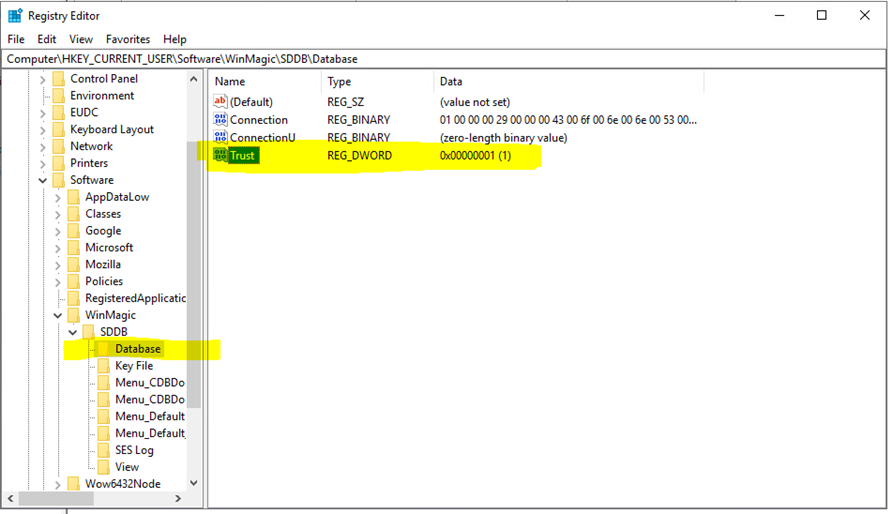
Figure 2. Registry Editor example showing Trust as REG_DWORD with a value of 0x00000001 (1).
Validate
1. Launch or restart the SES Console under the same Windows user profile.
2. Log in to the SES Console.
3. Browse to Help > About.
4. Confirm that the error no longer appears and that the ODBC Driver 18 information is shown.
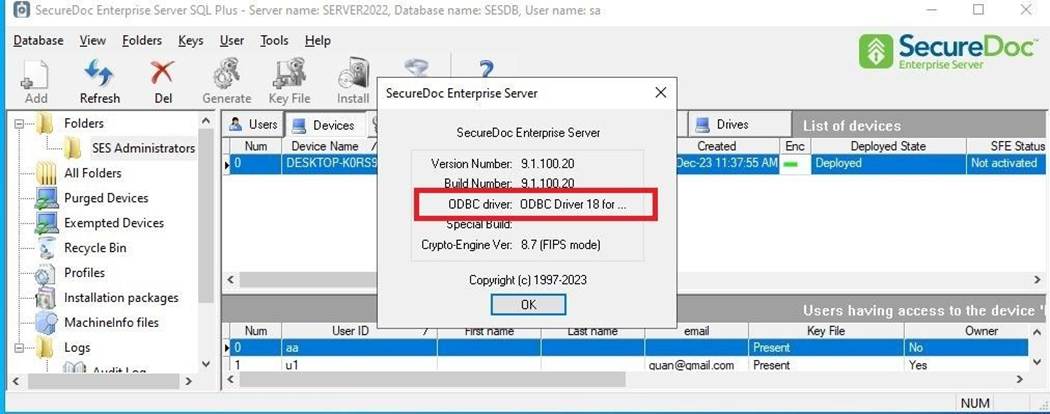
Figure 3. SES Console Help > About example showing the ODBC Driver 18 entry.
Permanent remediation
The registry workaround does not correct the SQL Server certificate configuration. The preferred production solution is to configure SQL Server with a certificate issued by an enterprise PKI or public CA trusted by the SES Server. The certificate must include every SQL Server FQDN, listener, or alias used by SES in the Subject Alternative Name, include Server Authentication usage, provide the full CA chain, and be bound to the correct SQL Server instance.
Encrypt=yes;TrustServerCertificate=no;
Rollback
Export the Database registry key before making changes. To remove the workaround, delete the Trust value or set it to 0, restart the SES Console, and test. If the connection fails after rollback, correct the SQL Server certificate trust chain rather than leaving the validation bypass enabled indefinitely.
References
Microsoft Learn: Certificate Chain Not Trusted After Driver Upgrade - SQL Server
https://learn.microsoft.com/en-us/troubleshoot/sql/database-engine/connect/certificate-chain-not-trusted
Microsoft Learn: ODBC Driver Major Version Differences - SQL Server
https://learn.microsoft.com/en-us/sql/connect/odbc/major-version-differences?view=sql-server-ver17