How to setup SecureDoc for Azure AD joined devices, with notes on how SecureDoc will behave with a mixed AD environment having both AD- and Azure AD-joined devices.
There are differences in the process of synchronizing with Azure AD domains compared to a local domain, and where the environment is mixed AD and Azure AD, the administrator needs to configure synchronization with both domains (AD and Azure AD) and be familiar with the outcome and results of such synchronization.
If the Environment has Azure AD-joined devices only:
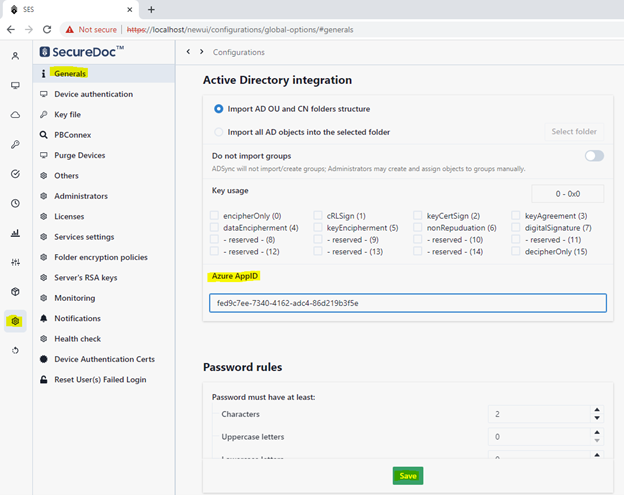
Option 1: How to Synchronize with Azure AD using SESWeb
- Add Azure AppID
- Login to SES Web
- At the top right corner, Click on “NewUI” hyperlink near top-right corner of panel

- On the left panel, select the Configuration icon.
- If not in the General menu (at left edge of panel), click General.
- On the right panel, scroll down to the “Azure AppID” option
- Enter your Azure Application ID (as shown in image below)
- Click the Save button
Option 2: How to Synchronize with Azure AD using SES Console
- Select “Create Azure AD”
- Open the SecureDoc Services panel, as in image below:
- Click on AD Sync Service
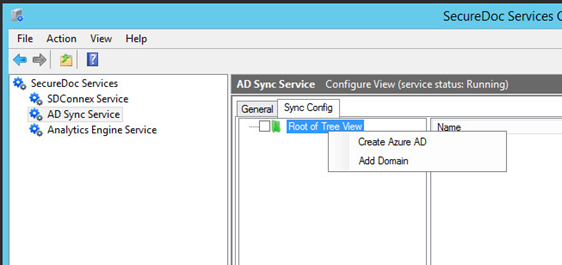
- Right-Click on Root of Tree View (as in image above)
- In the pop-up menu that will appear, click on Create Azure AD
- A new AzureAD – [Directory Server] element will be added below the Root of Tree View.
- Right click on this new Azure AD element, and from the pop-up menu that appears, select Registration Info. A panel like the one below will appear:
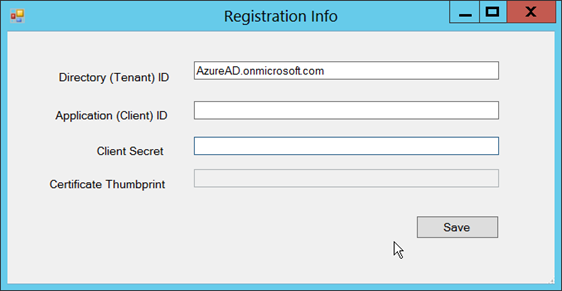
- Enter your Directory (Tenant) ID
- Enter your Application (Client) ID
- Enter the Client Secret. A Certificate Thumbprint will be generated.
- Click the Save button
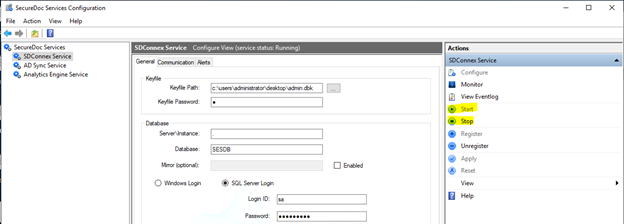
- Restart SDConnex
- Launch the SecureDoc Services Configuration.
- Click on SDConnex Service in the left-edge navigation to display SDConnex settings and Actions menu.
- Click the Stop option in the Actions list at the right edge of the panel (as in image below)
- Wait a minute, then click Start (as in image below)
Note: Just as when using a Local domain, Azure AD users will be added to the SES Database via ADSync synchronization, and upon completion of Device Provisioning if an Azure AD User is logged in, the Azure AD user account would be set as the owner of the devices. If an on-premises AD User is logged in to the device, the on-premises AD user account would be set as the owner of the device.
If the Environment has a mix of Azure AD- and local AD-joined devices:
ADSync will need to be configured to synchronize with both Active Directories, and users from both Active Directories will be present in the User Table in the SES Database. Note that this can lead to the inclusion of duplicated users (those users that have been synchronized at the AD level from local AD to Azure AD). There may also exist synchronized user accounts that exist only in the Azure AD.
If a device is joined to AD (e.g on-premises AD), it will be an AD user who takes ownership of the device.
If a device is joined to Azure AD, it will be an Azure AD user who takes ownership of the device.
Examples of possible user duplication where using a mix of Azure AD and on-premises AD:
The image below shows how each of the users (test1, test2, test3, test4, test5) has the same UPN and email addresses in each of the rows, but there are still two rows per user – one for each of the domain sources (in this example, in the Domain Name column, “qavn” is the locally-hosted domain, and “AzureAD” is the Azure AD domain, resulting in an Azure AD-derived duplicate of that user).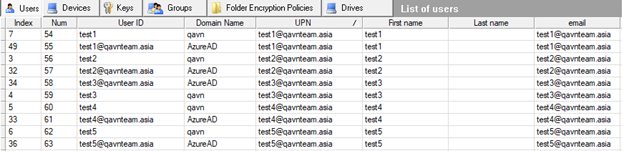
NOTE: Any customers wishing to use Microsoft Azure AD (as opposed to only using an on-premises Active Directory) must upgrade to V9.0. Azure AD is not supported on earlier versions of SecureDoc Enterprise Server.
Any Azure AD-joined Devices must be either initially installed using V9.0, or any existing devices that will be joined to an Azure AD must be upgraded to the V9.0 (or later) client software before being joined to the Azure Active Directory.